




Guide to Following a Construction Contract from Issue to Closing and Retention Settlement
This guide walks through the full construction contract cycle from the contract page itself: issuing and activating the contract, adding the advance payment invoice, adding payment certificates and following them in the Payment Certificates tab, following reverse certificates, then closing the contract and settling retention when progress is complete. At each stage the header shows only the buttons for the next step.
Before you start
- The Construction app is active.
- View All Contracts or View His Own (Created) Contracts to open the contract, plus Edit & Delete All Construction Contracts or Edit & Delete His Own (Created) Construction Contracts to issue and close, and Approve & Reject Construction Contracts to activate.
- Add Invoices (with View All Clients, otherwise for their own clients only) to add the advance payment, Add Payment Certificates to add a certificate, Add Income to settle retention; granted from Employee Roles.
- The contract must be linked to a project before it can be activated.
Issue and activate
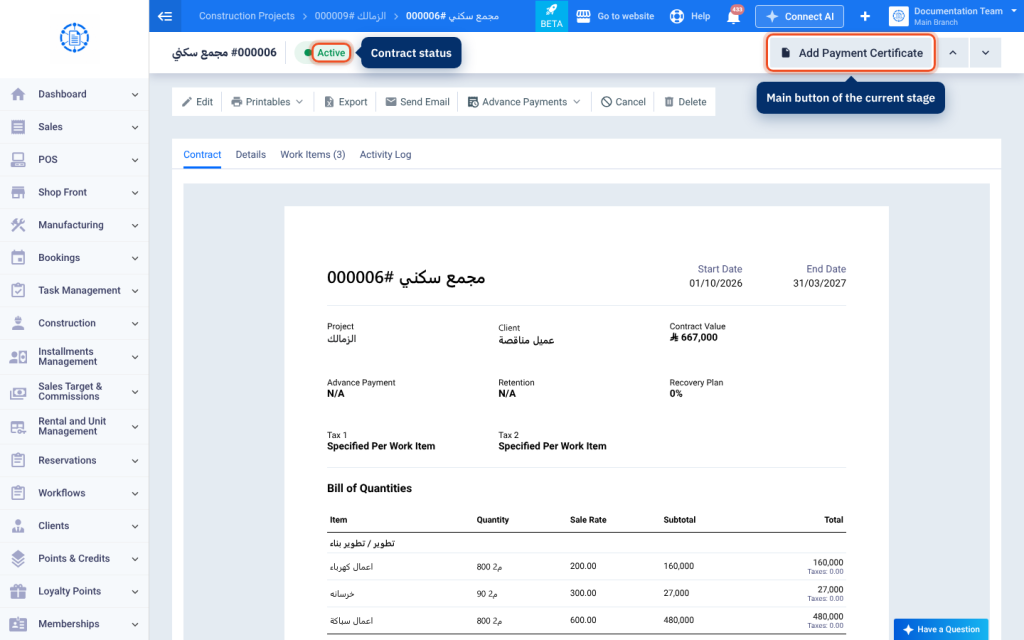
- A Draft contract shows Issue as the primary button; click it and confirm, and the status becomes Issued.
- An Issued contract shows Activate; click it and Yes, and the status becomes Active.
- After activation, Add Payment Certificate appears in the header.
Add the advance payment invoice
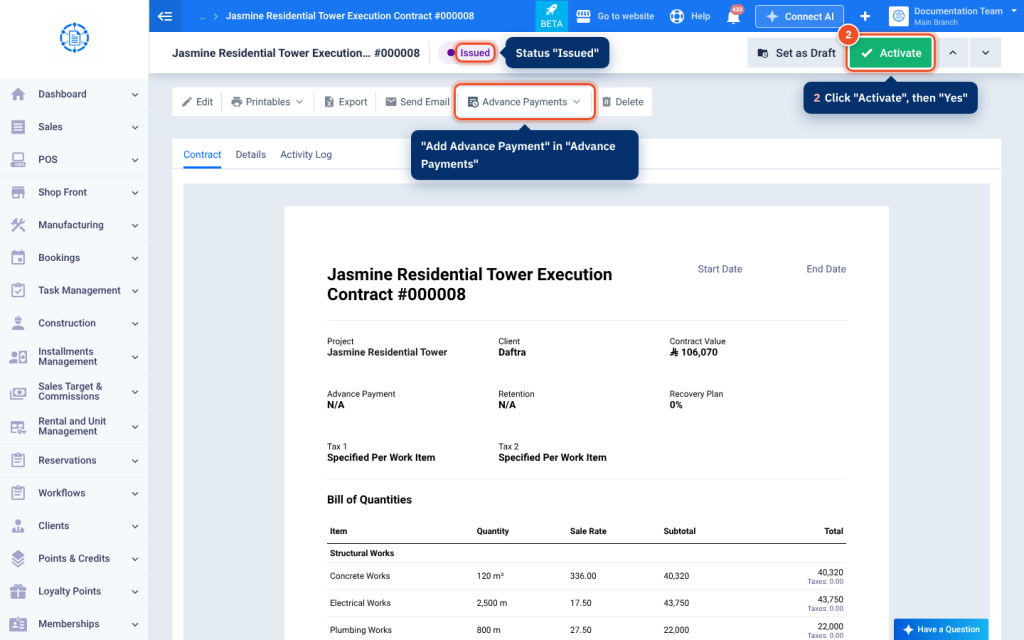
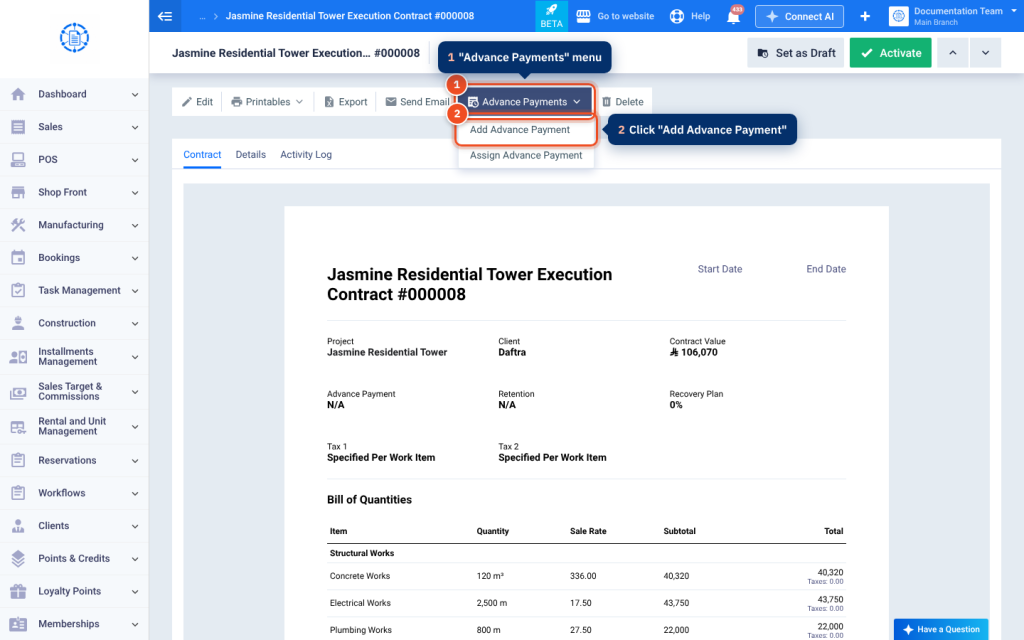
- If the contract has an advance payment value and no advance invoice yet, an Advance Payments menu shows among the primary buttons after creation, with Add Advance Payment and Assign Advance Payment (to link an existing advance invoice).
- Click Add Advance Payment; the advance payment invoice form opens with the client, currency, contract and project filled.
- Save the invoice; the menu disappears from the primary buttons, the invoice appears in the contract's Invoices tab marked Advance Payment, and the action is recorded in the Activity Log.
Add and follow payment certificates
- On the active contract click Add Payment Certificate, complete and save the certificate.
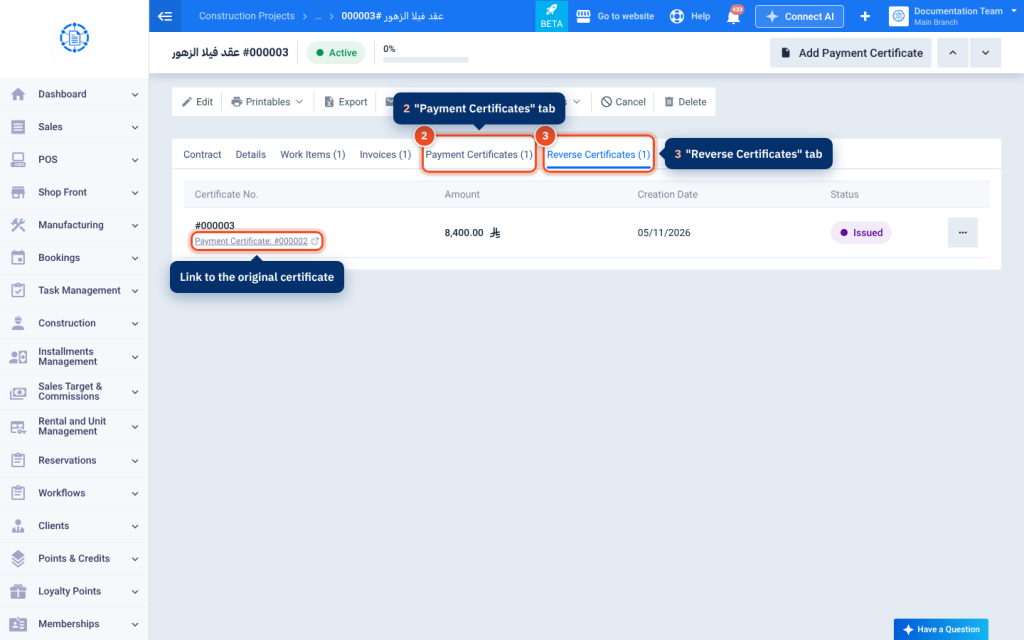
- Back on the contract, the Payment Certificates (count) tab appears after the first certificate, with Certificate No, Duration, Date, Net Payable and Status.
- If a reverse certificate is raised on one of the certificates, the Reverse Payment Certificates (count) tab appears, with a link to the parent certificate under each code.
- Removing a certificate from the contract is recorded in the contract's Activity Log.
Close and settle retention
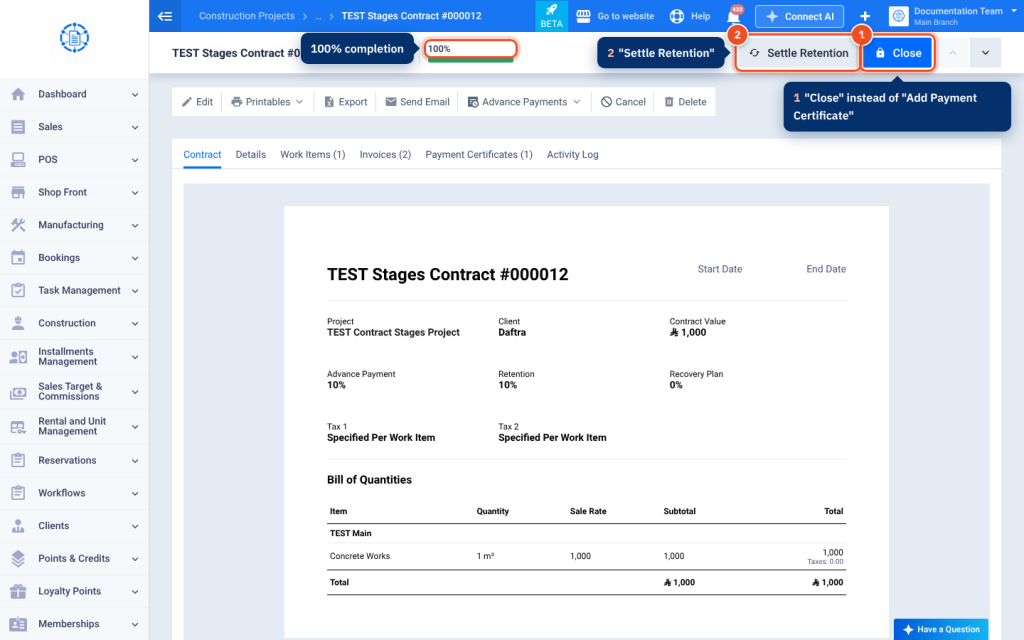
- At 100% progress or more, Add Payment Certificate is replaced by Close.
- Settle Retention shows next to it when the contract is linked to a project, its Retention rate is above zero, and the project's invoices carry unsettled retention.
- Click Settle Retention; the same invoice drawer used on the project page opens. Select invoices and confirm; the income form opens with the summed retention.
- Save the income; it is recorded in the contract's Activity Log with the settled invoice codes.
- Click Close then Yes to close the contract; the linked project becomes Completed.
Frequently asked questions
Why is the Advance Payments menu not shown?
The contract has no advance payment value, an advance payment invoice was already added, or you lack Add Invoices.
Why is Add Payment Certificate not shown?
The contract is not active, its progress reached 100%, or you lack Add Payment Certificates.
Why does Close show without Settle Retention?
The contract's invoices carry no unsettled retention, or you lack Add Income.
When does the Reverse Payment Certificates tab appear?
When at least one reverse certificate exists on the contract's certificates.
Is settling retention from the contract different from the project?
No; it is the same drawer and the same income form.