



Guide to Preparing, Uploading, and Mapping Bill of Quantities File Columns in the Contracting Module
The Import Bill of Quantities feature lets you populate the bill of quantities from an XLSX or CSV file instead of entering items row by row, in the Cost Table, Tender, Contracting Quotation, and Contracting Contract.
Table of Contents
Before You Start
- Permission to create or edit the record. The Import button follows the create or edit permission; there is no separate import permission for the bill of quantities.
- The cost table must not have the status Linked to a Contract; otherwise the button is disabled and the tooltip Import is not available for contracted cost tables. appears.
- For an active contract, the button is disabled and the tooltip Import is not available for active contracts. appears. For a contract that has been activated once, import remains unavailable even after it is closed or canceled, and the system rejects it with the message Import is not available for activated contracts. As for a canceled contract, its edit page cannot be opened and the message A contract with the status Canceled cannot be updated. appears. Import works on a contract with the status Draft or Issued.
- An approved quotation does not accept import, and the system rejects it with the message Import is not available for approved quotations. Tenders, however, are not blocked from import based on their status.
- A file in XLSX or CSV format, 50 MB or smaller. A larger file triggers the message The file size exceeds the maximum allowed limit of 50 MB. Any other format (such as TXT) triggers The file format is not supported. Please upload an XLSX or CSV file. In both cases, the Continue button is disabled.
- We recommend downloading the template from the Import menu (Download Template), since its column headers are in Arabic and are read by the automatic mapping.
Steps to Prepare, Upload, and Map the File
Step 1: Prepare the File
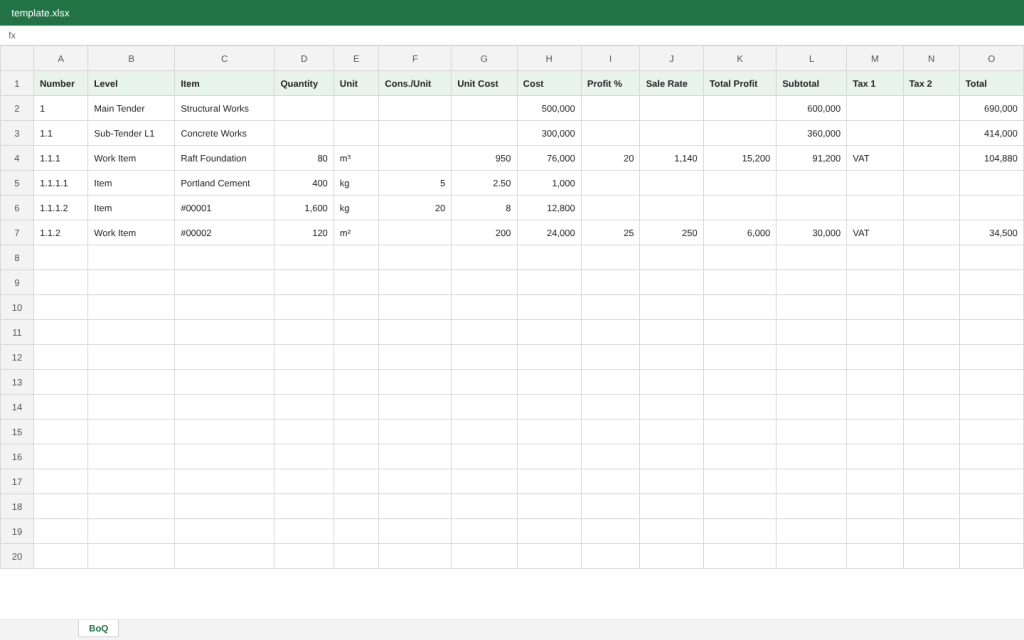
- Download the template using Download Template, then fill it in with your data, keeping the column headings exactly as they are.
- Enter the number of each item in the Number column in sequence: 1 for a main item, 1.1 for a sub-item under it, and 1.1.1 for the level below that. The hierarchy is read from this column, and the first level (depth 0) must be a main item only.
- In the Level column, enter exactly one of the following names: Main Tender, Sub-Tender L1, Sub-Tender L2, Sub-Tender L3, Work Item, Item (for materials, in the Cost Sheet only). Entering “Sub-Tender” alone will be rejected.
- Use the template columns that correspond to the record you are importing into:
- Cost Sheet: Number, Level, Item, Quantity, Unit, Consumption Rate per Unit, Unit Cost, Cost, Profit Percentage, Selling Price, Total Profit, Subtotal, First Tax, Second Tax, Total.
- Quotation and Contract: Number, Level, Item, Quantity, Unit, Selling Price, Subtotal, First Tax, Second Tax, Total. There are no columns for Consumption Rate per Unit, Unit Cost, Cost, Profit Percentage, or Total Profit.
- Tender: Number, Level, Item, Quantity, and Unit only, with no financial columns. A Tender also accepts a Work Item, provided it is a product that already exists in the system.
Step 2: Upload the File
- Open Create Cost Sheet, Create Tender, Create Contracting Quotation, or Create Contract, or open an existing record to edit it.
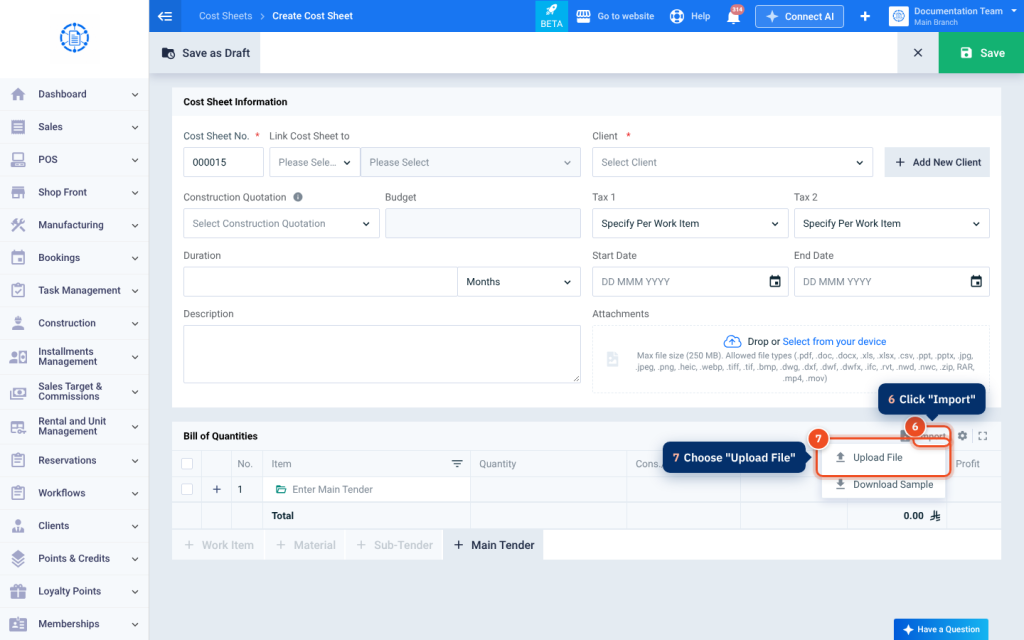
- Click Import in the header of the Bill of Quantities section; a menu opens containing Upload File and Download Template.
- Select Upload File, choose the required file, and click Continue.
Step 3: Map the Columns
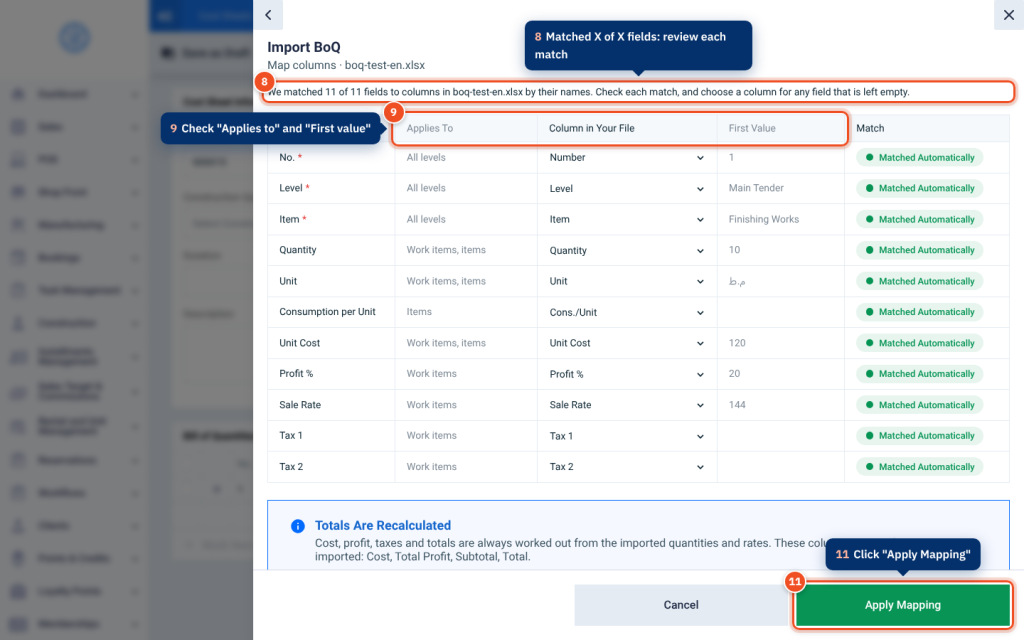
- The mapping screen appears with a message such as We matched X of X fields, even if the columns were mapped automatically (as in a file exported from a Tender), so always review it. Its columns are: Bill of Quantities Field, Applies To, Column in Your File, First Value, and Match.
- Check the levels that each field applies to and the first value found in the file.
- Map any unmatched fields manually. A required field that is not mapped shows Required and the Apply Mapping button is disabled, while an optional field that is not mapped shows Will not be imported.
- Click Apply Mapping.
Step 4: Review Errors and Resolve Conflicts
- If some rows fail validation, the Review Errors step appears first. In all four records, you can Skip and Continue with the valid rows or Upload Another File.
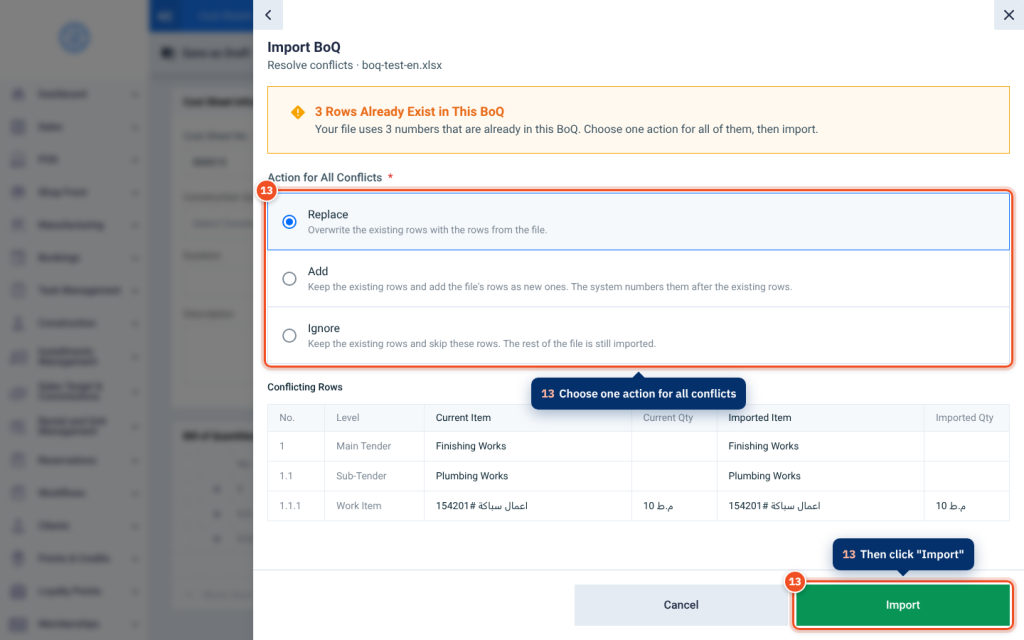
- If some of the numbers in the file already exist in the table, the Resolve Conflicts window appears with Action for All Conflicts. Choose Replace (the rows are replaced), Add (the rows are added after the existing ones with new numbering, such as 2 and 2.1), or Ignore (duplicate rows are skipped and the rest are imported); a single choice applies to all conflicts. Then click Import.
Step 5: The Result
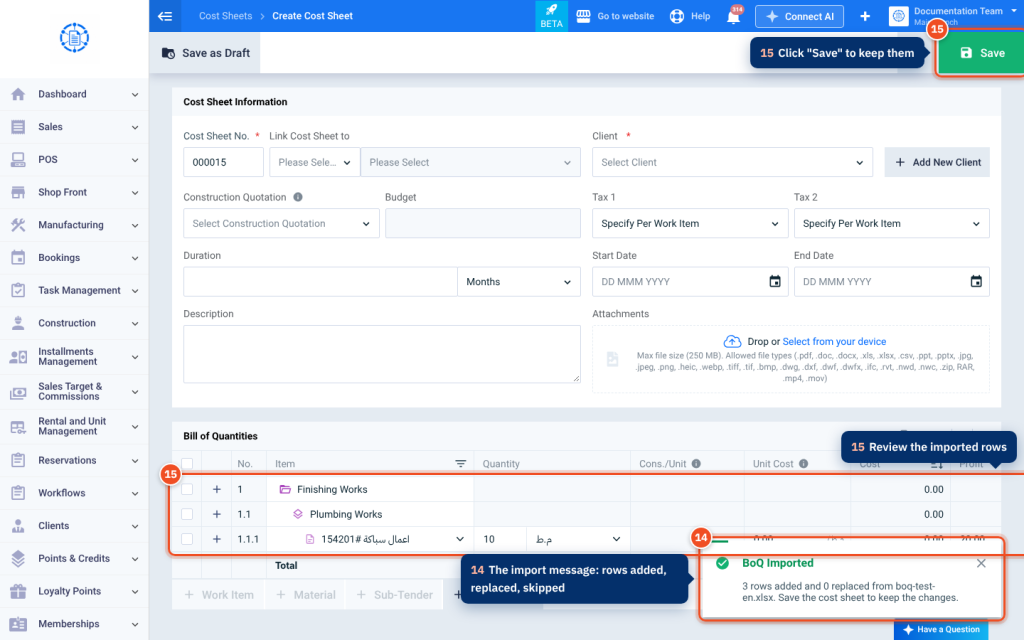
- The rows that passed validation are applied, and the message Bill of Quantities imported successfully appears, stating the number of rows added, replaced, and skipped.
- Review the Bill of Quantities, then Save the record to keep the changes; the import is not finalized until you save.
Common Error Messages
| Message | Cause and Solution |
|---|---|
| Item “X” does not exist in the system. | The work item or material does not exist as a product; add it first or correct the name. |
| Item “X” is not a work item. | The specified product is not of the work item type. |
| Item “X” is not a material or service. | In the Cost Sheet materials; use a product of the material or service type. |
| The level must be one of the following values: Main Item, Sub-item Level 1, … | The level name does not match; enter it exactly as it appears in the list. |
| Only main items can be added at the first level. | A row at depth 0 is not a main item; change its level. |
| Main items must be at the first level. | A main item is placed under another item; move it to the first level. |
| The original number 1.1 does not exist in the file. | The parent row is rejected or missing; correct it or add it. |
Frequently Asked Questions
Why must the file start with a main item?
Because the first level (depth 0) accepts only a main item.
Is the handling of invalid rows different between records?
No. In the Cost Sheet, Tender, Quotation, and Contract, Review Errors appears and you can Skip and Continue with the valid rows or Upload Another File.
Can I import into an active contract or a cost sheet linked to a contract?
No, the button is disabled and a tooltip appears explaining the reason.
Can I import a file larger than 50 MB?
No, split the file or reduce its size.
How do I re-import a file exported from a tender?
Export it from the tender view page using the Export button, then choose from Levels to include (main items, sub-items, work items). Its columns are mapped automatically, but the mapping screen appears for review before you click Apply Mapping.
Are items saved immediately after the import?
No, you must save the record (in the tender it appears as “Bid”) to keep the changes.