




Guide to Creating a Contract and Linking It to an Approved Quotation
This tutorial explains creating a construction contract directly from an approved quotation: you approve the quotation, click Add Contract, and the contract form opens with the quotation data. After saving, the quotation becomes contracted.
Before you begin
- A quotation linked to a project, not only to a bid.
- The project has no contract.
- Permission to approve quotations and permission to add contracts.
Approving the quotation
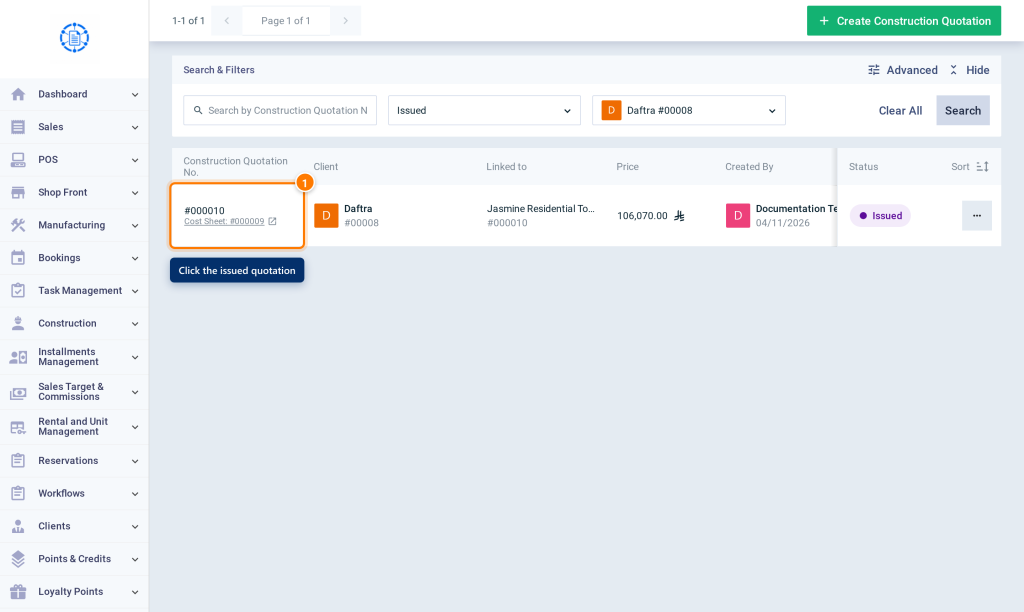
- From Construction, open Construction Quotations, and click a quotation with the Issued status.
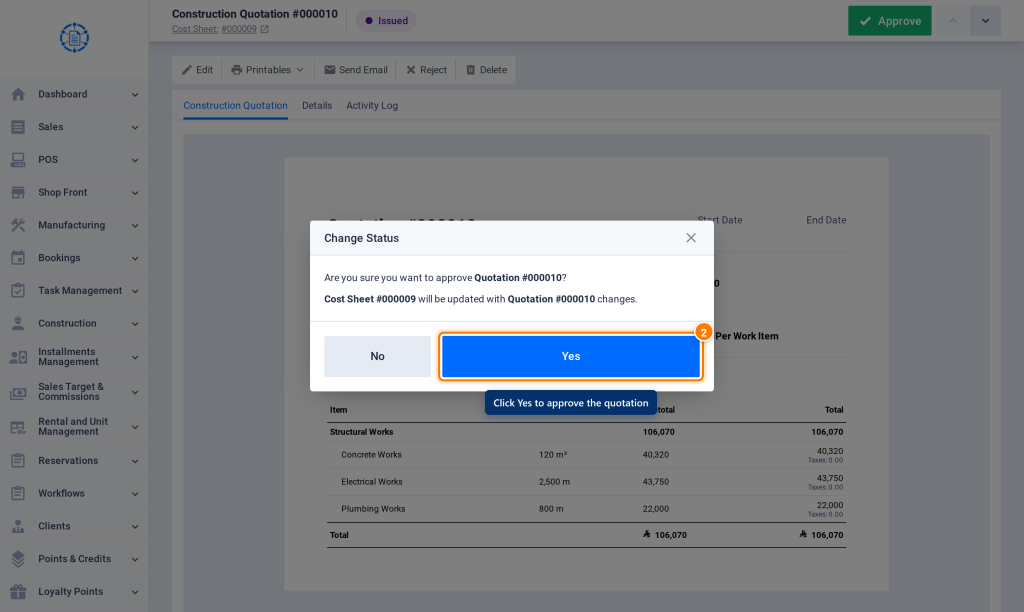
- Click Approve at the top of the page, then click Yes in the confirmation message. The status becomes Approved.
Creating the contract
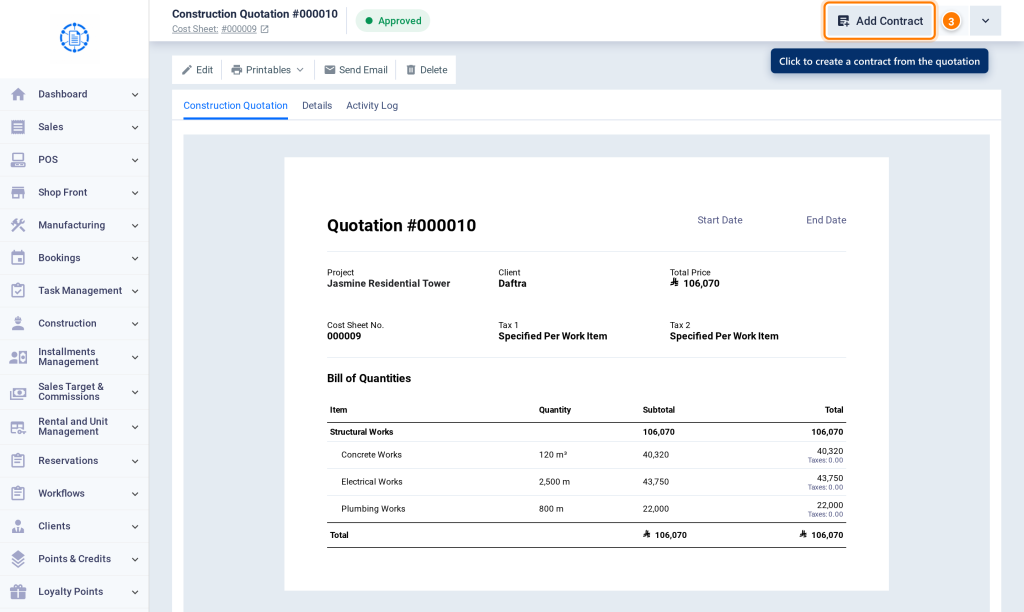
- Click Add Contract at the top of the quotation page.
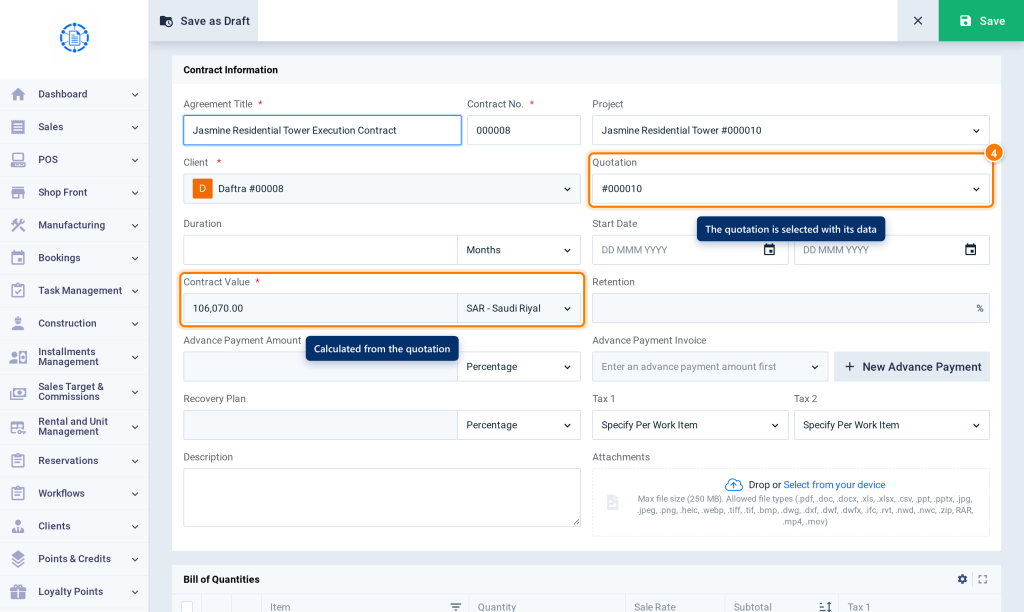
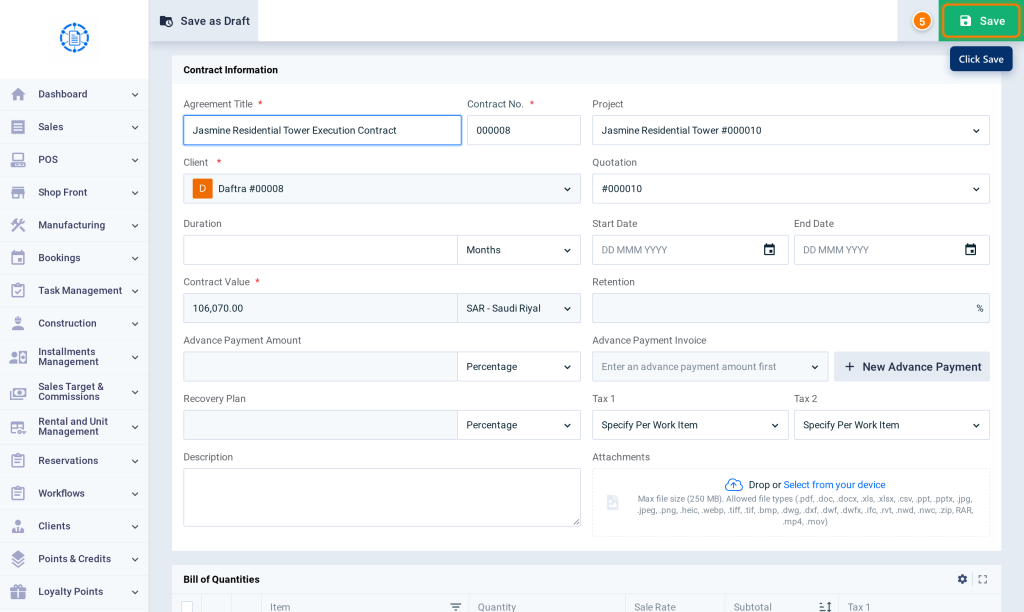
- The contract form opens with the quotation selected, along with the client, project, Bill of Quantities, duration, dates, taxes, and currency. The contract value becomes read-only because it’s calculated from the quotation. Complete the remaining data.
- Click Save.
After saving
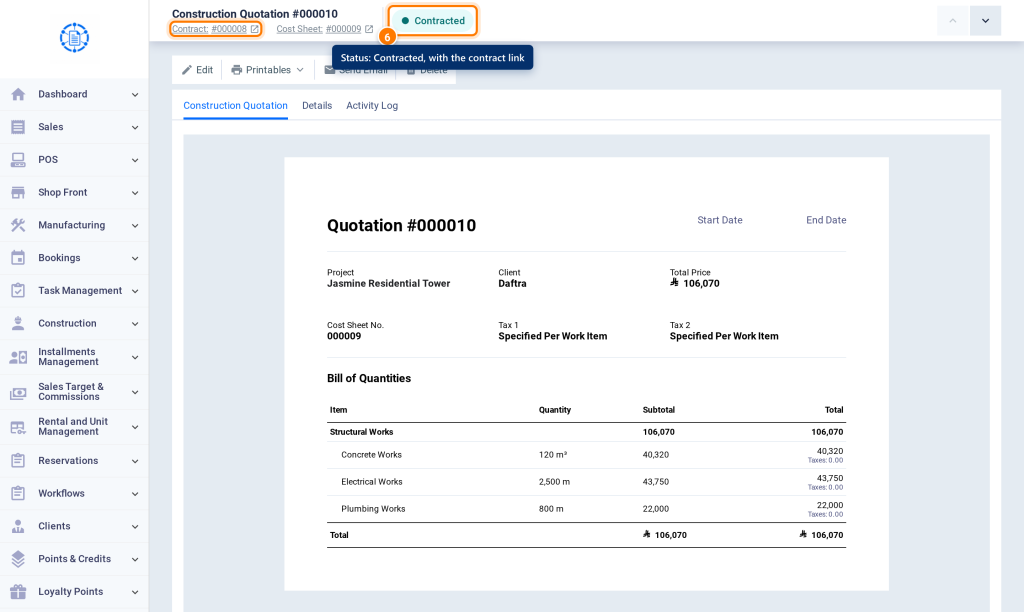
- Open the quotation. Its status is Contracted, and a Contract link at the top of the page opens the contract.
FAQs
Why doesn't the “Add Contract” button appear?
Because the quotation isn’t approved, is linked only to a bid, the project already has a contract, or you don’t have permission to add contracts.
Can I link the quotation to an existing contract?
Yes. Edit the contract and choose the approved quotation in the quotation field.
Can I edit the value of a contract linked to a quotation?
No. The contract value is calculated from the quotation and is read-only.