How to Link the Construction Module to Accounting and Cost Centers
The Construction module integrates with the Accounting automatically in two ways: by activating Cost Center Assignment for purchase invoices and requisitions as soon as the app is enabled, and by creating a complete Cost Center tree for each contract as soon as it is activated. This article explains how this integration works.
How to Link the Construction Module to Accounting and Cost Centers
Step 1: Verify that Cost Center Assignment Is Automatically Activated
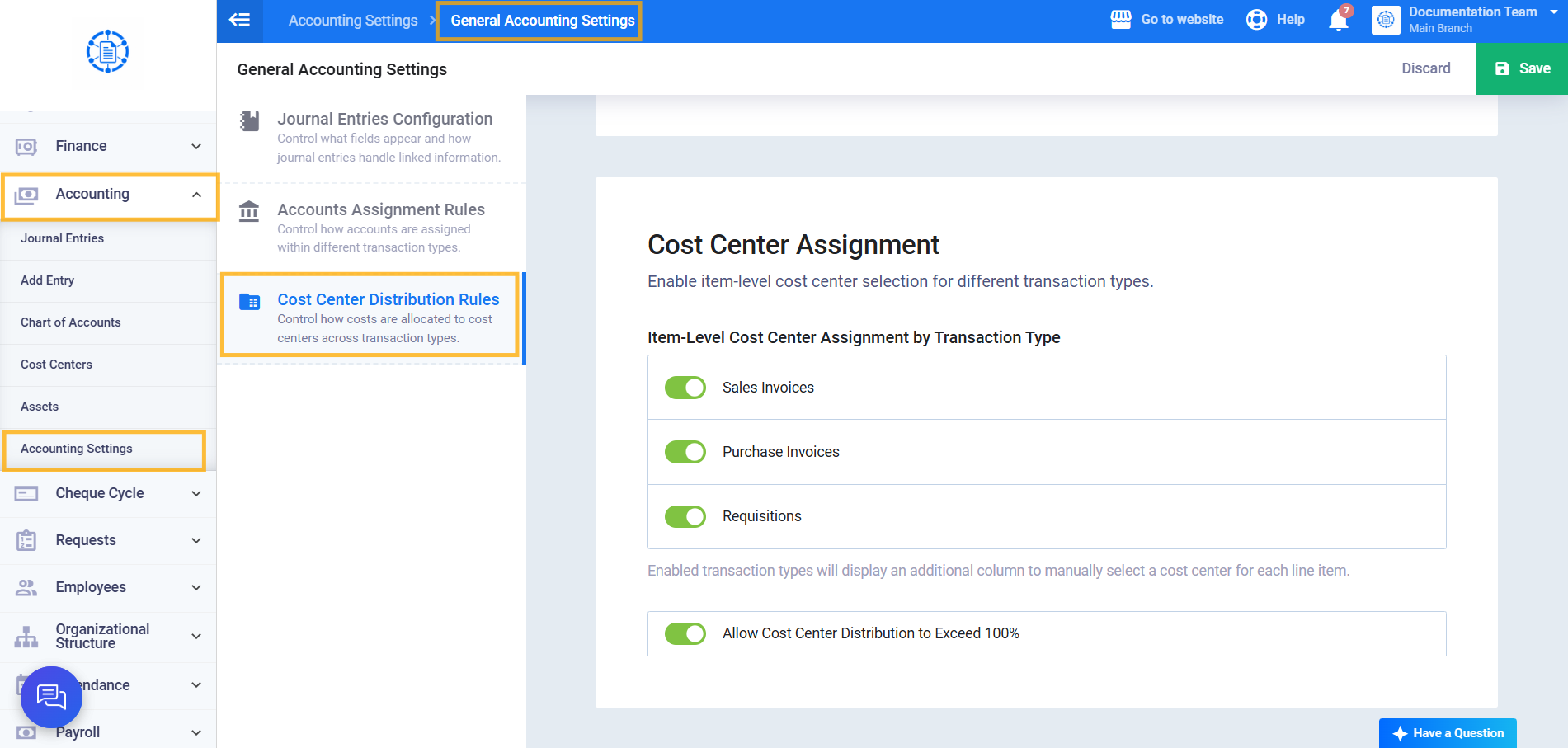
Once the Construction app is activated, Item Level Cost Center Assignment by Transaction Type is automatically enabled for purchase invoices and requisitions. You can verify this setting yourself: from the main menu, click Accounting, then Accounting Settings, and open the Cost Center Distribution Rules section under the General Accounting Settings card. You will find the Item Level Cost Center Assignment by Transaction Type option already enabled for purchase invoices and requisitions without any manual intervention.
Step 2: Open a Project with a Contract and Open the Contract
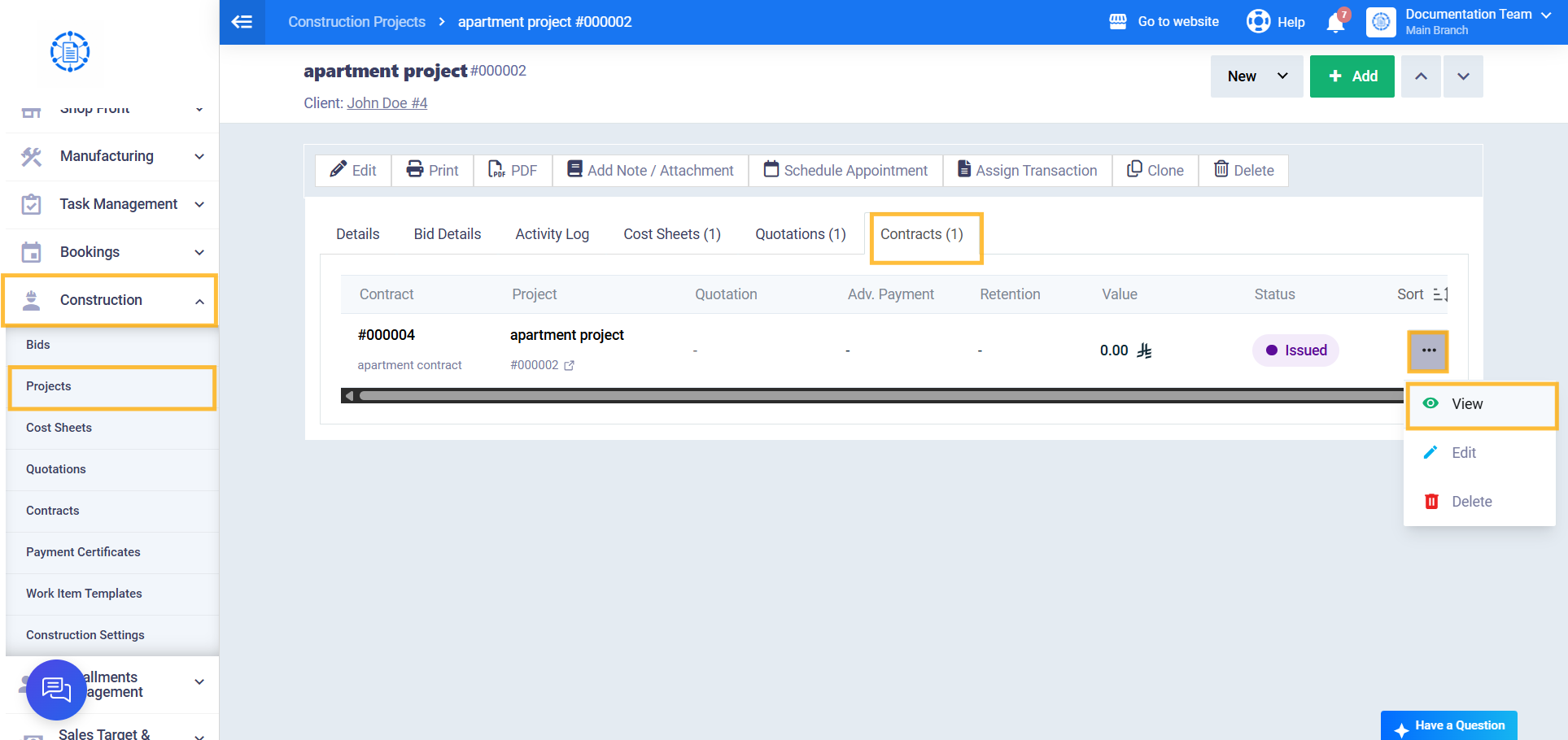
From the main menu, click Construction, then Projects, and click the required project. Then click the Contracts tab and click the View action for the contract.
Step 3: Change the Contract Status to Active
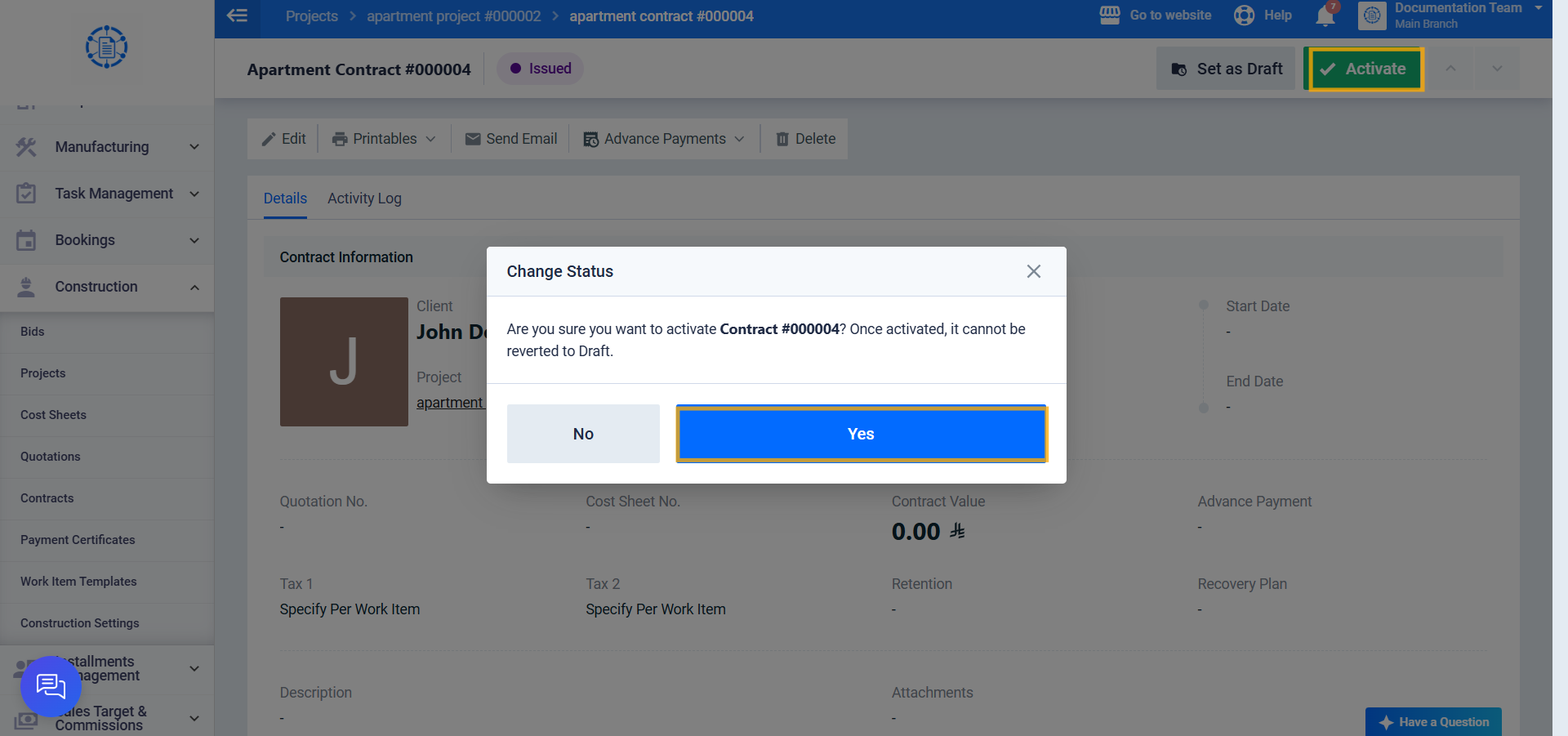
From the header of the contract view screen, click Activate, then click Yes to change the status to Active. This step triggers the automatic creation of the Cost Center tree for the contract.
Step 4: Open Cost Centers and Check the Generated Tree
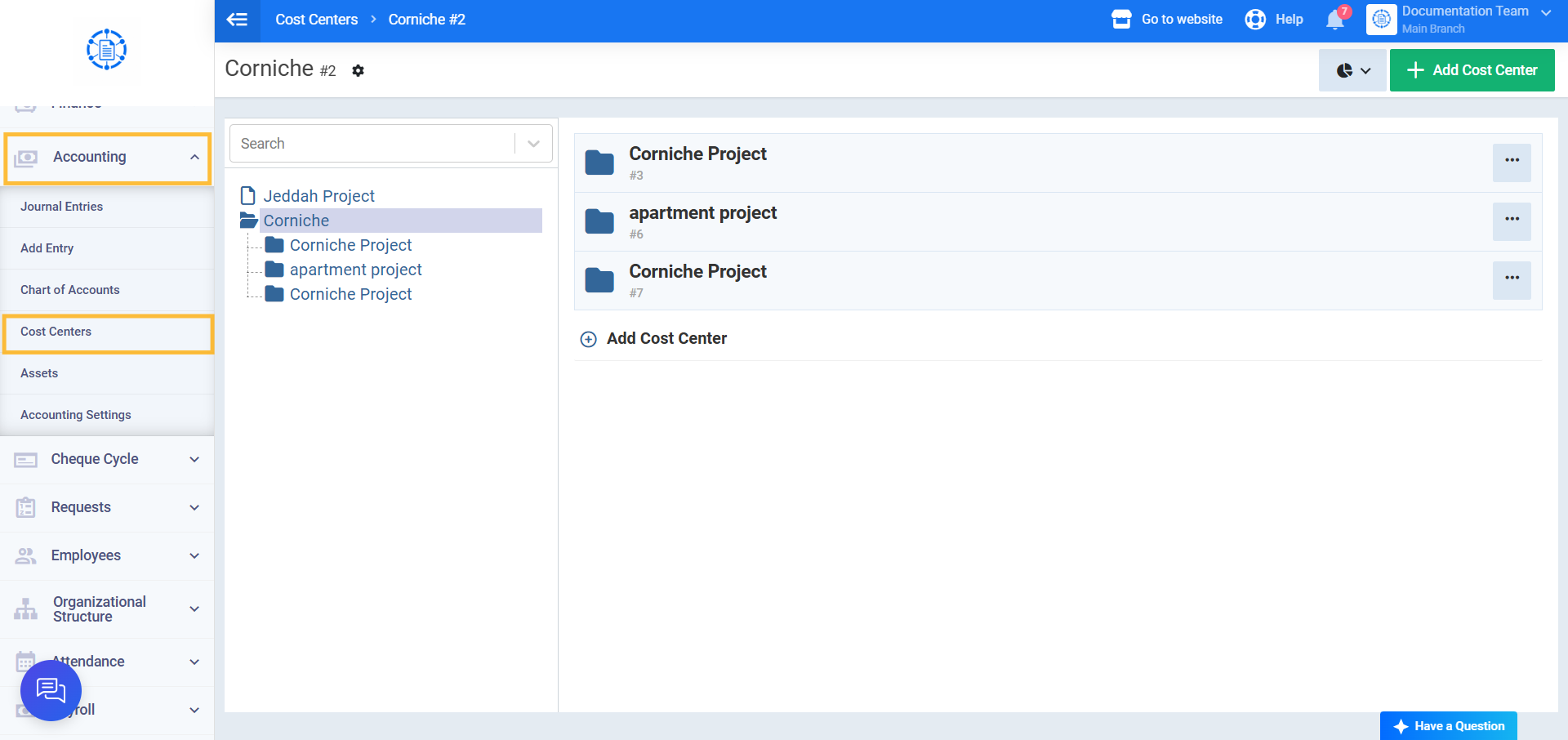
From the main menu, click Accounting, then Cost Centers. You will find a new tree automatically created based on the contract’s item tree (main tenders, sub tenders, and work items). The structure of this tree depends on the Cost Tracking Level defined for the project:
- Project Level: No detailed tree is created. The project’s own Cost Center, which was originally created when the project was created, is used as a single file under the project folder.
- Tenders Level: Each main or sub tender appears as a folder, unless it directly contains a work item without any sub-items beneath it. In this case, it appears as a file instead of a folder.
- Work Item Level: All main and sub tenders remain folders, and only the work item itself appears as a file at the end of each branch of the tree.