Guide to Printing and Exporting Construction Records
The system allows you to print construction records (bids, cost sheets, and construction quotations) or export them as PDF directly from each record’s view screen, with the ability to choose the required template from several available templates. In this article, we explain the steps to print and export, and how to choose the right template — using a bid as an example, noting that the same steps apply to cost sheets and construction quotations.
Steps to Printing and Exporting Construction Records
First: Accessing the Record's View Screen
Step 1: Opening the View Screen
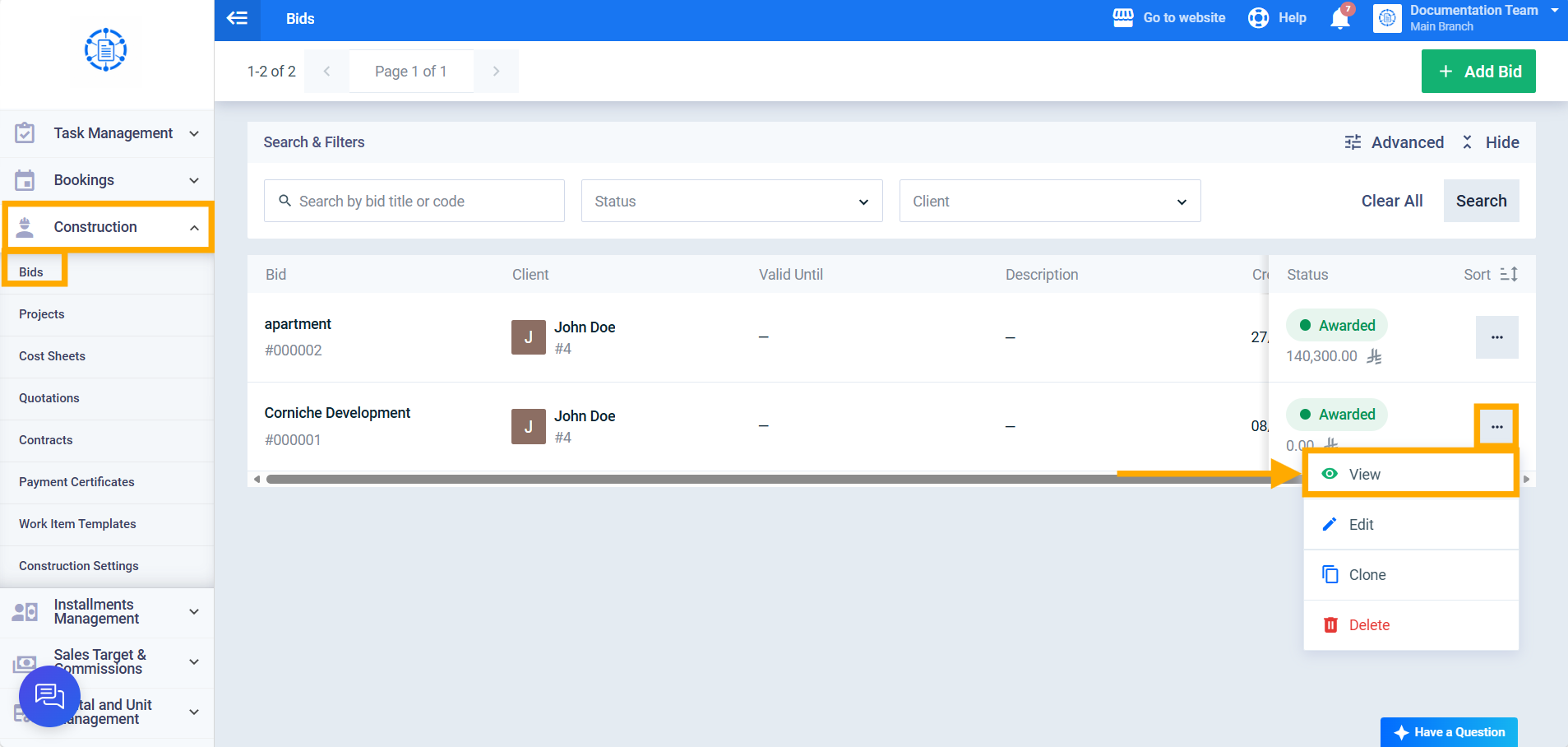
From the sidebar menu, click on “Construction,” then go to “Bids,” and click the “View” button for the required bid.
Second: Selecting the Template and Printing or Exporting
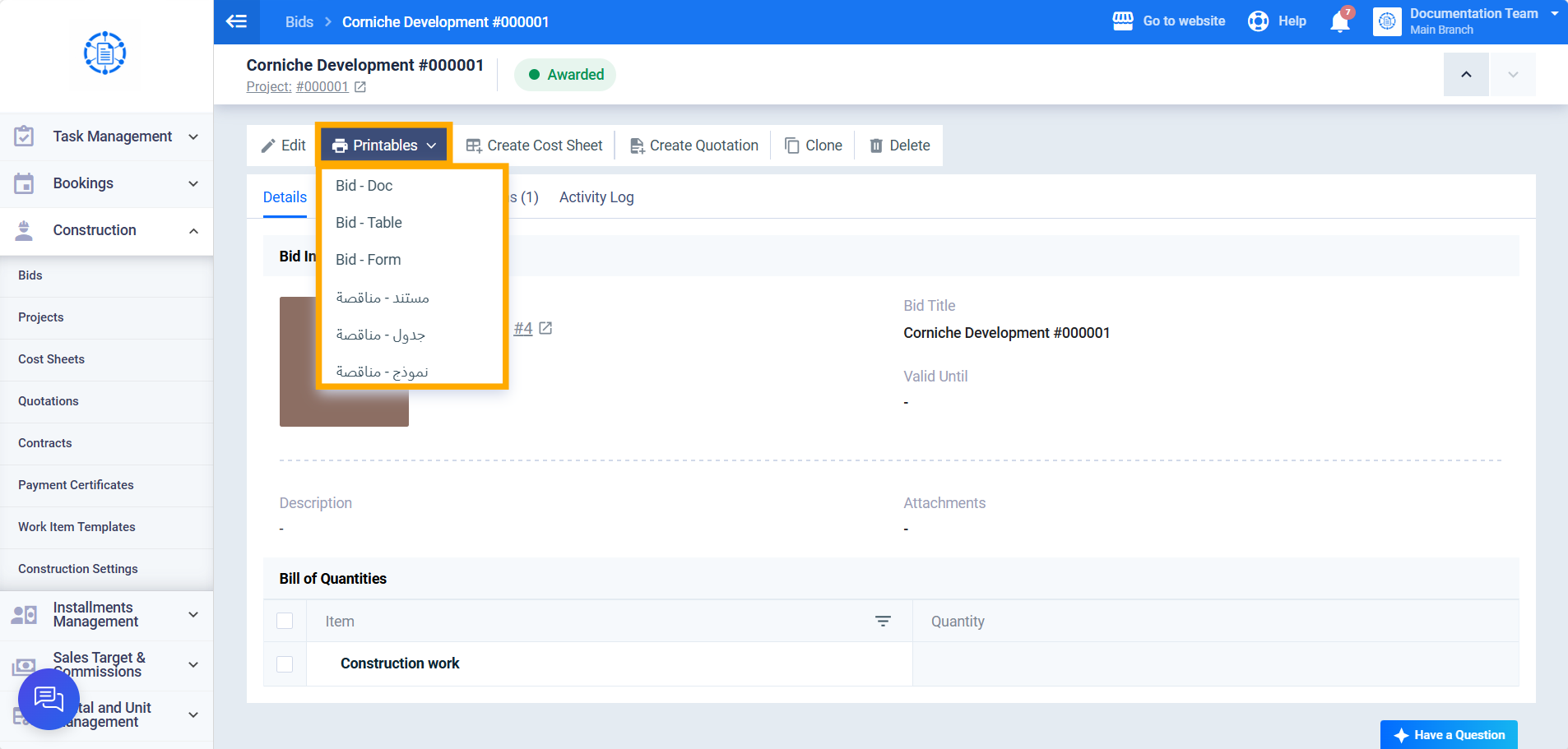
Step 2: Opening the Printables List
Click the “Printables” button — a dropdown list appears showing the templates available for the current record type only (there are currently 3 templates for each record type).
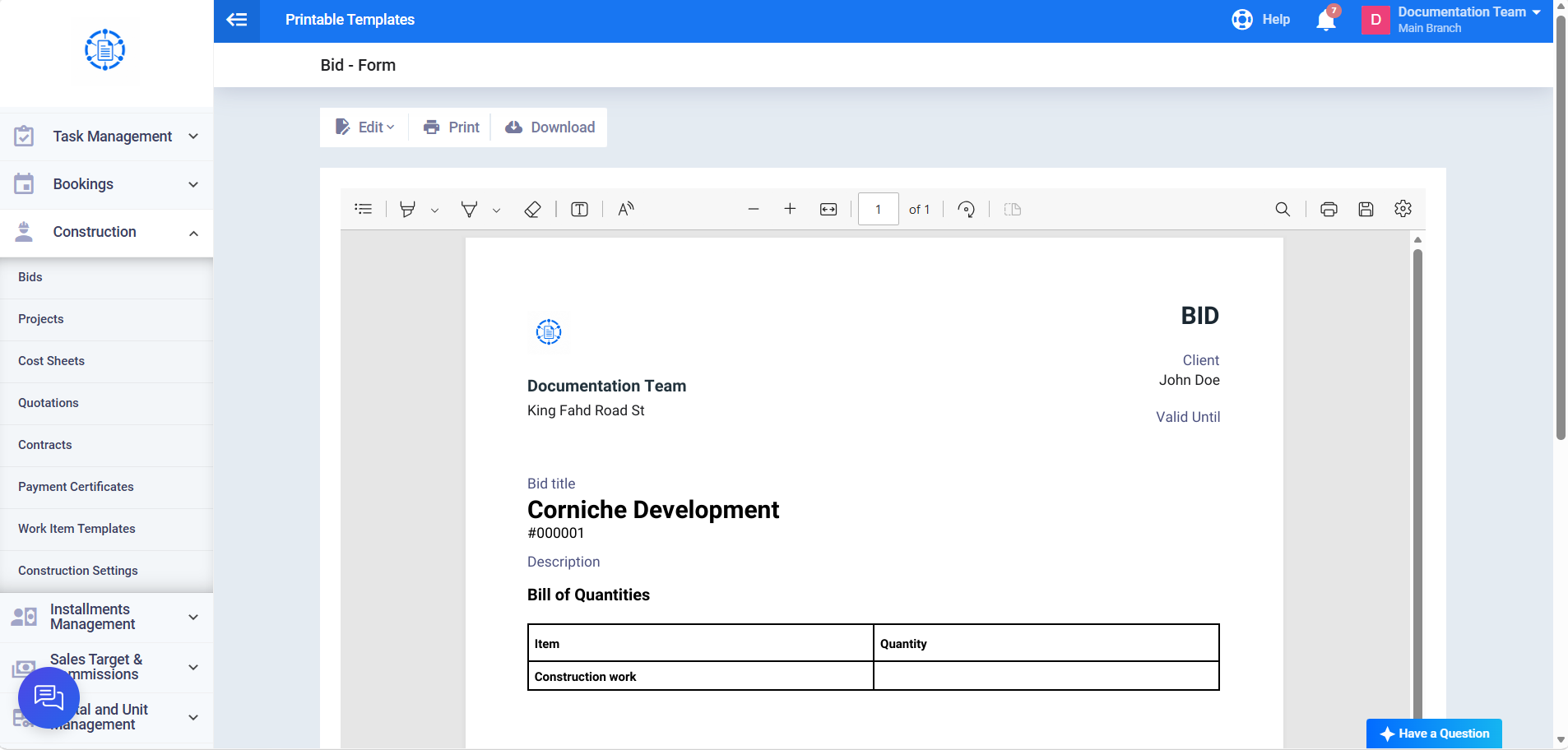
Step 3: Selecting the Required Template
Select the appropriate template from the dropdown list — you’re automatically redirected to a new screen displaying a preview of the selected template, with “Edit,” “Print,” and “Download” actions.
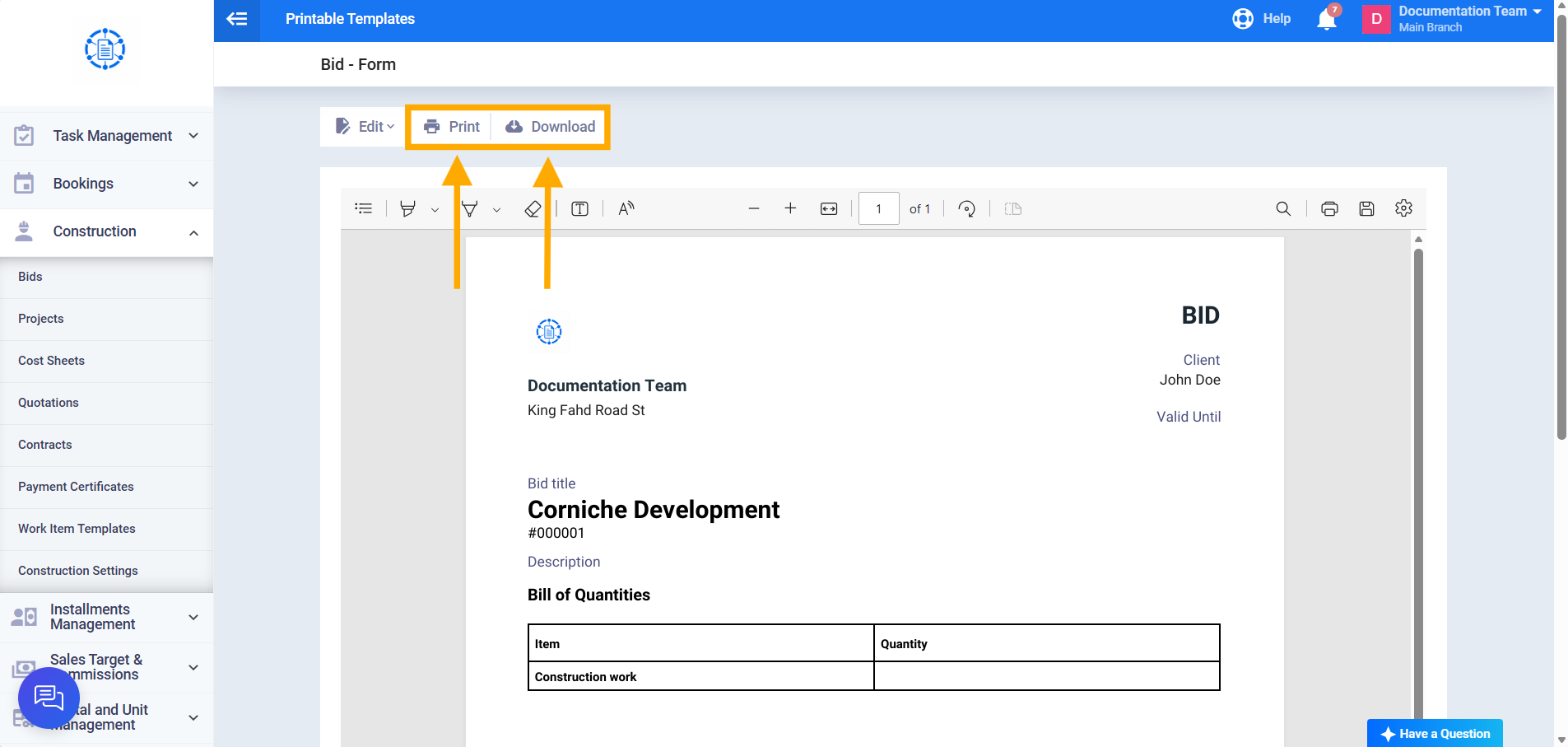
Step 4: Printing or Exporting
Click “Print” to open the direct printing screen with the selected template, or click “Download” to download a PDF copy with the same template directly.