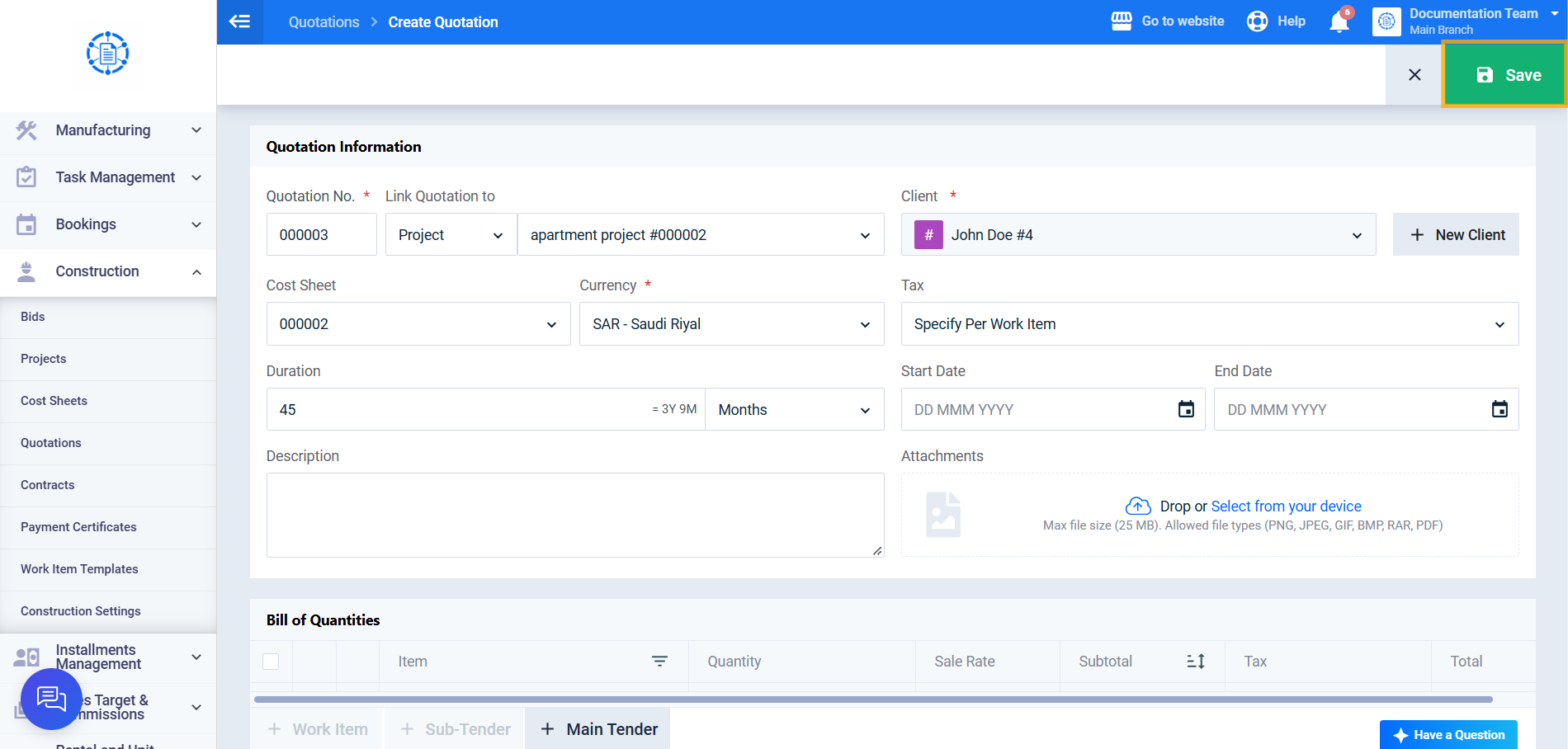
How to Issue a Construction Quotation for a Client
The System does not require a Construction Quotation to be linked to a bid or project. You can issue an independent Construction Quotation directly to the client from the quotations list, with the option to link it to an existing bid or project if needed. This article explains how to issue a Construction Quotation in this way.
Note Before You Start: There is a difference between a regular quotation and a Construction Quotation; a regular quotation is usually converted into an invoice, while a Construction Quotation is used for bids and project creation.
Steps to Issue a Construction Quotation for a Client
Step 1: Open the Quotations List
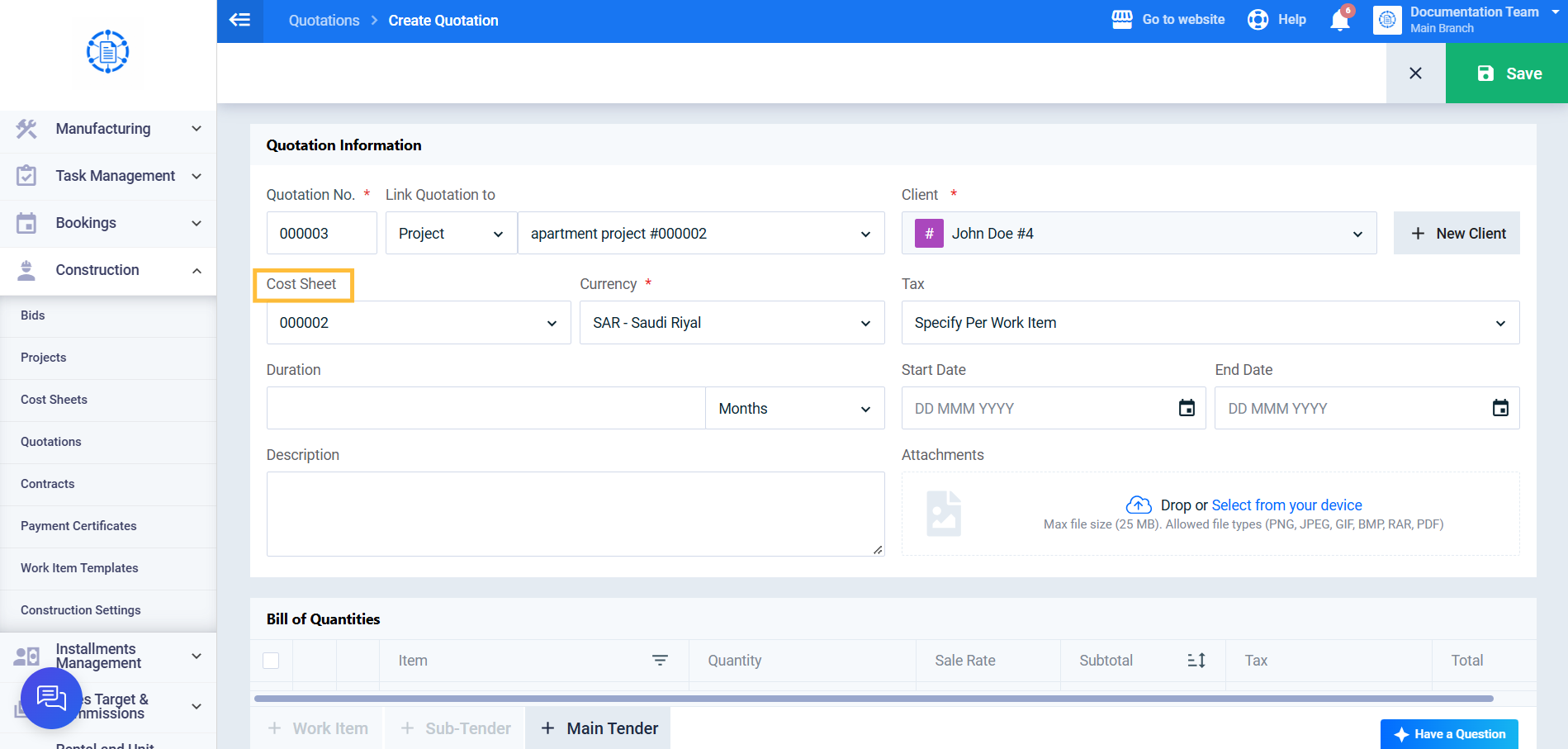
From the main menu, go to Construction, choose Quotations and click on Create Quotation.
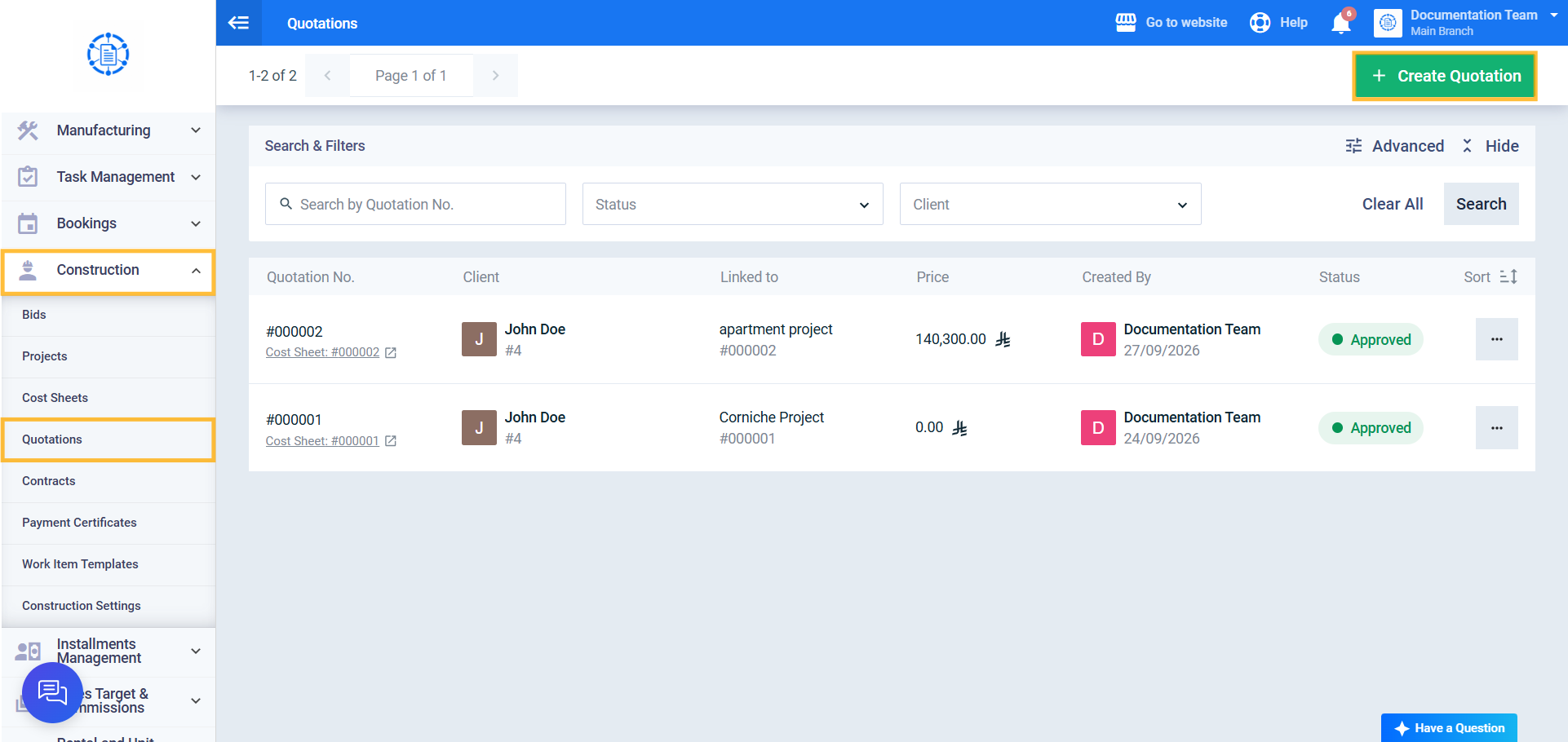
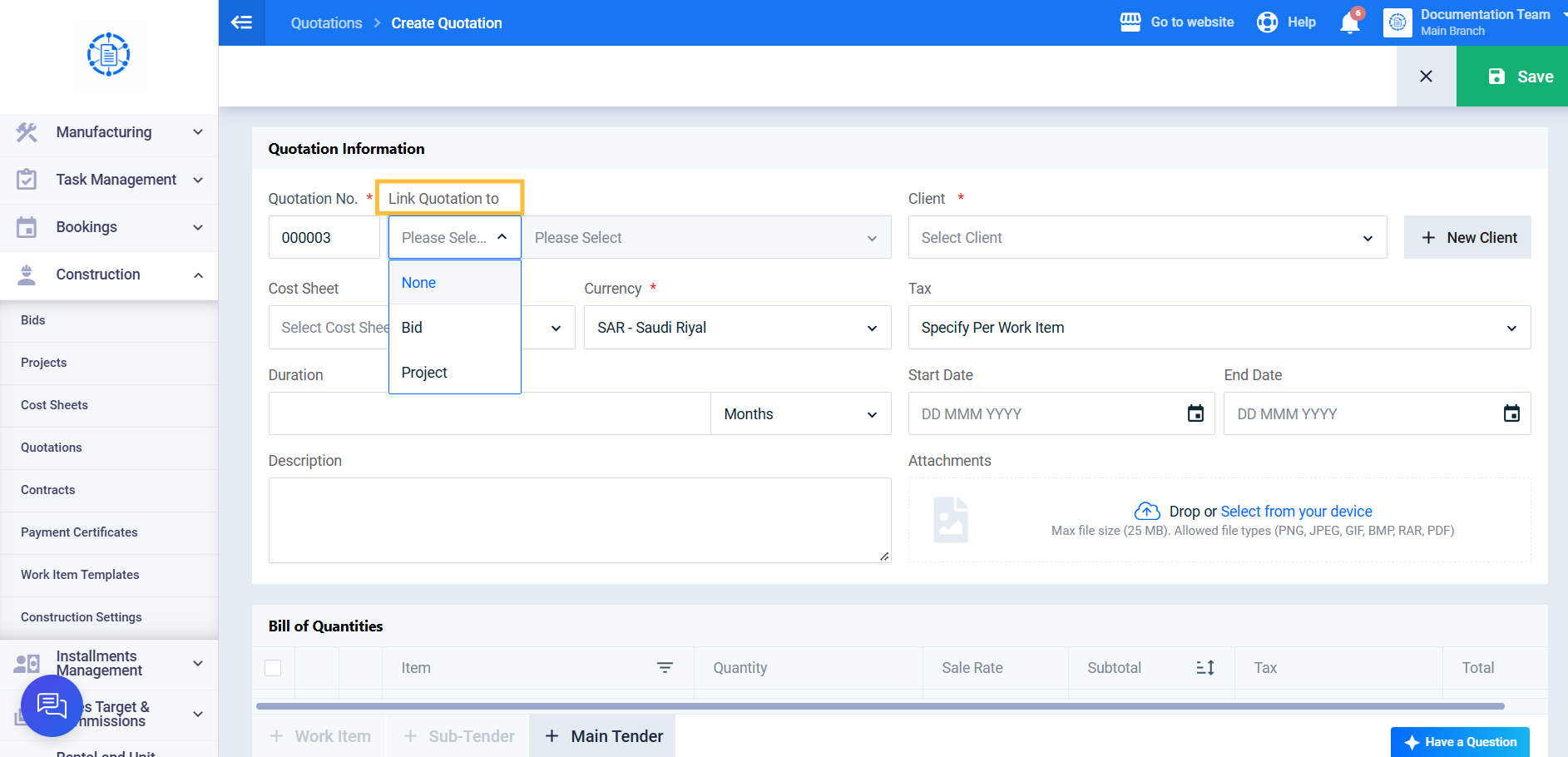
Step 2: Link the Construction Quotation to a Bid or Project (Optional)
In Link Quotation to, select the record type Bid or Project, then select the required record from the second dropdown list.
If you want to create an independent Construction Quotation, skip this step.
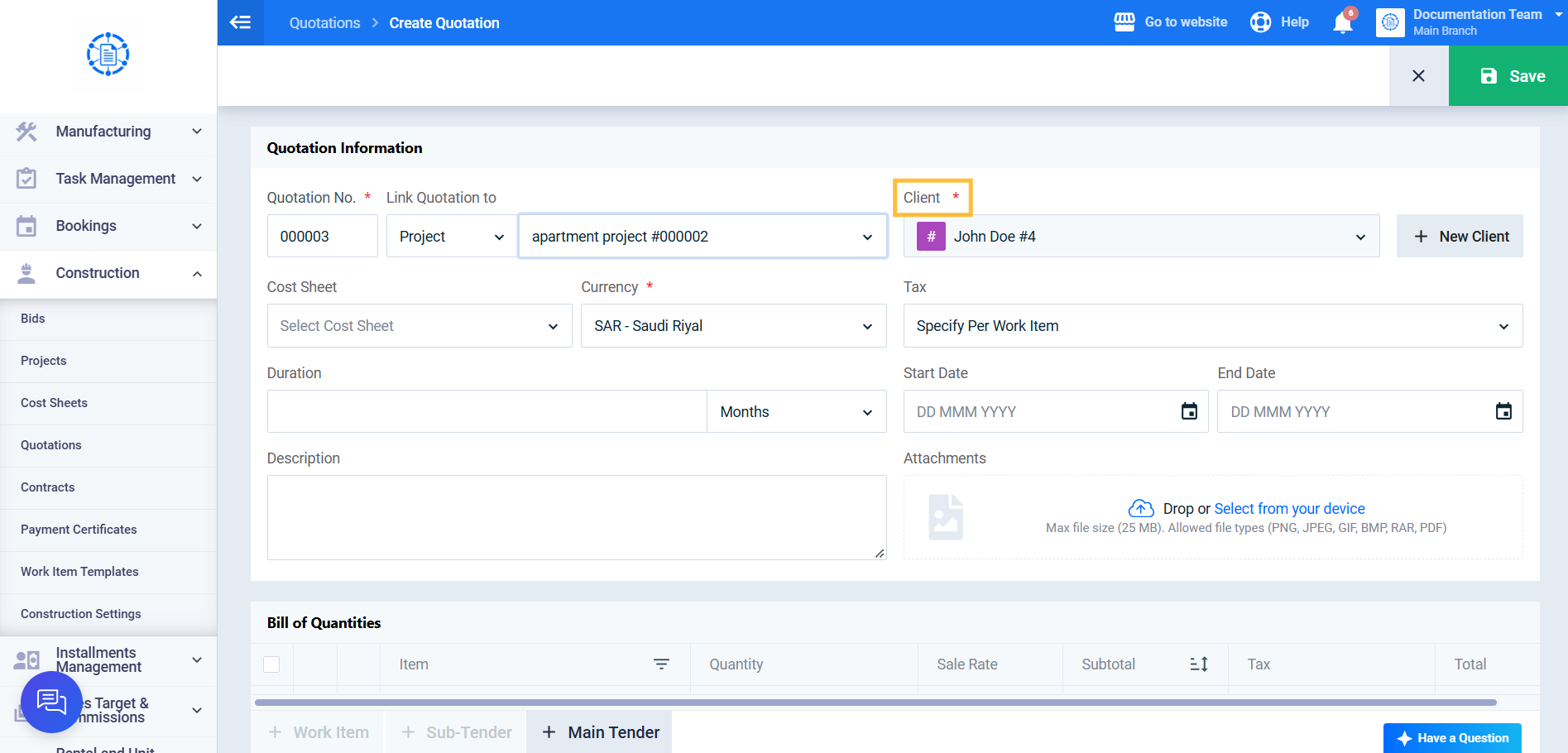
Step 3: Select the Client
Select the required client. Selecting a client is mandatory, and only active clients are available.
If you selected a bid or project, the client is populated automatically and cannot be changed.
Step 4: Link the Construction Quotation to a Cost Sheet (Optional)
Select a Cost Sheet if needed.
If a bid or project has been selected, only Cost Sheets linked to that bid or project are available.
If no bid or project has been selected, the available Cost Sheets are limited to those associated with the selected client.
Step 5: Complete the Remaining Construction Quotation Details
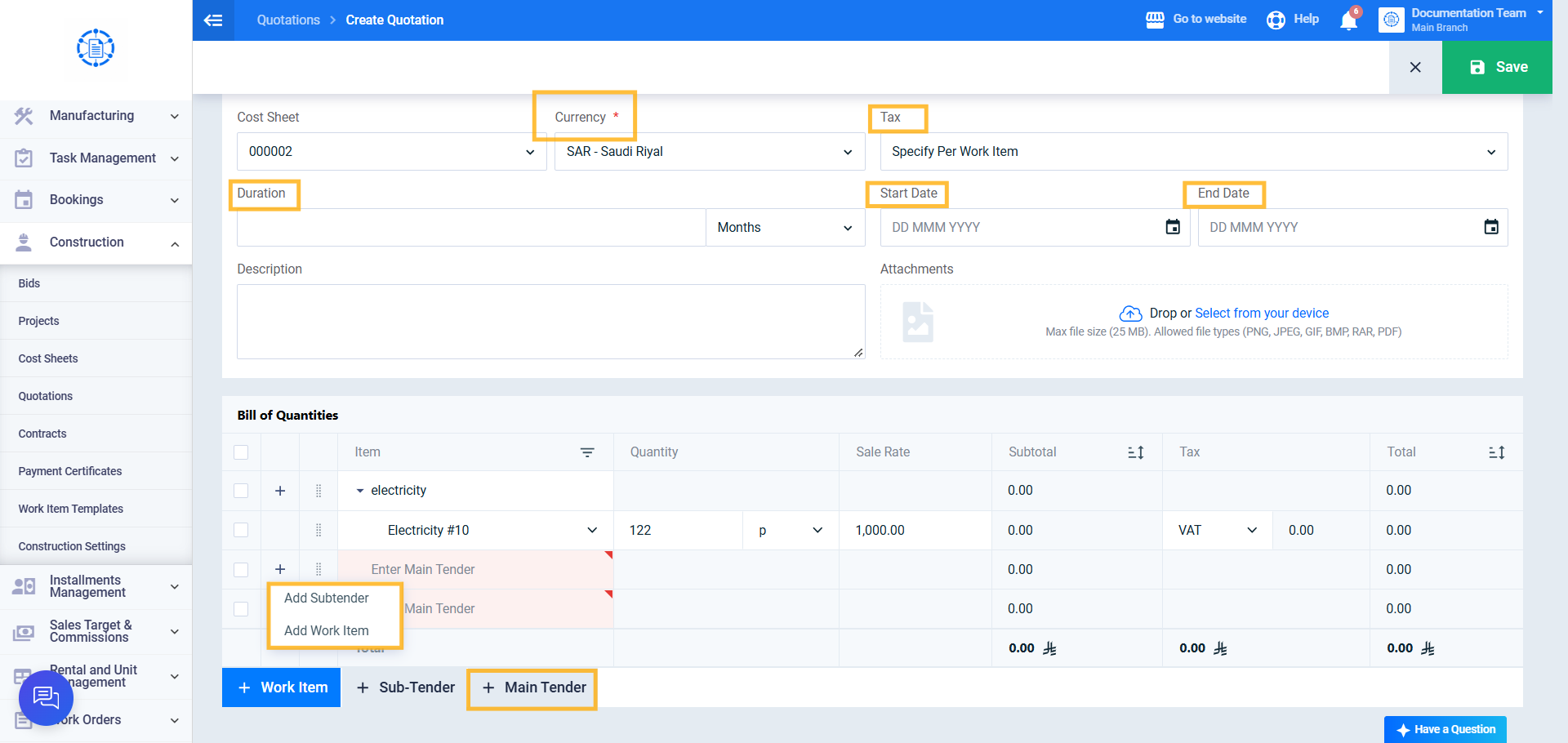
Complete the remaining Construction Quotation information, including:
- Currency
- Duration
- Start Date
- End Date
- Tax 1
- Tax 2
- Description
Then define the Bill of Quantities, including:
- Main Tender
- Sub Tender
- Work Item
Step 6: Save the Construction Quotation
Click Save to issue the Construction Quotation. Its status is set to Issued.