




Guide to creating a work item template from a work item priced in an earlier cost sheet
This guide takes you from a work item already priced in a cost sheet to a work item template ready for future cost sheets, without re-entering materials and prices.
Before you start
- You have Add Work Item Templates and View All Cost Sheets or View His Own (Created) Cost Sheets.
- Know the work item you want a template for, ideally with the number of the cost sheet where it was priced.
1. Open the template form
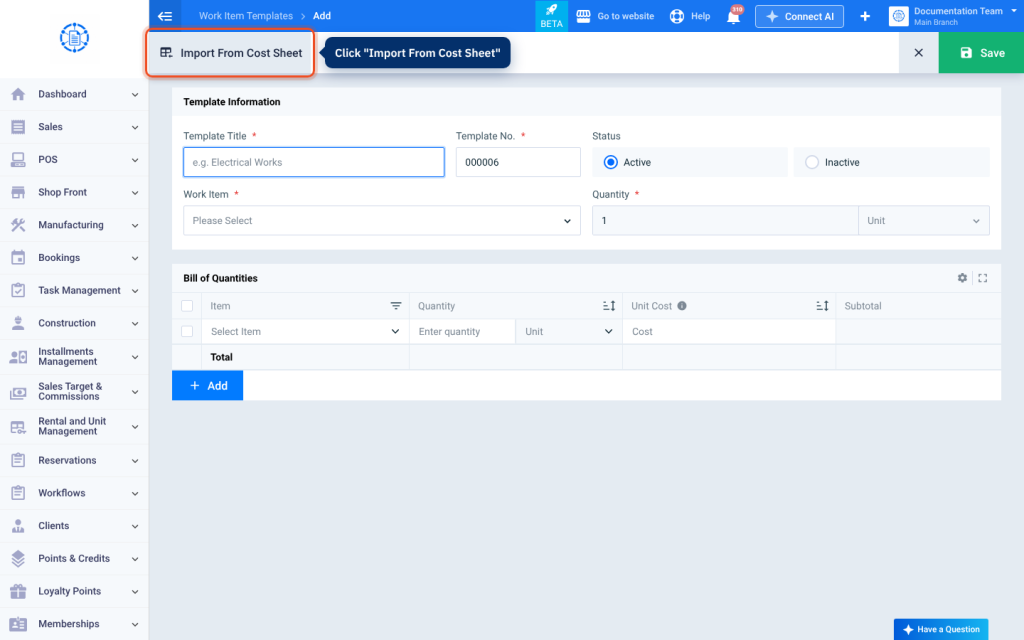
- Open Work Item Templates and click New Template.
- Choose the work item on the form if you want the import drawer to pre-filter on it.
2. Search the cost sheets
- Click the Import from Cost Sheet button.
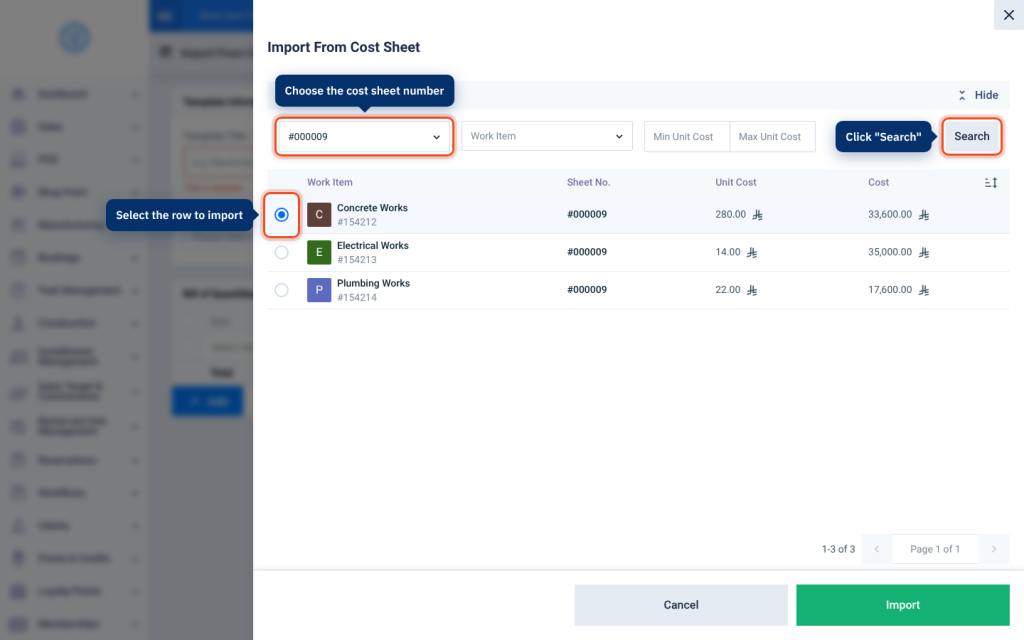
- Apply a filter: cost sheet number, work item, or Min Cost / Max Cost (work item unit cost). Then click Search. The list is empty before filtering, and the cost filters alone return nothing.
- Compare rows by unit cost and cost to pick the best pricing.
3. Pick the row and review materials
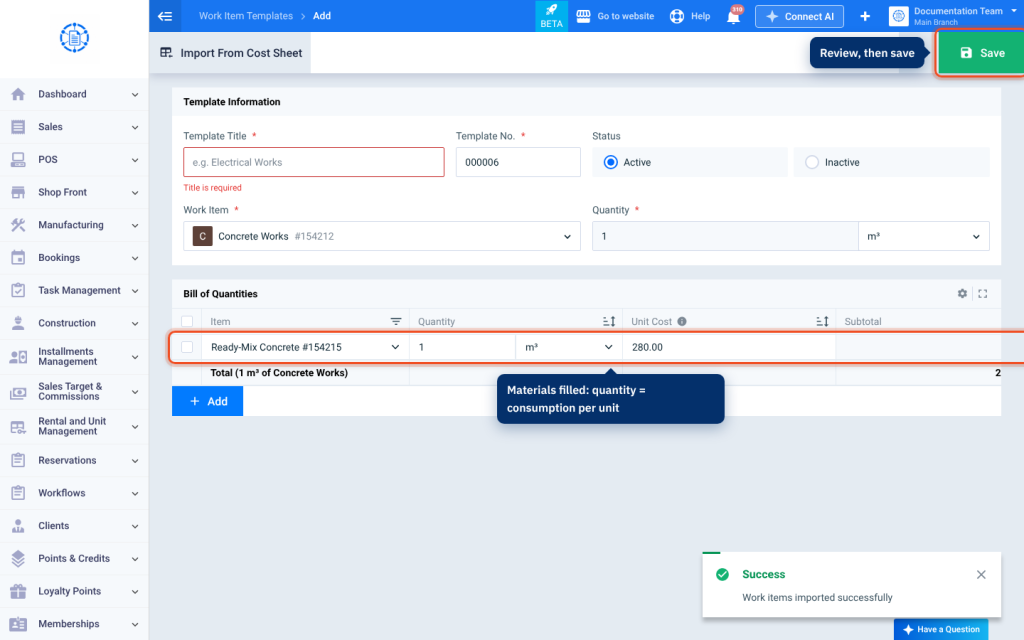
- Tick the row and click Import; the drawer closes and the work item with its materials and services (item, quantity, unit, unit cost) is filled.
- Note that quantities are the consumption per unit, because the template's work item quantity is 1.
- Adjust any material or price if needed, then click Save.
4. Use the template
- Use the template in future cost sheets through the work item import inside the cost sheet.
- Template costs are updated later by editing the template as usual.
Frequently asked questions
Why is the Import from Cost Sheet button missing?
You do not have cost sheet view permission.
Why are there no results?
Apply a filter first.
Is the work item quantity copied from the sheet?
No, the template's work item quantity is always 1.
Does the import affect the cost sheet?
No.
Can I import while editing an existing template?
Yes, the button is on the add and edit forms.