




Guide to exporting a construction BoQ to Excel and sharing it with the client
This guide shows how to take the BoQ out of Daftra into Excel at each stage of a construction project: the bid structure for pricing, the cost sheet breakdown for internal review, and the quotation or contract pricing to send to the client.
Before you start
- The Construction app is active.
- You can view the record (all records or your own); there is no separate export permission.
- Save the latest BoQ changes; only saved data is exported.
1. Export the bid structure
- Open Bids and pick the bid.
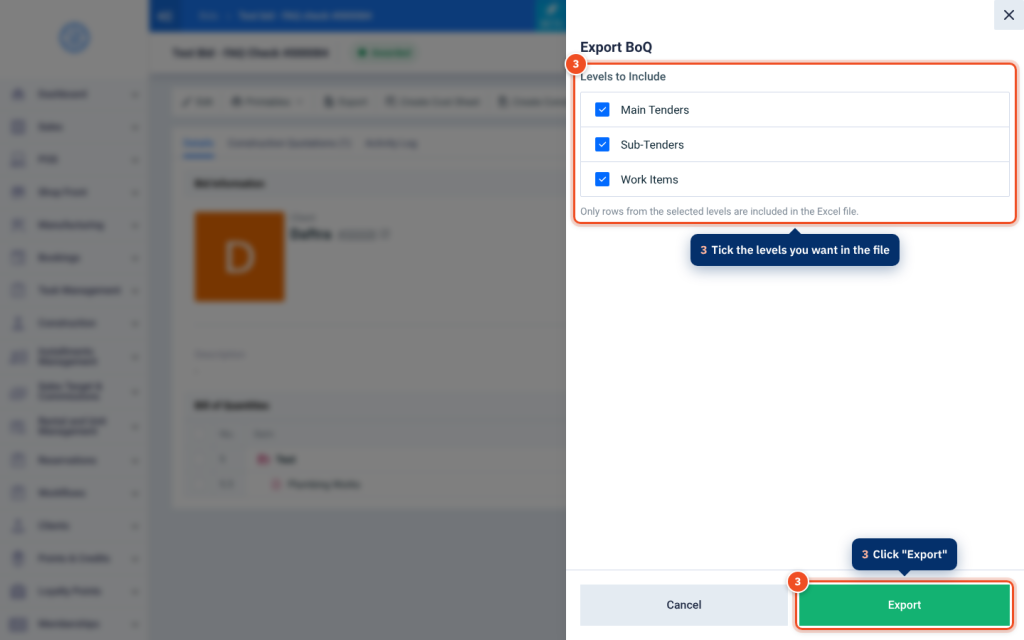
- Click Export in the action bar; the Export BoQ window opens.
- Under Levels to Include, tick Main Tenders, Sub-Tenders or Work Items, then click Export. The file includes the ticked levels only.
- The file holds the bid number, title, client, project, status and Valid Until, then Number, Level, Item, Parent, Quantity and Unit, with no financial columns or total row.
2. Export the cost sheet breakdown
- Open Cost Sheets and pick the sheet.
- Click Export and tick the levels: all of them down to Items for the full breakdown, or some of them for a summary; the file includes the ticked levels only.
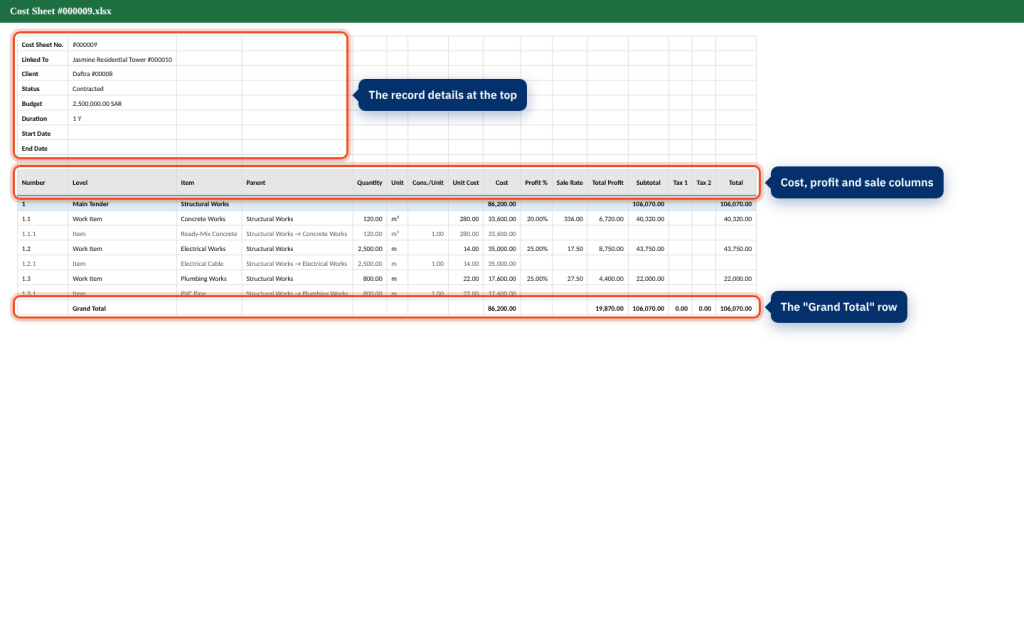
- Review the file: the header includes Budget when the sheet is linked to a project, the columns include Cons./Unit, Unit Cost, Cost, Profit %, Sale Rate and Total Profit, and a Grand Total row closes the table.
3. Export the quotation or contract for the client
- Open Construction Quotations or Contracts and pick the record.
- Click Export and choose Main Tenders, Sub-Tenders or Work Items.
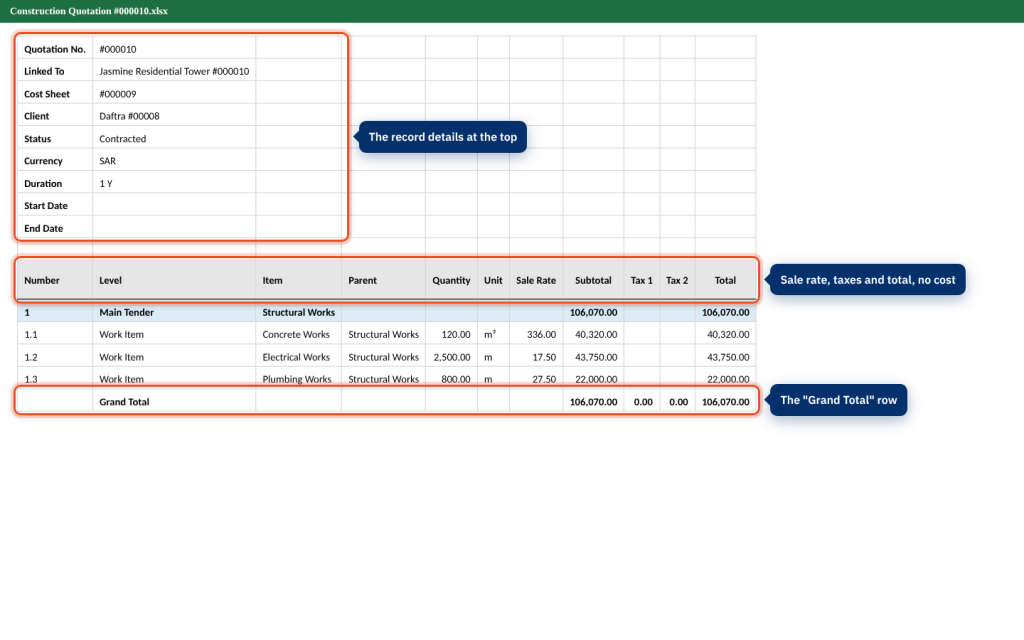
- The file holds Number, Level, Item, Parent, Quantity, Unit, Sale Rate, Subtotal, Tax 1, Tax 2 (when there is more than one tax) and Total, closed by a Grand Total row.
- The contract header: Contract No, Title, Project, Quotation, Client, Status, Currency, Contract Value, Advance Payment, Retention, Duration and the two dates.
Frequently asked questions
Why does the Export button not show on a cost sheet?
There is no separate export permission; the button shows to anyone who can view the sheet (all cost sheets, or their own if they created it).
Is an unsaved BoQ exported?
No, the last saved version is exported.
What is the difference between the cost sheet file and the quotation file?
The first holds cost and profit, the second only sale rate, taxes and total.
Does the bid file contain prices?
No, structure and quantities only.
Do numbers change when fewer levels are exported?
No, numbering is fixed and assigned on the full BoQ.