




Guide to Completing an Incomplete Cost Schedule, Price Quotation, or Contracting Agreement After Auto-Save
The Contracting module in Daftra automatically saves the Cost Table, the Contracting Quotation, and the Contract while you fill in the Bill of Quantities, so your work is not lost if the page is closed before the final save. This guide explains when Autosave starts, how to return to an incomplete record to complete or delete it, and when the system deletes it automatically.
Table of Contents
Before You Start
- The Contracting app is enabled in your account.
- For Cost Tables: the permission Add Cost Tables, Edit and Delete All Cost Tables, or Edit and Delete Own Cost Tables.
- For Contracting Quotations: the permission Add Contracting Quotations, Edit and Delete All Contracting Quotations, or Edit and Delete Own Contracting Quotations.
- For Contracts: the permission Add Contracting Contracts, Edit and Delete All Contracting Contracts, or Edit and Delete Own Contracting Contracts.
- An incomplete record is visible only to its creator and the account owner. When branches are enabled, only records from the current branch are shown.
Steps for Autosave and Completing an Incomplete Record
First: Filling in the Form and Autosave
- Open Add Cost Sheet, Add Construction Quotation, or Add Contract. You can also start a contract from the project file and start a quotation from the bid file; all of them use the same autosave.
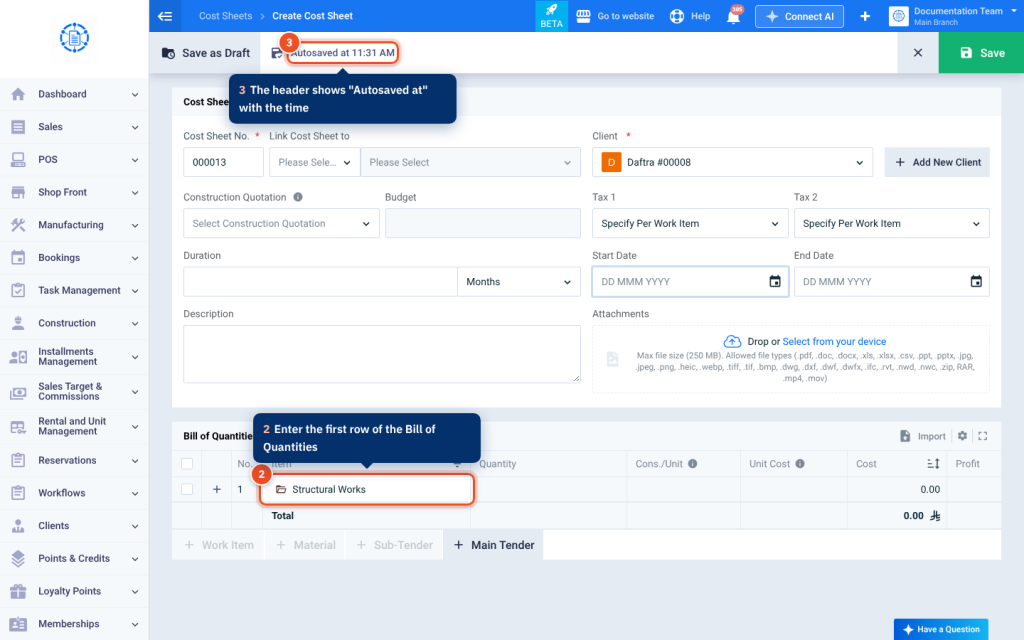
- Fill in the form details, then enter the first line in the Bill of Quantities. The first autosave starts when you leave the first line, either by moving to another line or by clicking outside the table. Typing in the line and pressing Enter is not enough, and filling in the top fields alone (customer, duration, and description) does not create an incomplete record.
- Watch the form header: Autosaving… appears while saving, then Autosaved at appears with the time.
- Continue entering data. The form is saved again after every action on a completed line, and when you delete a line or drag it to change its order.
Second: Leaving the Form Before the Final Save
- If the page is closed or the connection is lost before the final save, whatever was autosaved remains as an incomplete record.
- The incomplete record does not appear in the lists of cost sheets, construction quotations, or contracts. If you are in the edit form of a saved record, the original record does not change until you save your changes.
Third: Accessing Incomplete Records
- For cost sheets: open Cost Sheets and click Incomplete (count) in the list header.
- For construction quotations: open Construction Quotations and click Incomplete (count).
- For contracts: open Contracts and click Incomplete (count).
- For project records: open the project from Construction Projects, then click Incomplete (count) in its file header, and choose the Cost Sheets, Quotations, or Contracts tab.
- For bid records: open the bid from Bids, then click Incomplete (count), and choose the Cost Sheets or Quotations tab.
Fourth: Continuing or Deleting
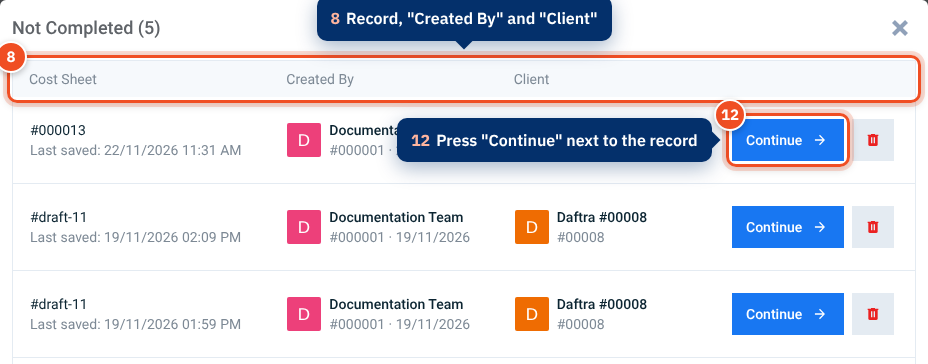
- For each record, the window shows its number (titled Cost Sheet, or the quotation number, depending on the list), and below it Last saved: with the date and time, Created by (name, picture, and creation date), and Customer. There is no price column. Each row shows a Complete button and a delete icon.
- Click Complete next to the record you want; the form opens with the most recently saved data.
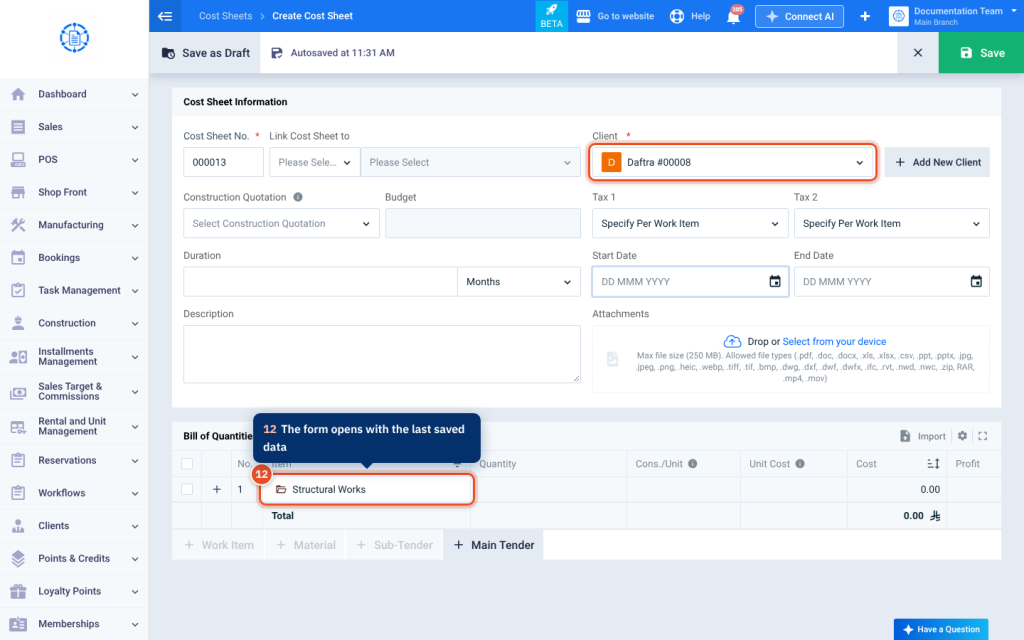
- Finish entering the data, then click Save or Save as Draft. The actual record is saved and disappears from the Incomplete window.
- To discard an incomplete record, click the delete icon in its row. Deletion happens immediately without a confirmation message, and only the incomplete record is deleted; no saved record is affected.
Fifth: When the System Automatically Deletes an Incomplete Record
- When the record is saved permanently.
- When the parent record is deleted: all of its incomplete records are deleted.
- When the parent record can no longer be edited: an approved, rejected, or contracted Quotation, a rejected cost sheet, or a canceled or closed contract.
- When the record is converted to another record, such as converting a cost sheet to a Quotation or a contract.
- When a tender is linked to a project: the tender’s incomplete records are deleted.
Settings and Visibility Rules
| Item | Default Status | What It Does |
|---|---|---|
| Auto-save | Enabled | Saves the form while you fill in the bill of quantities table. There is no setting to turn it off. |
| Incomplete record visibility | Creator and owner | An employee sees only their own records, and the account owner sees everyone’s records; no one else can follow up on or delete them. |
| Branches | Current branch | When branches are enabled, only the current branch’s records appear. |
| Appearance in lists and reports | Not shown | It does not appear in lists before it is saved permanently. |
Frequently Asked Questions
Toggle title
It may be in another branch, no line was completed in the bill of quantities table before closing, only the top fields were filled in, it was created by another user, or it was permanently saved or deleted. The system also deletes it automatically when the parent record can no longer be edited or is converted to another record, and when a tender is linked to a project.
Can another employee follow up on an incomplete record created by a colleague?
No; only its creator and the account owner can follow it up.
Where do incomplete contracting contracts appear?
In the Contracts list via the Incomplete (count) button, and in the project file. The button appears only when incomplete records exist.
Do incomplete records appear in lists or reports?
No; they do not appear until they are saved permanently.
What happens to incomplete records when the parent record is deleted?
All incomplete records linked to it are deleted.
Does auto-save work when editing a saved record?
Yes, and the parent record stays as it is until the changes are saved permanently.
Does the system ask for confirmation before deleting an incomplete record?
No; the record is deleted immediately from the window without a confirmation message, and it cannot be recovered.