Guide to Updating Unit Costs in Existing Templates
The system allows you to update the unit cost of materials included in an existing Work Item Template automatically, using either the average cost or the latest purchase price, without having to manually update each price. This article explains how to use this feature.
Steps to Update Unit Cost in an Existing Template
Step 1: Access the Required Template
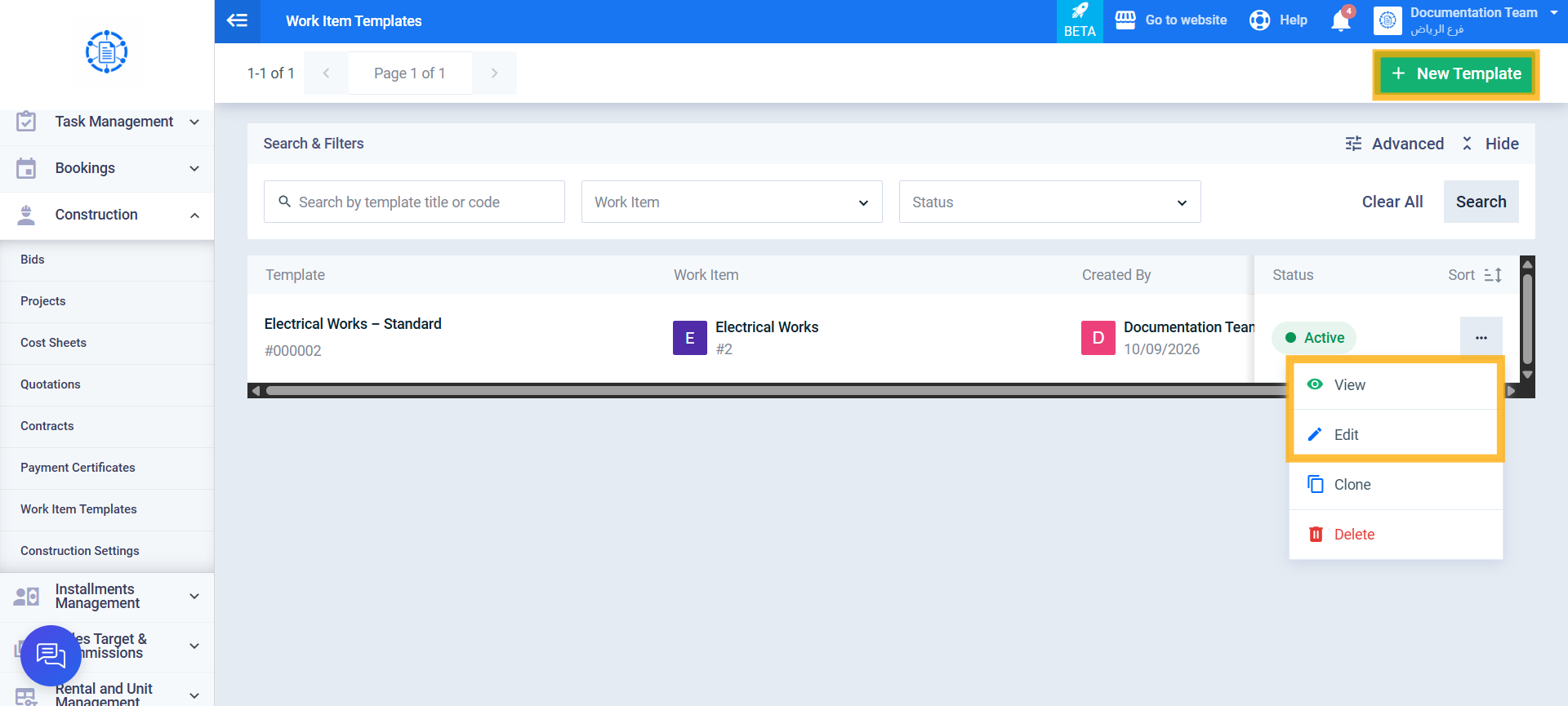
From the main menu, click Construction, then Work Item Templates, and open the required template by clicking the View or Edit action, or while adding a new template.
Step 2: Select the Items Whose Costs You Want to Update
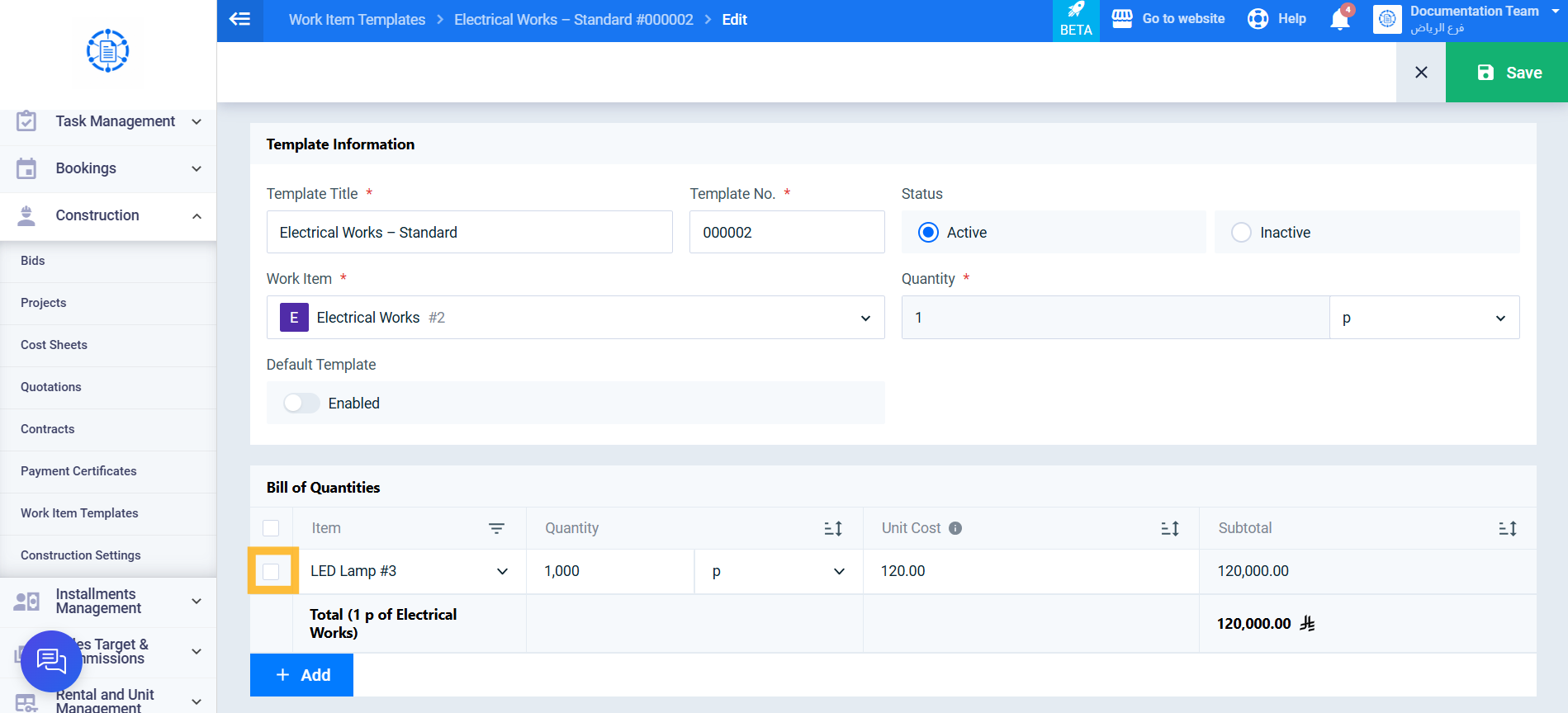
On the Add and Edit Template screens, select one or more rows from the Bill of Quantities using the checkboxes next to each row.
Step 3: Perform the Update Unit Cost Action
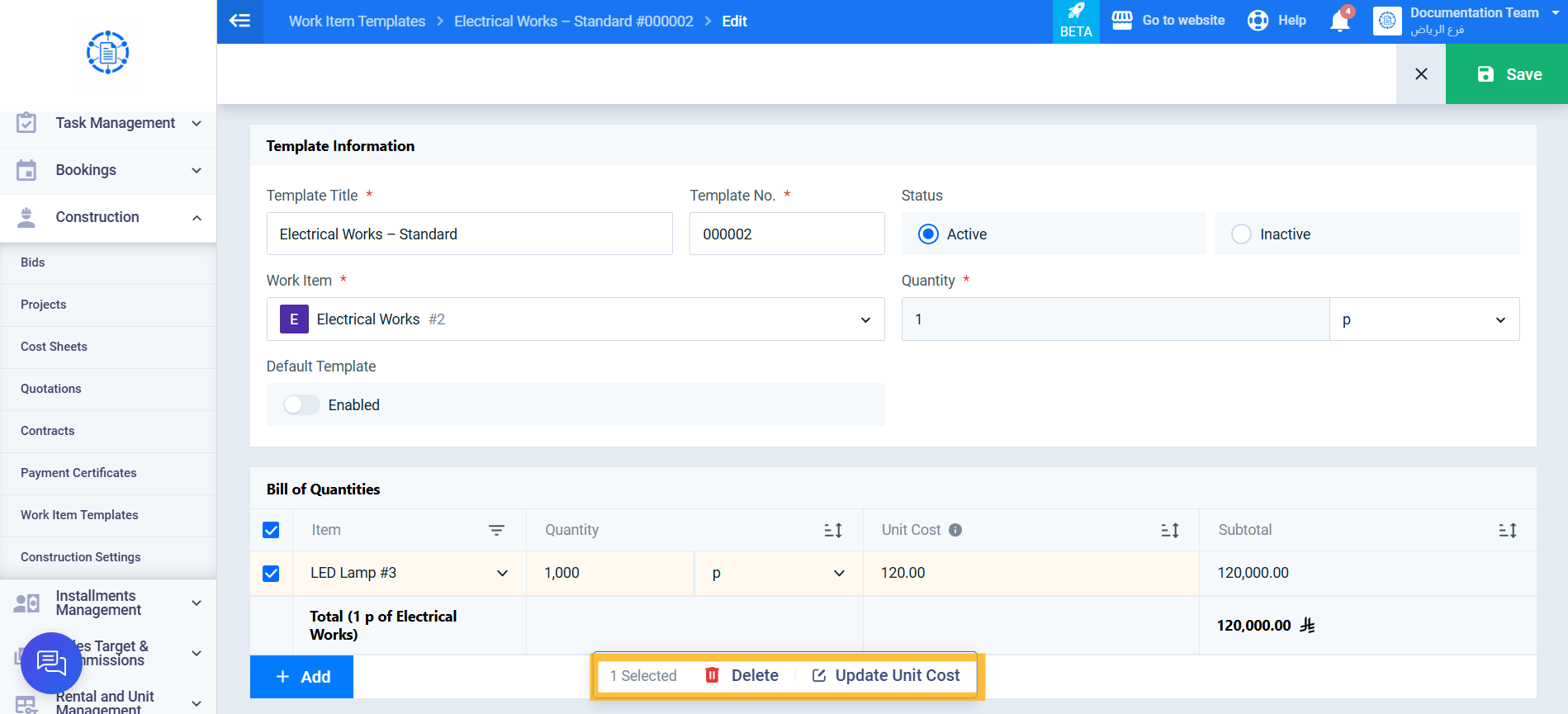
From the action bar displayed below the table after selecting the rows, click Update Unit Cost.
On the Template View screen, this action appears as a standalone button that updates the unit cost of all items included in the template at once without requiring you to select any rows.
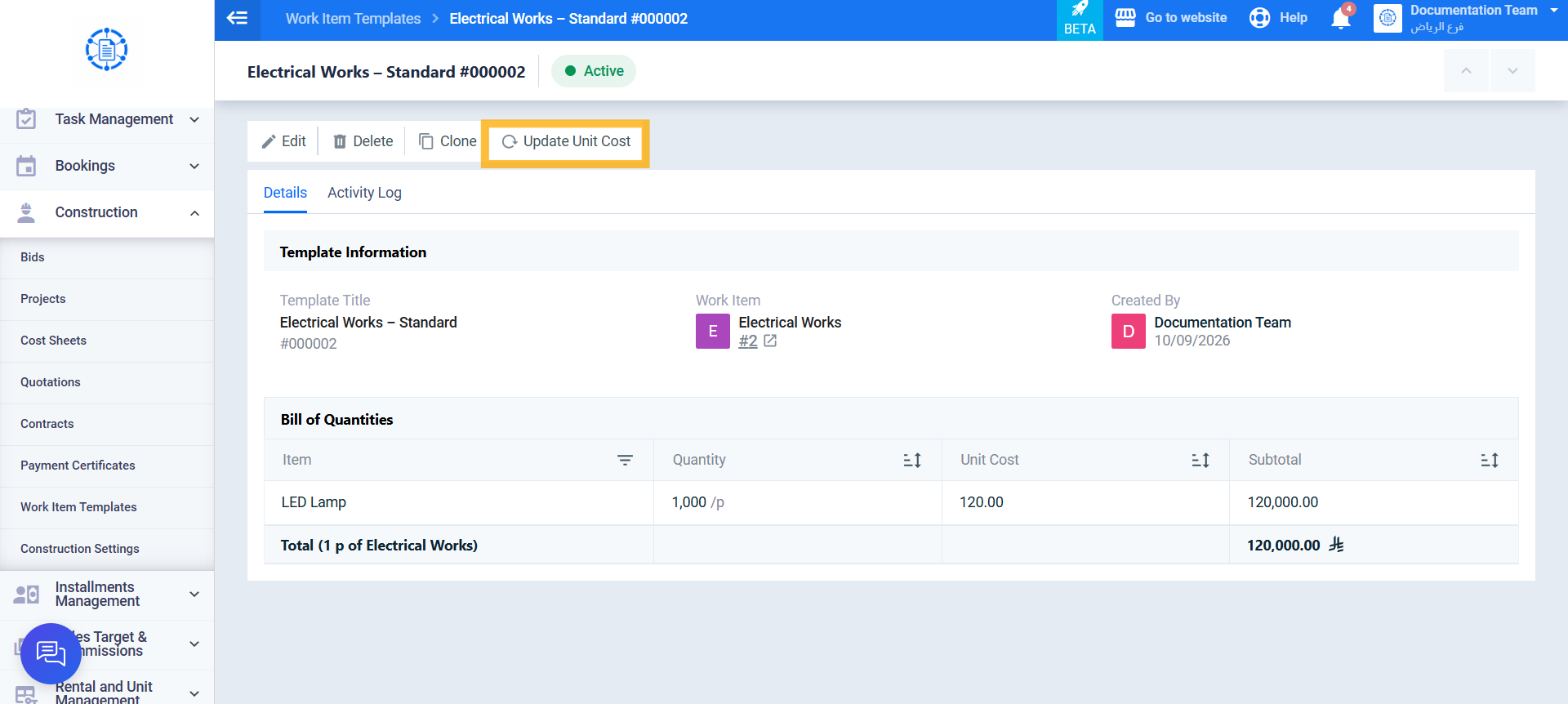
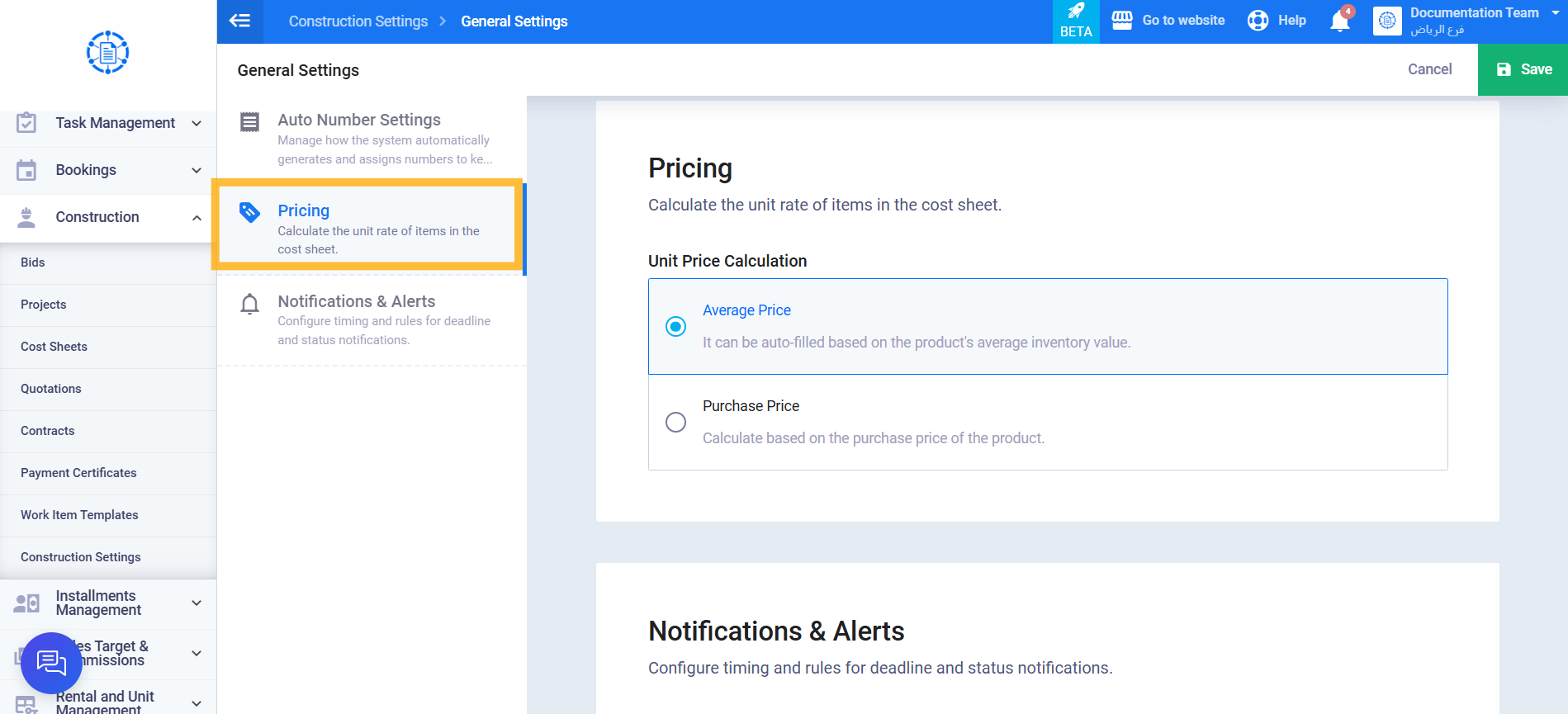
The system automatically updates the unit cost either from the Average Cost in inventory or from the Purchase Price recorded on the material form, according to the Unit Price Calculation setting under Construction Settings → General Settings card → Pricing section.