




Guide to Restricting Fields and Statuses for a Role in Workflows
You can control what the employees of a specific role can do in a workflow type: the fields they can add, view, or edit, the statuses whose records they can see, and the statuses they can move records to. The restrictions apply to all employees of the role at once, so you don’t need to set up each employee separately. This tutorial explains how to add the three restrictions for a role from the Manage Permissions screen, and what the role’s employees see after saving.
Before you start
- The role is added from Roles, and the employees you want to restrict are assigned to it.
- The workflow type is added with its fields and statuses from Workflow Types.
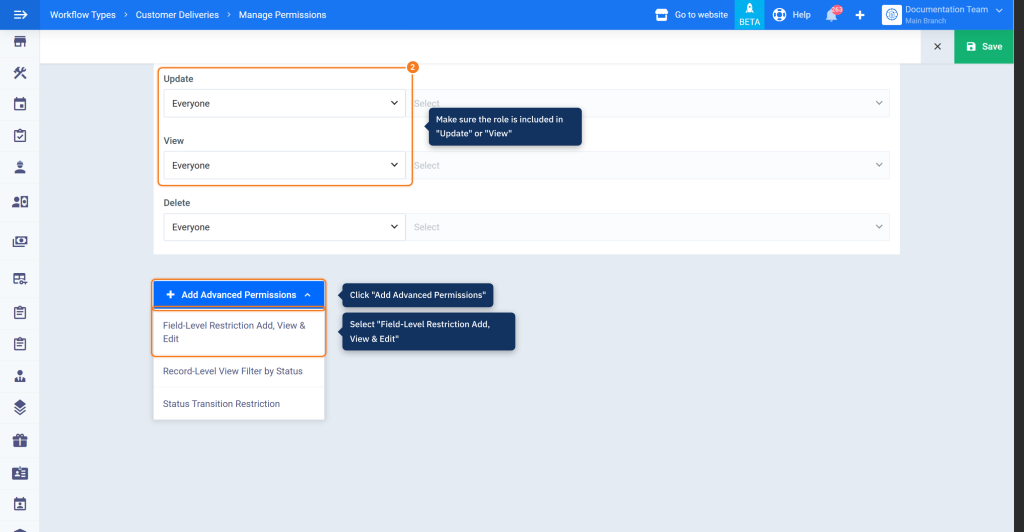
- The role is included in the Update or View permission in the Permissions section of the workflow type, because advanced restrictions apply only to those two permissions.
Steps to restrict fields and statuses for a role
First: Open the Manage Permissions screen
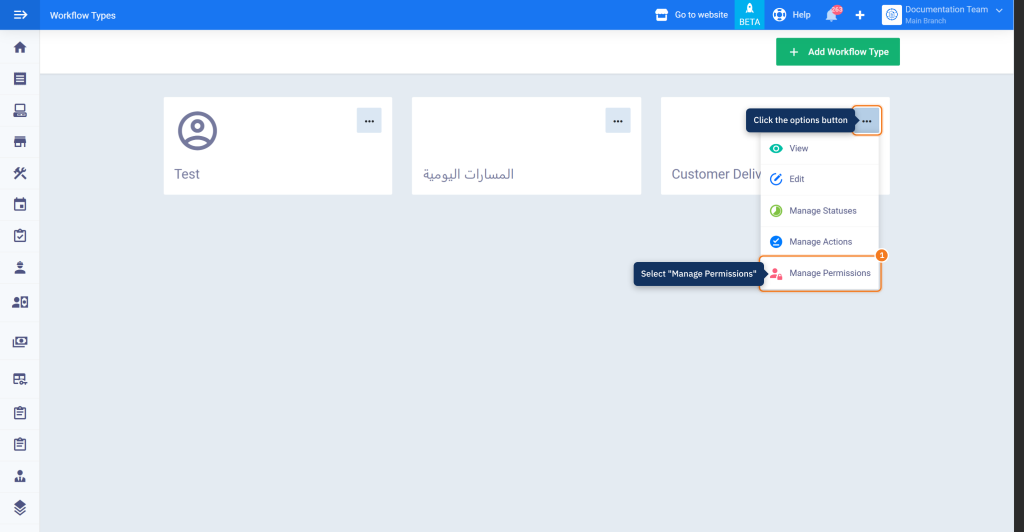
- Open Workflow Types, click the options button (…) on the workflow type card, then select Manage Permissions.
- Review the Permissions section and make sure the role is included in Update or View, then click Add Advanced Permissions and select Field-Level Restriction Add, View & Edit.
Second: Restrict fields for the role
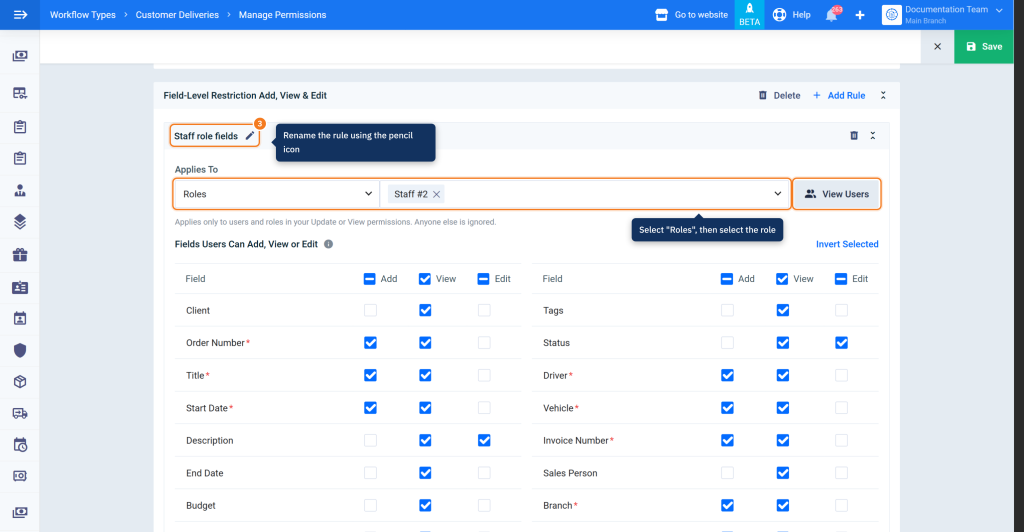
- The section is added with its first rule. To rename the rule, click the pencil icon next to it and enter a name that describes its purpose, up to 30 characters.
- From Applies To, select Roles, then select the role from the list next to it. To see the employees assigned to the role, click View Users.
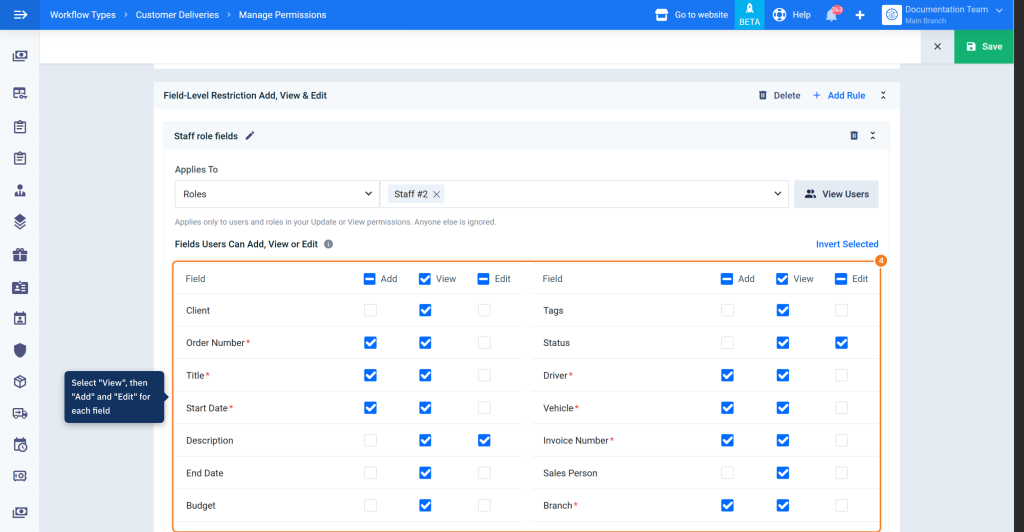
- In the Fields Users Can Add, View or Edit table, select what the role’s employees are allowed to do for each field: Add, View, or Edit. Any field without View is completely hidden from them.
Third: Select the statuses whose records the role can view
- Click Add Advanced Permissions again and select Record-Level View Filter by Status.
- From Applies To, select Roles and select the same role, then from Statuses Users Can View select the statuses whose records the role’s employees can see. You can use Select All or Invert Selected.
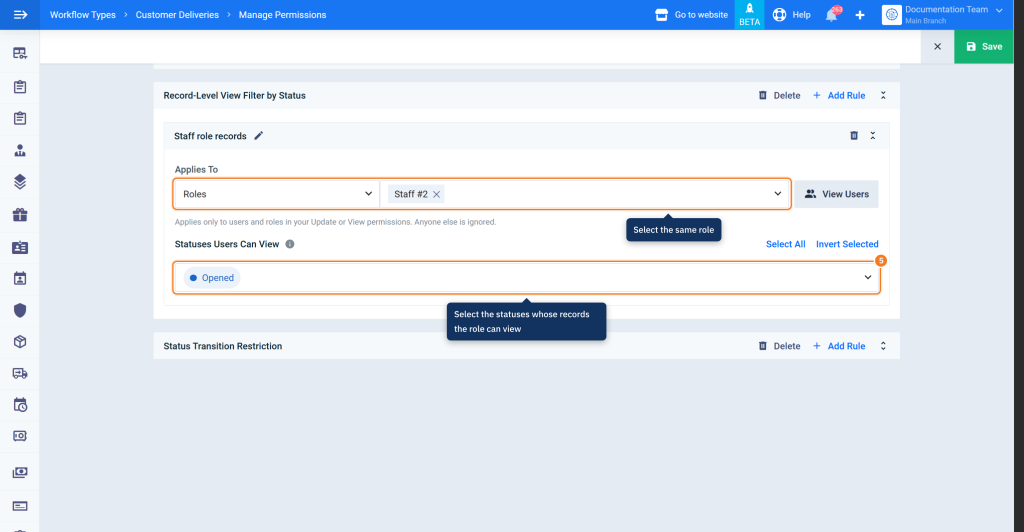
Fourth: Select the statuses the role can move records to
- Click Add Advanced Permissions and select Status Transition Restriction.
- From Applies To, select Roles and select the same role, then from Statuses Users Can Transition To select the statuses the role’s employees are allowed to move records to.
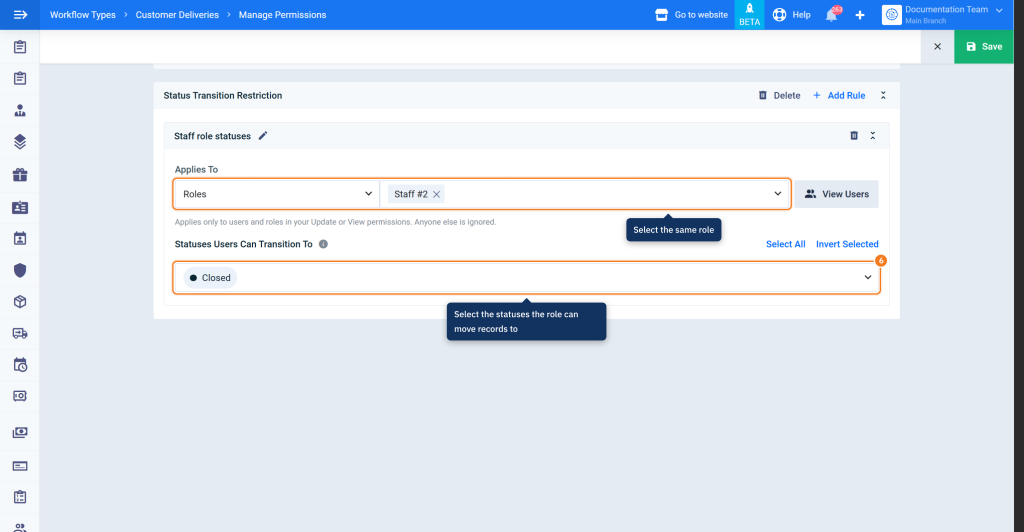
Fifth: Save the restrictions
- Click Save at the top of the screen. The message Permissions saved successfully appears and you are taken to the workflow type page. To review or edit the rules later, click Manage Permissions on the same page.
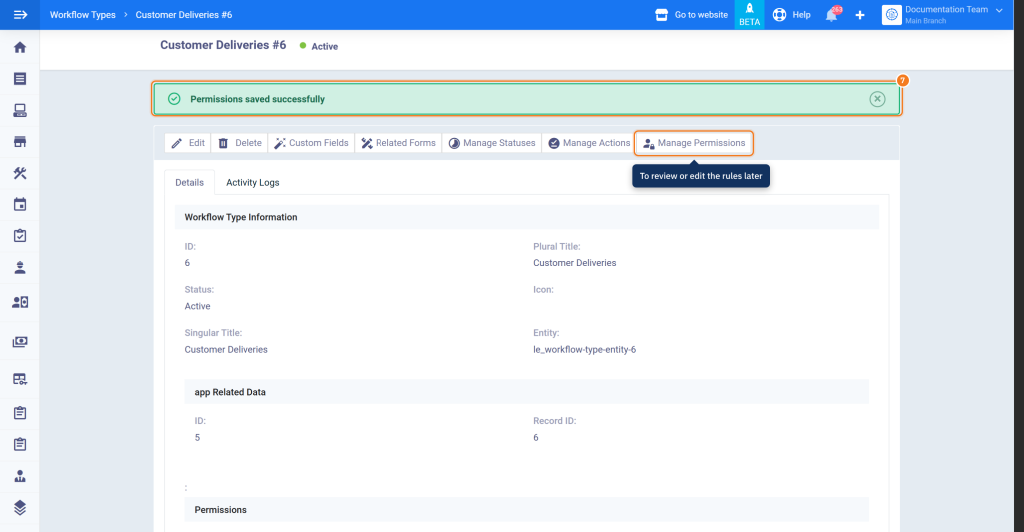
What do the role's employees see after saving?
| Place | What happens for the role’s employees |
|---|---|
| Add form | Only the fields allowed for adding appear. |
| Edit form | Only the fields allowed for editing appear, and the other fields keep their values unchanged. |
| Records list | Only records in statuses allowed for viewing appear. Columns of fields not allowed for viewing don’t appear and can’t be used for search, sorting, or filtering. |
| Status tabs and status filter | Only statuses allowed for viewing appear, and counts are calculated from the allowed records. |
| Record page | Fields not allowed for viewing are hidden, and a record in a status not allowed for viewing can’t be opened. |
| Status selection | Only statuses allowed for transition appear on the record page, the edit page, and in bulk update. |
| Export and reports | Fields not allowed for viewing are hidden, and only records in statuses allowed for viewing are exported. |
FAQs
I added restrictions for the role, but one of its employees isn't affected. Why?
Make sure the role is included in the Update or View permission in the Permissions section, that the employee isn’t the account owner, and that there’s no other rule under the employee’s name in the same type, because the employee’s rule applies instead of the role’s rule.
Why doesn't a restriction type appear in the Add Advanced Permissions list?
Because it’s already added to the workflow type; each type can be added once. Add a new rule inside the existing section using Add Rule.
Why can't I select Add or Edit for a field?
Because View isn’t selected for this field; select View first.
Can I apply the same restrictions to more than one role?
Yes. Select more than one role in the same rule, or add a separate rule for each role using Add Rule.
What happens if a record moves to a status the role isn't allowed to view?
The record disappears from the role’s employees’ list, and appears again if it returns to a status they are allowed to view.