




Automatically Send E-Invoices and E-Receipts to the Egyptian Tax Authority
You can send invoices or receipts to the e-invoicing system of the Egyptian Tax Authority (ETA) automatically, without clicking Send every time. Auto send works with invoices created from Create Invoice and receipts created from Point of Sale. This tutorial explains how to choose the document type that is sent automatically, how sending works, and the cases where a document is not sent.
Before you begin
- Your account is connected to the Egyptian e-invoicing system from Electronic Invoicing Settings: to send invoices, select Enable Electronic Invoices; to send receipts, select Enable Electronic Receipts; and enter the Client ID and Client Secret for each.
- The Egyptian E-Invoice app is installed and activated from Manage External Apps.
Steps to enable auto send
First: Choose the document type to send automatically
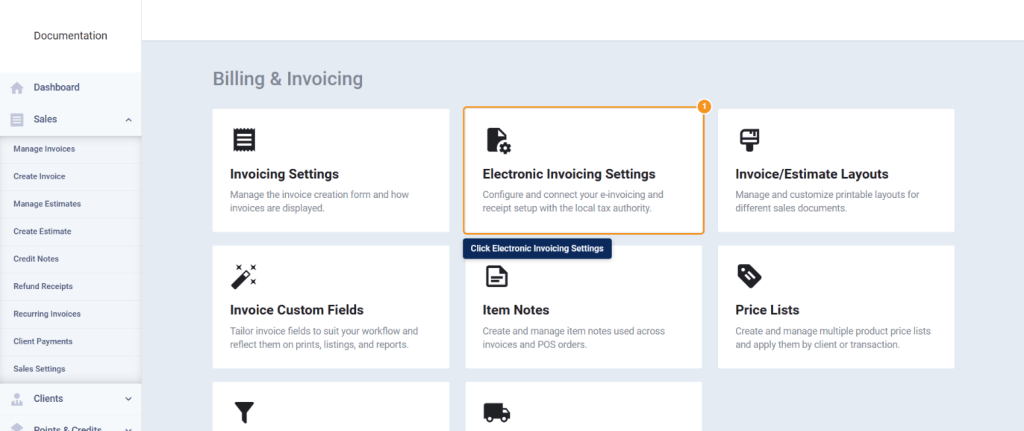
- Go to Sales, then Sales Settings, and click the Electronic Invoicing Settings card.
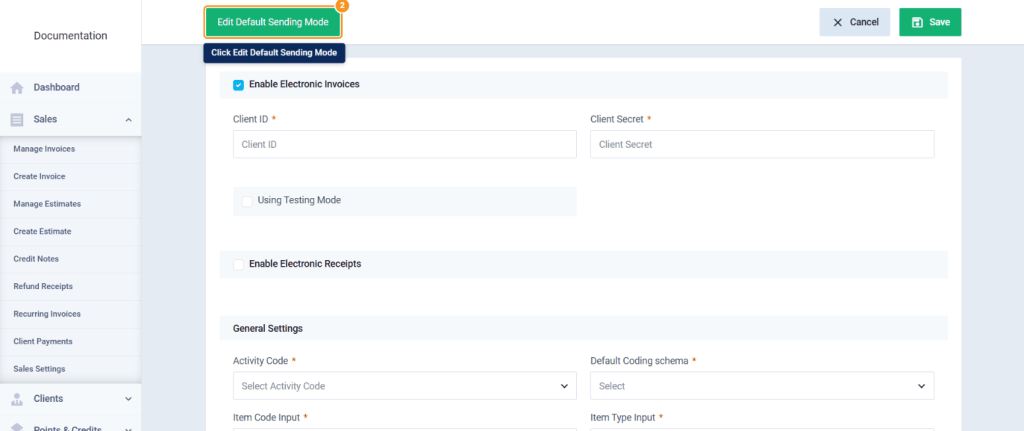
- Click Add Default Sending Mode at the top of the page (it appears as Edit Default Sending Mode if a type was already selected).
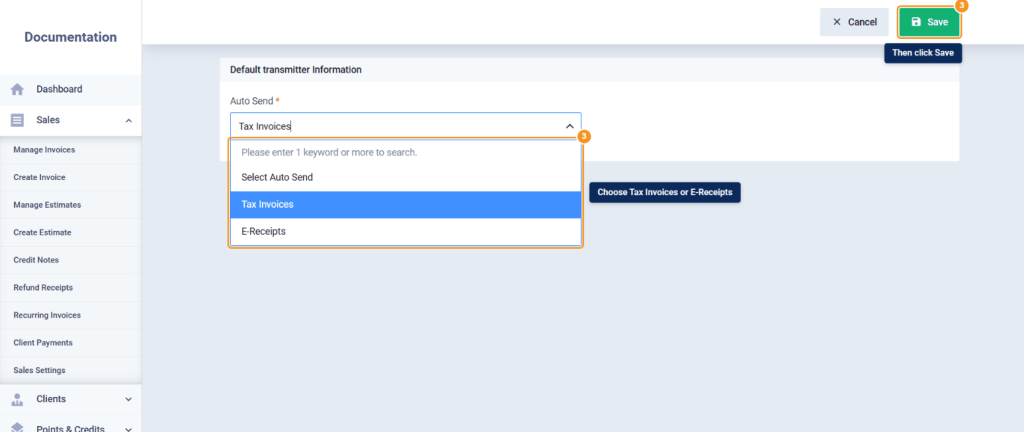
- From the Auto Send list, choose the document type to send automatically: Tax Invoices or E-Receipts, then click Save.
Second: Create the document
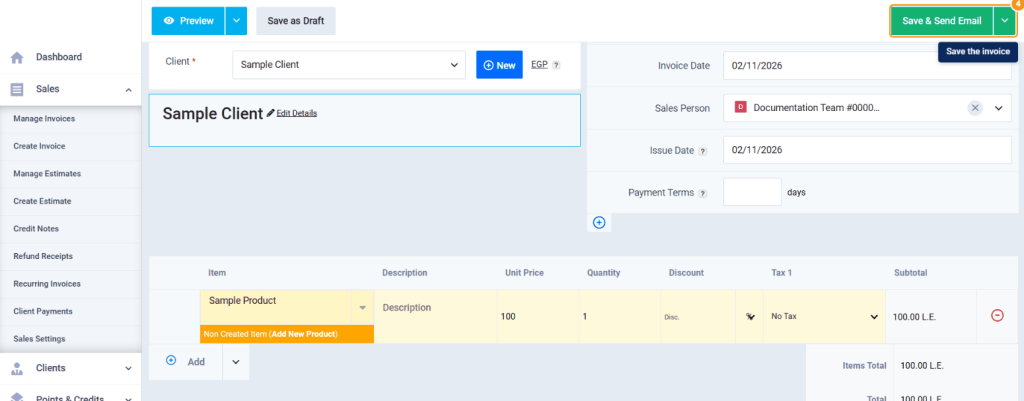
- Create an invoice from Create Invoice, or a receipt from Point of Sale, and save it as usual.
Third: Auto send
- When you open the invoice or receipt page and its status is Not Submitted, the system sends it to the e-invoicing system automatically if its type matches the type selected in the setting, without you clicking Send.
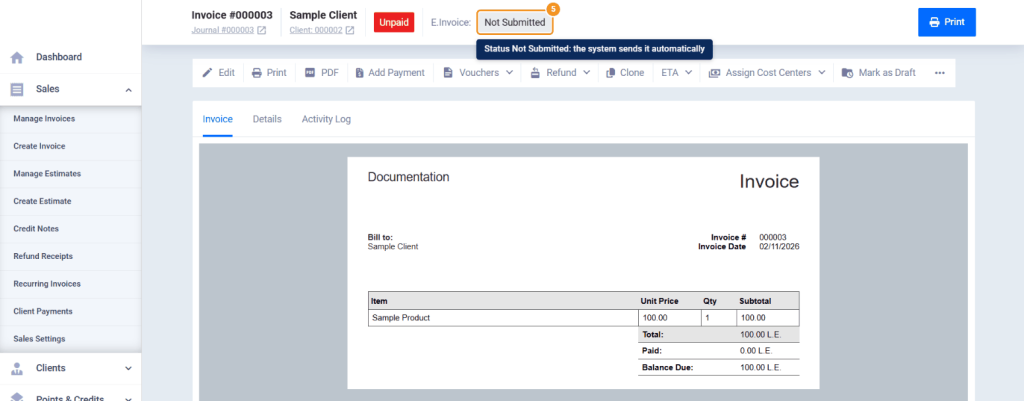
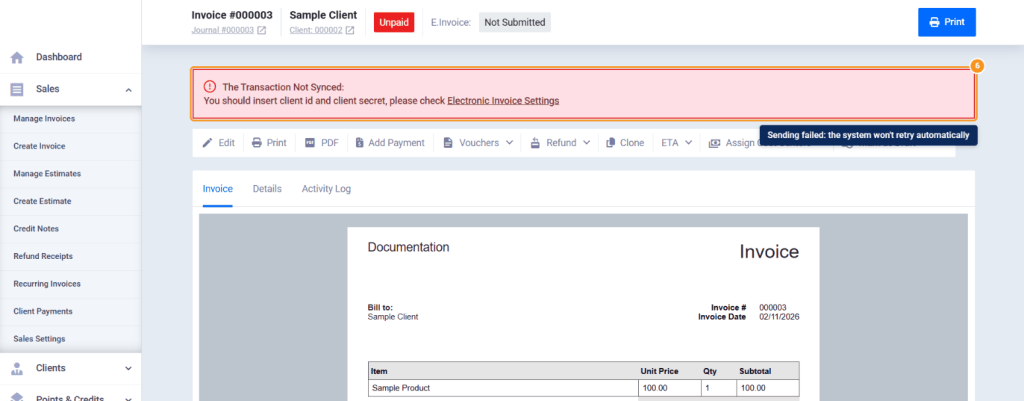
- After sending, the document status changes on its page, and you can follow the sending result from the same page. If sending fails, the message The Transaction Not Synced appears at the top of the page with the error reason.
Cases where a document is not sent automatically
| Case | What happens |
|---|---|
| The document was already sent. | It is not sent again. |
| The document type doesn’t match the type selected in the setting. | It is not sent automatically; you can send it manually using the Send button. |
| No type is selected in the setting. | No document is sent automatically. |
| The message The Transaction Not Synced appears on the page from a previous attempt. | The system doesn’t resend automatically, to avoid duplicate sending. Check the error reason, then send the document manually. |
| There is no Send button on the page, the document type can’t be determined, or there are several Send buttons and none of them matches the document type. | The document is not sent automatically. |
FAQs
Can invoices and receipts both be sent automatically?
No. Only one type is sent automatically, based on your choice in the setting: invoices or receipts. Send the other type manually using the Send button.
Why wasn't the invoice sent automatically?
Because its type doesn’t match the setting, no type is selected, it was already sent, or a previous attempt failed and the message “The Transaction Not Synced” appeared. See the cases table above.
Does the system retry automatically if sending fails?
No. When the message “The Transaction Not Synced” appears, auto send stops for this document to avoid duplicate sending. Fix the error reason, then send it manually.
Is a document that was already sent sent again?
No. Only a document whose status is “Not Submitted” is sent automatically.