




Printer Integration with the POS App on iOS Devices
The system’s POS app supports printer connectivity on iOS devices via two methods:
- Bluetooth
- Internet / Wi-Fi
Logging Into Your Account
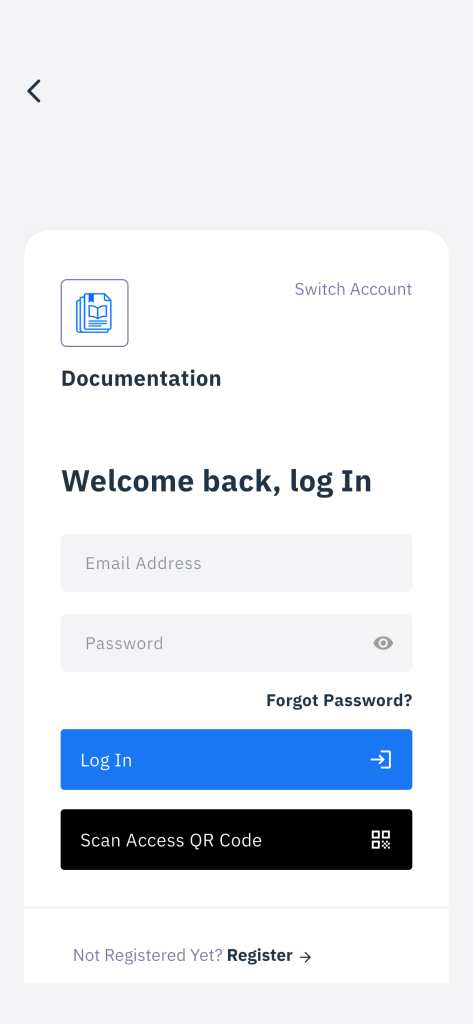
To log into your account on the app, you can either:
- Enter your account number or admin email address and password, or
- Tap “Scan Access QR Code” and scan the QR code available on the “Apps” page within your account.
Connecting via Bluetooth
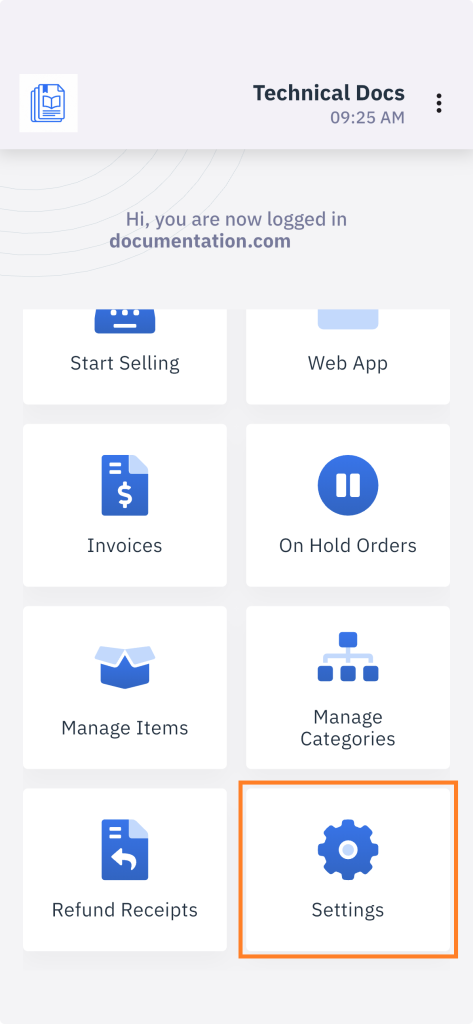
- From the main menu, tap “Settings”.
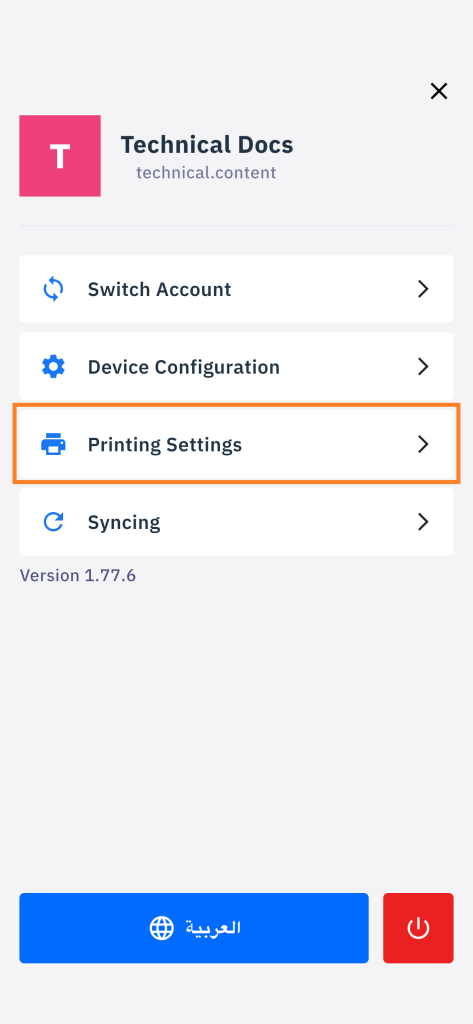
- From the Settings menu, tap “Print Settings”.
- Under the connection type options, select “Bluetooth”.
- Select your printer device from the second dropdown list.
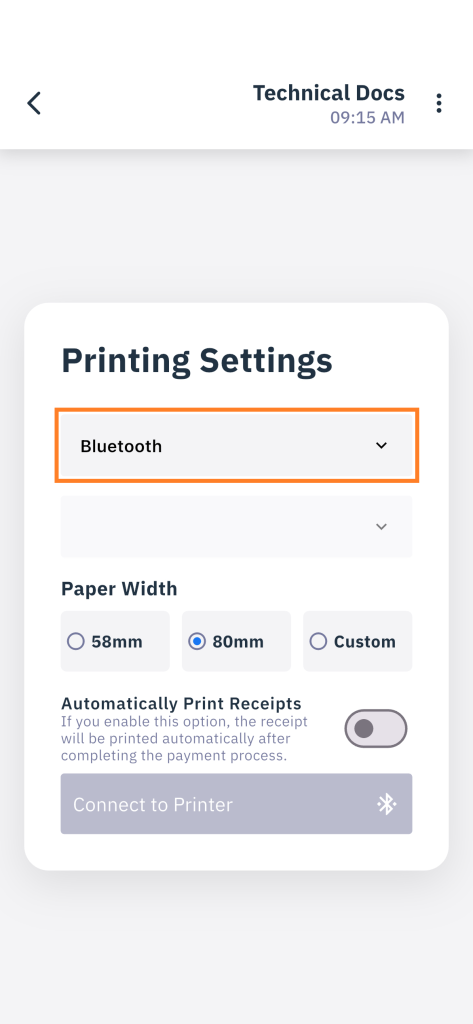
- Set the paper size supported by the printer you wish to connect.
- Tap “Connect to Printer”.
Connecting via Internet / Wi-Fi
- From the main menu, tap “Settings”.
- From the Settings menu, tap “Print Settings”.
- Under the connection type options, select “Internet / Wi-Fi”.
- Enter the IP address of the printer you wish to connect to the app.
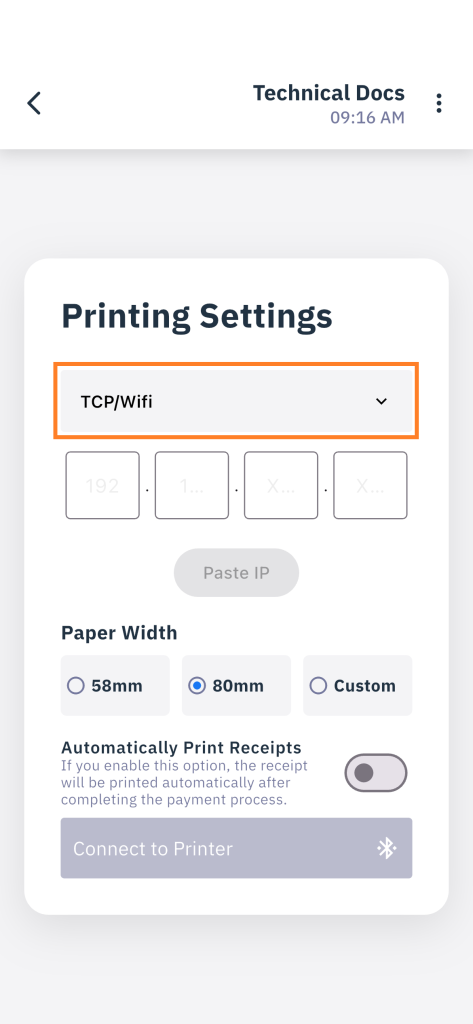
- Set the paper size supported by the printer you wish to connect.
- Tap “Connect to Printer”.