


A Guide to Handling Government Entity Clients in Saudi Accounts
The option Client is a Government Entity in the system lets you register clients from government entities in Saudi accounts by their official number without requiring a VAT number, and issue electronic invoices for them that are accepted by the Zakat, Tax and Customs Authority. This guide explains adding a government entity, editing it, searching for it, importing and exporting it, and its effect on the electronic invoice.
Contents
- Before You Start
- Adding a Client as a Government Entity
- What Changes in the Client Form?
- Editing an Existing Client or Adding It from the Invoice
- Viewing and Searching for Government Entities
- Importing and Exporting Government Entities
- The Option’s Effect on the Electronic Invoice
- Frequently Asked Questions
Before You Start
- Your account in the system is Saudi.
- The KSA Electronic Invoice app is activated in your account.
- You have the permission to add, edit, or view clients, depending on the action you want to perform.
Adding a Client as a Government Entity
- From the side menu, click Clients then Add Client.
- Choose the client type Business.
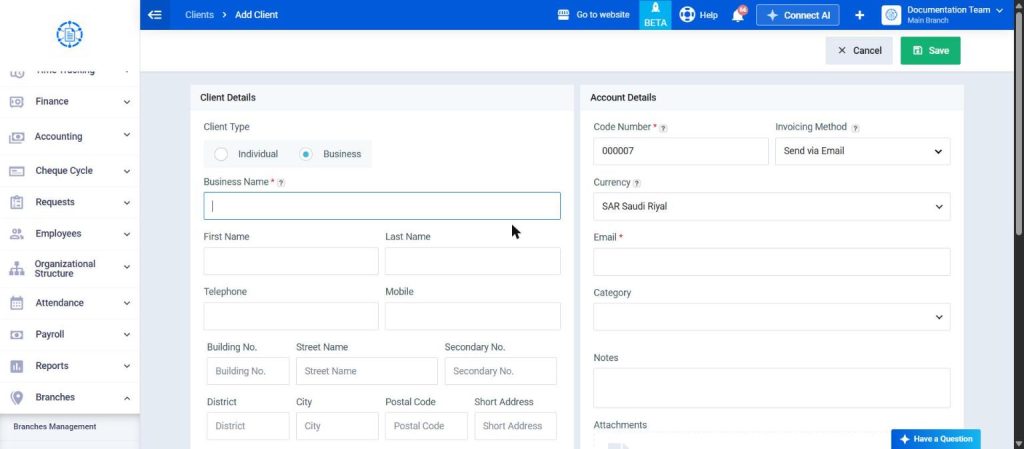
- In the Client Details section, enable the option Client is a Government Entity; you will find it as the last field in the section, directly above the VAT Number and Contract / Reg No / License No. fields.
- Enter the entity’s name in the Business Name field.
- Enter its official number in the Contract / Reg No / License No. field, and enter the VAT Number if available.
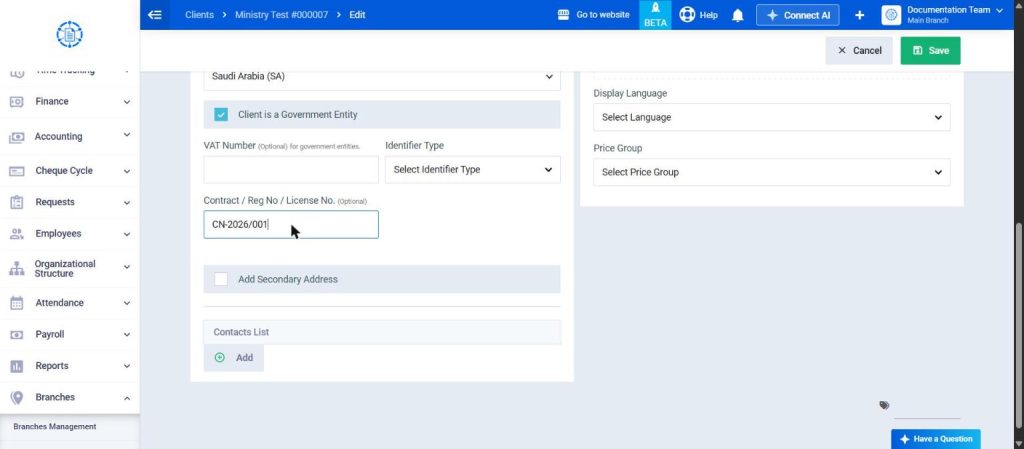
- Complete the rest of the data, then click Save.
What Changes in the Client Form?
When the option is enabled, only two fields change, and the rest of the fields work as in a regular business client. When it is disabled, the client returns to the business client behavior completely.
| Field | Regular Business Client | Government Entity Client |
|---|---|---|
| VAT Number | Required unless a C.R / identifier number with its identifier type is entered | Optional and next to it appears (Optional) for government entities. |
| Official number field | C.R / Unified Number | Contract / Reg No / License No. (Optional) |
| Other fields | No change | |
Editing an Existing Client or Adding It from the Invoice
First: Converting an Existing Client into a Government Entity
- Open the client from the Clients list, then click Edit.
- Make sure the client type is Business, then enable the option Client is a Government Entity.
- Enter the Contract / Reg No / License No., then click Save.
Second: Adding a Government Entity from the Invoice Screen
- While creating the invoice, add a new client from the client field.
- Choose the client type Business, and enable the option Client is a Government Entity.
- Enter the entity’s name and number, then save the client and complete the invoice.
Viewing and Searching for Government Entities
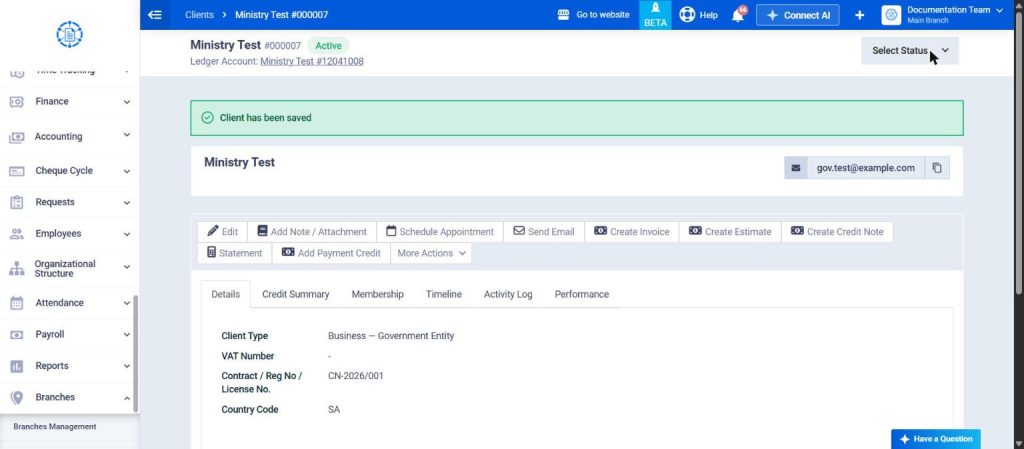
When opening the page of a client registered as a government entity:
- Its type appears as Business — Government Entity instead of Business.
- Its number appears under the title Contract / Reg No / License No. instead of C.R / Unified Number.
- The VAT Number row remains visible, and – appears in it if it is empty.
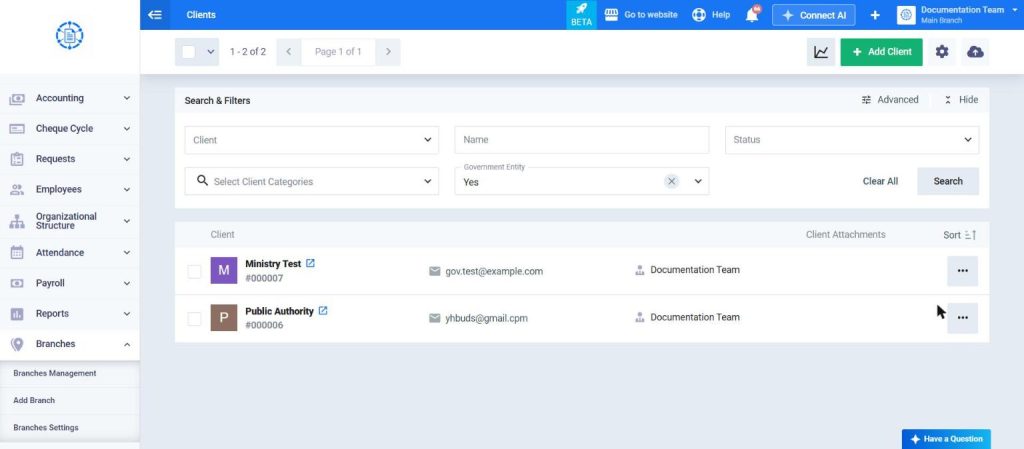
To view government entities only, use the Government Entity filter in the Clients list.
Importing and Exporting Government Entities
First: Importing
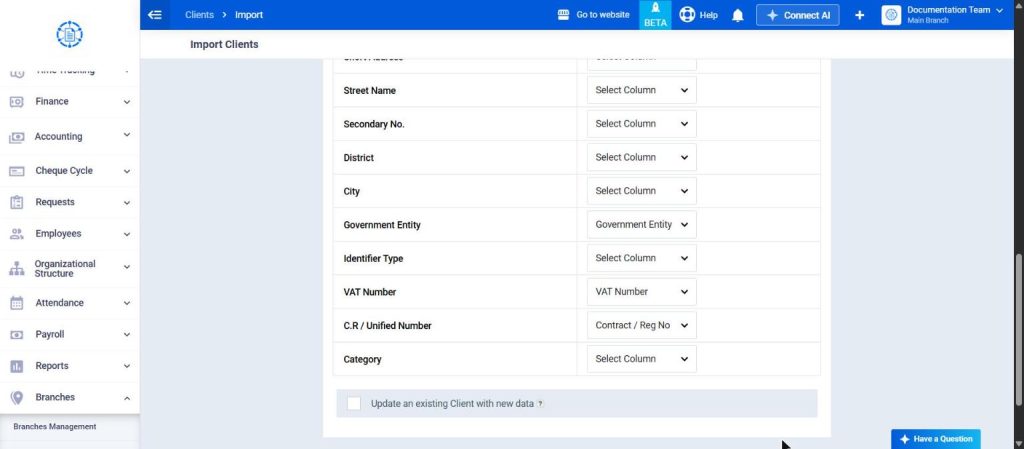
Add a column for the government entity to the import file, then map it to the Government Entity field in the Fields Mapping step on the Import Clients page, taking the following into account:
- Write in the column Yes for a government entity, and No or leave it empty for others.
- The column is accepted only when the client type in the same row is Business.
- Map the official number column to the C.R / Unified Number field, and the VAT Number becomes optional for rows marked as a government entity.
| Client Type | Government Entity | Result |
|---|---|---|
| Business | Yes | Imported as a government entity |
| Business | No or empty | Imported as a regular business client |
| Individual | No or empty | Imported as an individual client |
| Individual | Yes | The row fails |
Second: Exporting
- The clients export file contains a Government Entity column with the value Yes or No for each client.
- For government entities, the C.R / Unified Number column contains the value of Contract / Reg No / License No.
The Option’s Effect on the Electronic Invoice
The following applies to sales invoices, refunds, and credit and debit notes issued to the government entity:
- They are issued as standard tax invoices, like the business client’s invoices.
- If the entity has a VAT number, it is sent to the Authority as the buyer’s VAT number; if not, the Contract / Reg No / License No. is sent as another identifier for the buyer.
- The Authority accepts these invoices without rejecting them because of the absence of a VAT number or commercial registration.
- The printed invoice shows the title Contract / Reg No / License No. next to the entity’s number.
Frequently Asked Questions
Why doesn’t the Client is a Government Entity option appear?
The option appears only if your account is Saudi, the KSA Electronic Invoice app is activated, and the client type is Business.
Why don’t I register the government entity as an individual client?
Because a government entity isn’t an individual, and its invoices are issued as standard tax invoices; therefore, the option Client is a Government Entity is available for the Business client only.
Do I need a new permission to use the option?
No. The option follows the existing permissions for adding, editing, and viewing clients.
Do old invoices change if I disable the option for the client?
No. Each invoice keeps the government entity data as it was at the time of its issuing, and the change applies to new invoices only.