




Guide to Creating a Quantity-Based Discount Offer
The system allows you to create a quantity-based discount offer, where customers receive a higher discount percentage as the purchased quantity increases, by configuring one or multiple quantity tiers. This article explains how to create this type of offer.
Guide to Creating a Quantity-Based Discount Offer
Step 1: Access the Add New Offer Screen
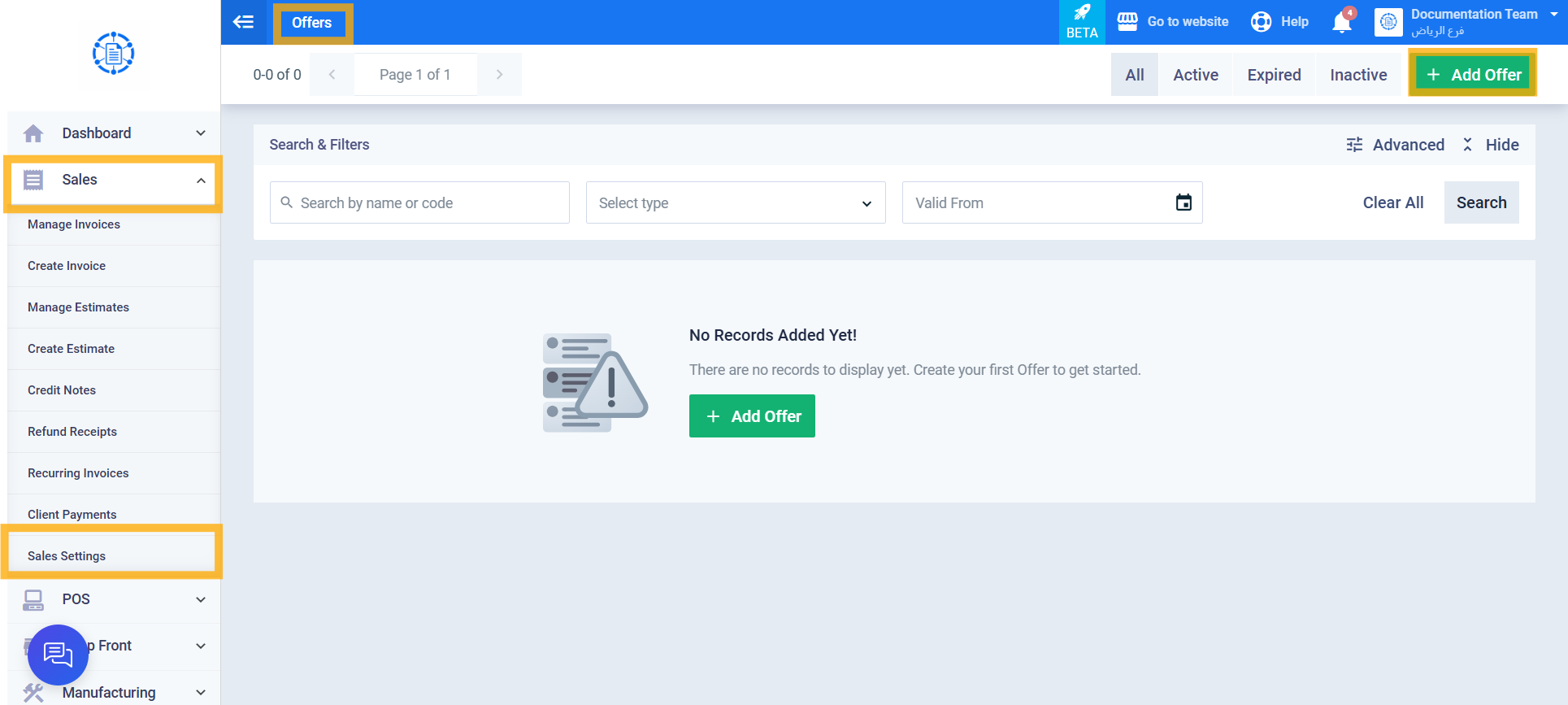
From the main menu, click Sales, then Sales Settings, then Offers, and click Add Offer.
Step 2: Select the Offer Type
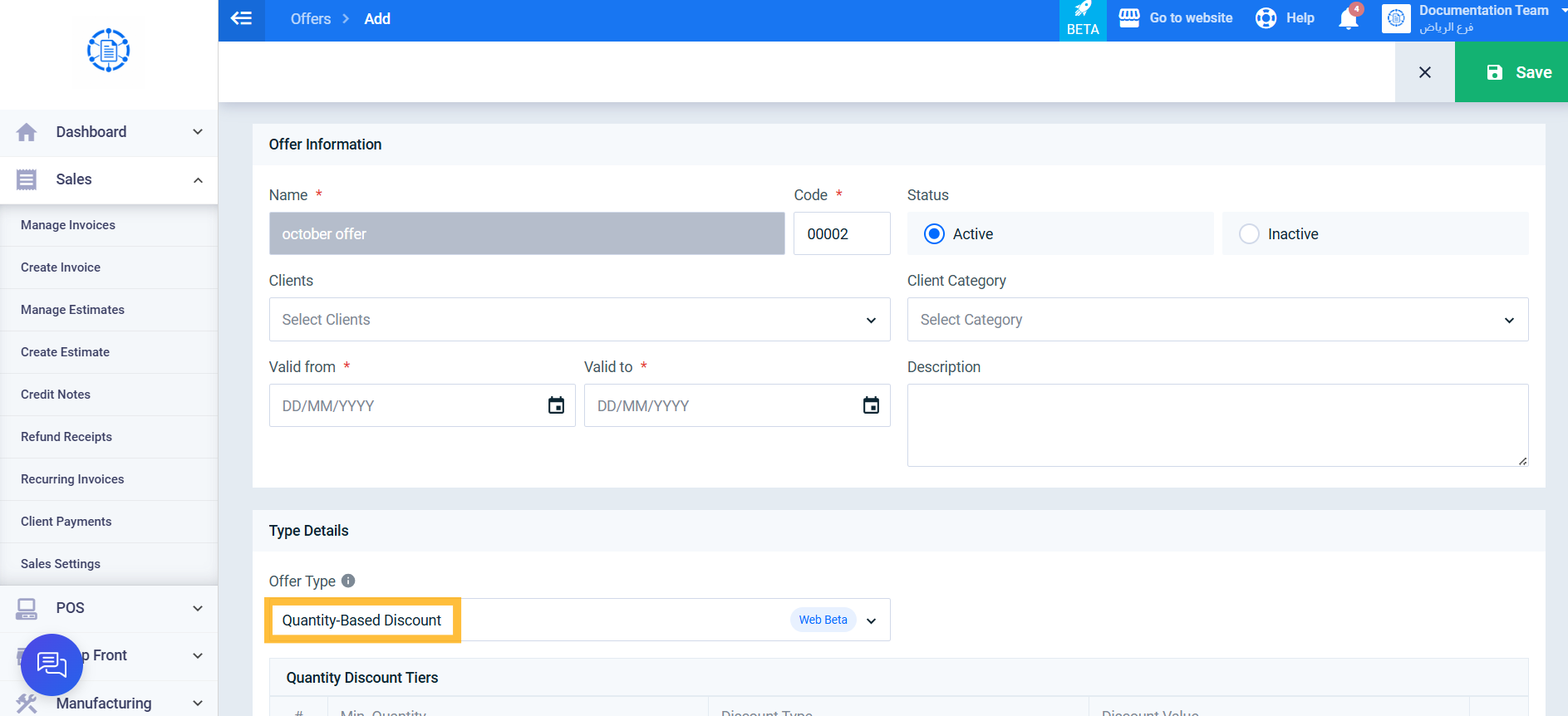
From the Offer Type field, select Quantity-Based Discount.
Step 3: Configure Quantity Discount Tiers
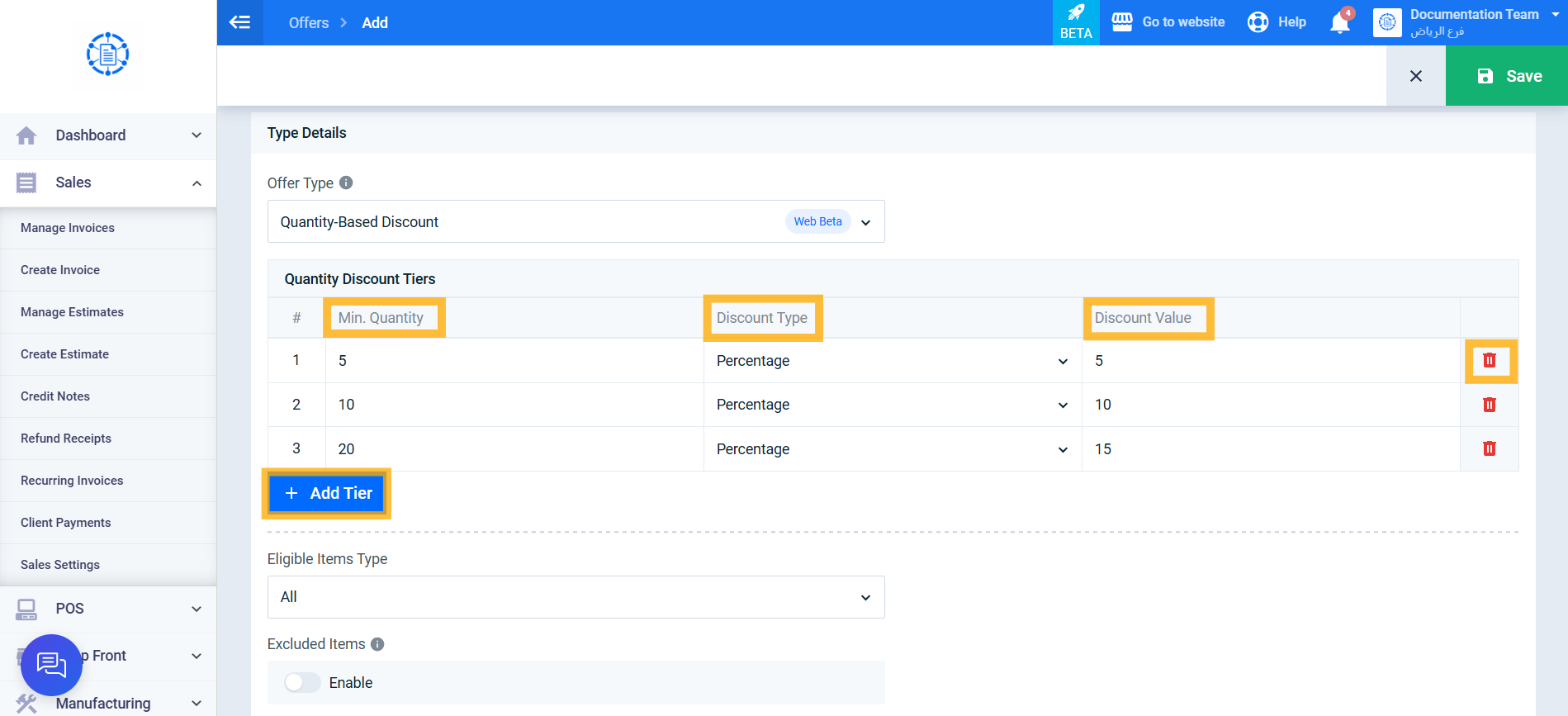
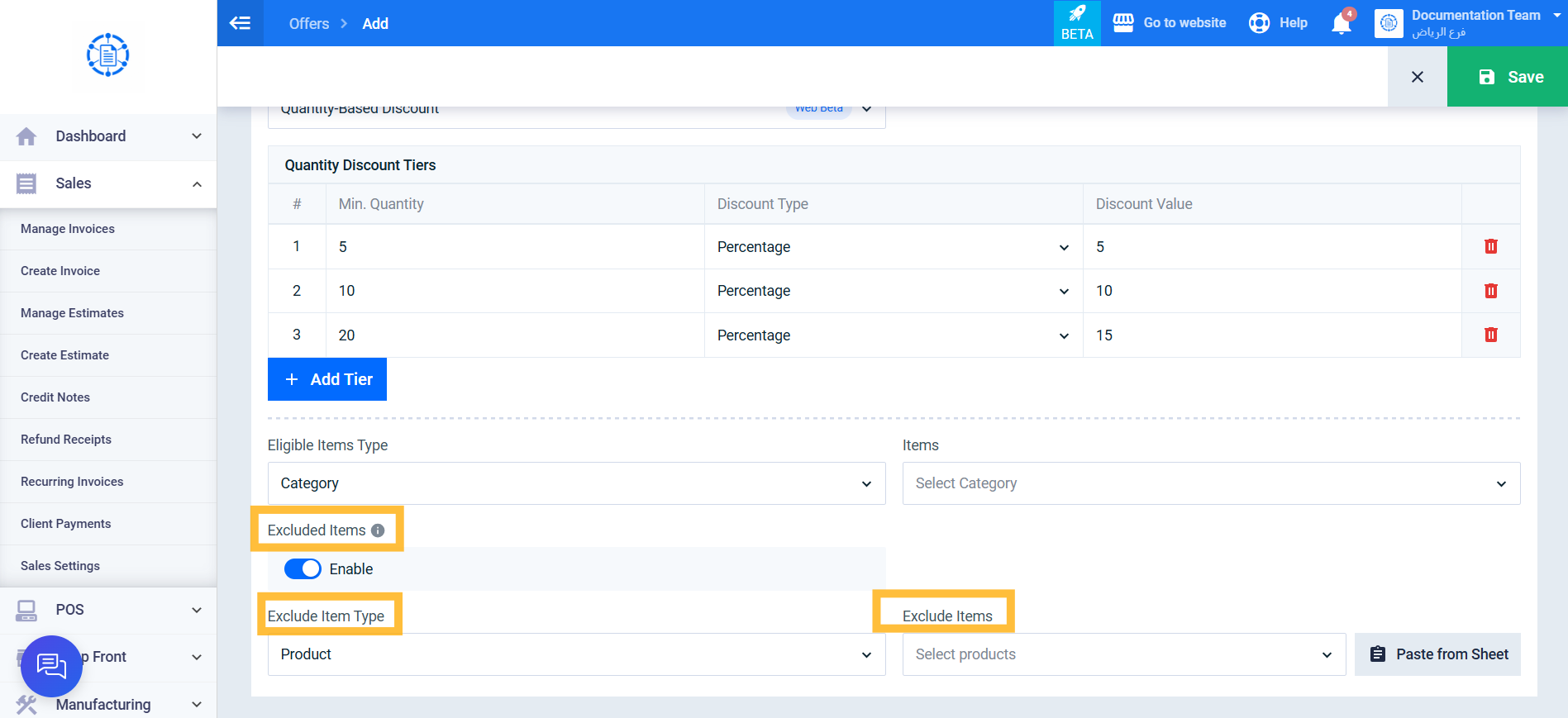
In the Quantity Discount Tiers table, enter the following for each tier: Minimum Quantity, Discount Type (Percentage Discount or Fixed Amount), and Discount Value. At least one tier must be added. You can add additional tiers by clicking Add Tier, or remove any tier other than the first one using the delete icon next to it.
Step 4: Specify the Items Included in the Discount
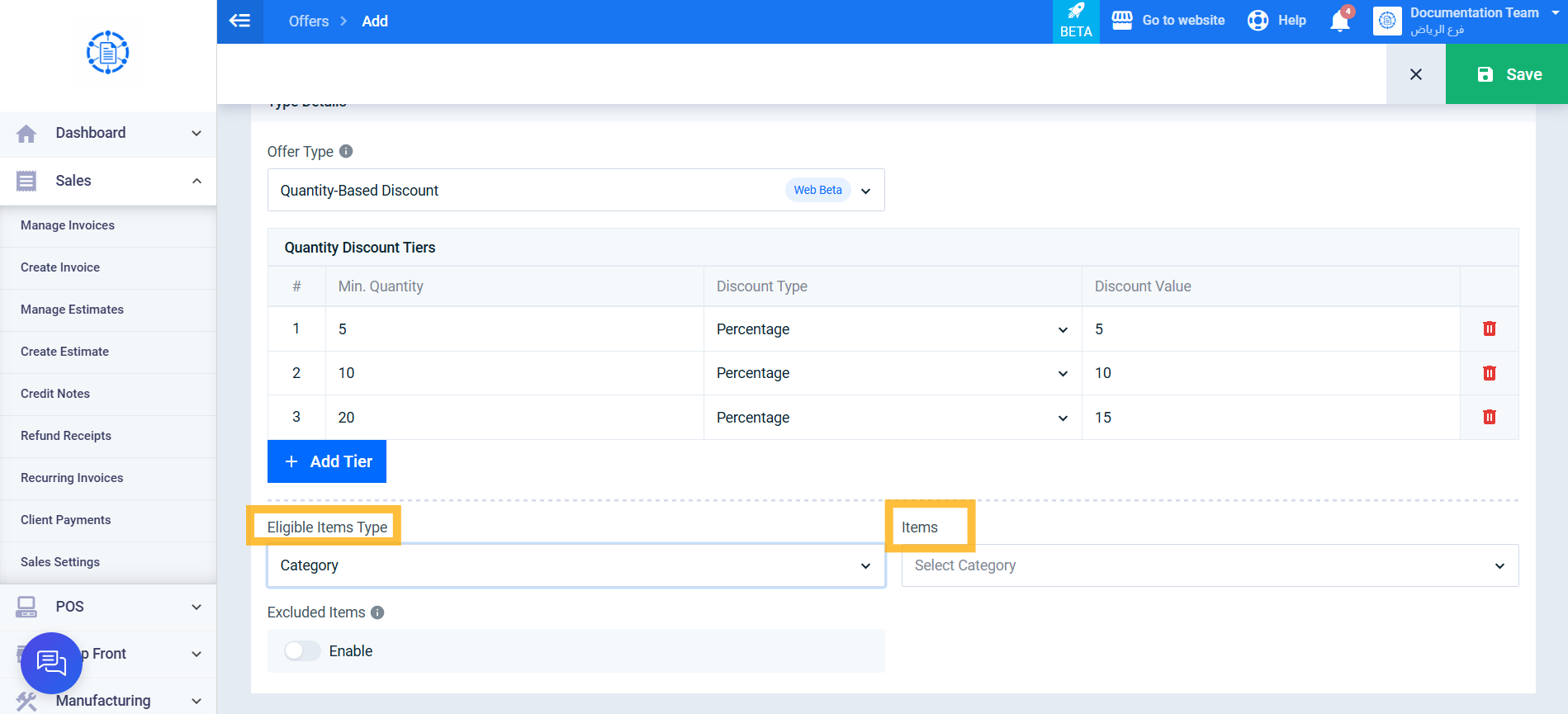
From the Eligible Item Type field, select one of the following options: All, Category, Product, or Item Group. If you select any option other than All, specify the required items in the Items field that appears afterward.
Step 5: Exclude Specific Items (Optional)
If you want to exclude specific items from this offer, even if they are included in the selection specified in the previous step, enable the Excluded Items toggle, then select the excluded item type and the items to exclude.
Step 6: Save the Offer
Review the entered information, then click Save.
After saving, the success message “Offer has been saved successfully.” appears, and the offer becomes ready for automatic application.