




Sales Order Requisitions Guide
The system allows you to fully manage and track inventory movements when processing sales orders, starting from creating the requisition, approving it, and finally converting the sales order into an invoice.
This guide explains all the required steps to complete the sales order requisition cycle correctly.
What Is a Sales Order Requisition?
A sales order requisition is a document that allows you to record inventory movement and release products from the warehouse immediately after confirming the sale, without issuing the invoice at the same time.
This gives you the flexibility to separate inventory movement from invoicing, helping improve inventory accuracy and allowing your team to manage operations more efficiently.
First: Enabling the Required Settings
Before getting started, make sure the following settings are enabled:
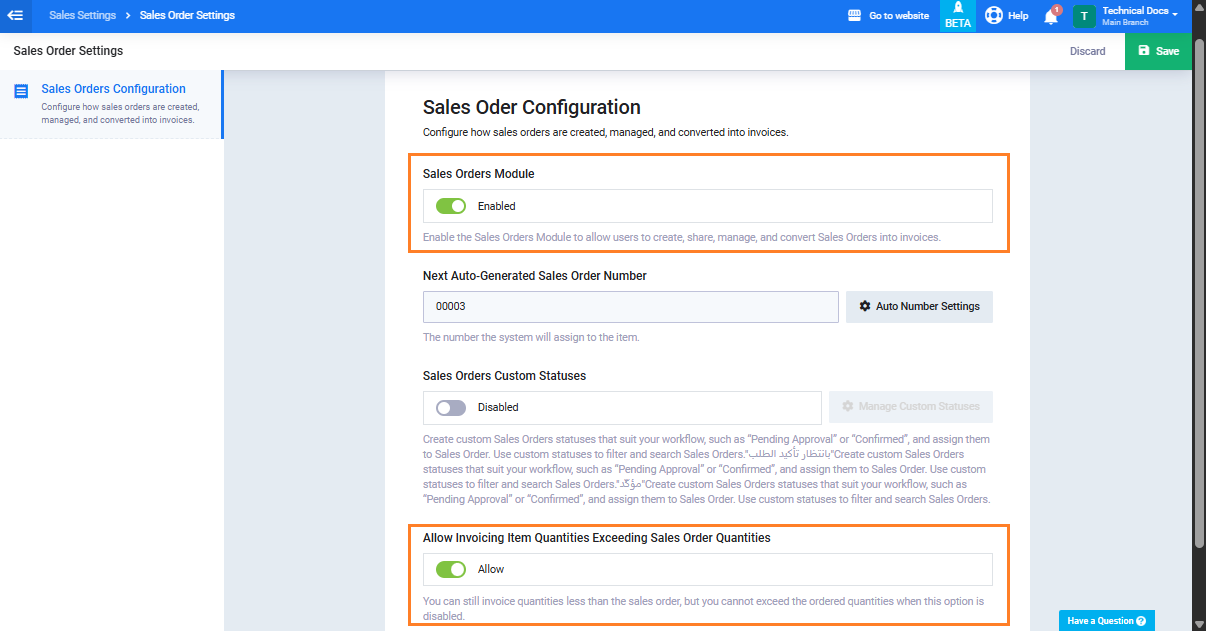
- From the main menu, go to “Sales” then select “Sales Settings“.
- Click on the “Sales Orders Settings” tab.
- Make sure the “Sales Orders Module” option is enabled.
- (Optional) If you want to allow invoicing quantities greater than the sales order quantities, enable ““.
- Click “Save“.
Second: Configuring User Permissions
This feature depends on three main permissions that determine what each user can do:
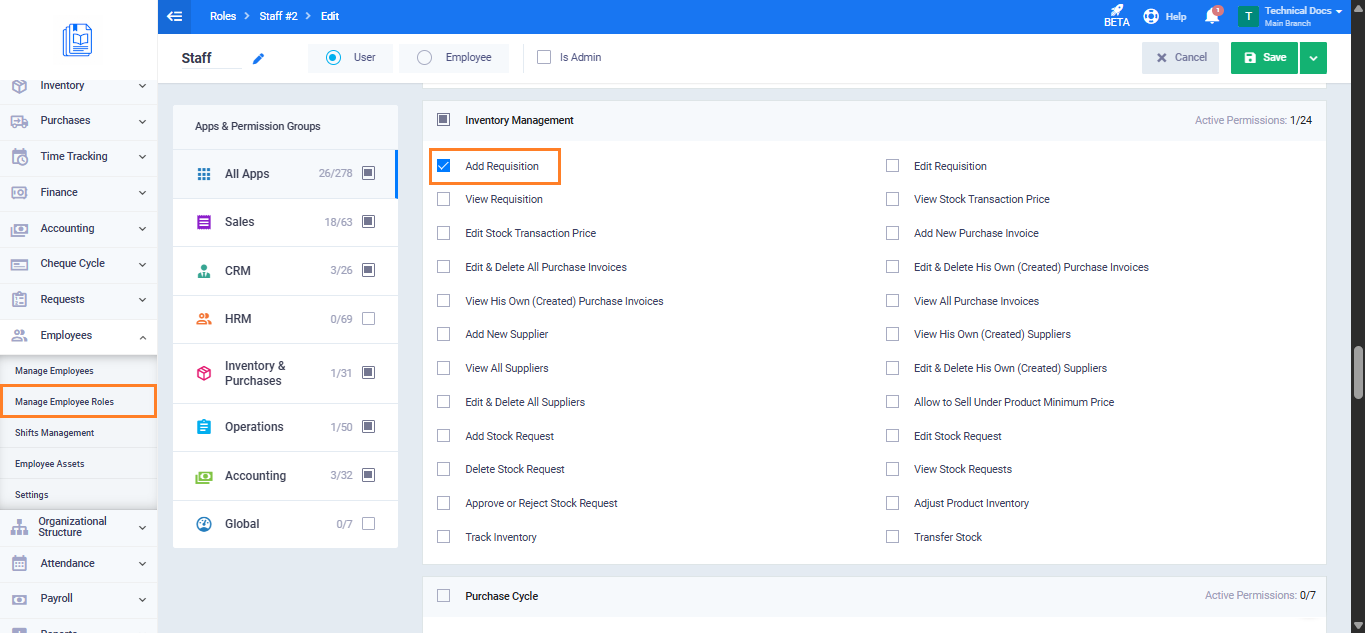
- Add Requisition: Allows users to create requisitions from sales orders.
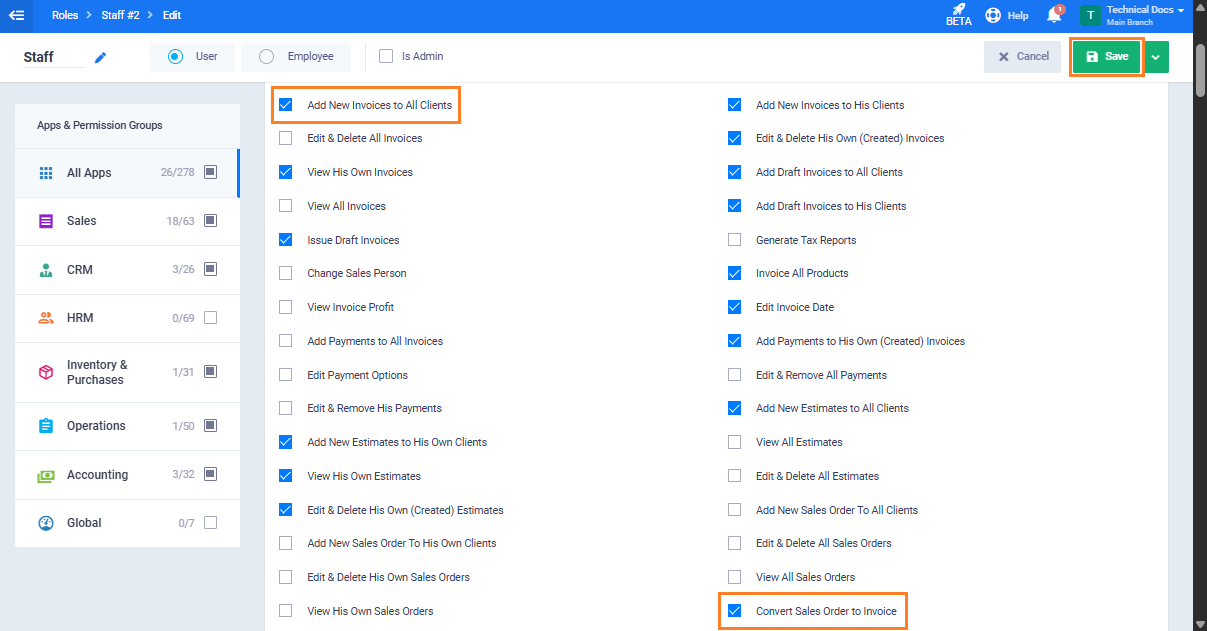
- Add New Invoice: Allows users to convert approved requisitions into invoices only.
- Convert Sales Order to Invoice: Allows users to convert approved and in-progress requisitions into invoices.
To configure permissions:
- Go to “Employees” then select “Manage Employee Roles“.
- Open the role you want to edit.
- Enable the required permissions for the role.
- Click on the “Save” button.
Third: Creating a Sales Order with a Requisition
You can create the requisition either while creating the sales order or after creating it.
Method 1: From the Sales Order Creation Form
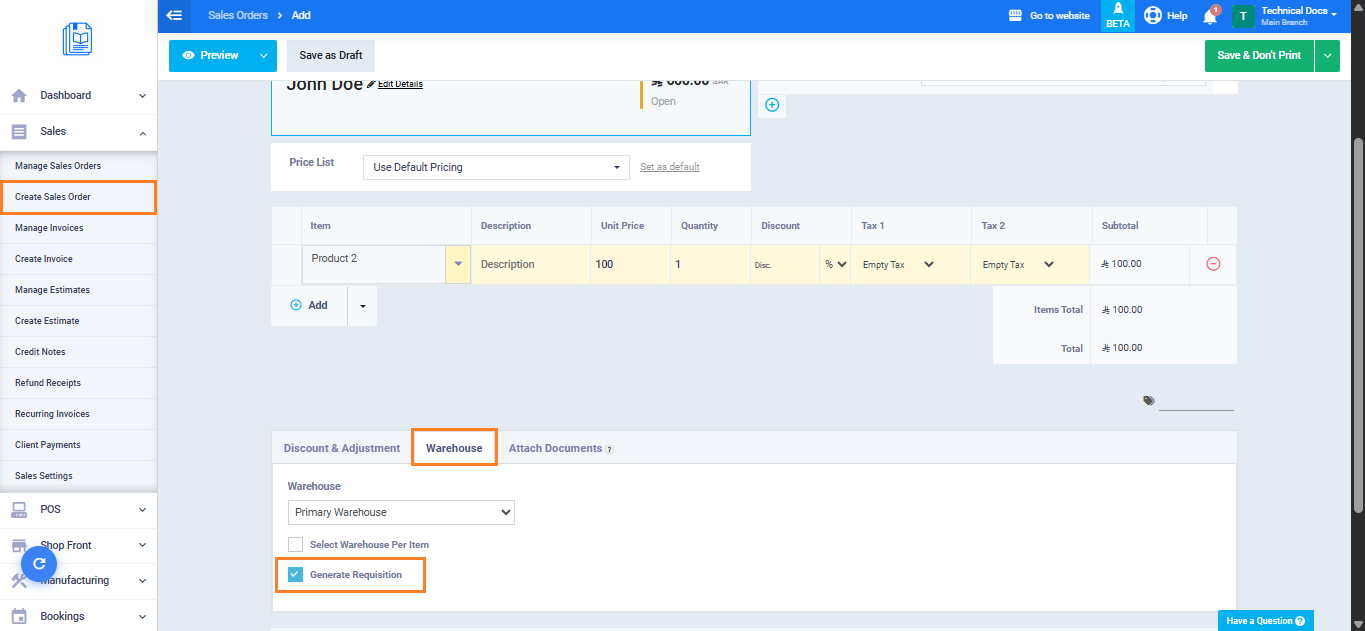
- From the main menu, click “Sales” then select “Create Sales Order“.
- Enter all sales order details.
- Under the shipping details (warehouse) section, enable the “Generate Requisition” checkbox.
- If your account contains multiple warehouses, select the appropriate warehouse. You can also assign a different warehouse for each product.
- Click “Save“, the requisition will be created automatically.
Method 2: From the Sales Order View Page
- From the main menu, click “Sales” then select “Manage Sales Orders“.
- Open the sales order you want to create a requisition for.
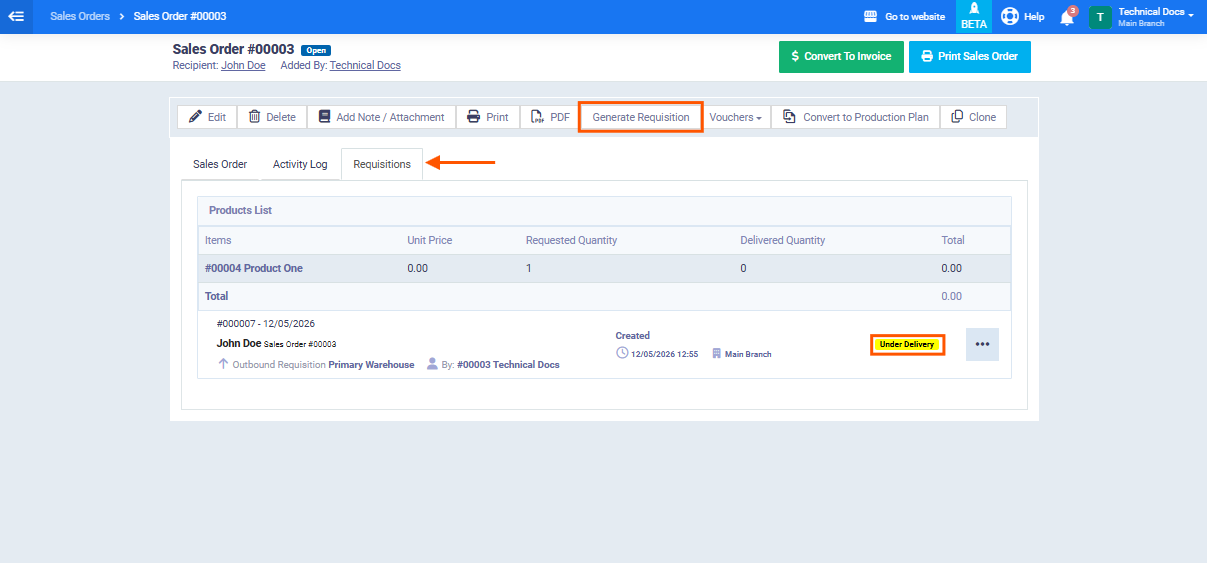
- Click “Generate Requisition“.
- The requisition will be created automatically with the status “Under Delivery“.
Fourth: Approving the Requisition
After creating the requisition, it must be approved before converting the sales order into an invoice:
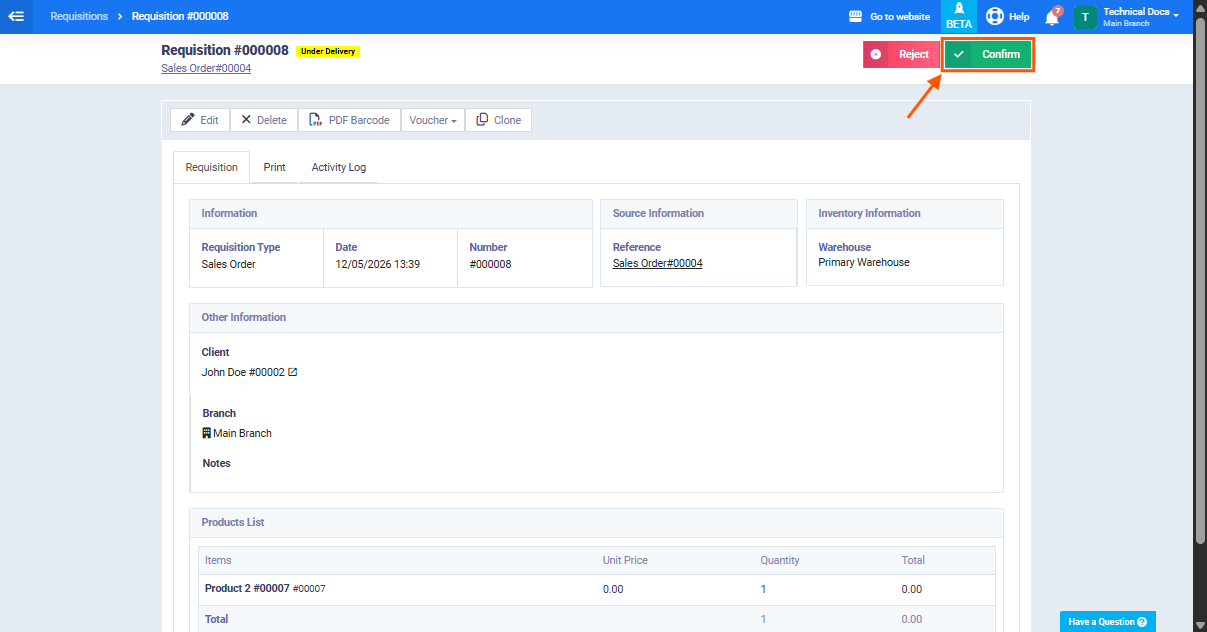
- Open the requisition linked to the sales order.
- Verify the listed products and quantities.
- Click Confirm to change the requisition status from “Under Delivery” to “Accepted“.
Fifth: Converting the Sales Order into an Invoice
After approving the requisition , you can convert the sales order into an invoice. The behavior depends on the permissions assigned to the user.
If You Only Have the Add New Invoice Permission
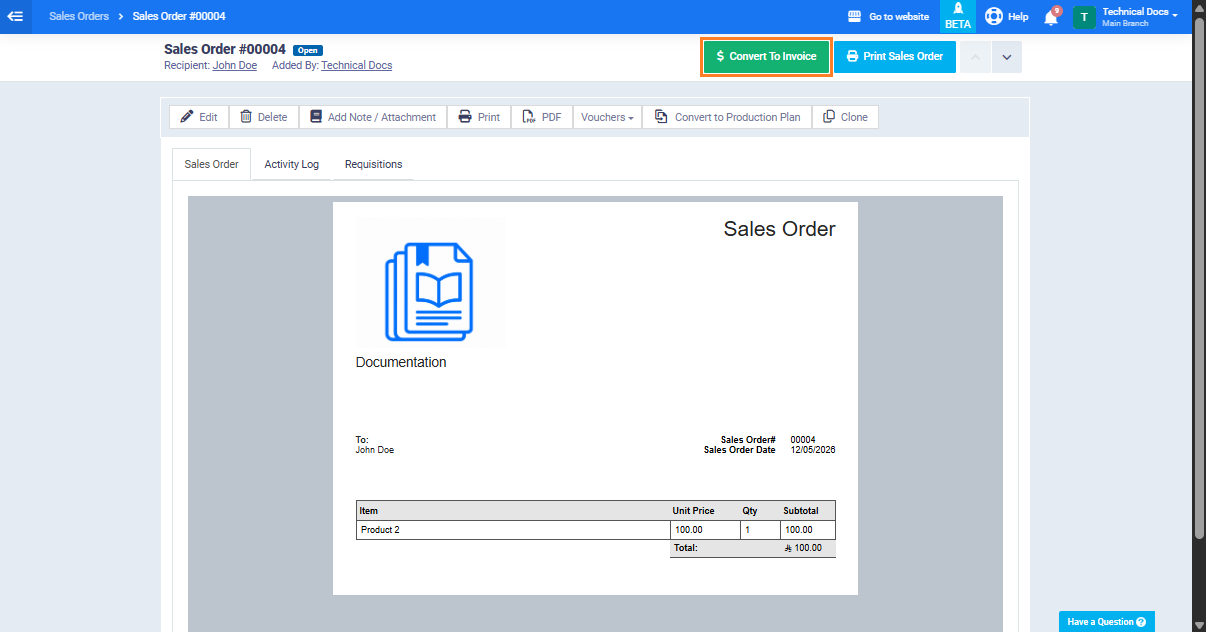
- Open the sales order from “Manage Sales Orders“.
- Click “Convert to Invoice“.
- The invoice will be created using approved requisitions only.
If You Only Have the “Convert Sales Order to Invoice” Permission
- Open the sales order from “Manage Sales Orders“.
- Click “Convert to Invoice“.
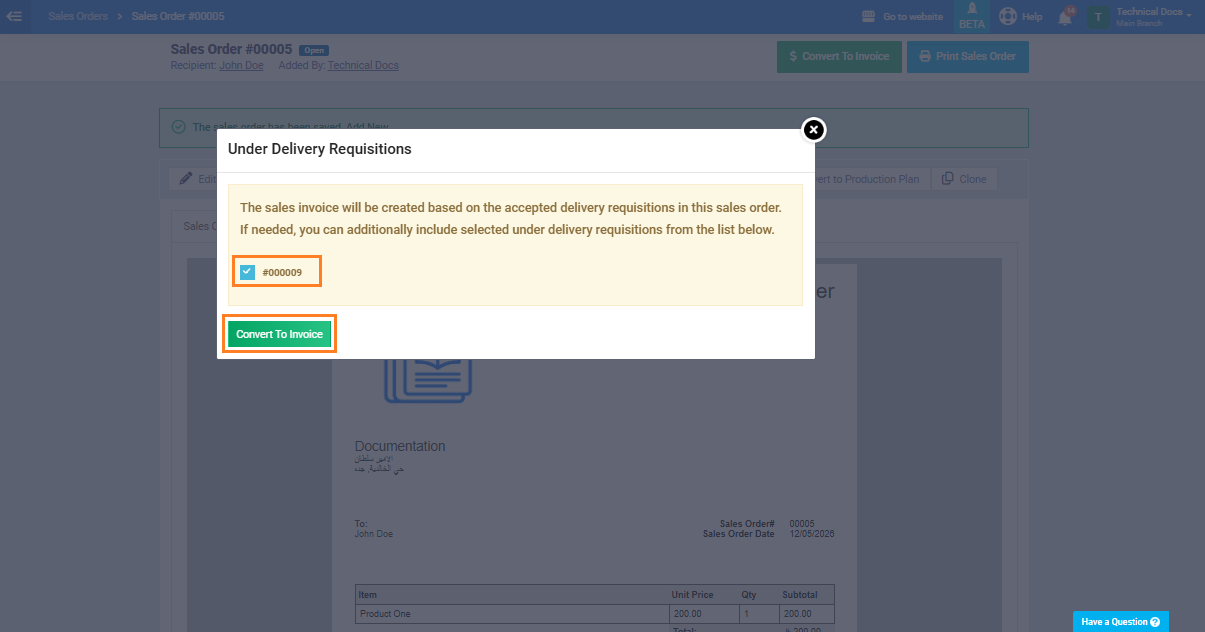
- If there are requisitions with the status “Under Delivery” in addition to approved requisition, a message will appear displaying the under delivery requisitions with checkboxes beside each one.
- Select the requisition you want to include in the invoice.
- Click “Convert to Invoice” to generate the invoice.
If You Have Both Permissions
- Open the sales order from “Manage Sales Orders“.
- Click “Convert to Invoice“.
- If there are requisitions with the status “Under Delivery“, a message will appear displaying them with checkboxes. Select the issues you want to include.
- Click “Convert to Invoice“.
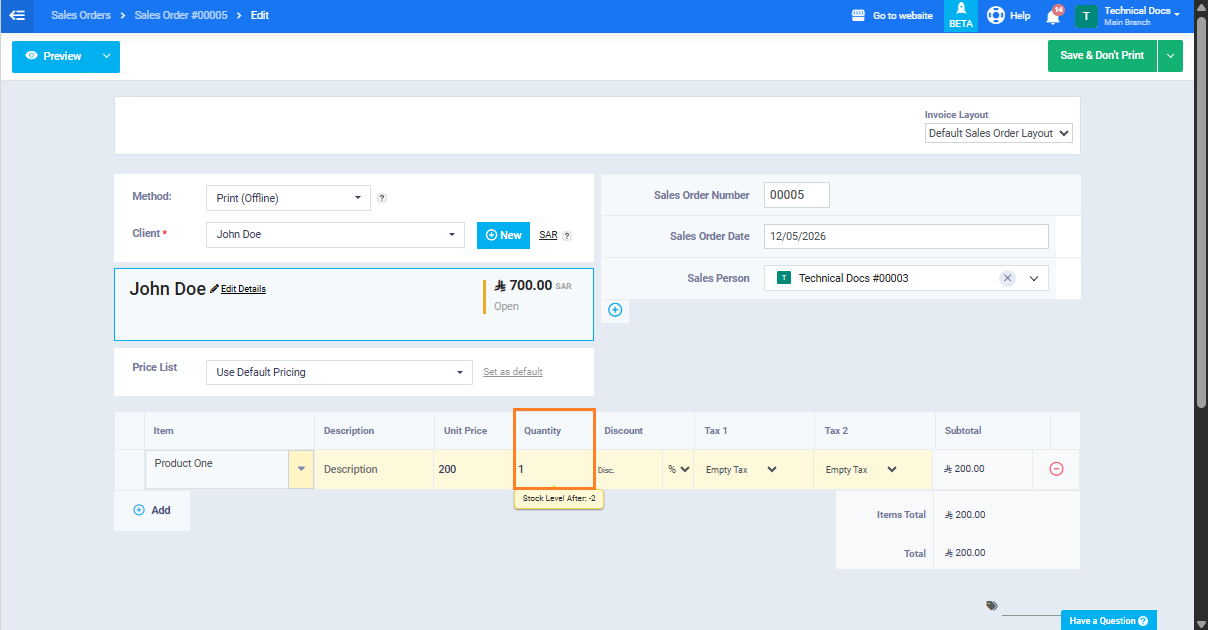
- You can modify invoice quantities if the “Allow Invoicing Item Quantities Exceeding Sales Order Quantities” option is enabled.
Important Restrictions
- Sales orders cannot be modified after creating an invoice from them.
- Requisitions cannot be modified from inside the invoice.
- If all requisitions are rejected, the sales order cannot be converted into an invoice.
- Sales orders cannot be converted into invoices if all requisitions are still under delivery and the user does not have the “Convert Sales Order to Invoice” permission.
- To modify invoice quantities, the “Allow Invoicing Item Quantities Exceeding Sales Order Quantities” option must be enabled in addition to having the required permissions.