




How to Issue an Invoice in Two Languages: One Template or Two Separate Templates
How to Issue an Invoice in Arabic and English
The system lets you issue an invoice that shows the product and client data in both Arabic and English. Product names and descriptions are added in English through the “Secondary Language” feature, and the client data is added in English through the client’s additional fields, then you choose the display method that suits you:
- One template in both languages: the product name and description appear in Arabic and English together in the same invoice.
- Two separate templates: an Arabic template and an English template for the same invoice, and you choose which to view or export.
Enabling the Secondary Language for Products
- Click “Inventory” from the main menu.
- Click “Inventory & Products Settings.”
- Click the “Product Settings” card.
- In the “Product Configuration” section, enable the “Secondary Language” option.
- Click “Save.”
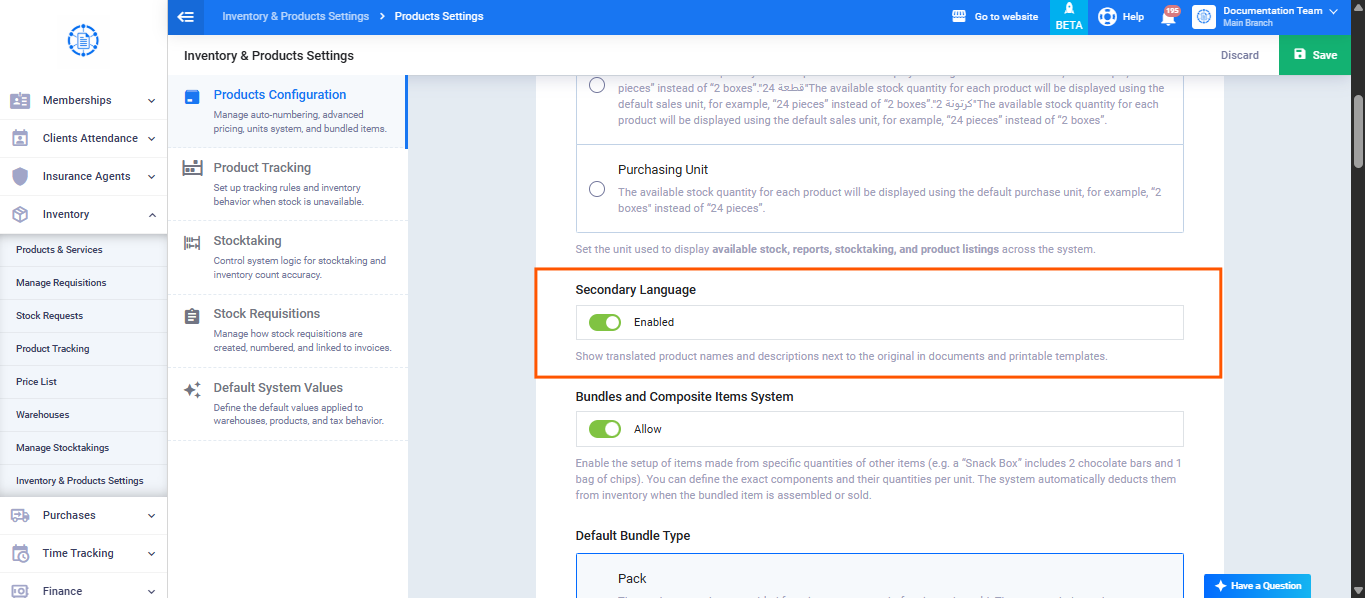
- Only the account owner can enable or disable the secondary language.
- When it is disabled later, the translations are hidden from new transactions, and the saved translations and previous transactions stay as they are.
Adding the Product Data in English
- Open the add new product page or edit an existing product.
- Enter the product name and description in Arabic in the two default fields, “Name” and “Description.”
- Click “Add Second Language” below the description field.
- Enter the product name in English in the “Name (Secondary Language)” field, and its description in the “Description (Secondary Language)” field.
- Click “Save.”
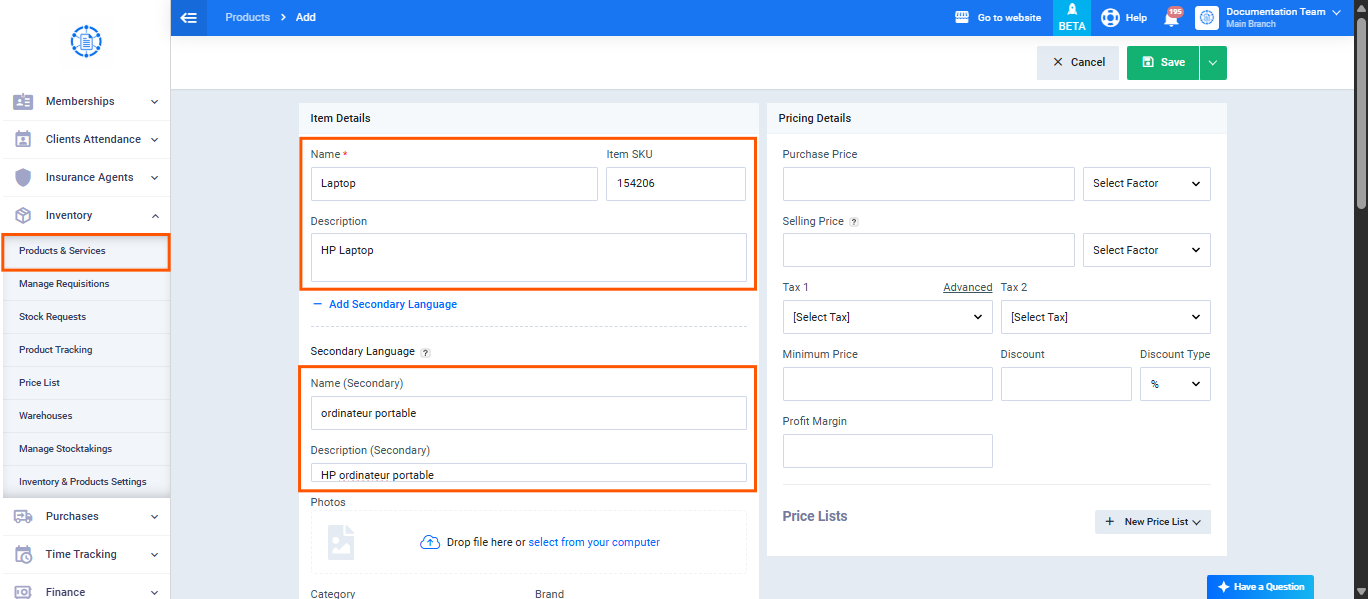
- To add the English names for a large number of products, import the products through an Excel file and map the “Name (Secondary Language)” and “Description (Secondary Language)” columns to the corresponding columns in your file.
- When the product is added to the invoice, its English name is saved with the invoice line. If you edit the product’s English name later, the previously saved invoices don’t change.
Assigning Additional Fields for the Client for Client Data in English
The secondary language feature is for products only, so the client data in English is added through additional fields in the client’s file. To assign these fields, please follow these steps:
- Click “Clients” from the main menu.
- Click “Client Settings.”
- Click the “Additional Fields” card.
You can follow the steps for how to add additional fields from the following link: Additional Fields for Clients.
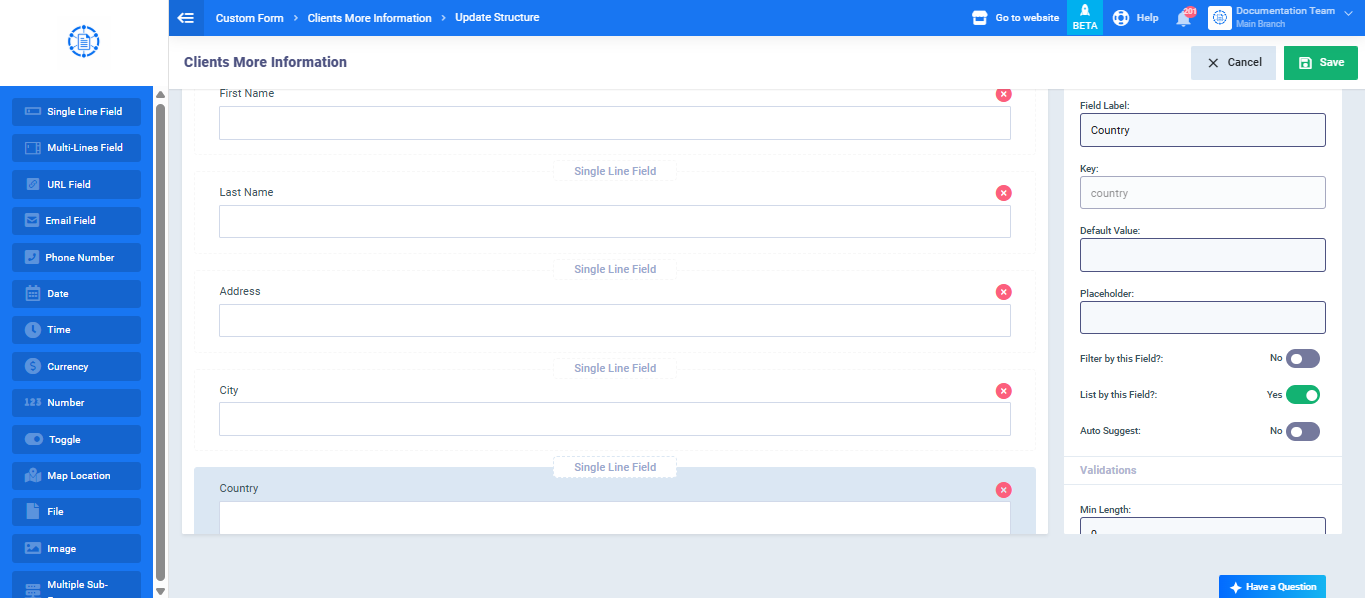
From the additional fields page, you can add a set of fields containing a field for each of:
- Name (English).
- Address (English).
- Country (English).
As in the image shown, a set of fields was added to be filled in later with the client’s data in English.
After saving, from the client’s file / while adding a new client, fill in the data as follows:
The client’s data in Arabic is filled in the default fields, in each of:
- Business Name
- First Name
- Last Name
- Address
- City
- Country
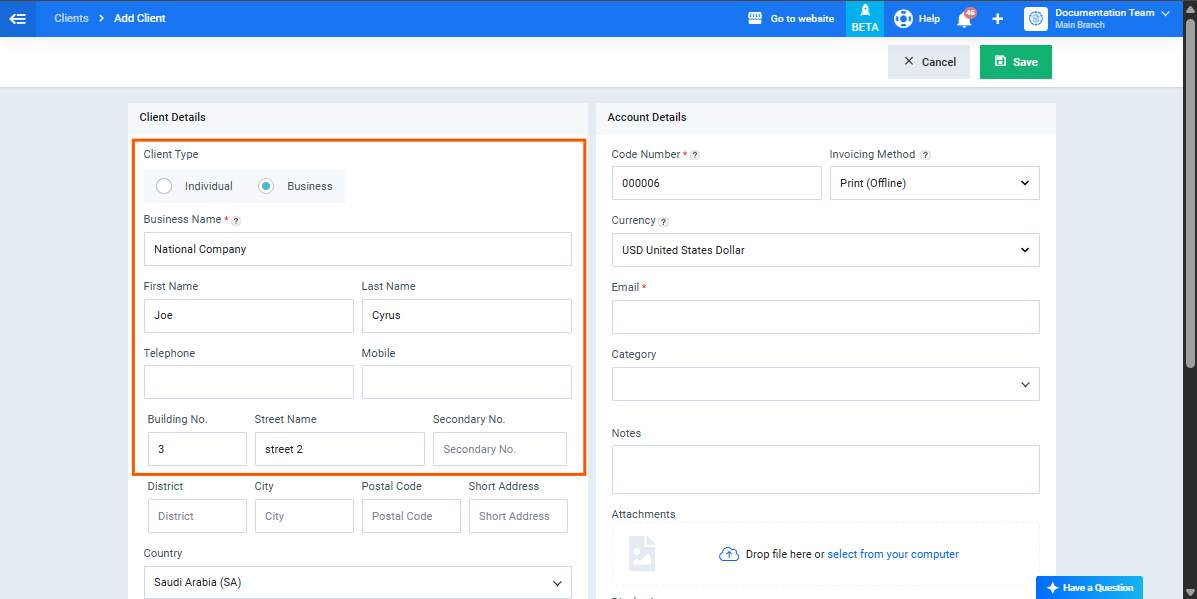
The client’s data in English is filled in through the custom fields, in each of:
- Business Name (English)
- First Name (English)
- Last Name (English)
- Address (English)
- City (English)
- Country (English)
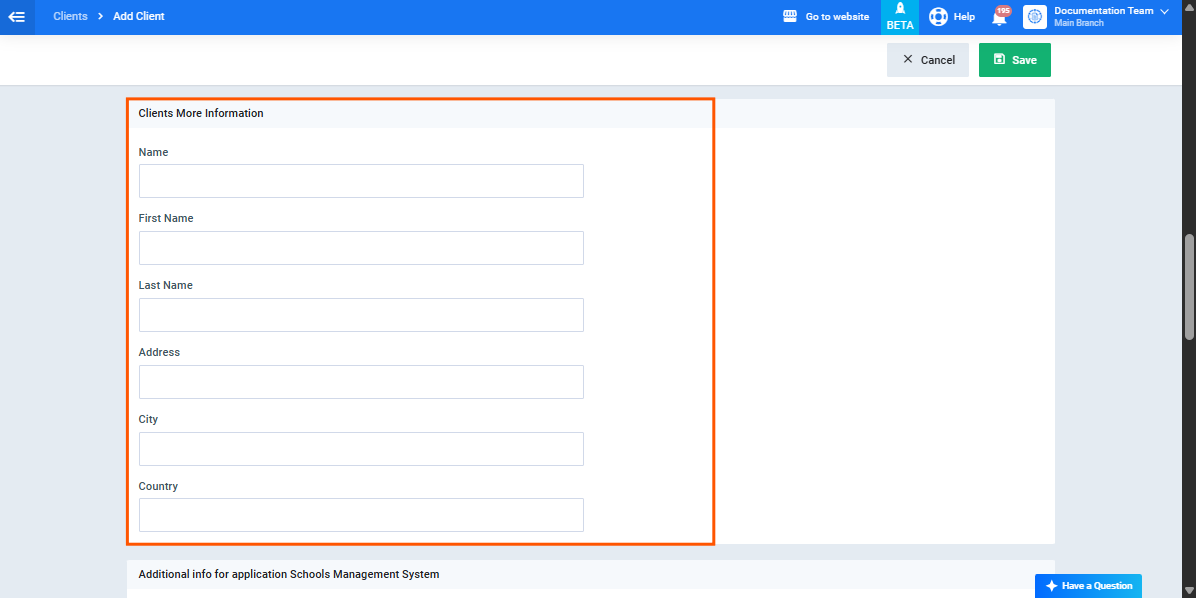 Save the client’s file.
Method One: One Template Displaying Both Languages
After enabling the secondary language, the default Item and Description columns in the invoice templates automatically show the Arabic name and the English name together, separated by a ( / ) sign. So you can use your current template without editing its columns.
- Click “Templates” from the main menu.
- Click “Printable Templates.”
- Click the “Invoice and Quotation Designs” card.
- Open the template you use, or click “New Design” and choose one of the designs supported by the program.
- In the item columns, leave the Item column and the Description column on their default options (Primary/Secondary) so that both names appear together.
- To show the client’s English data next to the Arabic, add the client’s additional fields variables from the “Full Variables Guide” next to the Arabic client data variables.
- Click “Save.”
Example: a product named “قهوة عربية” with the secondary name “Arabic Coffee” appears in the invoice as: قهوة عربية / Arabic Coffee.
If the product doesn’t have a secondary name, only its Arabic name appears.
Method Two: An Arabic Print Template
- Click “Templates” from the main menu.
- Click “Printable Templates.”
- Click the “Invoice and Quotation Designs” card.
- Click the “New Design” button.
- Choose one of the basic Arabic designs supported by the program to edit.
- Make the required edits in the “Invoice Design Builder” section, where you can edit as shown in the following link: Creating an Invoice/Quotation Design.
All the Arabic variables for the client that were entered in the default fields are selected as shown above.
- In the item columns, choose “Item (Primary)” for the item column, and “Description (Primary)” for the description column, so that the name and description appear in Arabic only.
- There’s no need to add formatting code to hide columns; the template shows the Arabic data only.
After entering all the template data as required, click “Save.”
Method Two: Another Print Template in English
- Click “Templates” from the main menu.
- Click “Printable Templates.”
- Click the “Invoice and Quotation Designs” card.
- Click the “New Design” button.
- Choose one of the basic English designs supported by the program to edit.
- Make the required edits in the “Invoice Design Builder” section, where you can edit as shown in the following link: Creating an Invoice/Quotation Design.
All the English variables for the client that were entered in the additional fields are selected as shown above, and you can reach these variables through the “Full Variables Guide” link.
The required client variables are copied from the “Full Variables Guide” as follows:
Paste the variables into the client data as follows:
- In the item columns, choose “Item (Secondary)” for the item column, and “Description (Secondary Language)” for the description column, so that the name and description appear in English only.
- The titles of these columns take the same title as the item column and the description column in the template; write them in English (such as Item and Description) in the template’s titles settings.
Make sure to change your business data to be in English:
After entering all the template data as required, click “Save.”
After saving the template, make sure to add it to the “Voucher Templates” so that you can view the invoice with it after saving it.
Viewing, Printing, and Exporting the Invoice in Both Methods
Method One: One Template Displaying Both Languages
- While creating or editing the invoice, choose the template that shows both languages in the “Invoice Template” field.
- After saving the invoice, the invoice is displayed with this template every time you open it, and the name of each product and its description appear in Arabic and English in the same column, such as: قهوة عربية / Arabic Coffee.
- To print the invoice, click the “Print” button at the top of the invoice page.
- To export the invoice to a PDF file, click the “PDF” button.
Method Two: An Arabic Template and an English Template
- The Arabic copy: choose the Arabic template in the “Invoice Template” field while creating the invoice, and it is the template that appears every time you view the invoice. To print it, click the “Print” button, and to export it, click the “PDF” button; both buttons always use the template specified in the invoice.
- Viewing the English copy: click the “Vouchers” button then choose the English template’s name, to be taken to the invoice view page with the English template.
Printing or exporting the English copy:
- Click the arrow next to the “PDF” button at the top of the invoice page.
- Choose the English template’s name from the list, so the invoice is downloaded in PDF format with the English template.
- Open the PDF file and print it.
- Only the templates you added to the “Voucher Templates” appear in the “Vouchers” list and the “PDF” list.
- To hand the client both copies, print the invoice with the “Print” button (the Arabic template), then download the English copy from the “PDF” list and print it.
- The names and descriptions of products in the secondary language are saved with the invoice lines at the time of creation, so add the English names for the products before issuing the invoices. Invoices saved before adding the translation won’t show the English name.