




Coupon Settings and Discount Code Lists
The Discount Coupons app in the system allows you to create customized discount coupons and apply them to invoices or at the point of sale, with the ability to track their usage through a dedicated report. You can set a percentage or fixed discount value, define the maximum allowed discount, and choose the target branches and clients.
Steps to Enable the Advanced Sales Coupons and Promo Codes App
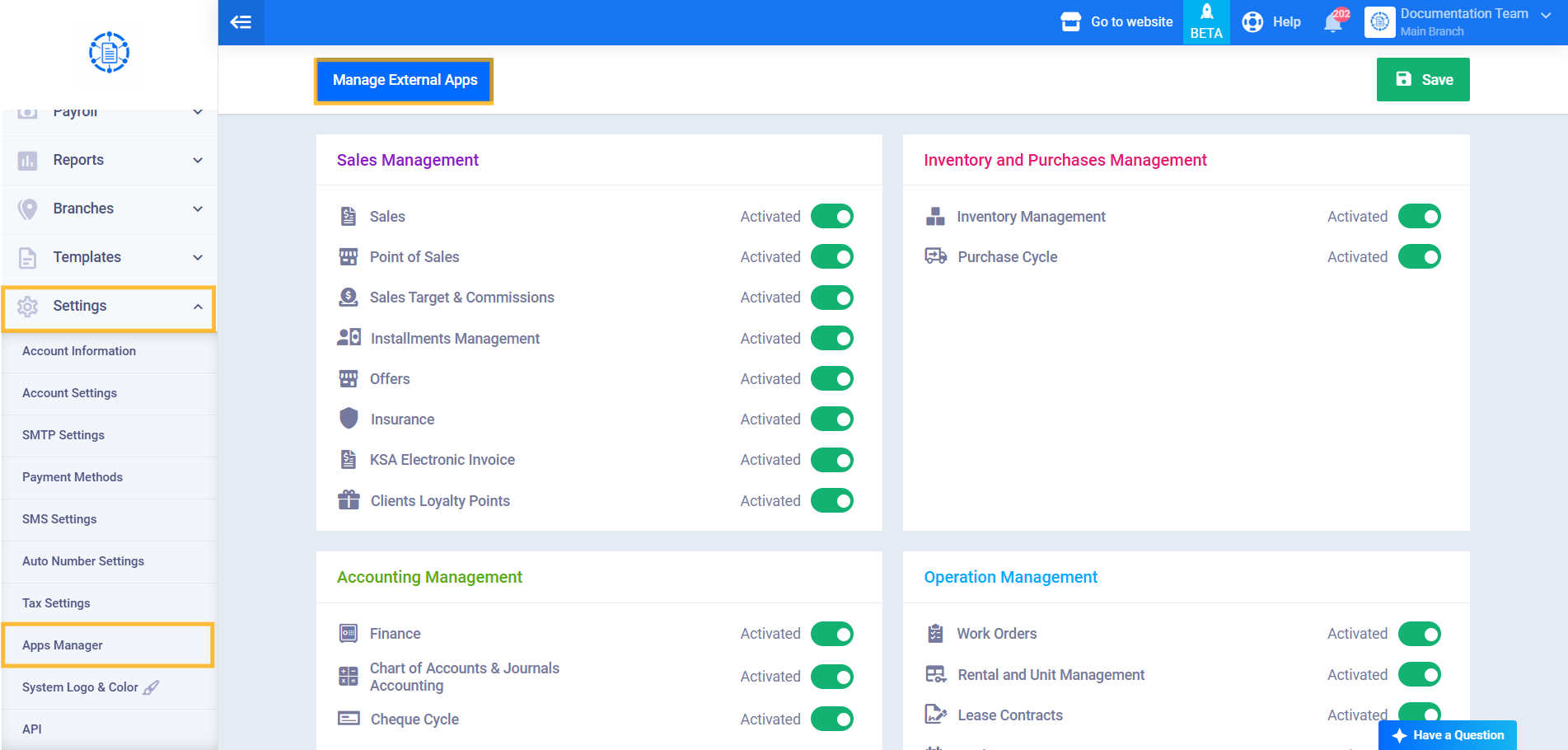
- From the main menu click “Settings”.
-
Click Apps Manager.
-
Click “Manage External Apps“.
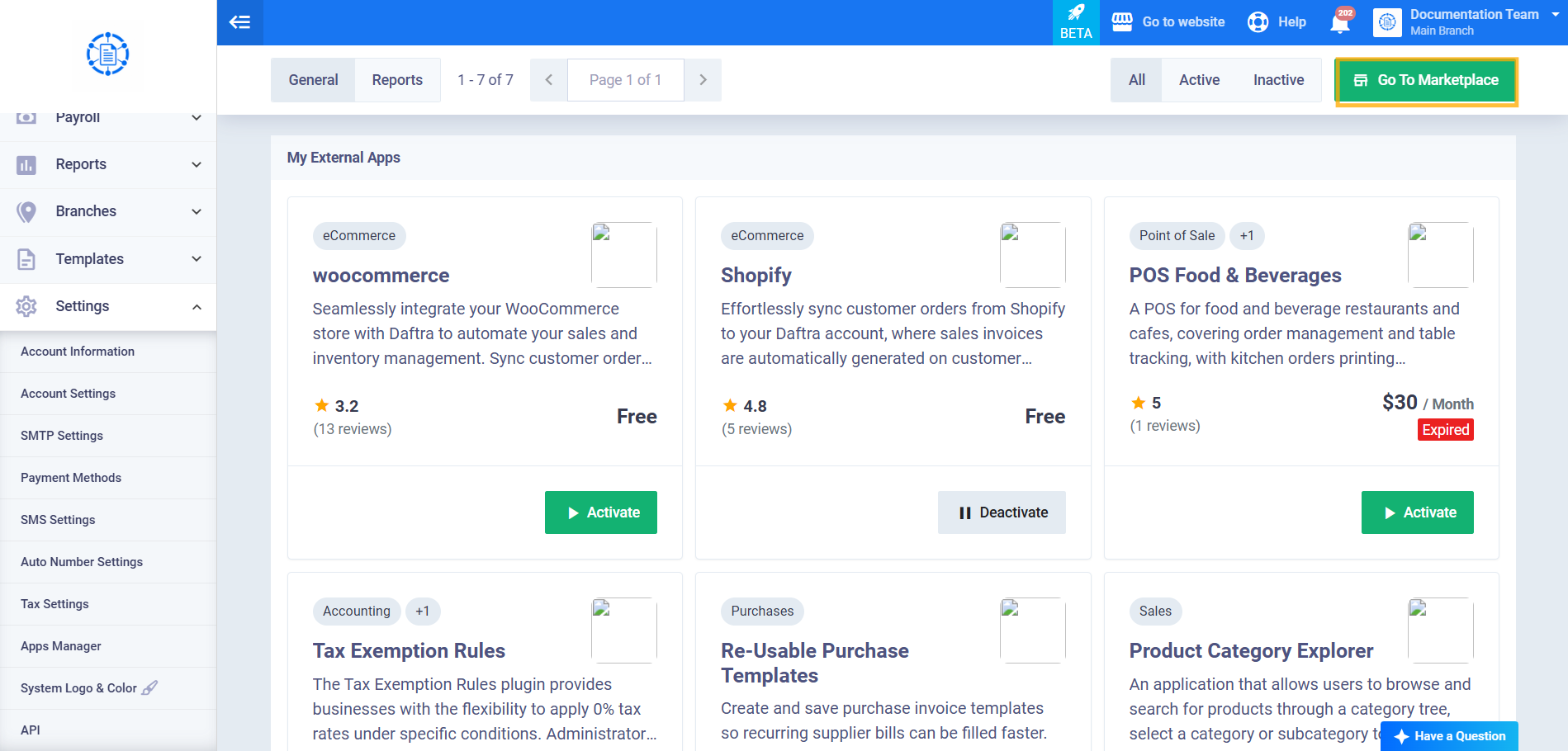
- Click “Go to Marketplace“.
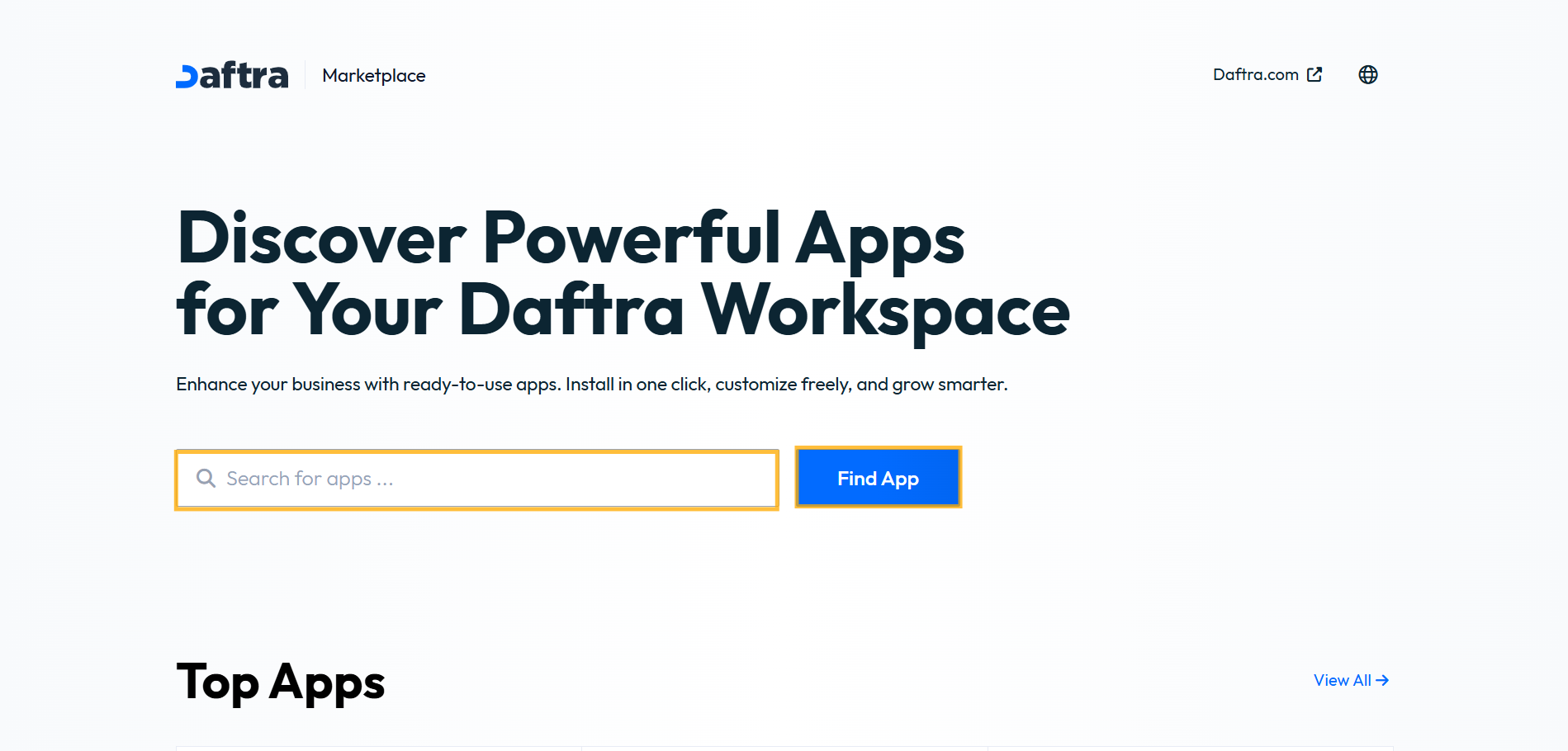
- Search for the app, then click “Search“.
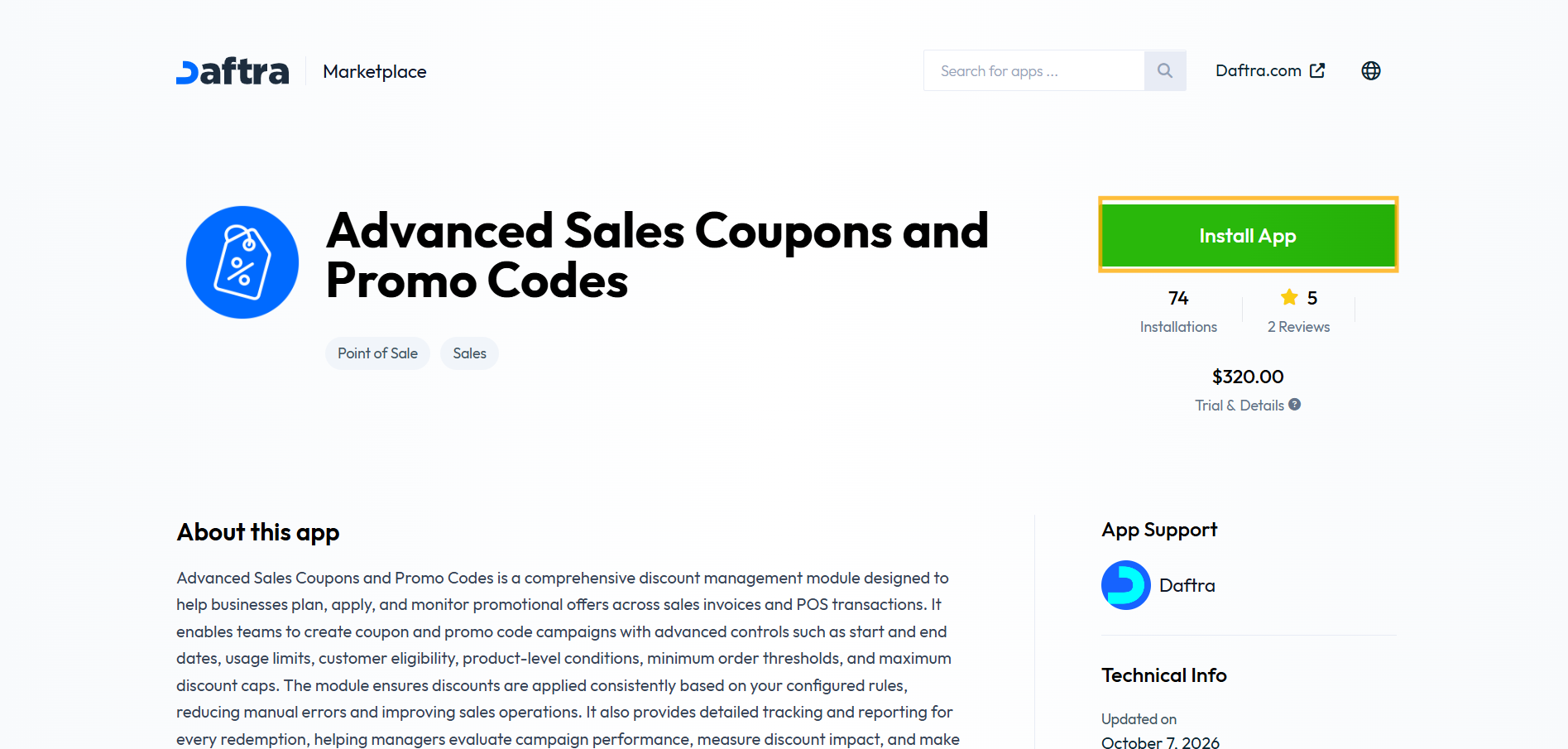
- Click “Install App“.
Steps to Create a New Discount Coupon
- From the main menu click “Sales”.
- Click “Sales Settings”.
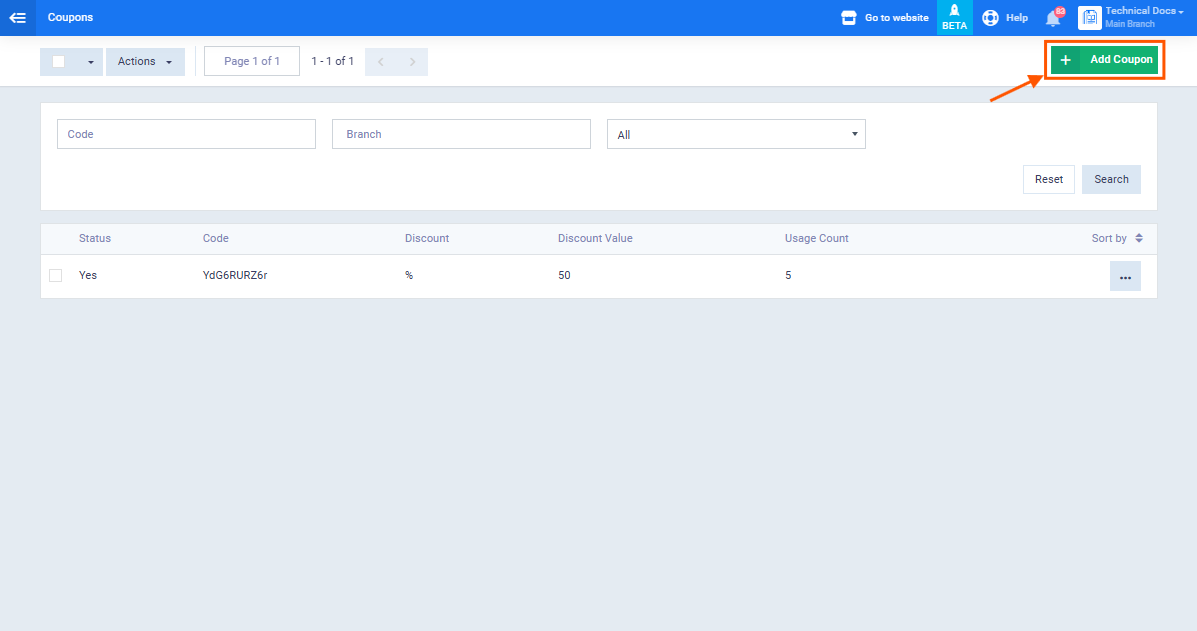
- Click the “Coupon Settings” tab.
- Click the “Add New Coupon” button.
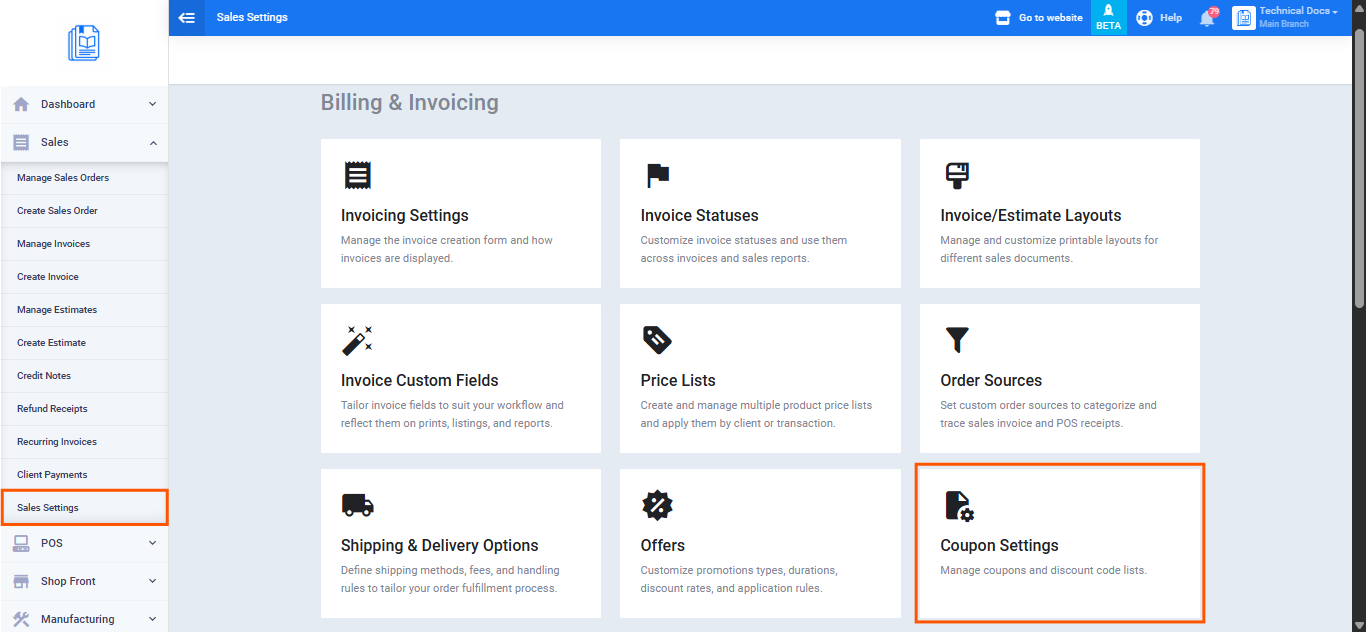
- اضغط على زر “إضافة كوبون جديد“.
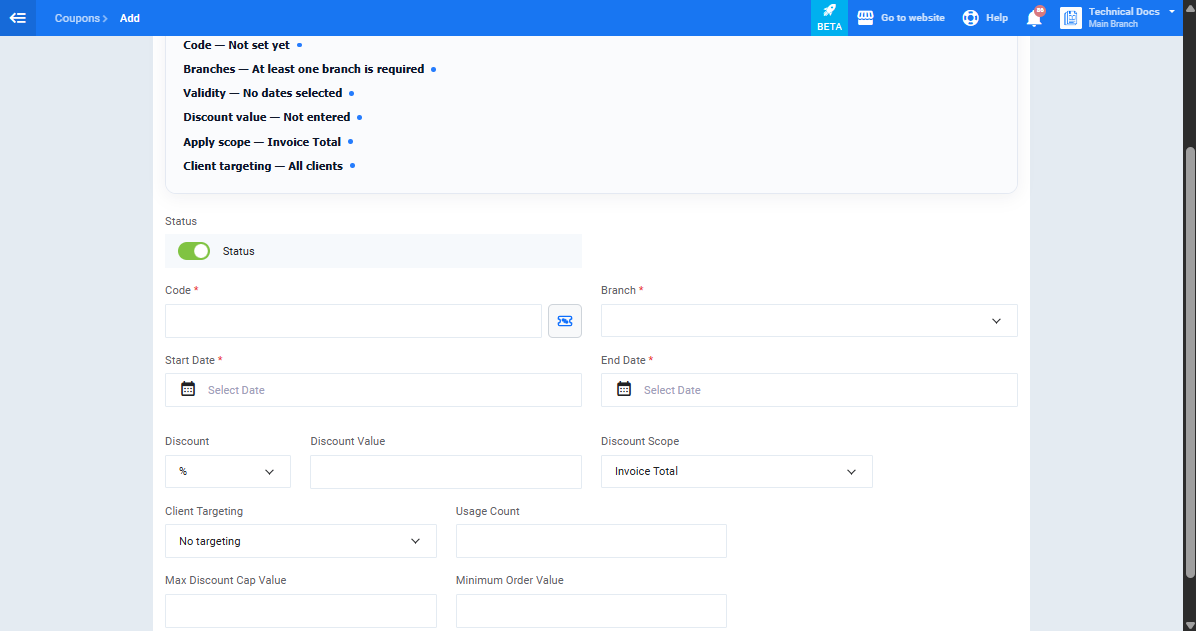
Coupon Creation Fields
- Status: Enable or disable the coupon. A disabled coupon cannot be applied to invoices.
- Code: Enter the coupon code manually or click the random code generation icon to create one automatically. (Required)
- Branch: Select the branch or branches the coupon applies to. (Required)
- Start Date: Set the coupon validity start date. (Required)
- End Date: Set the coupon validity end date. (Required)
- Discount: Choose the discount type: percentage % or fixed value $.
- Discount Value: Enter the discount value. If percentage is selected, the maximum is 100%.
- Discount Scope: Choose the discount application scope from the two available options: Invoice Total to apply the discount to the overall invoice amount, or Invoice Line Items to apply it to specific items.
- Client Targeting: Define who can use the coupon from the following options:
- No Targeting: The coupon is available to all customers.
- Client: Restrict the coupon to specific customers.
- Client Category: Restrict the coupon to a specific customer category.
- Usage Count: Set the maximum number of times the coupon can be used. Leave empty for unlimited use.
- Max Discount Cap Value: Set the highest discount amount that can be applied regardless of the invoice value.
- Minimum Order Value: Set the minimum invoice total required to allow the coupon to be applied.
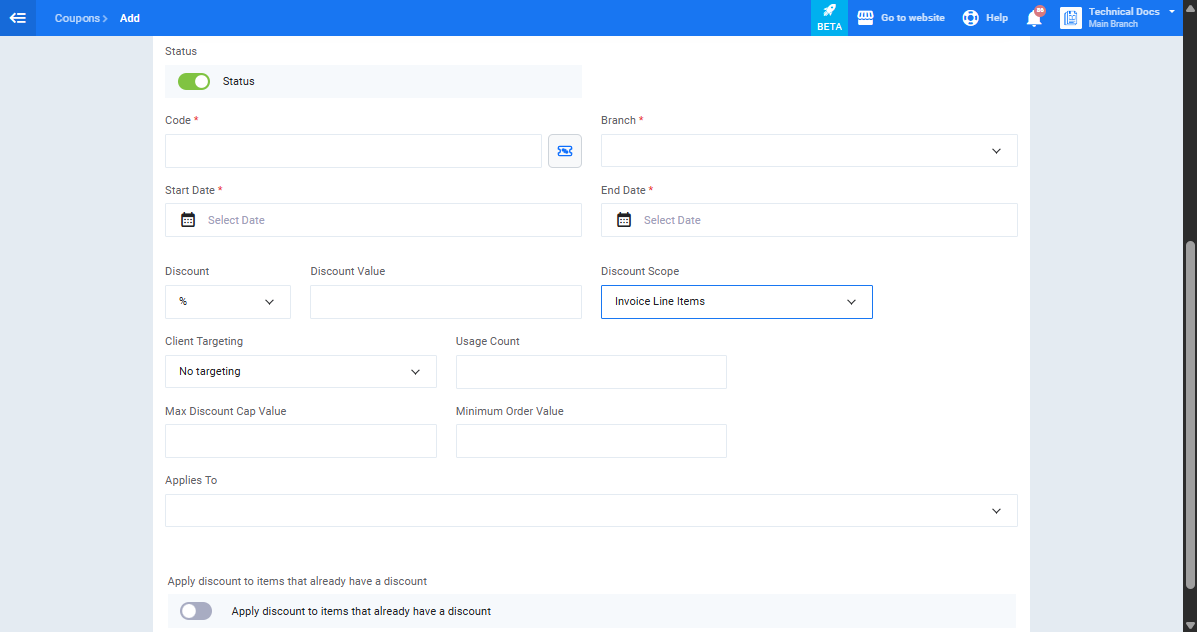
If you select “Invoice Line Items” as the discount scope, additional options appear:
- Applies To: Choose the range of products the discount applies to from the following options: All Products, Specific Products, or All Products Except Specific Products.
- Products: Select the specific products when choosing “Specific Products” or “All Products Except Specific Products“.
- Item Groups: Enable this option to apply the discount to specific item groups.
- Product Brands: Enable this option to apply the discount to specific product brands.
- Product Categories: Enable this option to apply the discount to specific product categories.
- Apply Discount to Items That Already Have a Discount: Enable this option to allow the coupon to be applied to products that already have a discount.
- Rule When Discounted Items Already Have a Discount: Choose the appropriate rule from the options: Coupon Value | Rate, Higher Value | Rate, or Lower Value | Rate.
Applying a Discount Coupon at the Point of Sale
You can apply a discount coupon to any open order at the point of sale directly before completing the payment process.
Steps to Apply a Discount Coupon at the Point of Sale
- Add the required products to the order.
- At the bottom of the order panel click the “Discount Code” button.
- A pop-up window titled “Discount Code” appears. Enter the coupon code in the “Discount Code” field.
- Click Confirm to apply the coupon, or click Cancel to go back without applying.
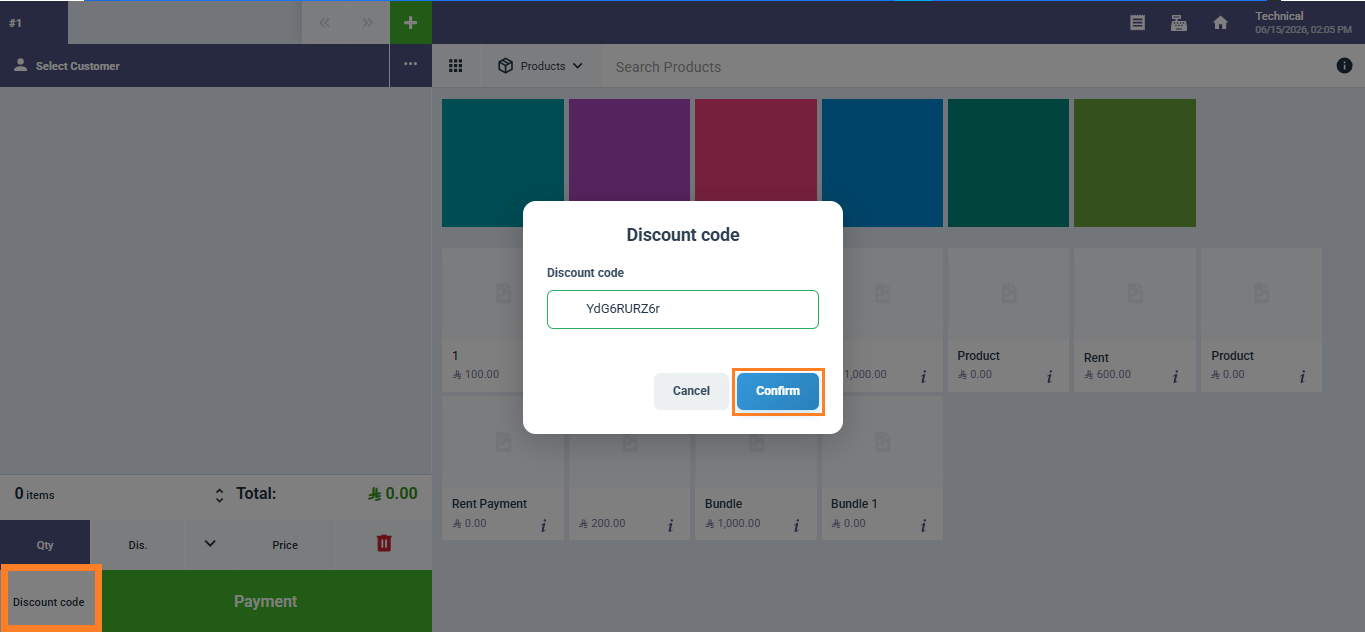
- After successful application, the amount is automatically deducted from the order total and a “Deactivate Code” button appears at the bottom of the order panel to allow cancelling the applied coupon if needed.
Applying a Discount Coupon to a Sales Invoice
You can apply a discount coupon to a sales invoice while creating it before saving.
Steps to Apply a Discount Coupon to a Sales Invoice
- Click “Sales”, then select “Create Invoice”.
- Add the customer and the required items to the invoice.
- At the bottom of the items table click the “Do you have a discount code?” link.
- A pop-up window titled “Discount Code” appears. Enter the coupon code in the “Discount Code” field.
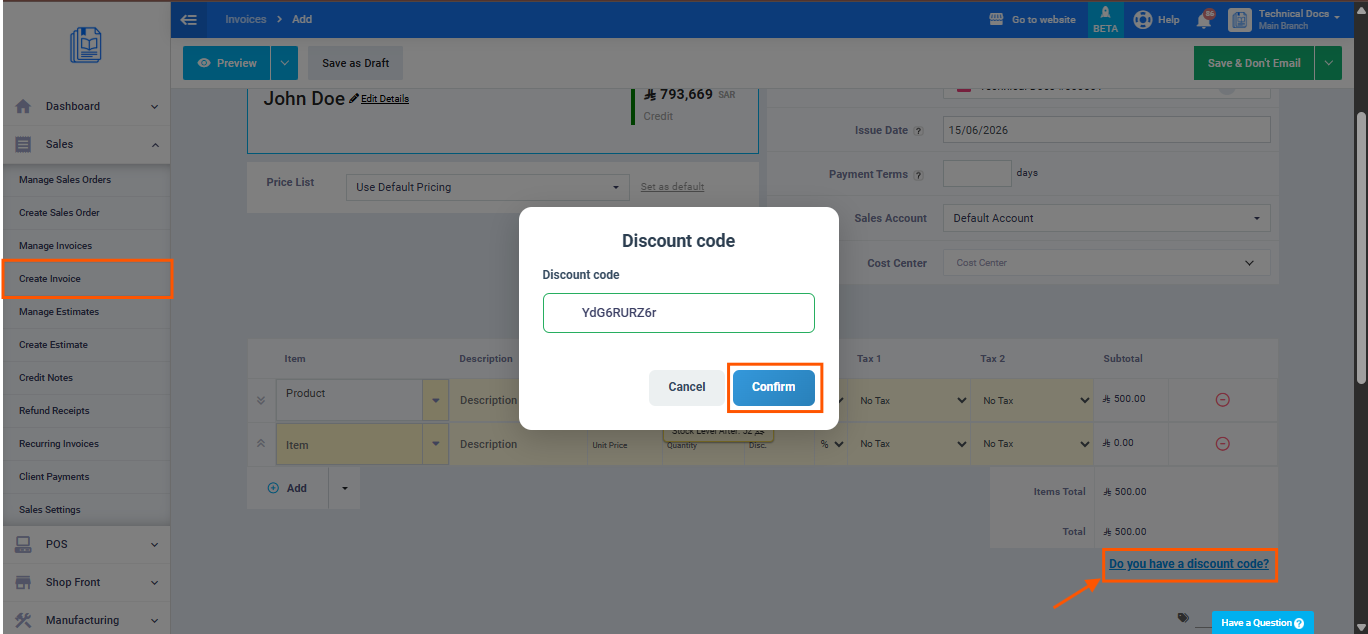
- Click “Confirm” to apply the coupon, or click “Cancel” to go back without applying.
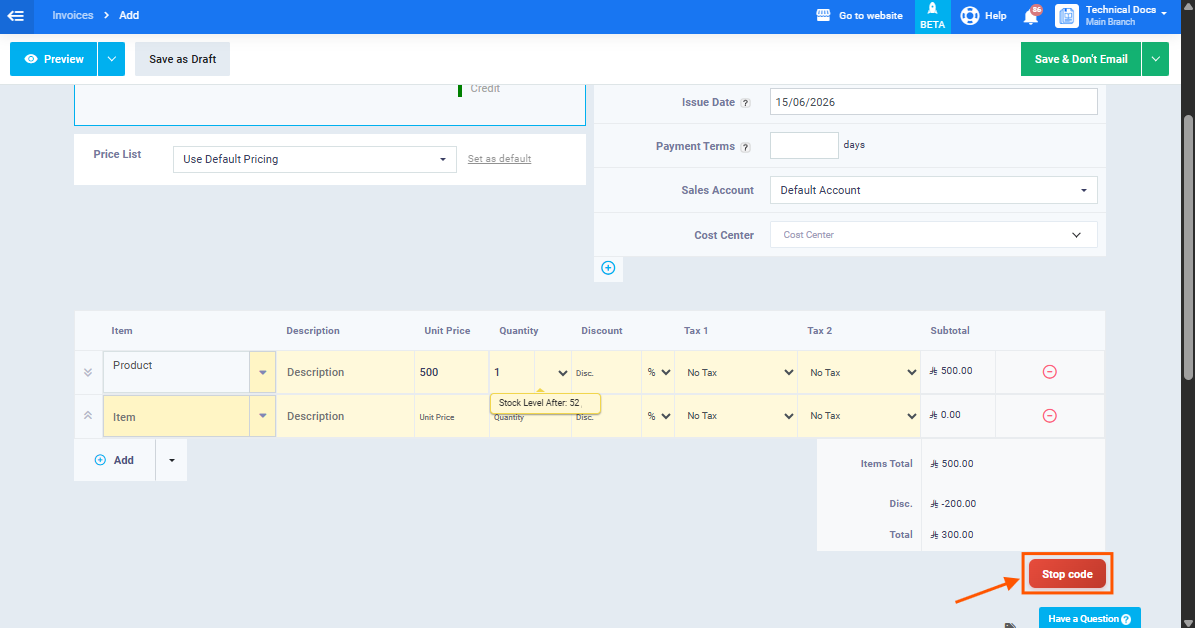
After successful application, the amount is automatically deducted from the invoice total and a “Deactivate Code” button appears at the bottom of the invoice to allow cancelling the applied coupon if needed.
Discount Code Usage Report
The Discount Code Usage Report allows you to track all coupons applied to invoices, displaying the details of each usage such as the customer name, invoice number, actual discount value, and the total after discount.
Steps to View the Discount Code Usage Report
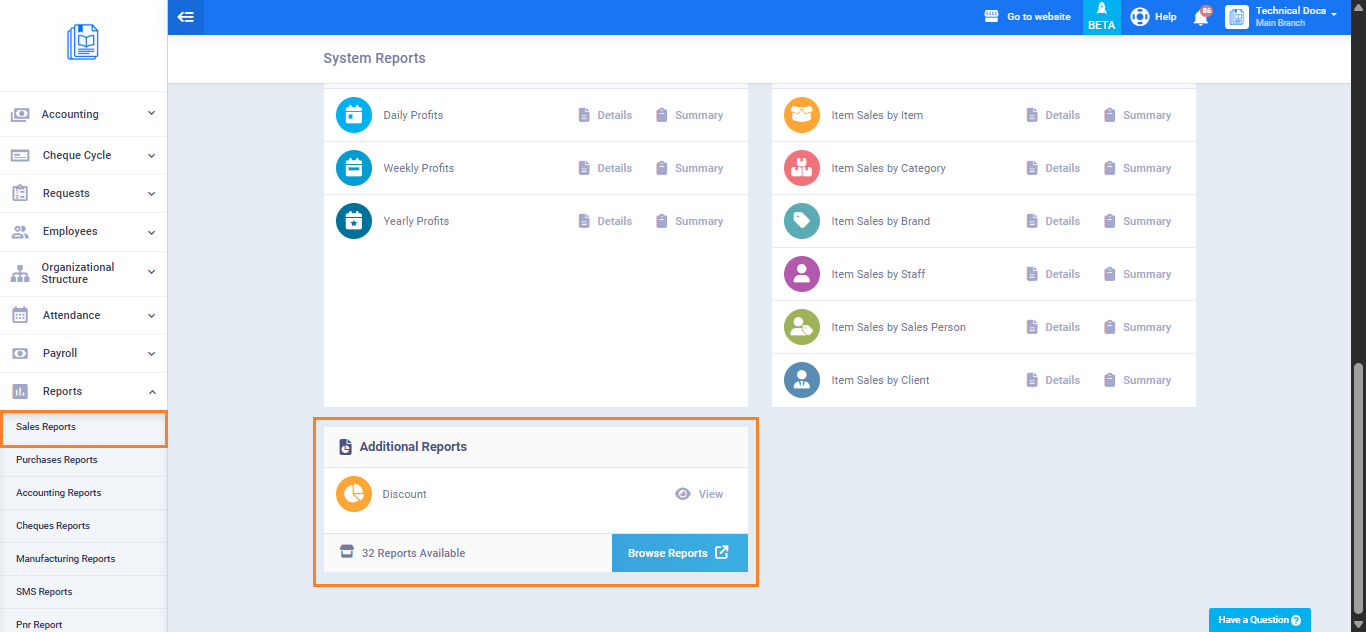
- From the side menu click “Reports”.
- Click “Sales Reports”.
- In the “Additional Reports” section click “View” next to “Discount Coupon Report”.
- Set the date range and required filters then click “View”.
Report Columns
- ID: The coupon identification number.
- Discount Code: The code used.
- Status: Active or inactive.
- Number of Uses: Total times the coupon has been applied.
- Start Date and End Date: The coupon validity period.
- Discount Type: Percentage % or fixed value $.
- Minimum Value to Apply Discount: The minimum invoice total required to apply the coupon.
- Maximum Discount: The maximum discount value allowed.
- Actual Discount Value: The actual amount deducted from the invoice.
- Invoice Date: The date the linked invoice was created.
- Invoice Number: The number of the invoice the coupon was applied to.
- Customer Name: The customer who used the coupon.
- Subtotal: The invoice total before discount.
- Discount: The applied discount value.
- Total: The invoice total after discount.