


How to Add an End of Service Bonus Salary Component Using AI
The system allows you to automatically generate salary components using AI, without the need to manually write a calculation formula. In this article, we explain the steps to create an “End of Service Bonus” component using one of the ready-made examples available in the system.
How to Add an End of Service Bonus Salary Component Using AI
First: Accessing the Salary Components Screen
Step 1: Open the Salary Components Screen
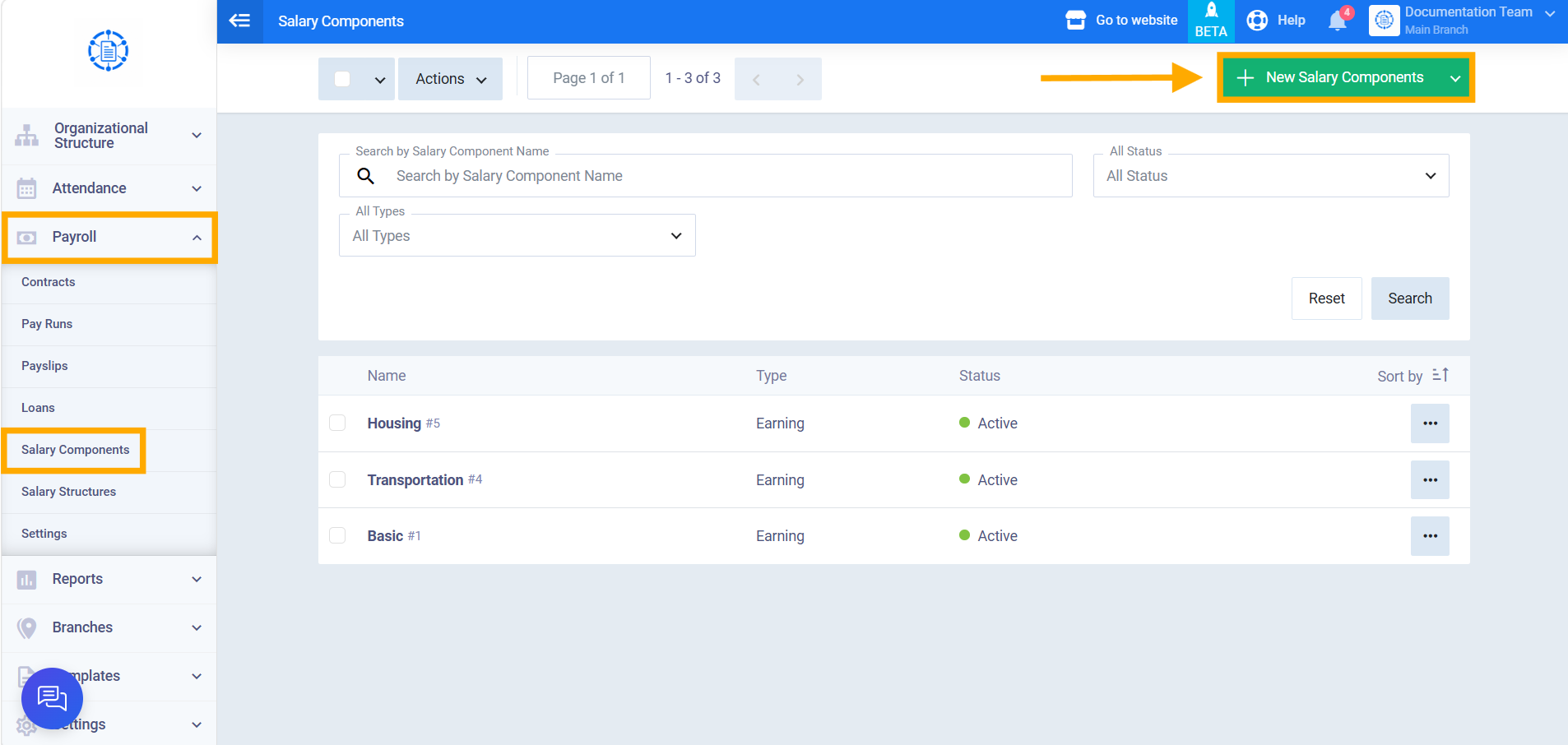
From the main menu, click on “Payroll,” then”Salary Components”, then click on “New Salary Components” button.
Second: Determining the Component Type
Step 2: Select the Type
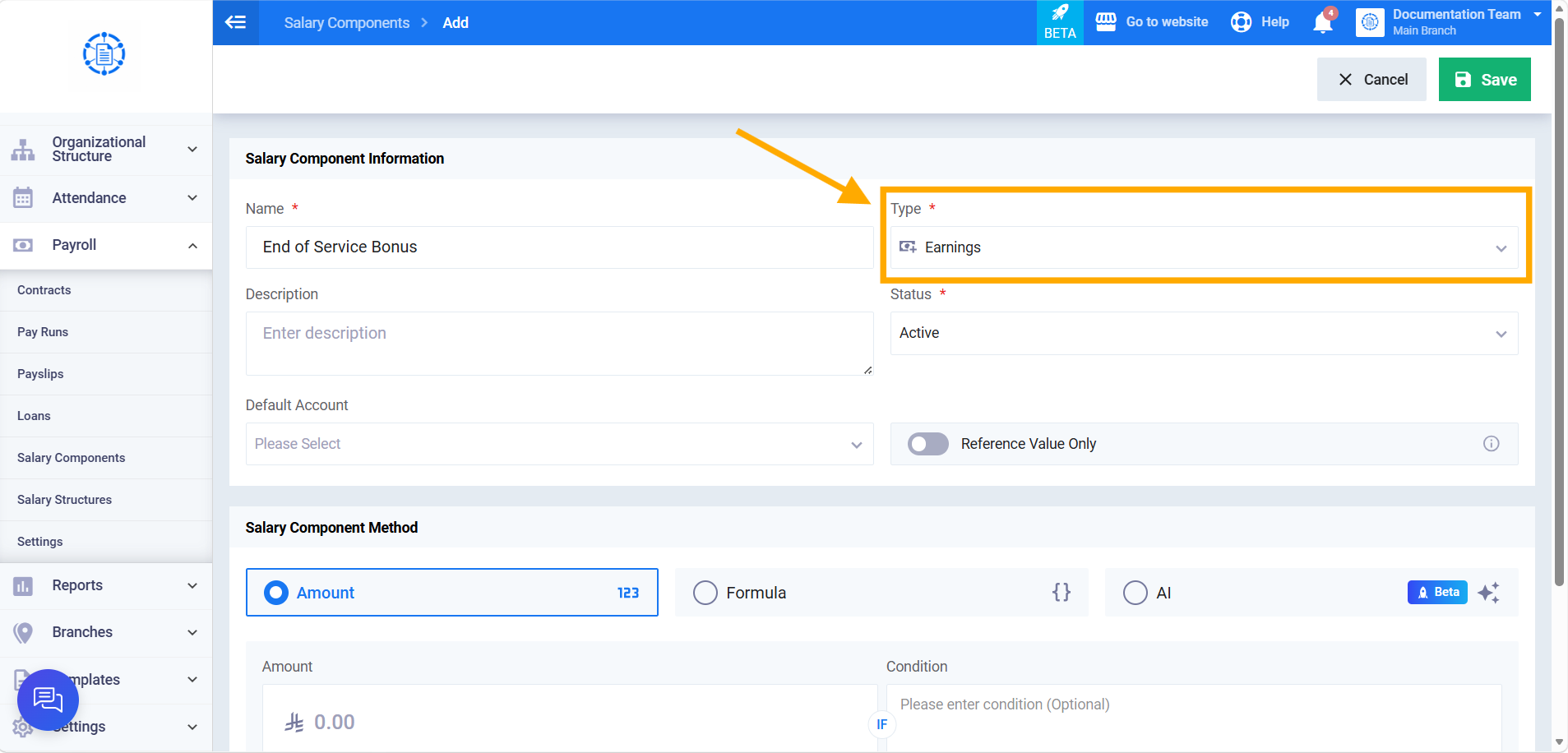
From the “Salary Component Information” section, select “Earnings” as the Type — since the End of Service Bonus is a value added to the salary, not a deduction from it.
Third: Selecting the AI Calculation Method
Step 3: Select “AI”
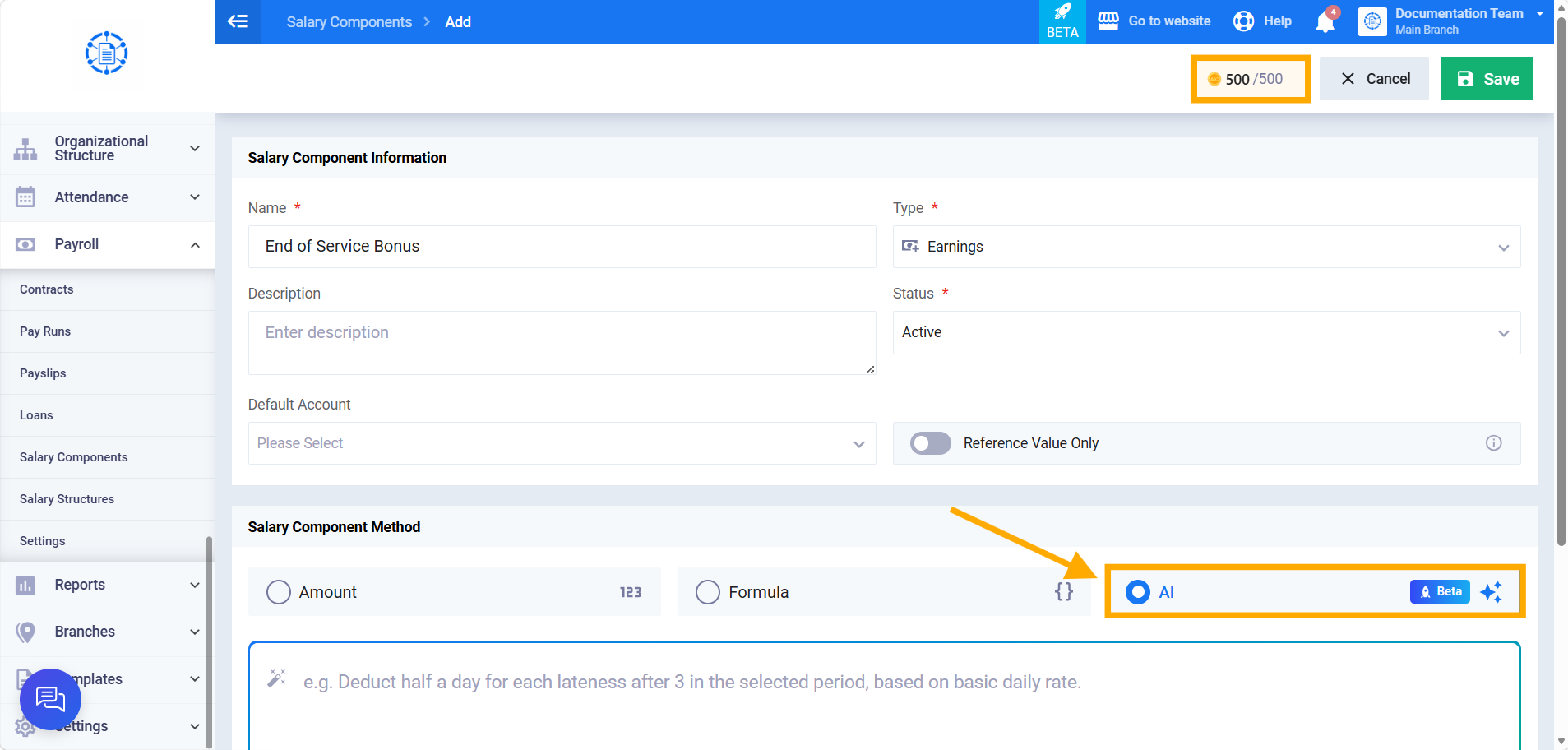
From the “Salary Component Calculation Method” section, select “AI.”
Fourth: Setting Up the Description
Step 4: Choose the End of Service Bonus Example
“Example Prompts” button appears, containing a list of ready-made examples suitable for the “Earnings” type. Look for the “End of Service Bonus” example and click on it.
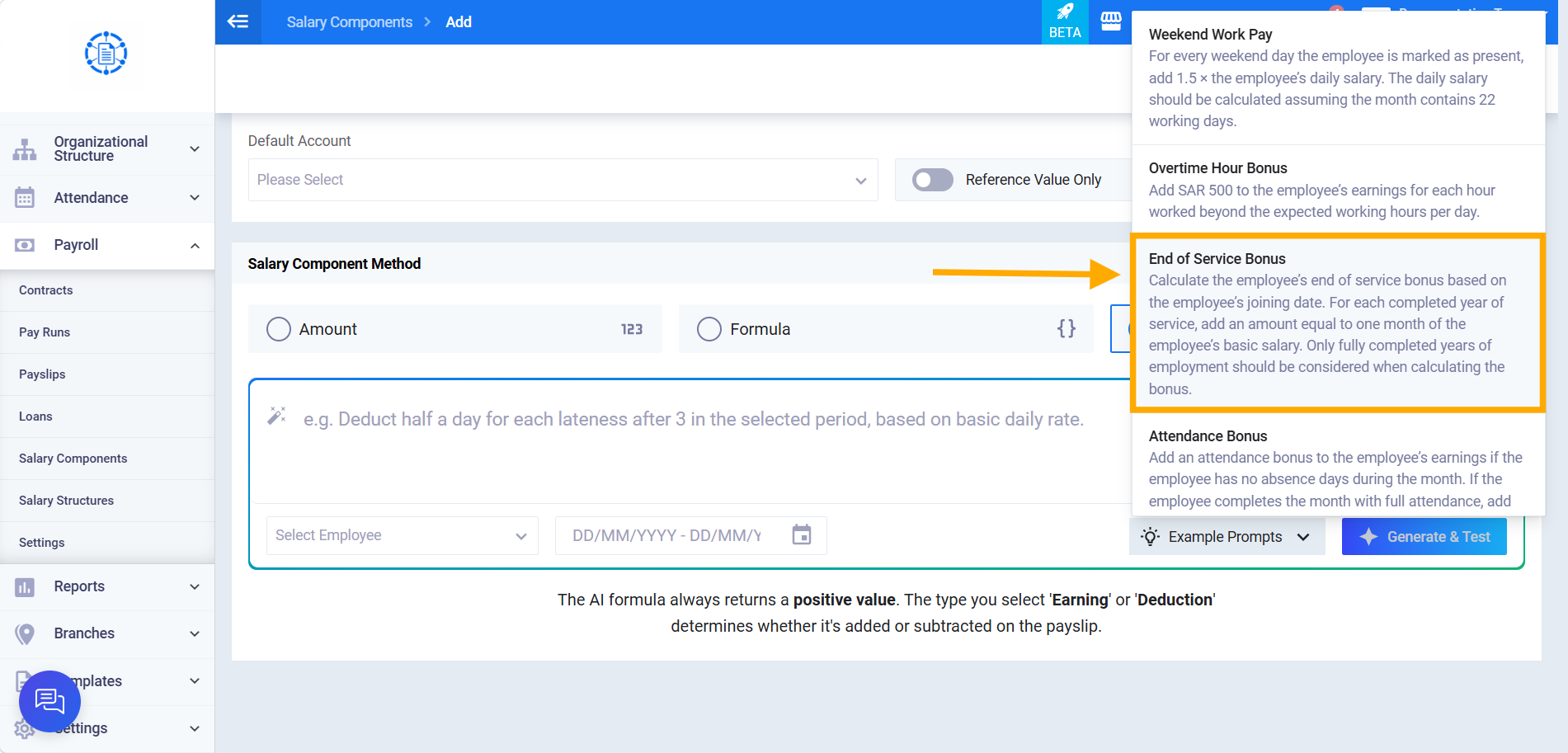
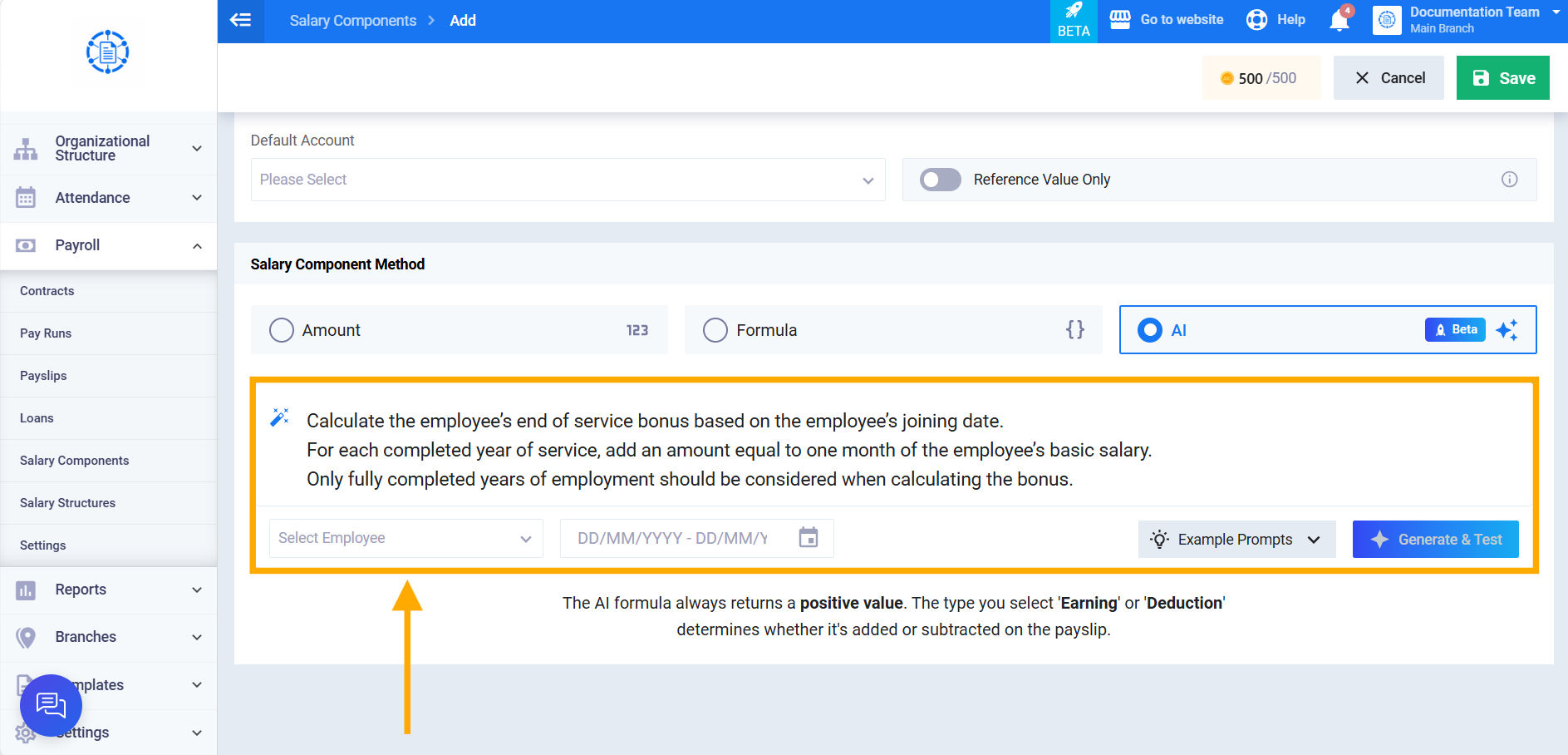
The following text is automatically inserted into the instructions field:
“Calculate the employee’s end of service bonus based on the employee’s joining date. For each completed year of service, add an amount equal to one month of the employee’s basic salary. Only fully completed years of employment should be considered when calculating the bonus.”
You can edit this text manually if you’d like to customize the bonus’s description.
Step 5: Select the Employee and Define the Time Period
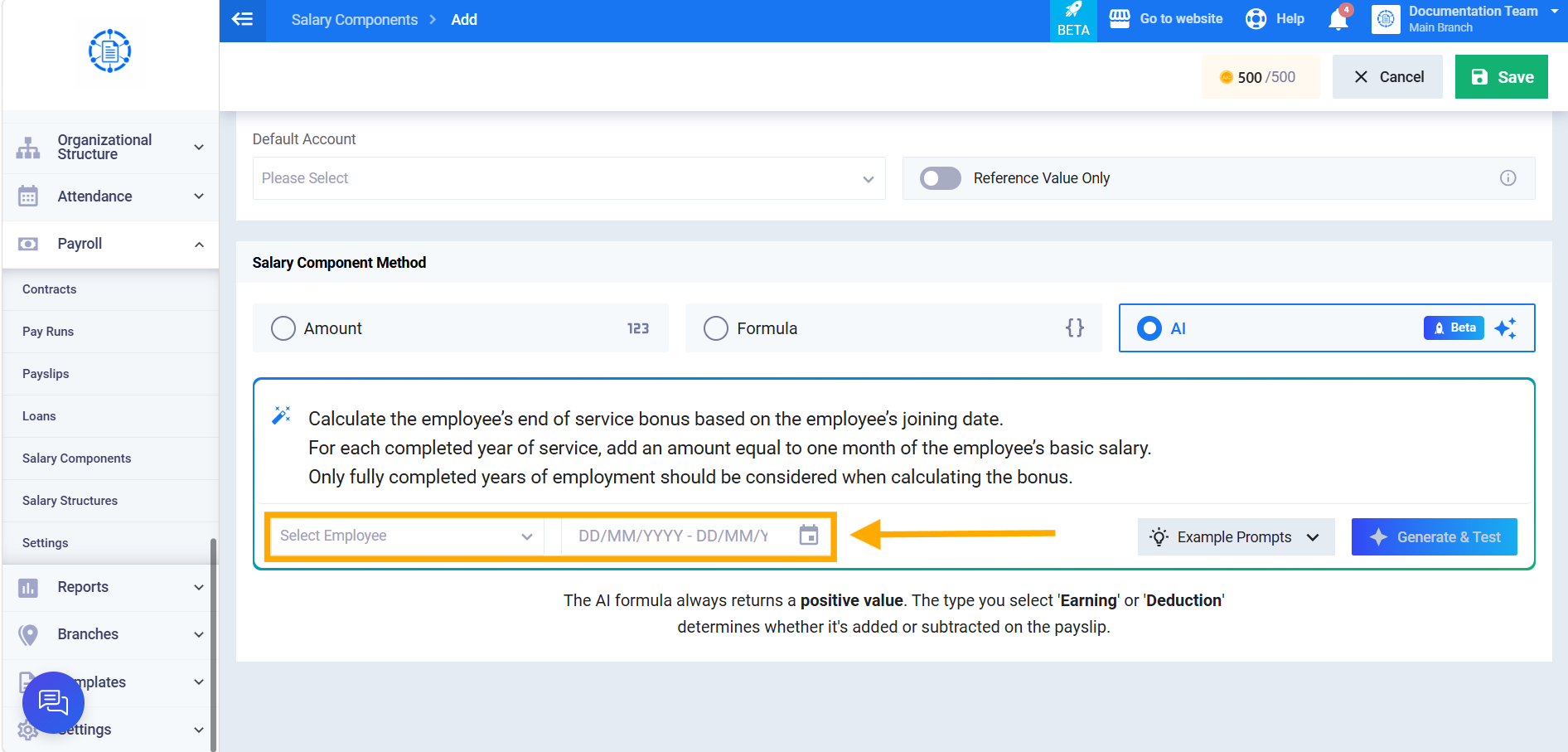
Select the employee and define the time period to use for testing the component.
Step 6: Generate and Test the Component
Click on “Generate & Test.” After reviewing the result, you can save the component to use it as a salary component.