How Employees Can Track Their Financial Custodies from Their Profile
As an employee, you can track all financial custodies assigned to you directly from your employee profile, review their balances and statuses, and add settlements when needed. This guide explains how to access your custody and what actions you can perform from this screen.
How to Access Your Financial Custodies
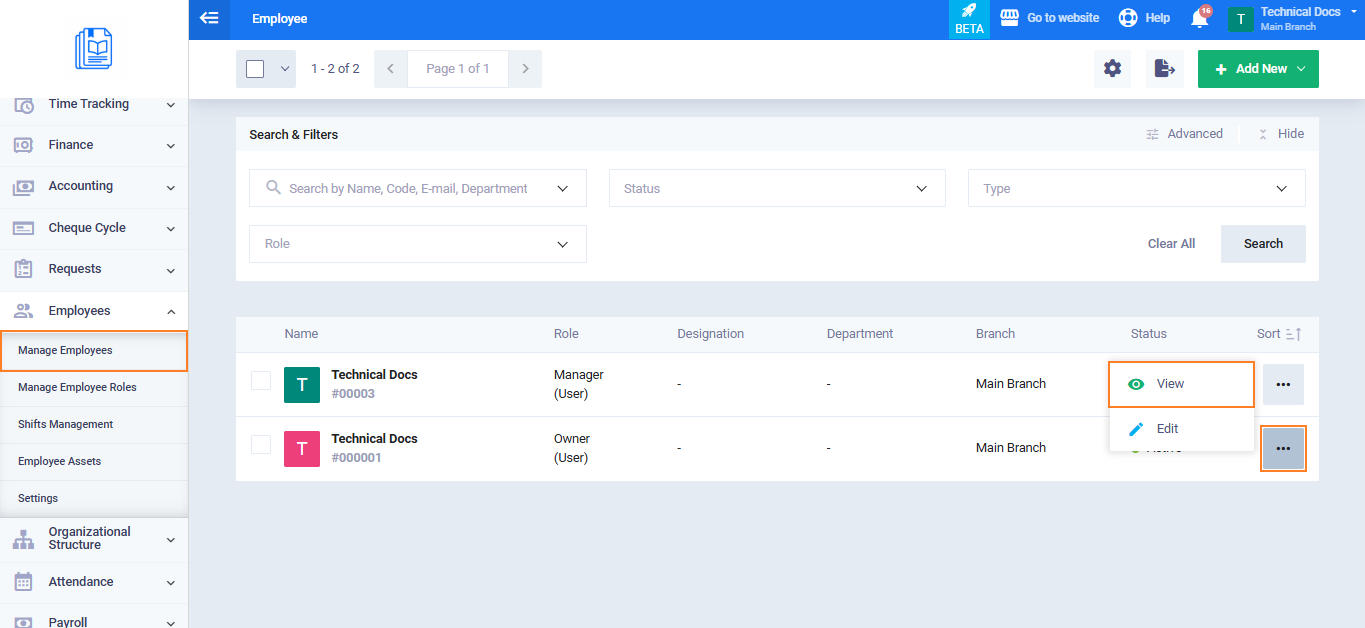
- From the main menu, click “Employees“.
- Click Employee “Manage Employees“.
- Search for your employee profile.
- Open your profile after completing the search.
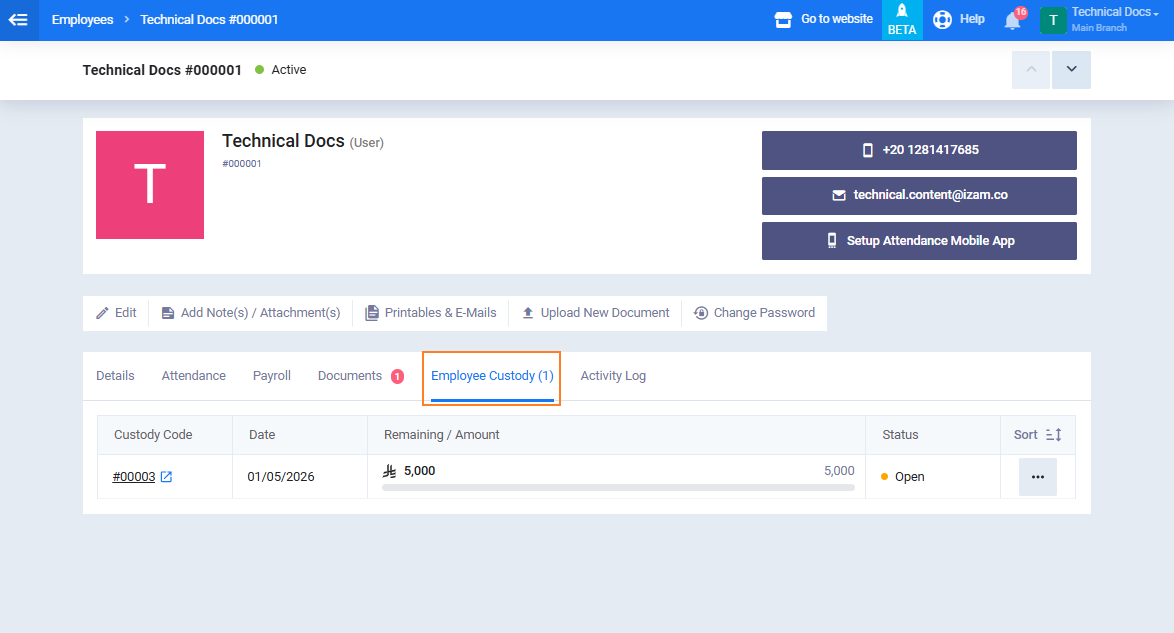
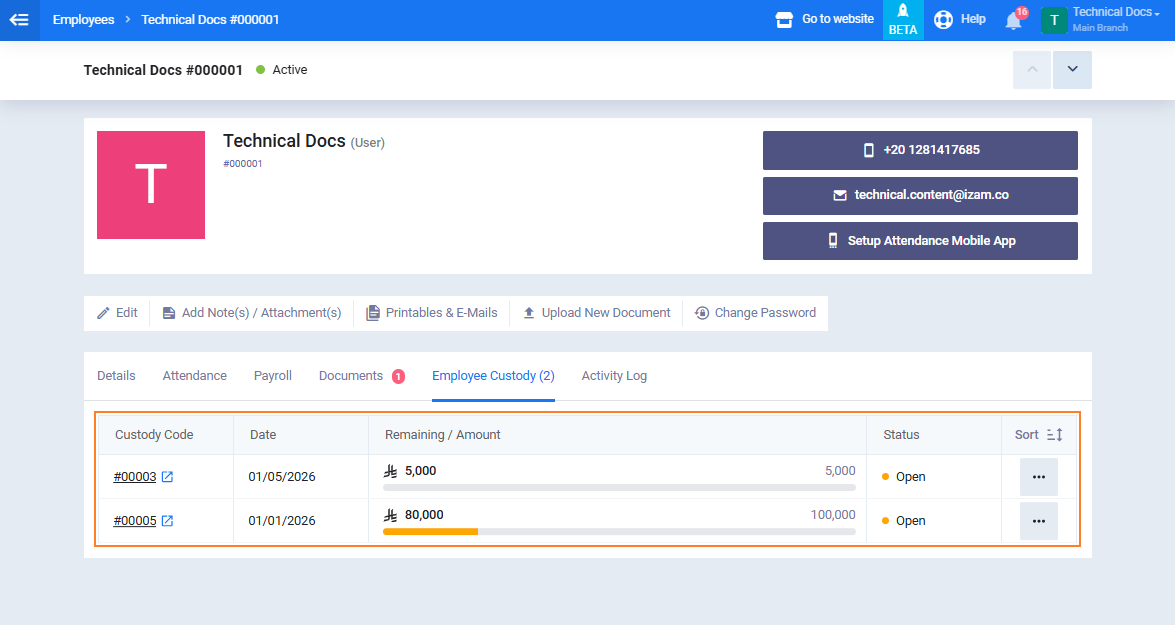
- Go to the “Employee Custody“.
Information Displayed in the List
The list displays all financial custodies assigned to you, sorted from newest to oldest, including the following columns:
- Custody code
- Custody date
- Custody amount
- Remaining balance
- Status: Open / Settled / Closed / Bad Debt
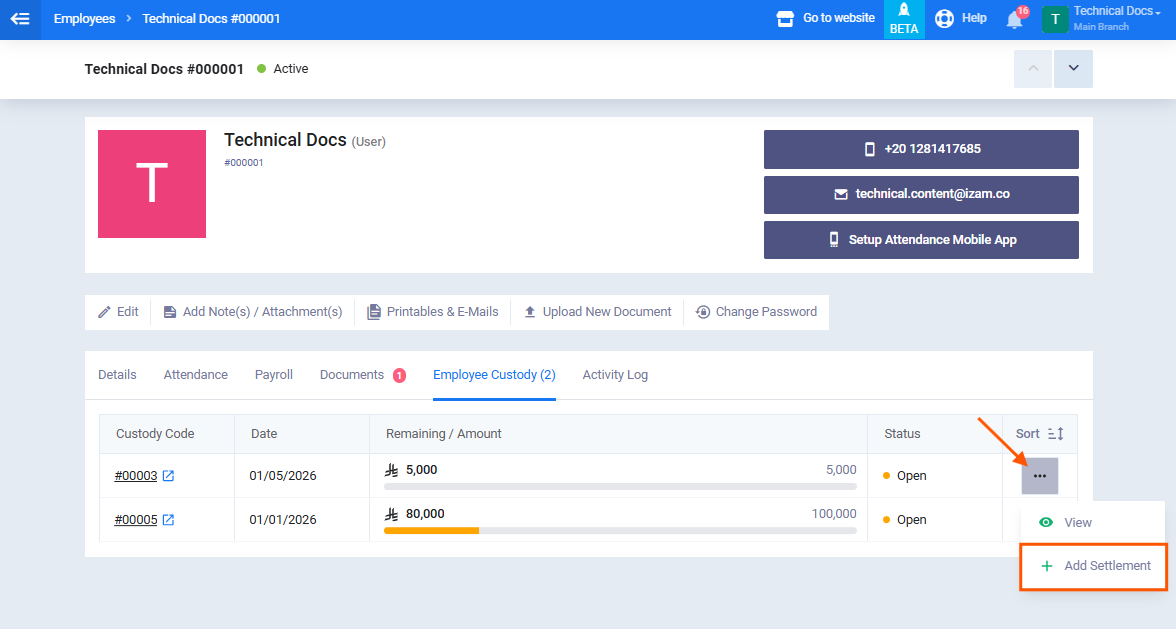
- Actions: View, Add Settlement
How to View Custody Details
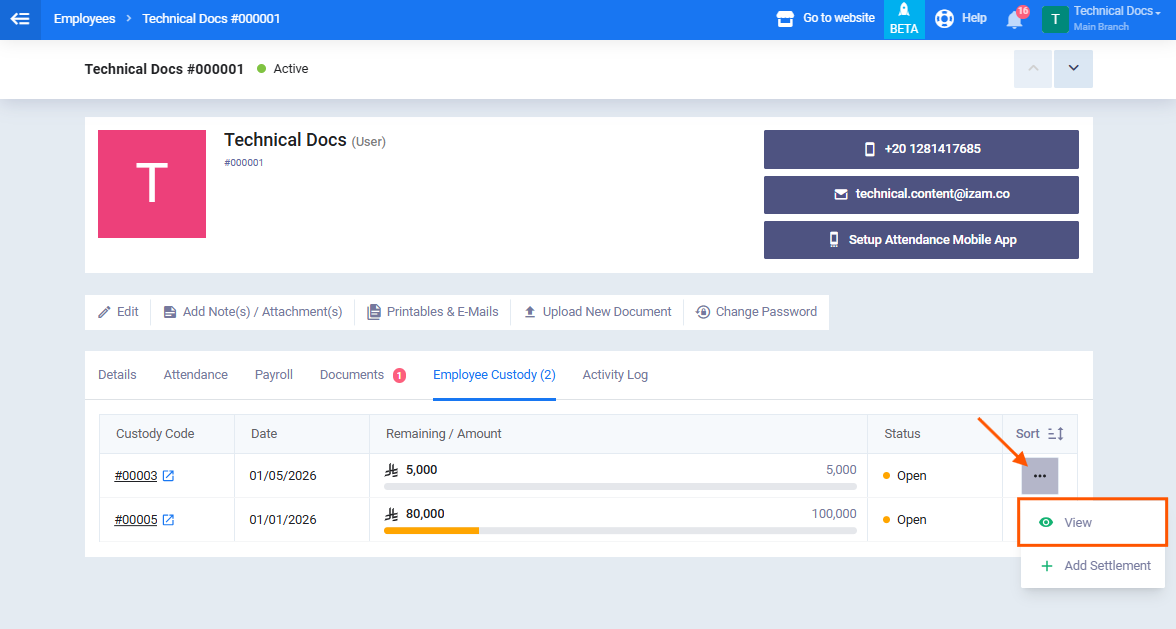
- From the “Employee Custody” tab inside your employee profile, click “View” next to the custody you want to review.
- A page will open displaying all custody details, settlements, and balances.
How to Add a Settlement to a Custody
If you want to record a settlement for one of your open custodies:
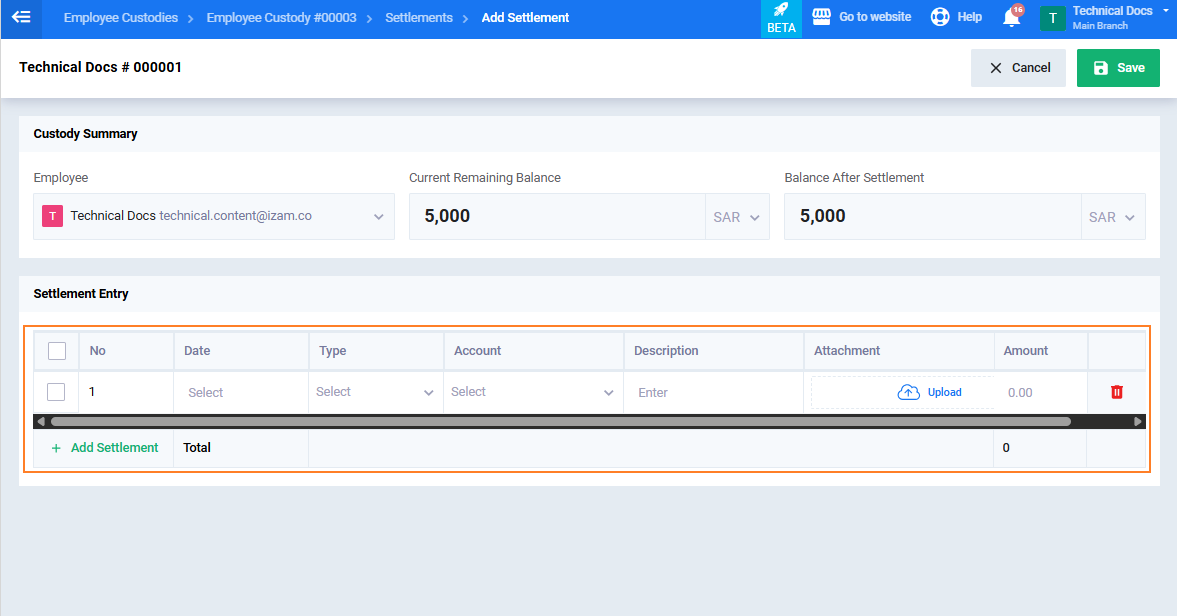
- From the Custodies tab inside your employee profile, click “Add Settlement” next to the required custody. Enter the settlement details:
- Select the settlement type.
- Enter the amount.
- Select the settlement date.
- Add any related notes. (Optional)
- Click “Save“.