Setting Up and Managing Settlement Types
Settlement types are the categories used when recording employee custody settlements — such as expenses, clearances, or violations. You can add, edit, deactivate, and delete settlement types based on your business needs. This guide explains how to fully manage settlement types.
Part 1: Viewing the Settlement Types List
- From the main menu, click Finance.
- Click Finance Settings.
- Click the Settlement Types card.
The list displays all settlement types defined in the system and includes the following columns:
- Settlement Type Name
- Description
- Status: Active / Inactive
- Actions: View, Edit, Delete
Part 2: Adding a New Settlement Type
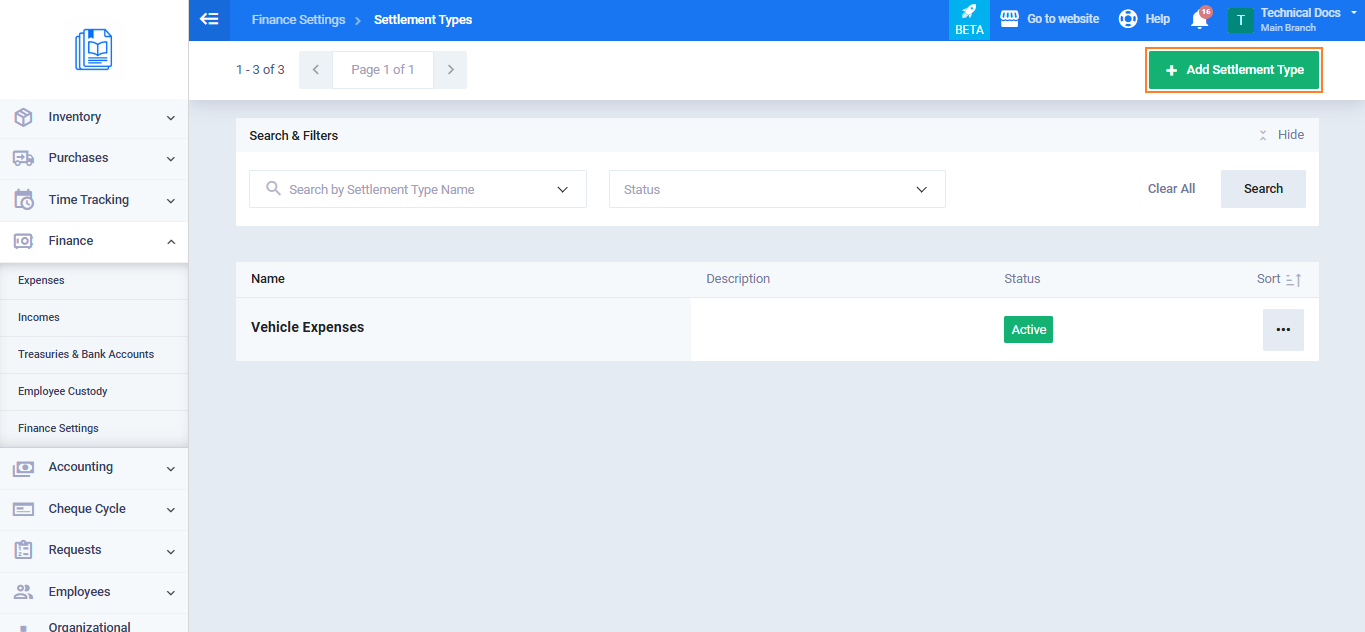
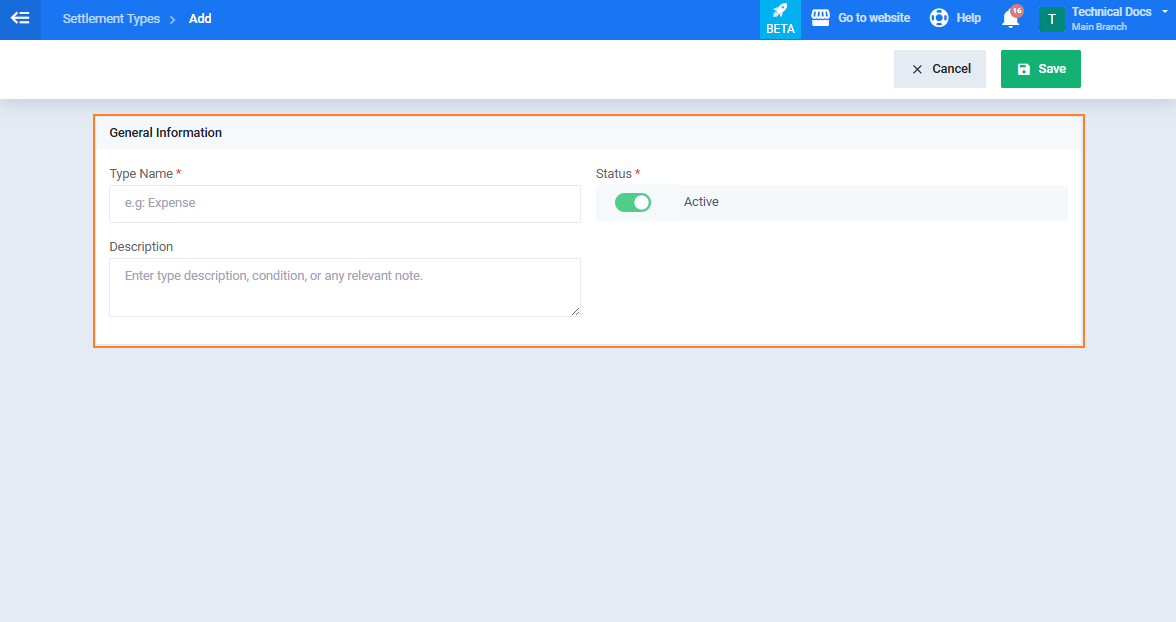
- From the Settlement Types list, click the Add Settlement Type button.
- Enter the Settlement Type Name — must be unique. (Required)
- Enter a Description if you want to add further details. (Optional)
- Make sure the Status is set to Active so it appears in the selection lists when entering settlements.
- Click Save.
Part 3: Viewing Settlement Type Details
- From the Settlement Types list, click the View icon next to the desired settlement type.
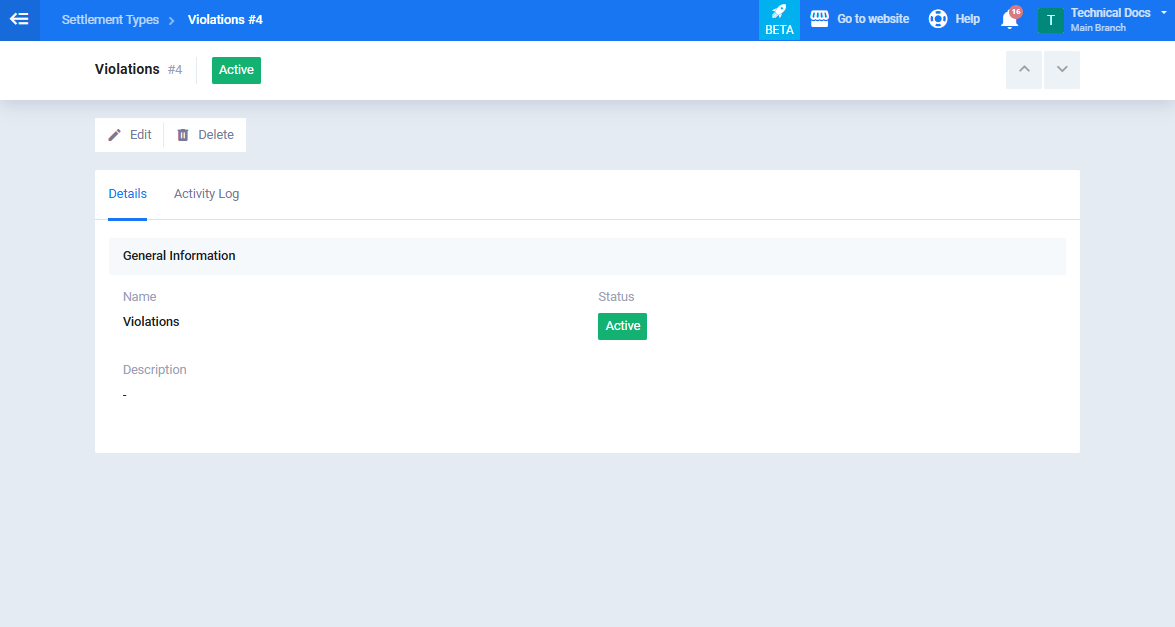
- A page will appear displaying all settlement type data in read-only mode:
- Settlement Type Name
- Description
- Status
Part 4: Editing a Settlement Type
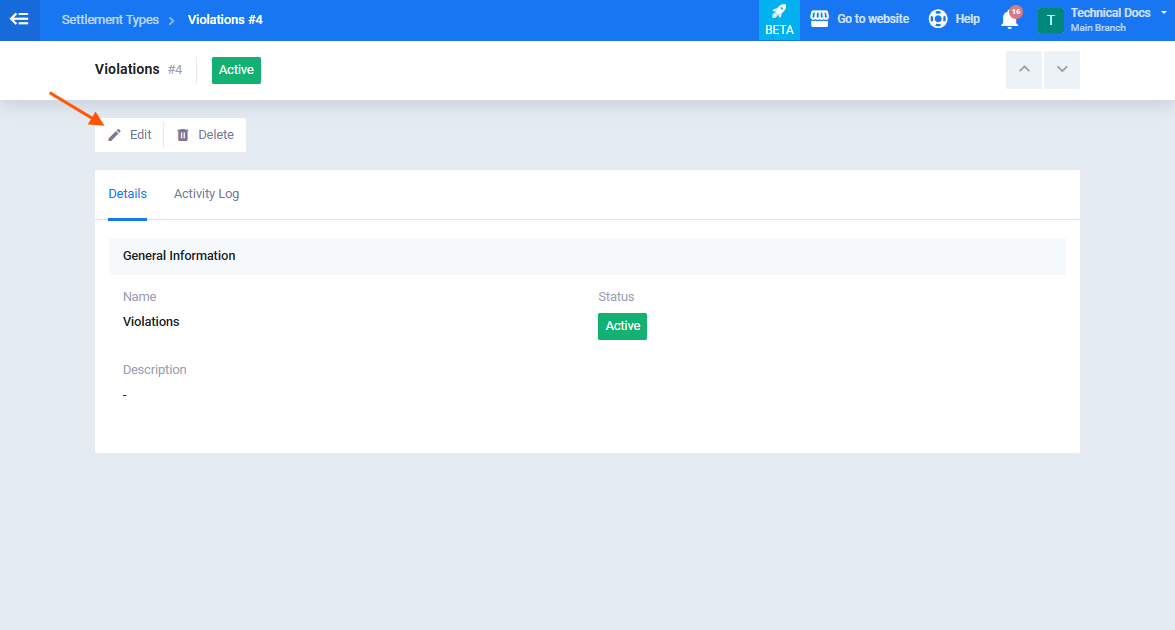
- From the Settlement Types list, open the settlement type you want to edit.
- Click the Edit button.
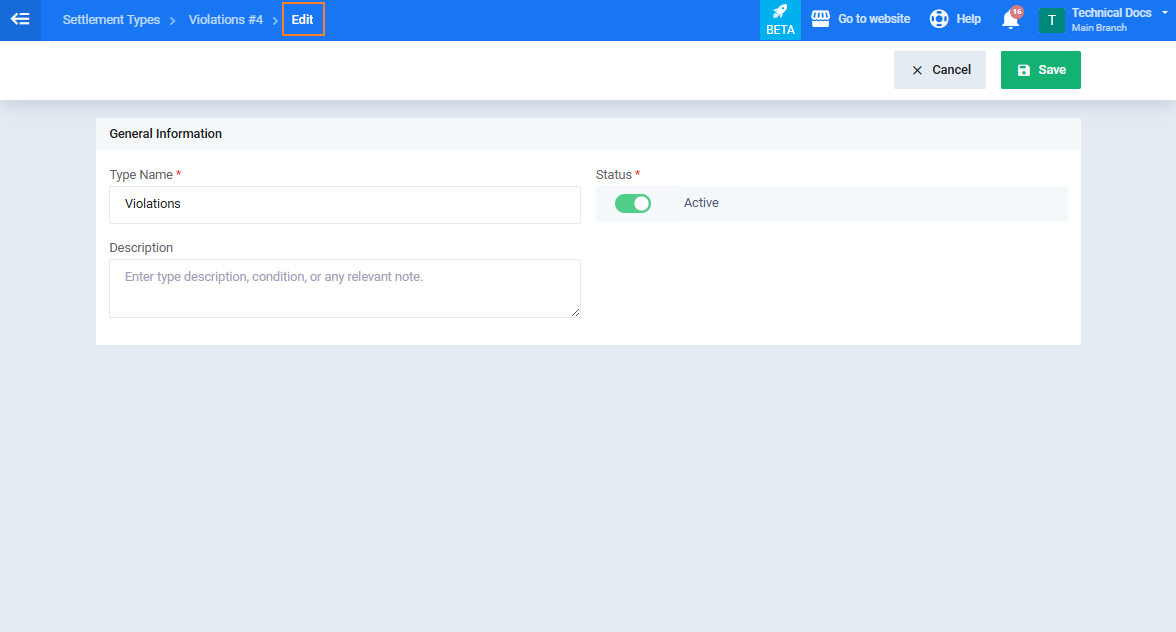
- Update the settlement type name, description, or status as needed.
- Click Save.
Part 5: Deleting a Settlement Type
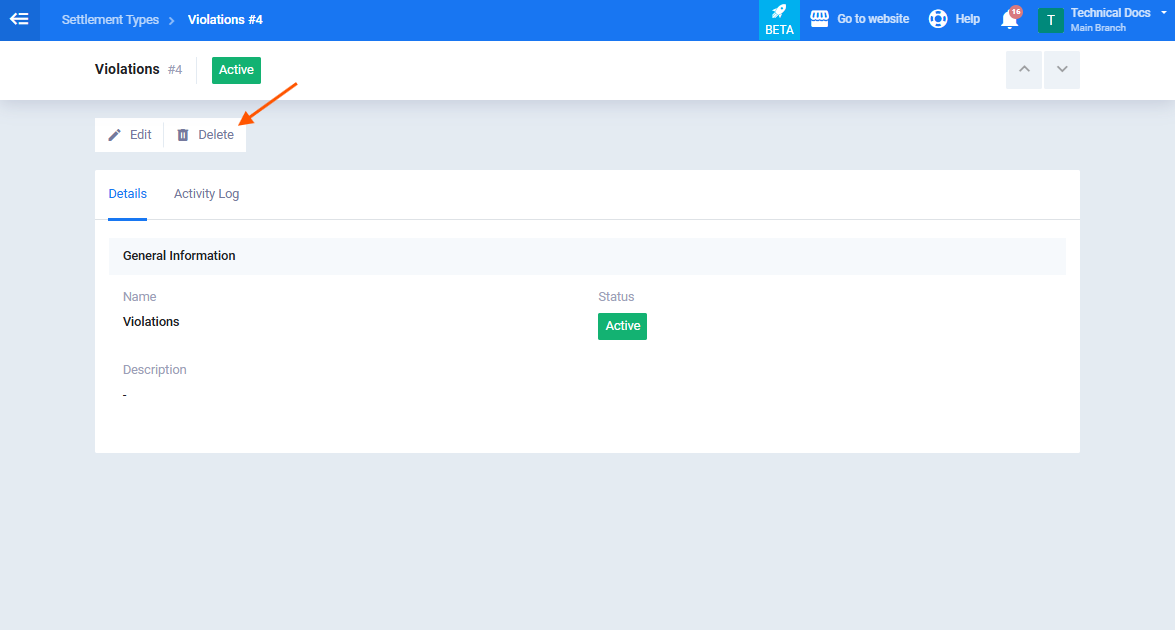
- From the Settlement Types list, open the settlement type you want to delete.
- Click the Delete button.
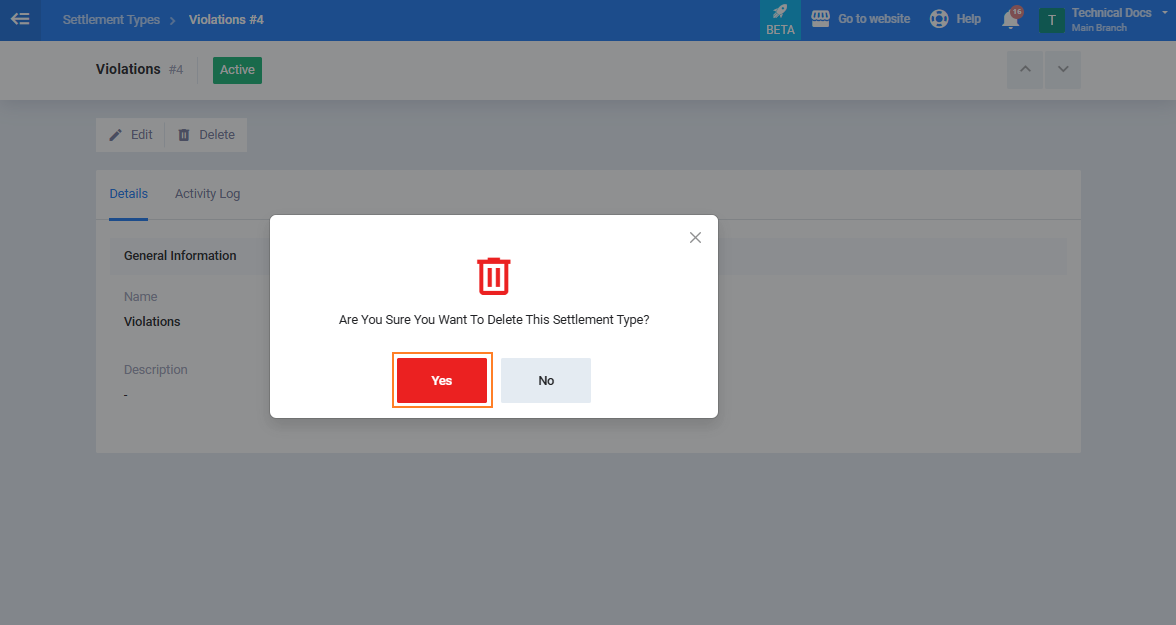
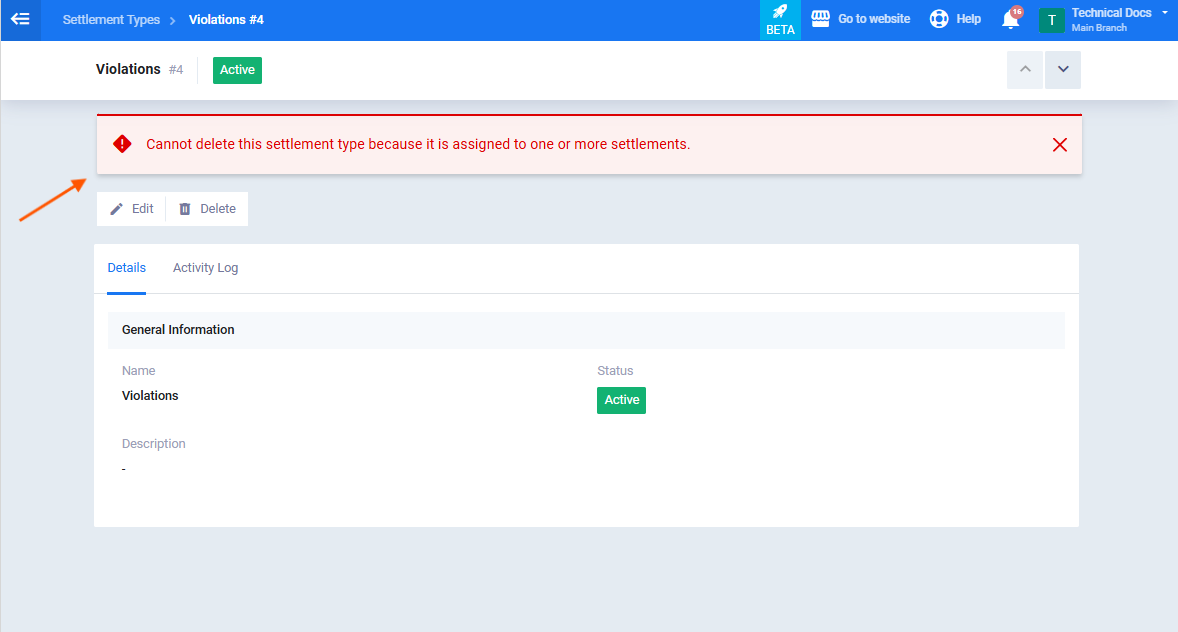
- A confirmation message will appear — click Yes to confirm and proceed.