


Contract Notification Settings Guide
The system allows you to configure automatic notifications sent before employee contracts and probation periods expire, giving managers and administrators enough time to make the right decisions — whether to renew the contract, confirm the employee, extend the probation period, or end the service.
Before You Begin
- Make sure you have the Manage HR System permission to modify notification settings.
- Make sure contract expiry dates and probation end dates are set in each employee’s profile — if the dates are not defined no notifications will be sent.
- Make sure a direct manager is assigned to each employee in their profile — if no direct manager is assigned the notification is sent to the designated department manager instead.
Step 1: Access the Contract Notification Settings
- From the main menu navigate to “Payroll“.
- Click “Settings” at the top of the page.
- Click “Contract Notifications” from the settings menu.
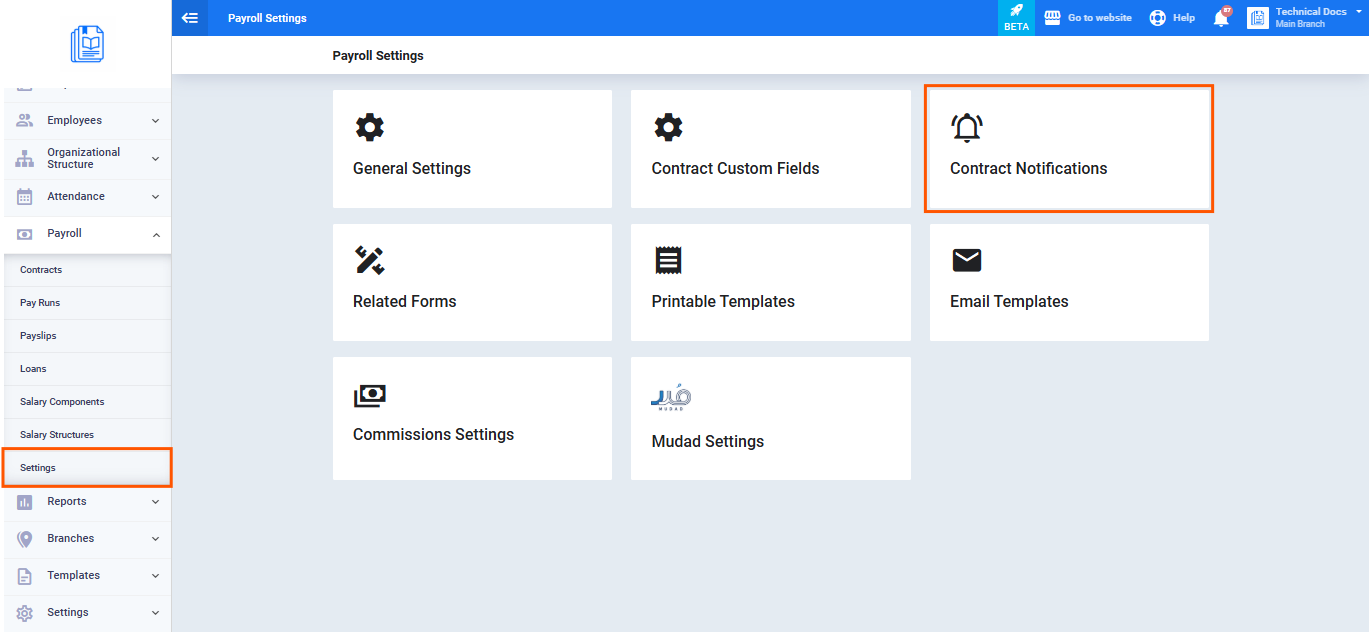
4. The Contract Notification Settings page appears with two side-by-side fields:
-
- Contract Expiry Notification Duration: The number of days before the contract expires at which the notification is sent.
- Probation Expiry Notification Duration: The number of days before the probation period ends at which the notification is sent.
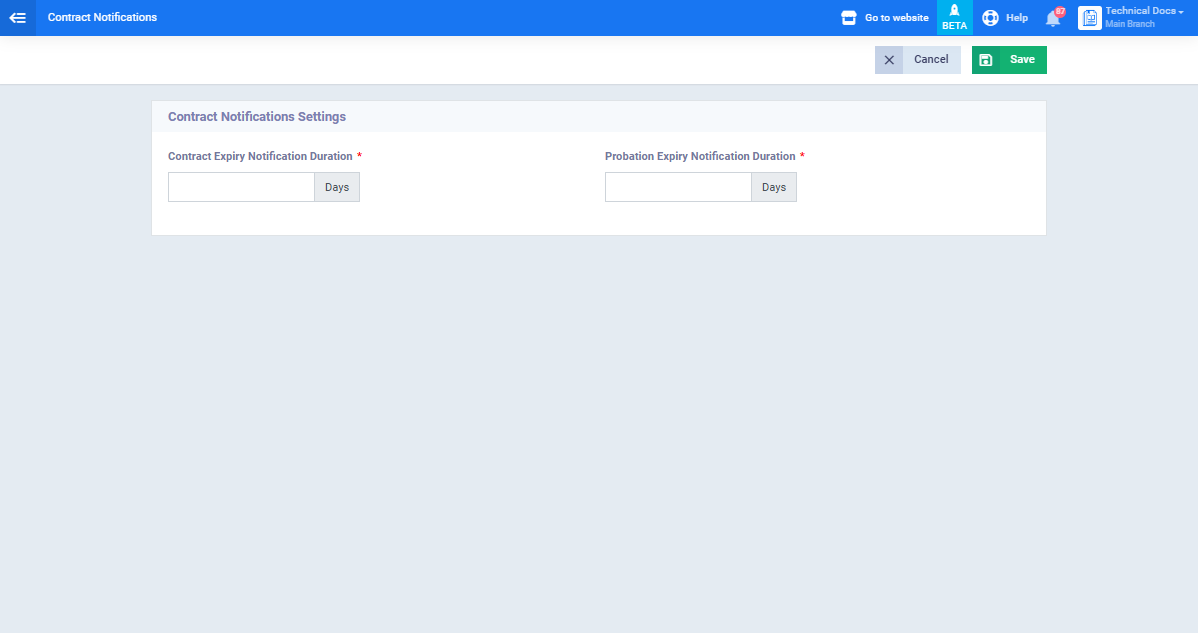
Step 2: Set the Contract Expiry Notification Duration
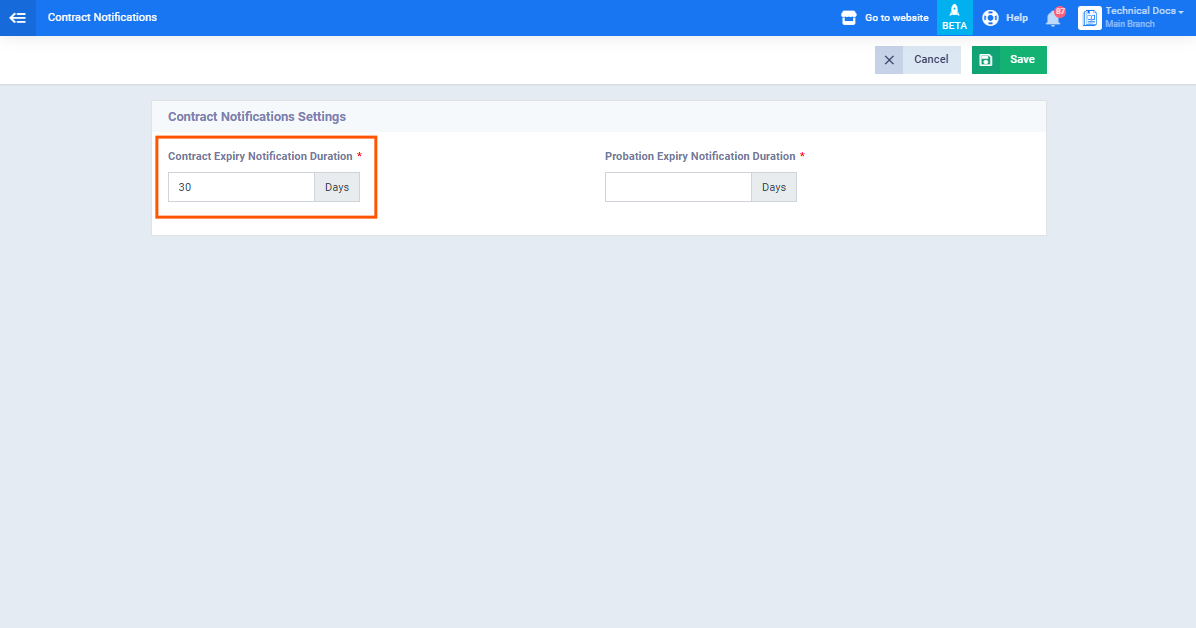
In the “Contract Expiry Notification Duration” field enter the number of days before the contract end date at which the notification should reach the manager — for example if you enter 30 the notification is sent 30 days before the contract expiry date.
Step 3: Set the Probation Expiry Notification Duration
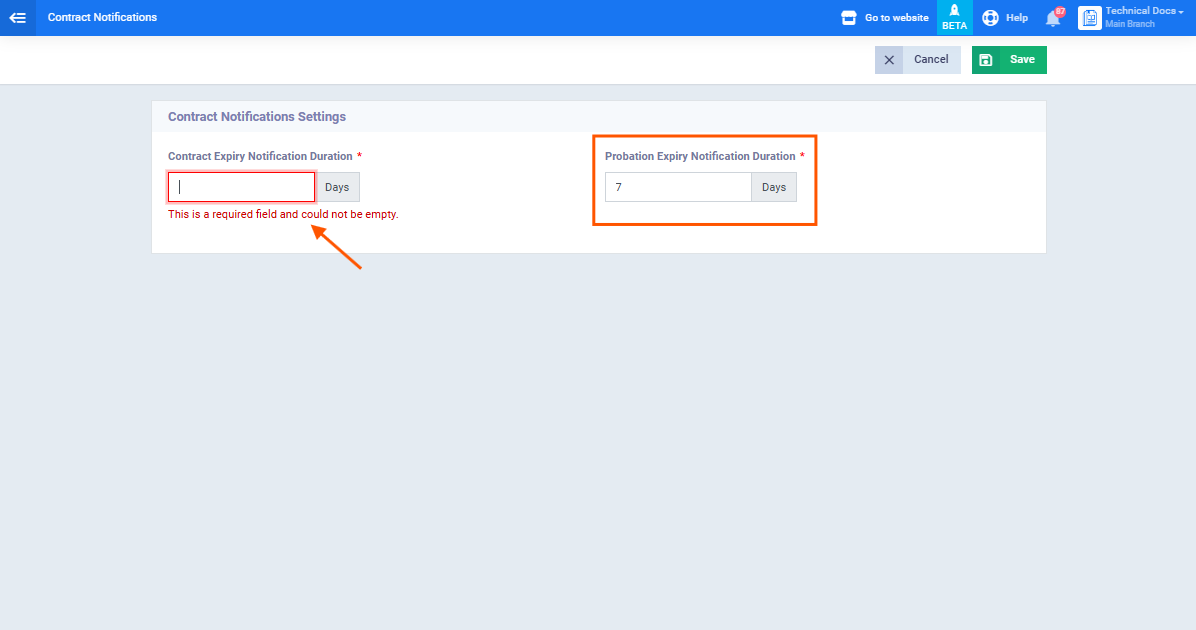
- In the “Probation Expiry Notification Duration” field enter the number of days before the probation end date at which the notification should reach the manager — for example if you enter 7 the notification is sent 7 days before the probation end date.
Note: Both fields are mandatory and accept positive integers only with a minimum of 1 day and a maximum of 365 days.
- Click “Save” to apply the settings.
Step 4: How Notifications Are Delivered
After saving the system works automatically according to the following logic:
- The system checks daily the records of all employees who have defined contract expiry dates or probation end dates.
- When today’s date matches (the expiry date minus the configured duration) the notification is sent to the direct manager automatically through three channels simultaneously:
Channel 1 — Web Portal Notification
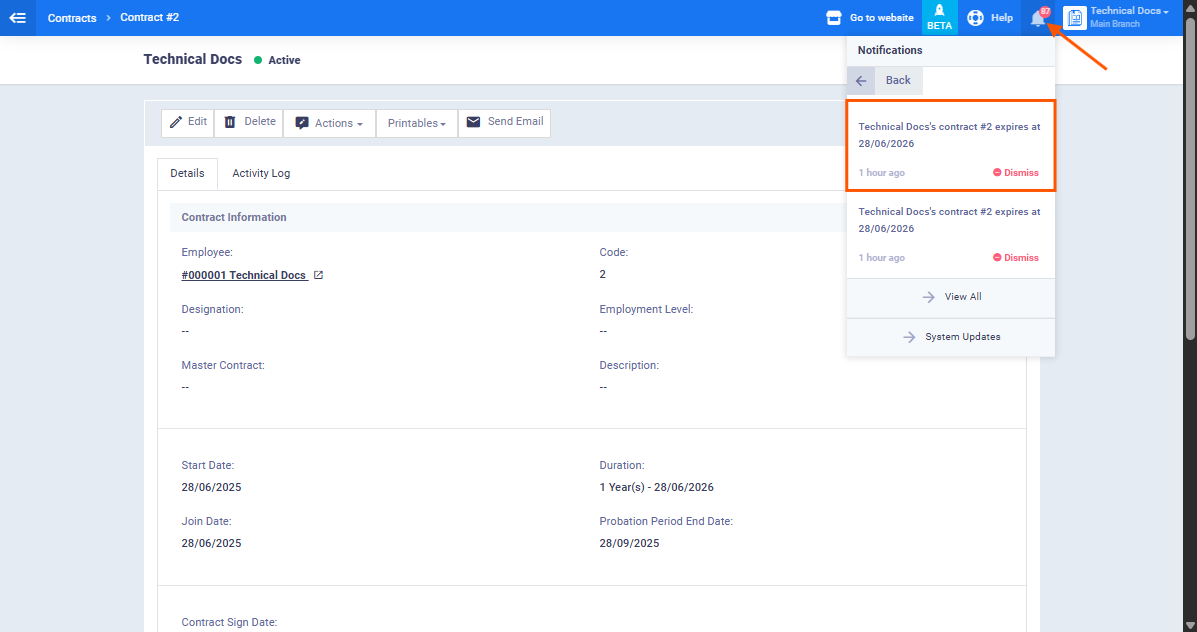
The notification appears in the notifications center (the bell icon at the top right of the screen) with the message:
“Probation period ending soon for [Employee Name]. The probation period for [Employee Name] will end in [X] days. Please take necessary action.”
Clicking the notification opens the employee’s profile directly on the Contract tab.
Channel 2 — Mobile App Push Notification
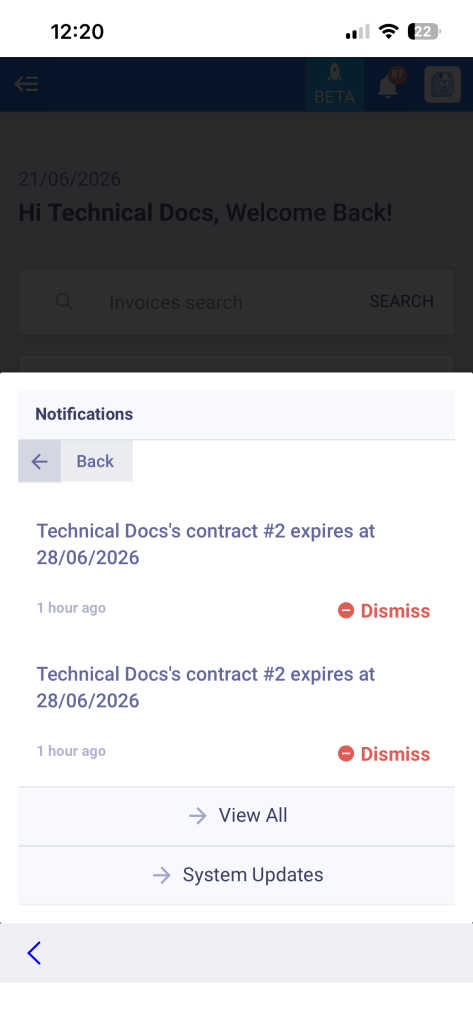
A push notification arrives on the manager’s phone with the message:
“Reminder: [Employee Name]’s probation ends in [X] days.”
Tapping it opens the employee’s profile in the mobile app.
Channel 3 — Email Notification
An email is sent to the manager containing:
- Subject: Probation Period Ending Soon – [Employee Name]
- Content: Employee name, job title, department, expiry date, days remaining, and a direct link to the employee’s profile.