Linking Employee Assets with Fixed Assets
The system allows you to link employee assets with fixed assets in the Accounting application, enabling synchronized data between both modules and ensuring comprehensive asset tracking. Once linked, the system automatically imports the accounting asset data and prevents selling or revaluating the asset from the accounting side without referencing the employee asset records. This guide explains how to complete the linking process and track its impact.
Before you Start
- The Accounting application must be activated for the “Link to Existing Asset” option to appear.
- The accounting asset must already exist in the “Fixed Assets” application.
- You must have permission to “Add Employee Assets“.
First: Adding an Employee Asset Linked to an Accounting Asset
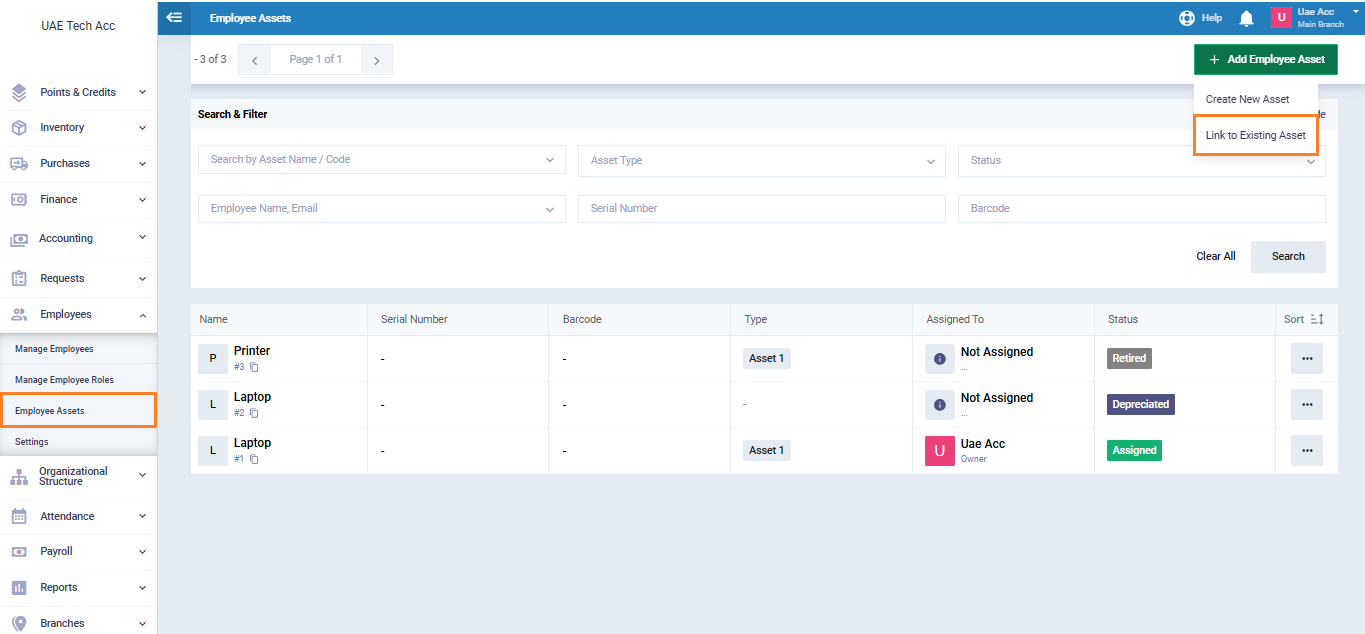
- From the main menu, click “Employees” then select “Employee Assets“.
- Click “Add New Asset“.
- From the selection screen, choose “Link to Existing Asset“.
Second: Searching for the Accounting Asset
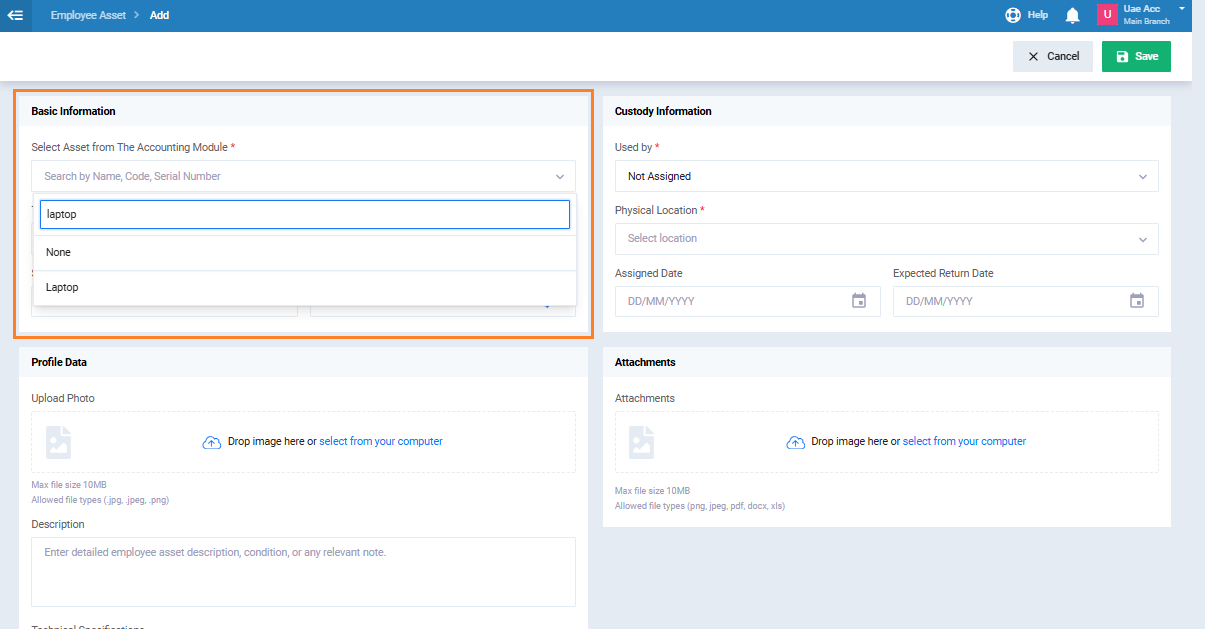
- In the “Link to Existing Asset” field, search using any of the following:
- Asset name
- Asset code
- Serial number
- Barcode
- Select the required asset from the search results.
Third: Reviewing Imported Data
When selecting the accounting asset, the following fields are automatically imported:
|
Employee Asset Field | |
|---|---|---|
| Asset Name | Asset Name | |
| Asset Type | Asset Type | |
| Serial Number | Serial Number | |
| Barcode | Barcode | |
| Description | Description | |
| Used by | User | |
| Employee / Storage | Employee / Storage | |
| Physical Location | Physical Location |
- Review the imported data and modify any editable fields if needed.
- Complete the remaining asset information.
- Click “Save“.
Impact of Linking on the Fixed Assets Module
After completing the link, the accounting asset behavior changes as follows:
- When attempting to sell the asset from the Accounting module, you must select the unit from the linked employee assets records.
- When attempting to revaluate the asset from the Accounting module, you must select the unit from the linked employee assets records.
- When retiring the accounting asset, the linked employee asset is automatically marked as “Retired” and its assignment is removed.
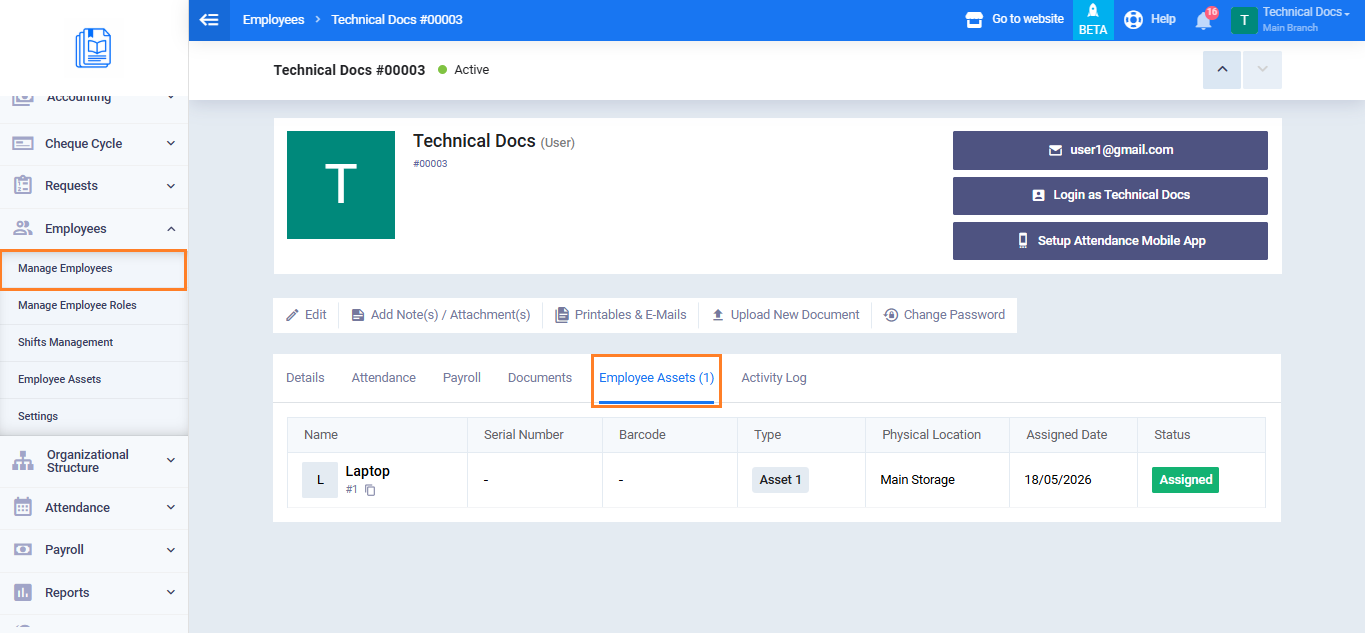
Tracking the Asset Record from the Employee Profile
After linking, you can track the asset directly from the employee profile:
- Open the employee profile assigned to the asset.
- Go to the Employee Assets tab.
- You will find the linked asset with the ability to view the complete asset history, showing all changes made since creation.