


How to Bulk Create and Update Employees by Import
You can create a large number of employees or update their data in one go by importing a CSV file from the Manage Employees page, instead of entering each employee manually. For each row in the file, the system decides whether to create a new employee or update an existing one based on the Employee Code. This tutorial explains how to prepare the file, the import steps, the rules the system validates, and how to read the import result.
Before You Begin
- You must have both permissions: Add New User/Employee and Edit & Delete User/Employee. If either one is missing, the Import button doesn’t appear.
- The import file must be in CSV format.
- Dates in the file must follow the date format set in your account settings, such as dd/mm/yyyy.
- Your plan must have enough available slots for the new employees and users you’re adding.
Steps to Import Employees
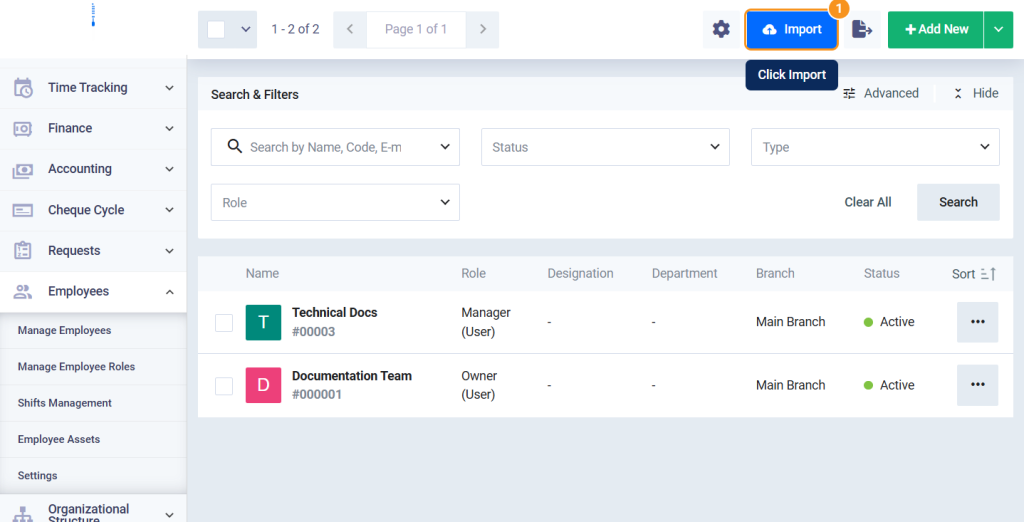
- From the main menu, select Employees, then Manage Employees, and click Import at the top of the page.
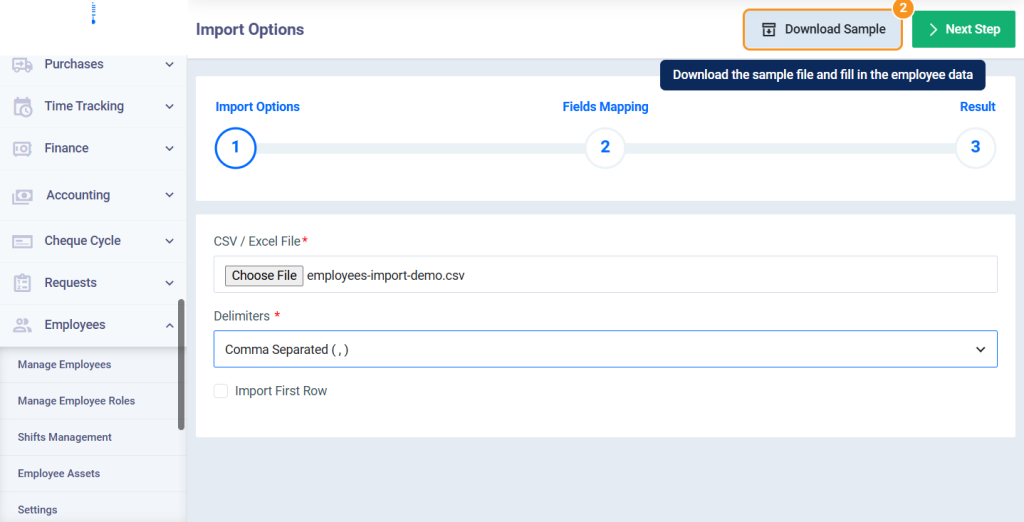
- On the Import Options page, click Download Sample to download a file that contains all available columns, then add your employees’ data to it, with each employee in a separate row.
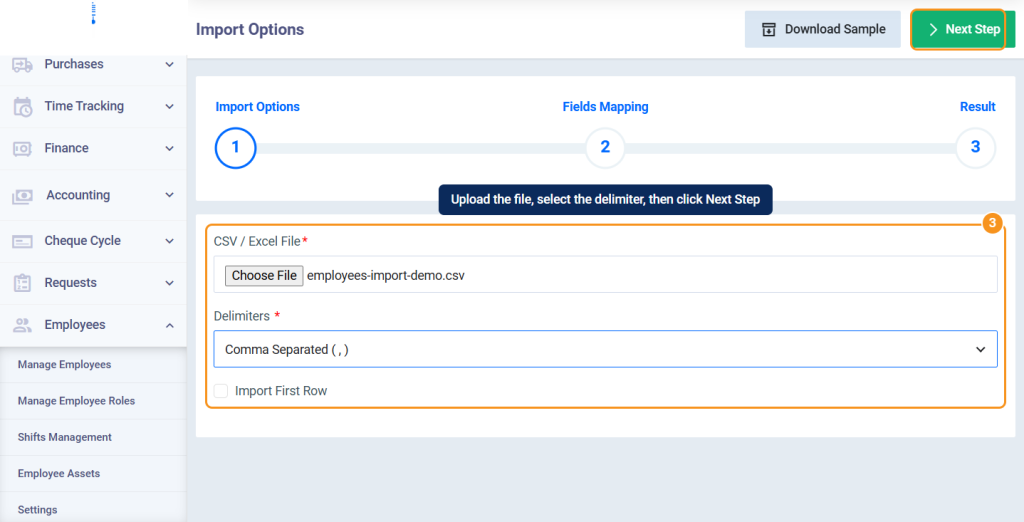
- Upload the file in the CSV / Excel File field, select from Delimiters the separator used between the columns in the file, such as Comma Separated ( , ), then click Next Step.
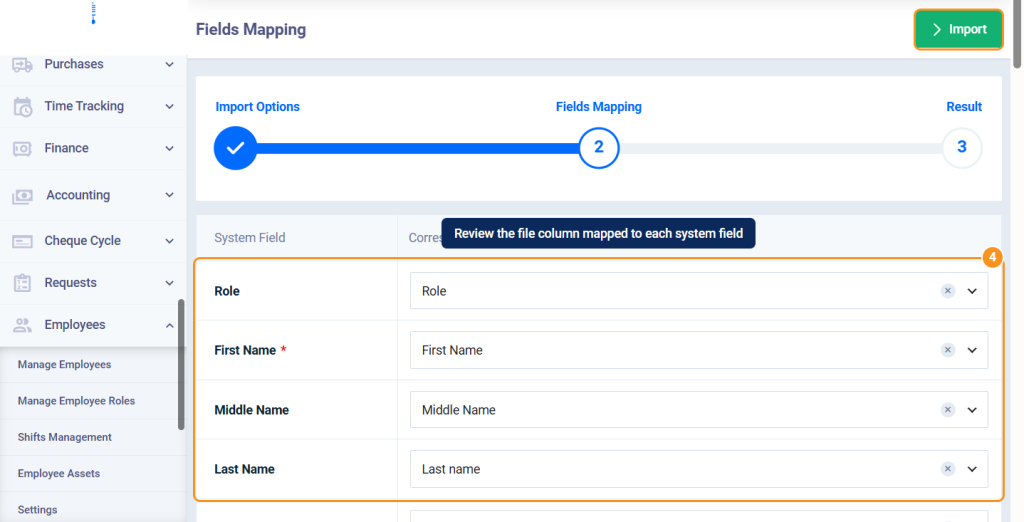
- On the Fields Mapping page, the system automatically maps each system field to the matching column in the file based on the column header. Review the mapping, change any field from the list next to it if needed, then click Import.
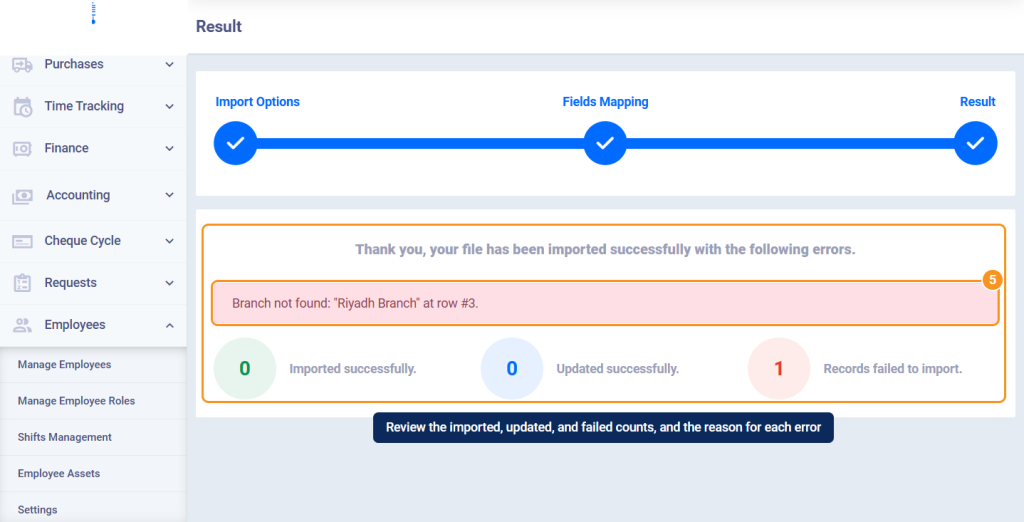
- The Result page appears, showing the number of employees imported, the number of employees updated, and the number of rows that failed to import, with a message explaining the error and the row number for each failed row.
When a New Employee Is Created and When an Existing One Is Updated
| Employee Code value in the row | What the system does |
|---|---|
| An employee code that exists in the system. | Updates this employee with the row’s values. You can edit all fields except the status. |
| A code that doesn’t exist in the system. | Creates a new employee. |
| Empty. | Creates a new employee, and the system generates its code automatically. |
File Preparation Rules
| Column | Rule |
|---|---|
| Type | The employee type, and accepts only two values: employee or user. |
| Mandatory fields | First Name, Email Address, Display Language, Branch, Type, Birth Date, Join Date, and Country. Role and Accessible Branches are also mandatory for users. If a mandatory field is missing, the row fails. |
| Email Address | Must not be repeated within the file, and must not be used by another employee in the system. |
| Official ID Number | Must be unique in your account: if it’s repeated within the file, only the first row is accepted, and if it belongs to another employee, the row fails. |
| Branch and Accessible Branches | The branch must exist in the system with the same name. You can enter more than one branch in Accessible Branches separated by commas, such as “Main Branch, North Branch”. |
| Direct Manager Code | Enter the direct manager’s code, and it must belong to an existing employee. |
| Attendance Shift, Leave Policy, Holiday List, and Attendance Restrictions | Each value must match the name of an existing shift, policy, list, or restriction in the system. |
| Can Access System and Send Credentials to Employee Email | Accept the values Yes or No. |
| Date columns | Written in the date format set in your account settings. |
| Custom fields | Follow the same rules as the field in the employee profile, such as value type, available options, and character length. |
When You Exceed the Number of Employees Allowed in Your Plan
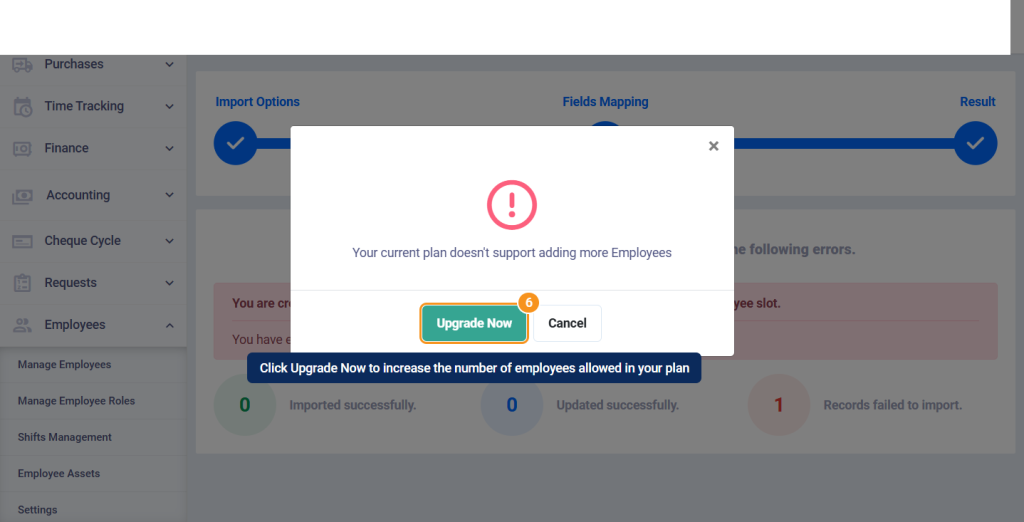
- Before importing, the system counts the new employees and users in the file and compares the count with the available slots in your plan. If the count is higher than what’s available, the import doesn’t run, and the message Your current plan doesn’t support adding more Employees appears. Click Upgrade Now to increase your slots, or Cancel to close the message.
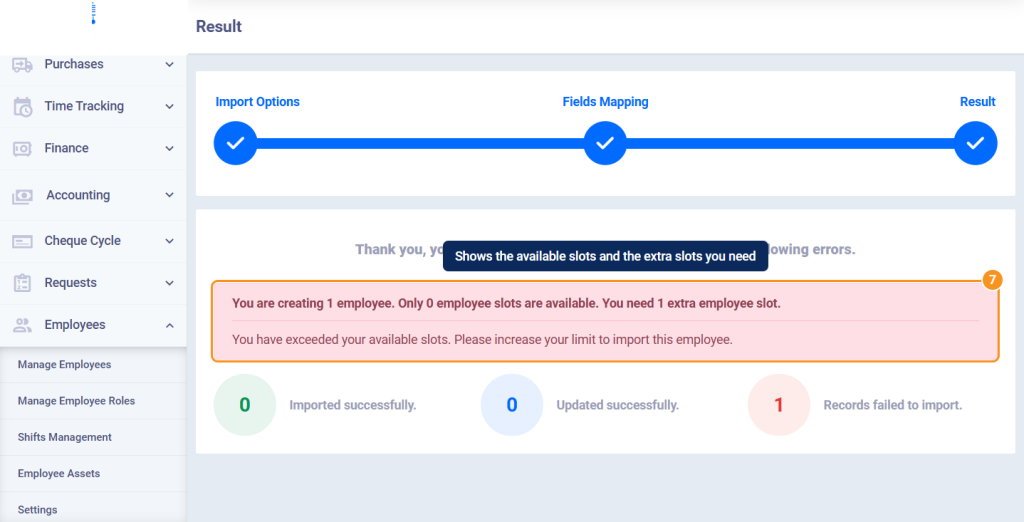
- On the Result page, a message shows the number of employees you’re trying to create, the available slots, and the extra slots you need, such as You are creating 1 employee. Only 0 employee slots are available. You need 1 extra employee slot.
Common Error Messages
| Message | Cause and solution |
|---|---|
| Missing required field: [Field Name] | A mandatory field is empty in the row. Enter its value in the file. |
| Branch not found: [value] | The branch name doesn’t exist in the system. Enter the branch name exactly as it appears on the Branches page. |
| Direct Manager not found (Code: [value]) | The direct manager’s code doesn’t exist. Enter the code of an existing employee. |
| Official ID is duplicated in the import file. | The same official ID appears in more than one row. Only the first row is accepted; correct the other rows. |
| Official ID already exists in the system. | You’re creating a new employee with an official ID that belongs to another employee. |
| Official ID already belongs to another employee. | You’re updating an employee with an official ID that belongs to another employee. |
| Email already exists in the system. | The email belongs to another employee. Use a different email. |
| Invalid Employee Mode value: [value]. Accepted values are User or Employee. | The Type column value is invalid. Enter employee or user. |
| Role not found: [value]. | The role name doesn’t exist. Enter the name of a role from Manage Employee Roles. |
| Invalid date format in [Field Name]. | The date is written in a format different from the date format in your account settings. |
FAQs
Why doesn't the Import button appear on the Employees page?
Because you’re missing one of the two permissions: Add New User/Employee or Edit & Delete User/Employee. You must have both.
How do I update an existing employee's data by import?
Enter the employee code in the Employee Code column, and enter the new values in the other columns. The system updates the employee with this code.
Can I change an employee's status by import?
No. The import doesn’t include the status field. Every new employee is created with Active status, and the status of existing employees doesn’t change when they’re updated.
Why don't the job and attendance columns appear in the sample file?
Because the Human Resources app is inactive in your account. When you activate it, these columns appear in the sample file and on the Fields Mapping page.
Can I download an errors file after the import?
No. Errors appear on the Result page only, with the row number and the error reason for each failed row. Correct the rows in the file, then import them again.