


Tracking Employee Assets from the Employee Profile
As a manager or asset administrator, you can view all assets assigned to any employee directly from their employee profile and track each asset’s history and current status. This guide explains how to access this information and what details are available.
How to Access Employee Assets
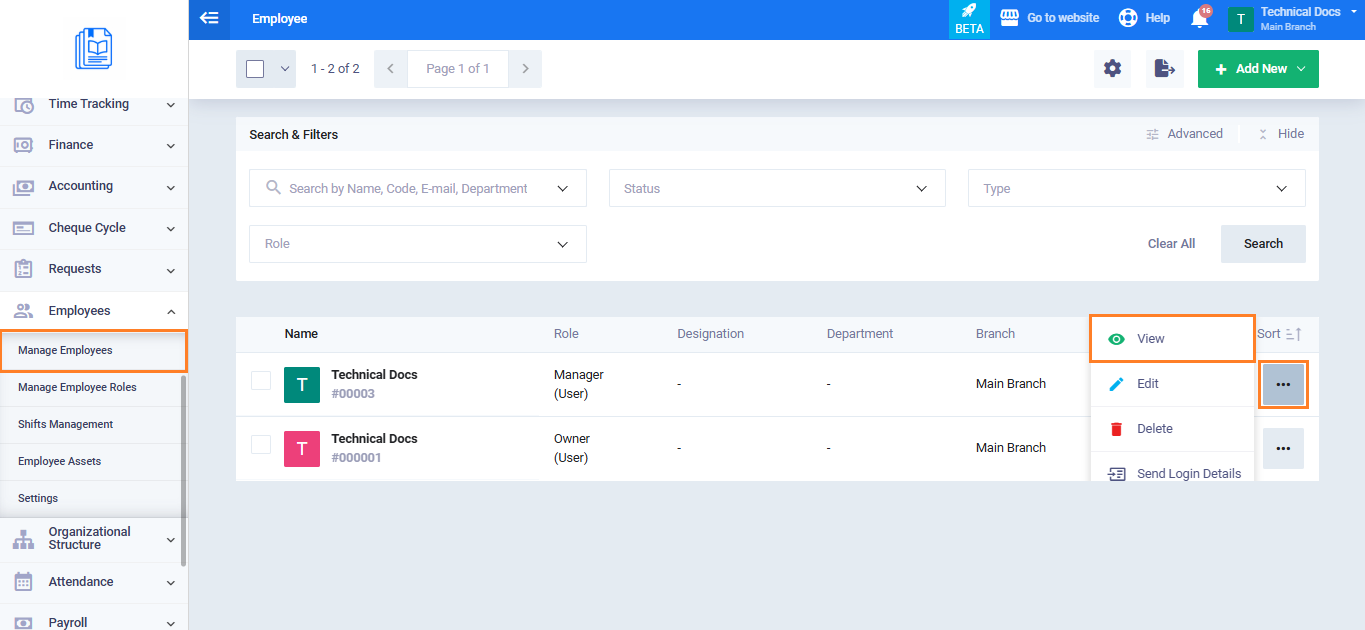
- From the main menu, click “Employees“.
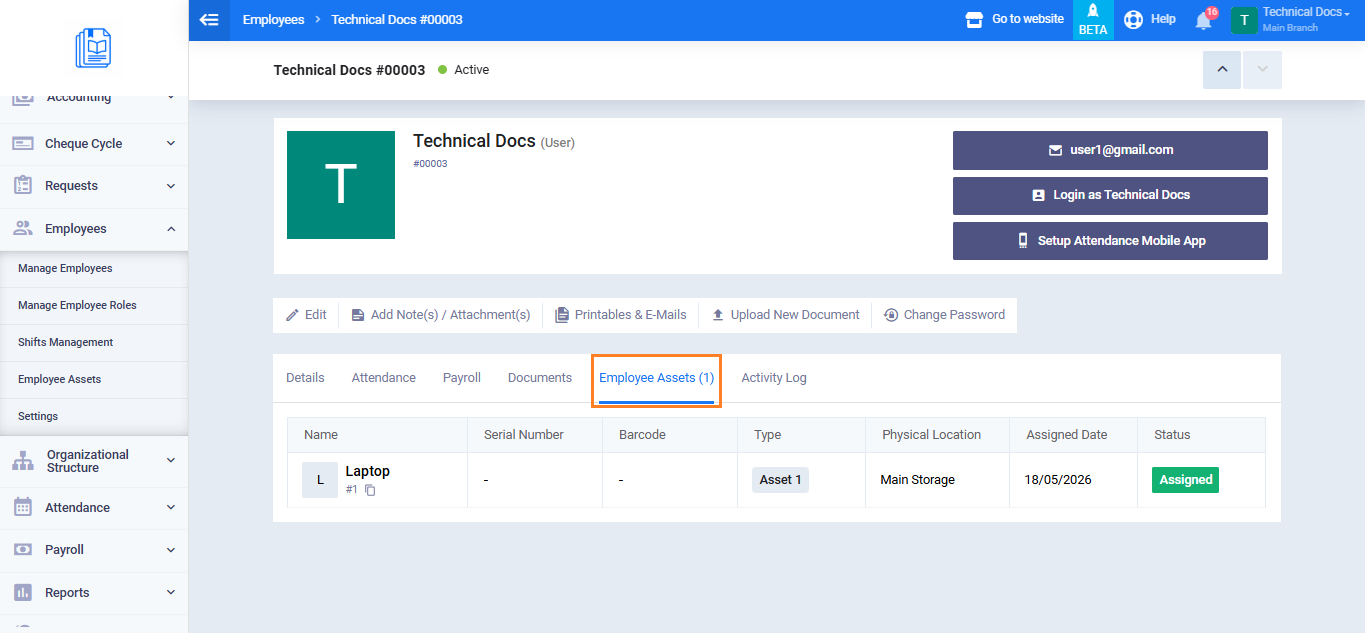
- Open the required employee profile.
- Go to the “Employee Assets” tab.
Information Displayed in the Assets List
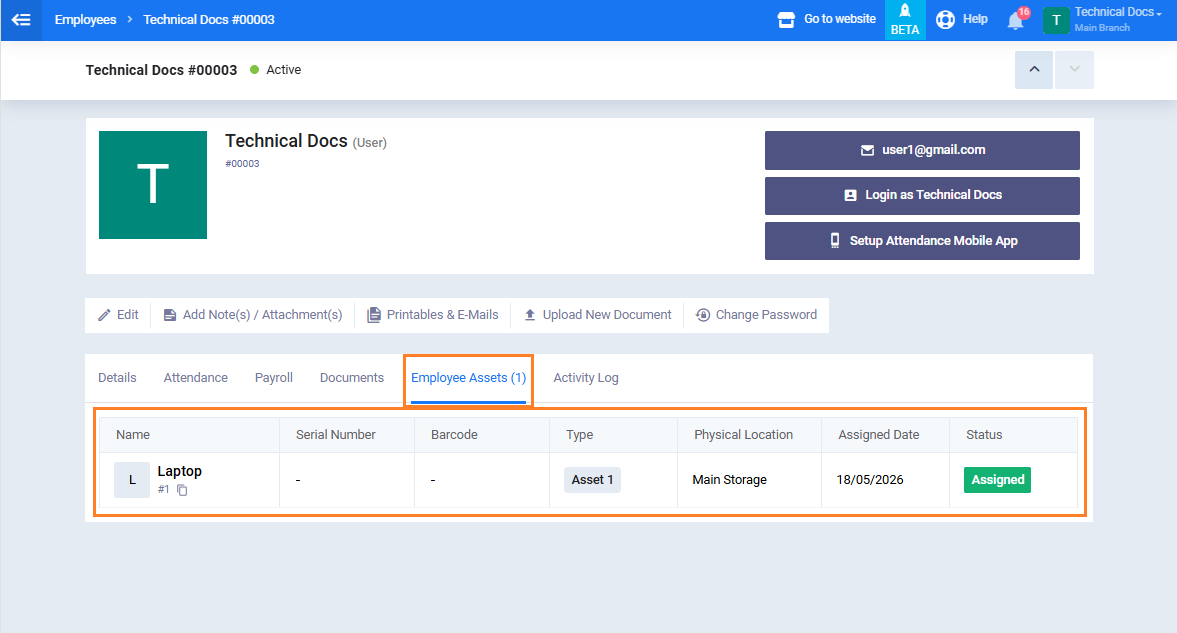
The list displays all assets currently assigned to the employee, including:
- Asset Name
- Serial Number
- Barcode
- Asset Type
- Physical Location
- Assignment date
- Status: Assigned / Unassigned
Important Notes
- This screen only displays assets currently assigned to the employee. Assets stored in warehouses or unassigned assets do not appear here.
- You cannot edit or delete assets directly from this screen.
- To make any changes to an asset, open the asset details page from the “Employee Assets” list.