How to Create a Task Template for Use in Task Flows
The system allows you to create a ready-made Task Template containing a predefined set of tasks that can later be used when adding Task Flows for employees, without having to manually enter the same tasks each time.
Steps to Create a Task Template for Use in Task Flows
Step 1: Go to Task Templates
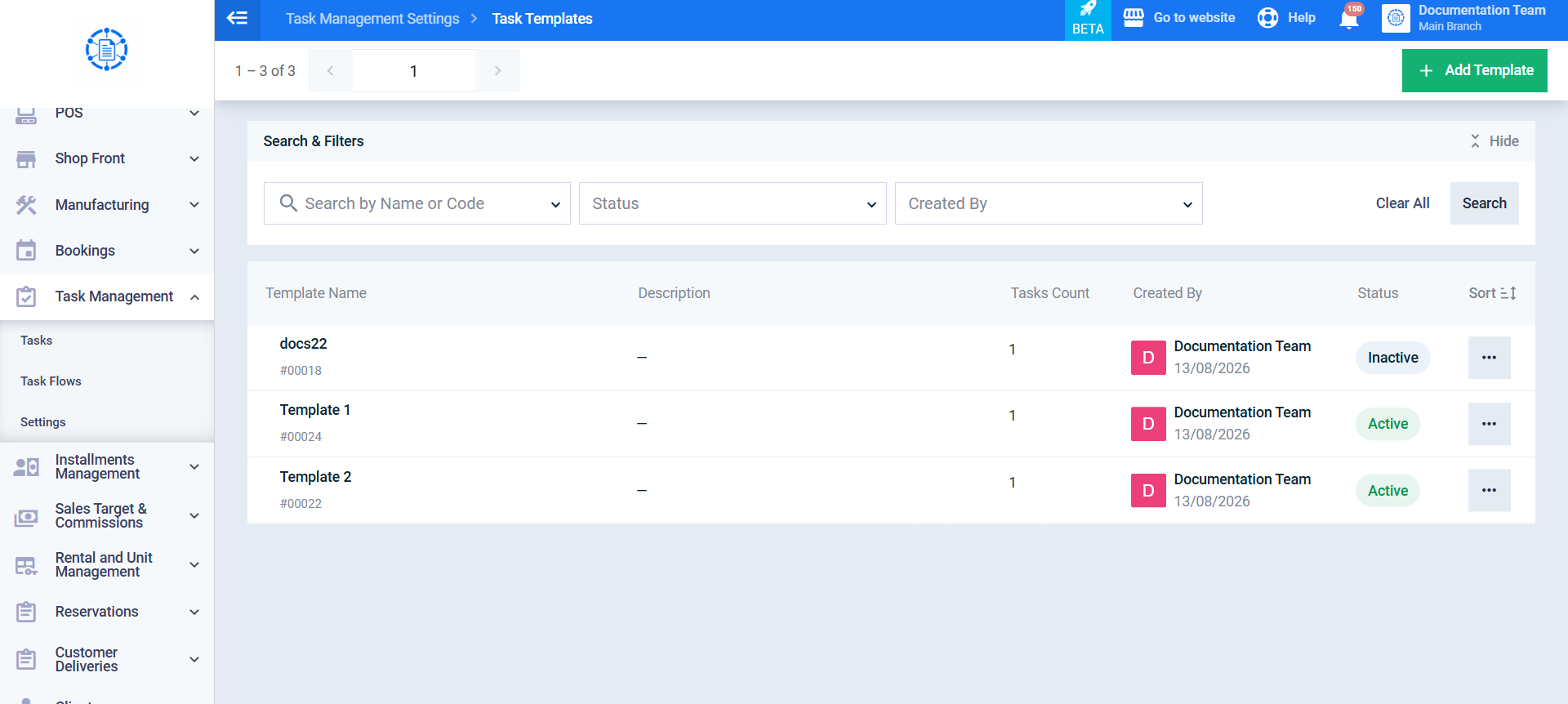
From the main menu, click Task Management, then select Settings, and click Task Templates.
Step 2: Open the Add Template Screen
Click the Add Template button.
Step 3: Enter Task Template Information
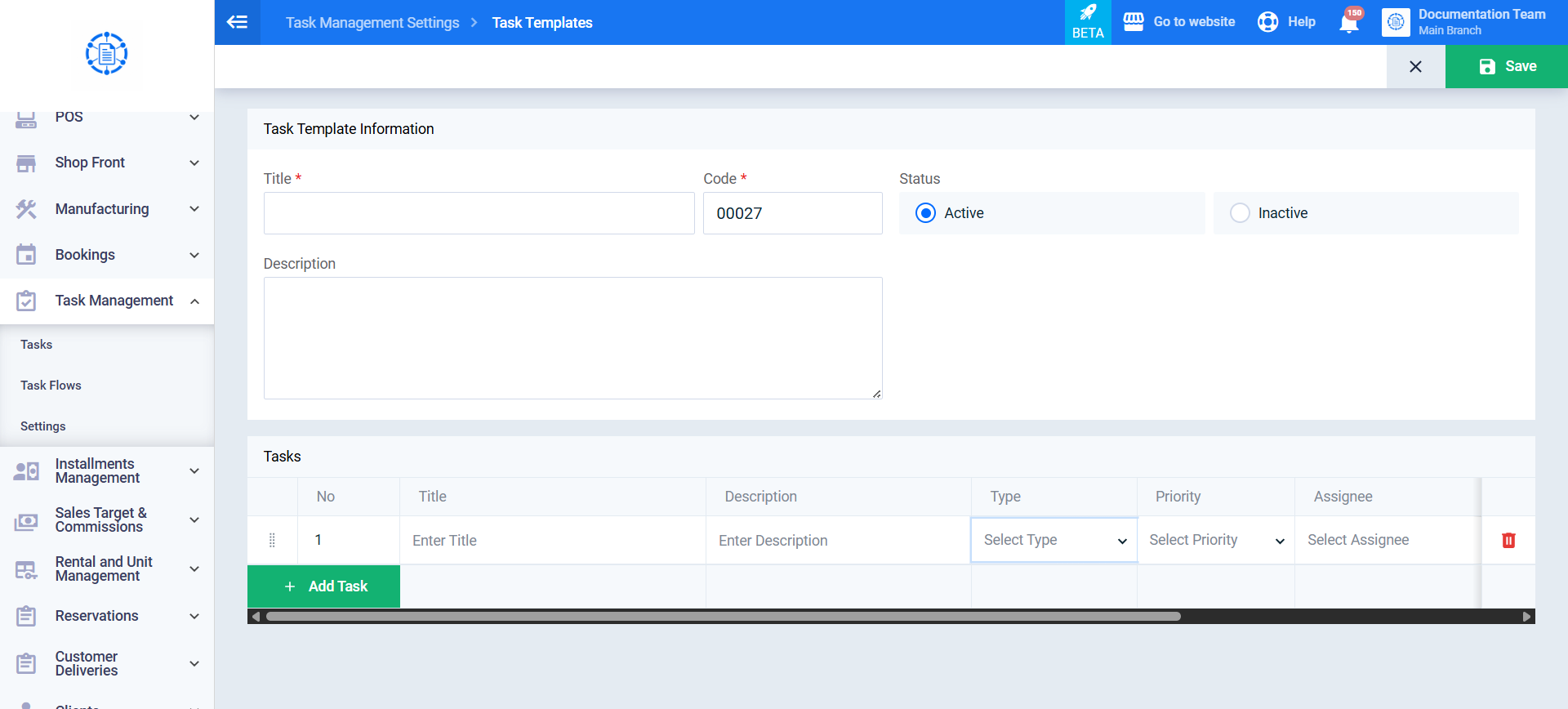
In the Task Template Information section, enter the following details:
- Title: Enter a unique name for the template.
- Code: Automatically generated by the system.
- Description: Enter a brief description explaining the purpose of the template (optional).
- Status: Select the template status: Active or Inactive.
Step 4: Add Template Tasks
Click Add Task to add a new task row, then enter the details for each task:
- Title: Enter the task title (required).
- Description: Enter additional instructions for the assignee (optional).
- Type: Select the task type (required).
- Target Module: Select the module associated with the task, if applicable (optional).
- Priority: Set the task priority: Low / Medium / High (required).
- Select Specific Employee: Select a specific employee to perform this task instead of the employee for whom the Task Flow will later be launched (required).
- Due Date (Number of Days): Enter the number of days after the Task Flow is launched when the task should be due (optional).
Repeat this step to add all tasks you want to include in the template.
Step 5: Save the Template
Review the template details and the added tasks, then click Save.
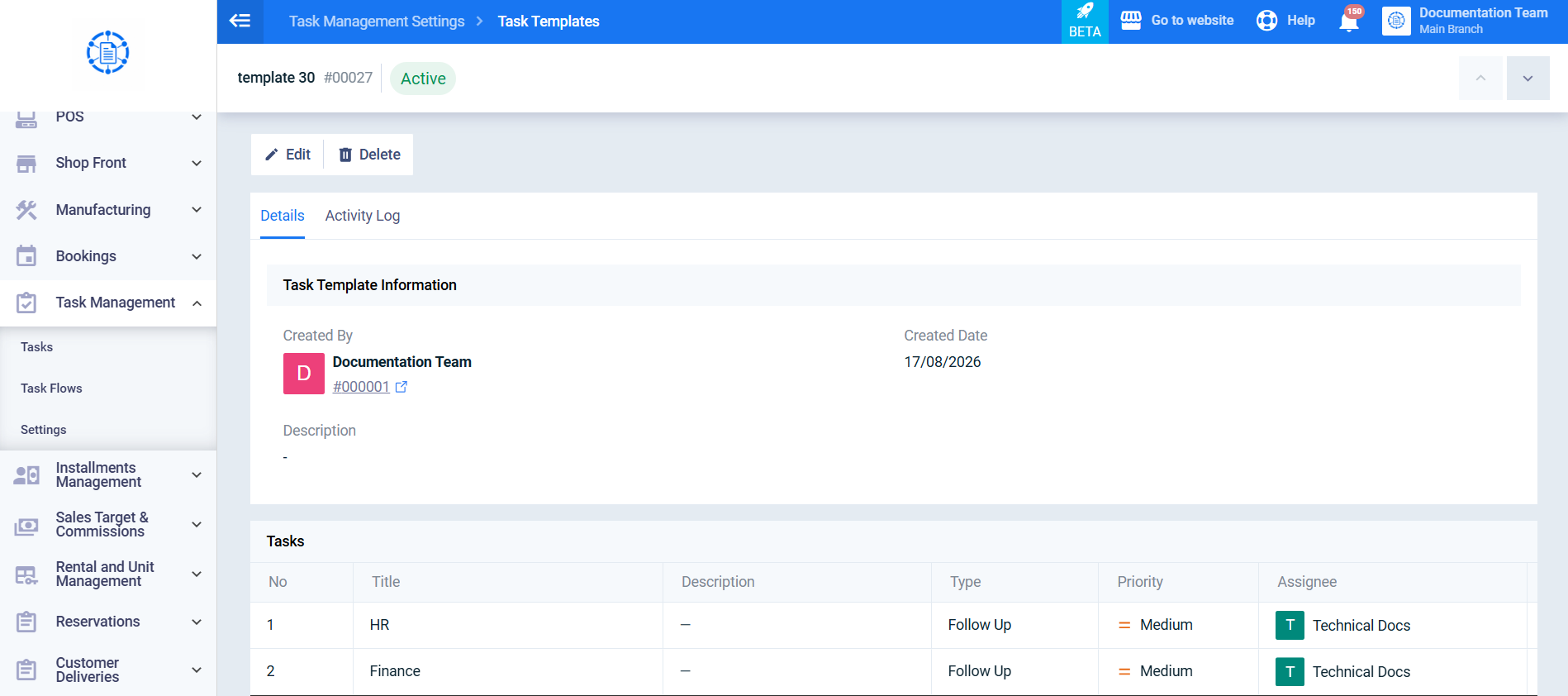
After saving, the template is created and all defined tasks are stored within it. You are automatically redirected to the new template screen, where the template appears immediately and becomes available for use when launching Task Flows.