


How to Add a Task Flow from an Existing Template
How to Add a Task Flow from an Existing Template
The system allows you to add a ready-made Task Flow for a specific employee using a preconfigured template. All tasks associated with the template are automatically created and assigned to the employee, eliminating the need to enter tasks manually one by one.
- From the main menu, click Task Management.
- Select Task Flows.
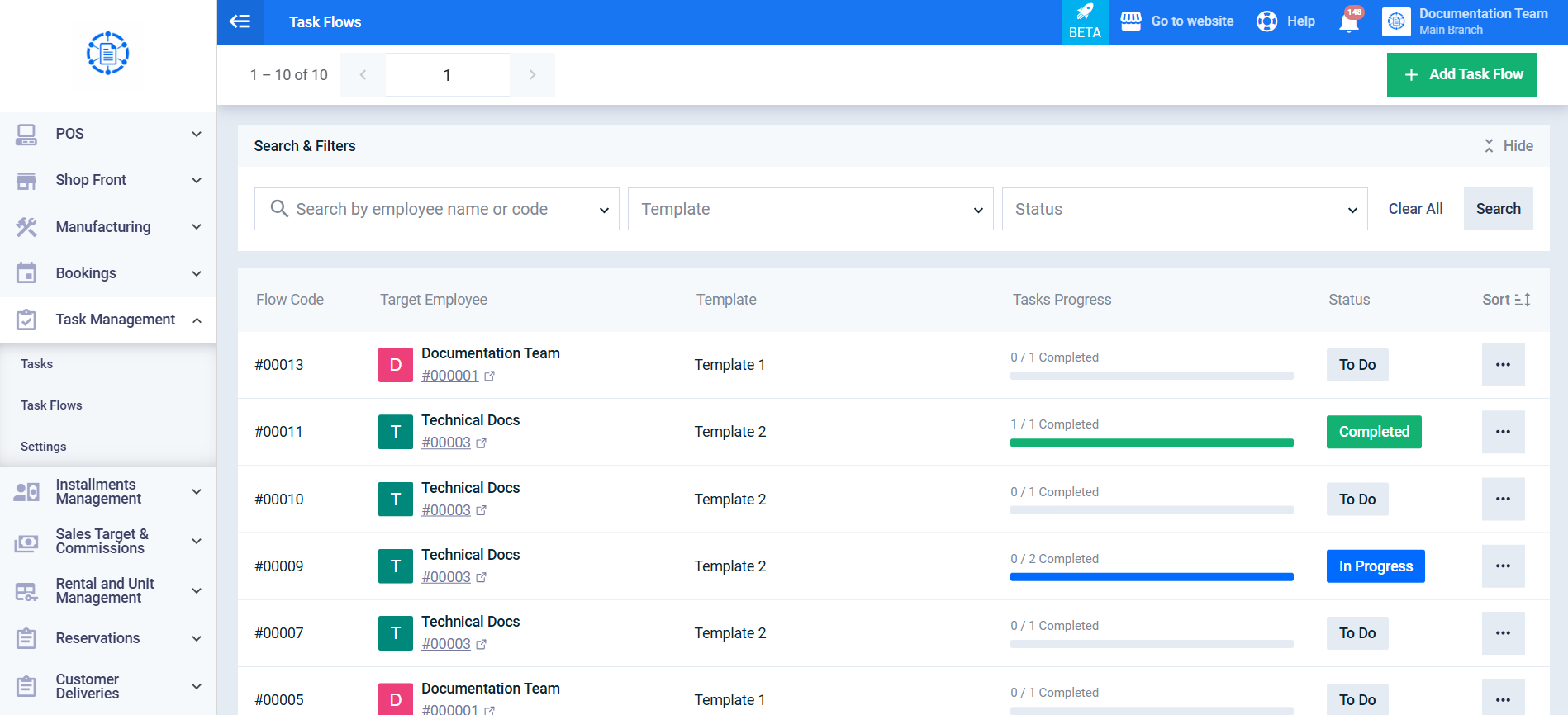
- Click the Add Task Flow button.
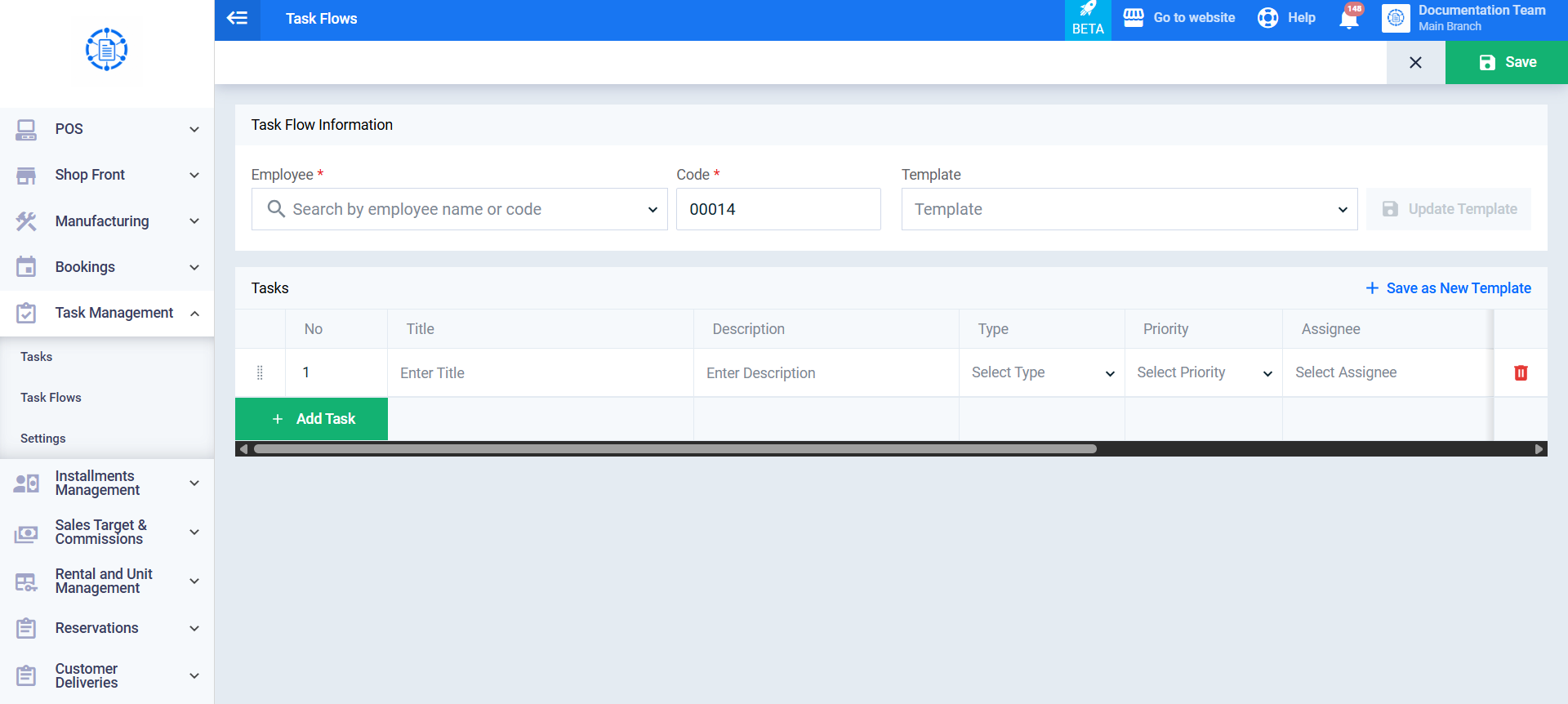
- In the Task Flow Information section, enter the following details:
- Employee: Select the employee for whom you want to add the Task Flow.
- Code: Enter a unique code for the Task Flow (the code is generated automatically).
- Template: Select the ready-made template you want to use.
- Once you select the template, all tasks defined in it are automatically loaded and displayed in a preview table containing: Title, Module, Priority, Assignee (automatically populated with the selected employee’s name), and Due Date (automatically calculated based on the creation date and the number of due days specified in the template).
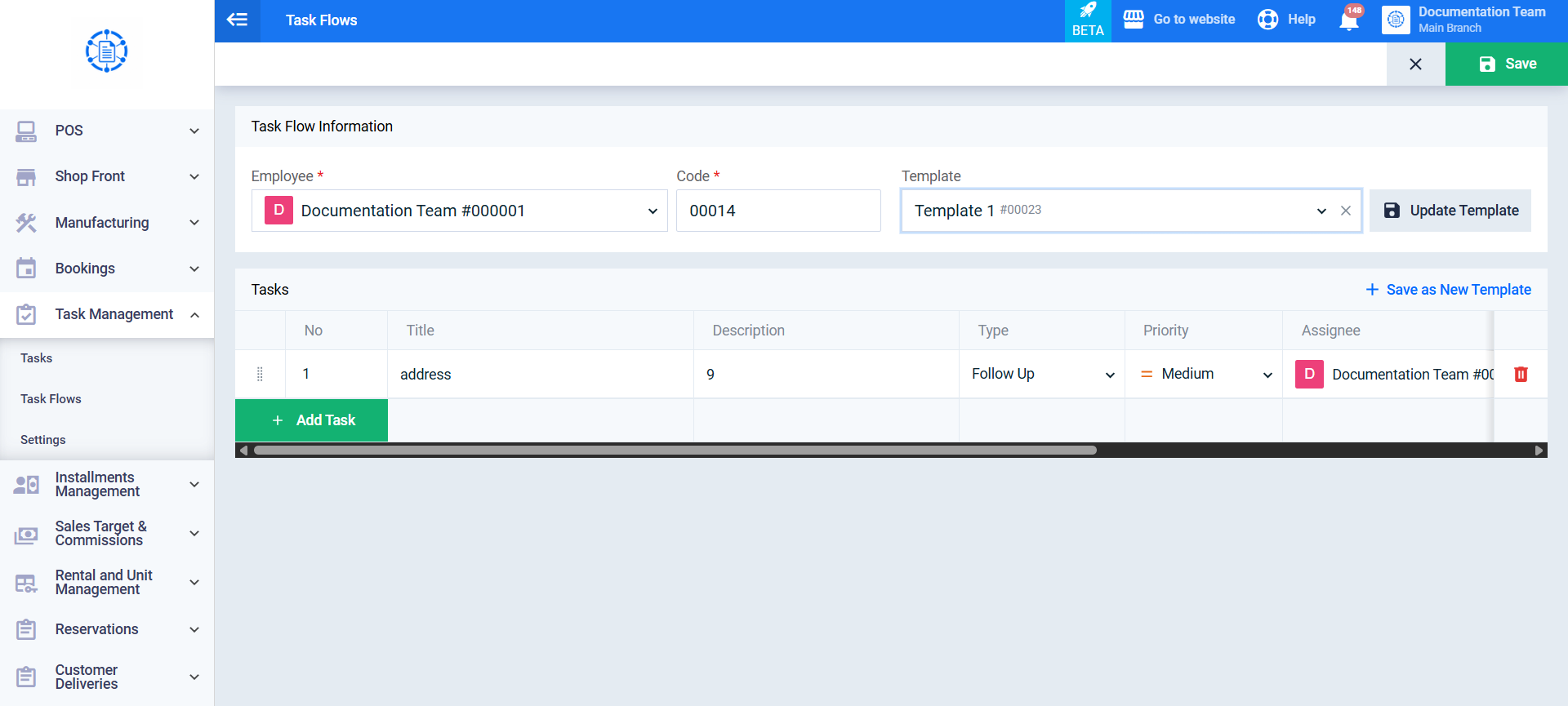
- Review the tasks displayed in the table.
- Click Save.
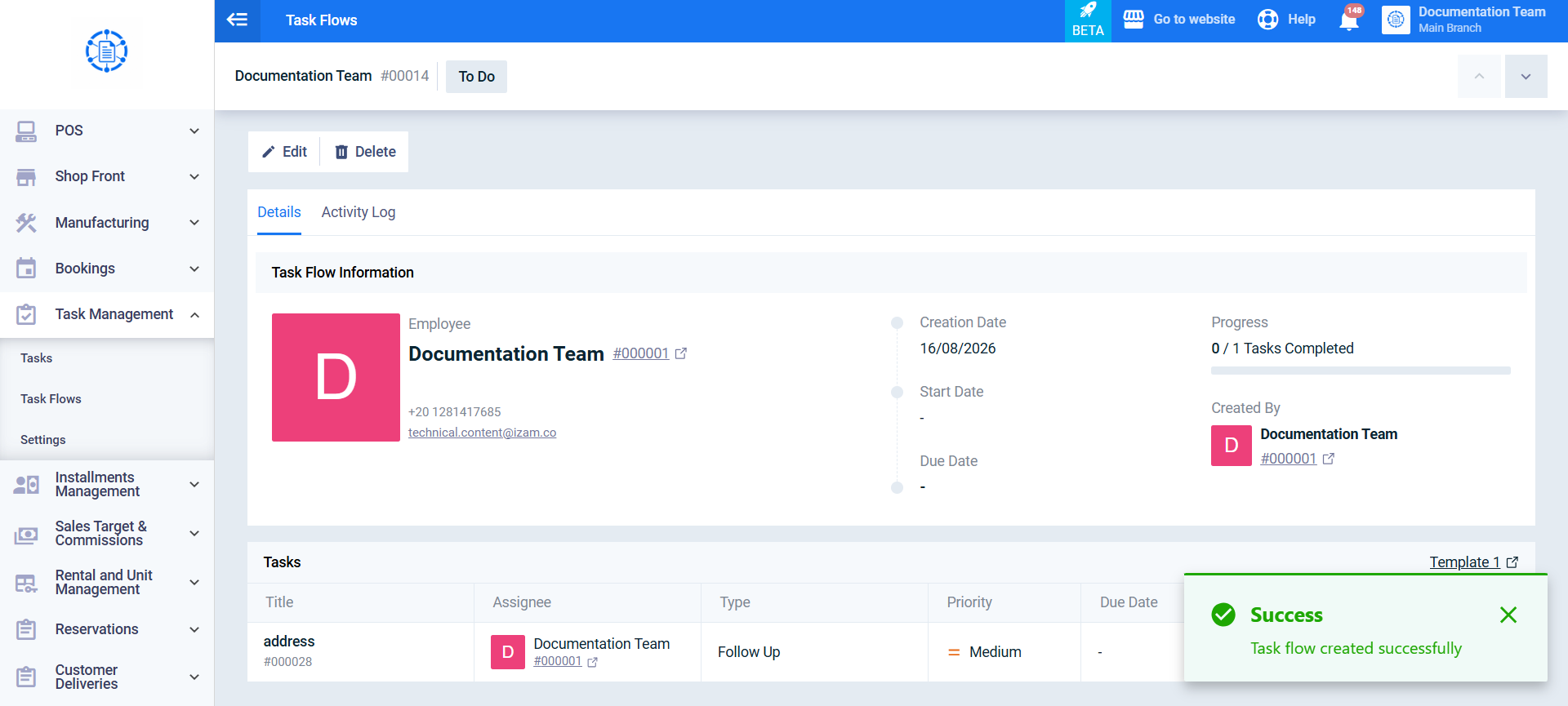
After adding the Task Flow, the system creates a new Task Flow record. All tasks displayed in the table are created and assigned to the selected employee, and they all appear in Task Management with the status To Do.