How to Track a Task From Receipt to Completion
Once a task is assigned to you, you can track and update its status step by step until it’s fully completed, through a controlled status flow that prevents skipping any step. This guide explains how to track a task from the moment it’s received all the way through to completion.
Steps to Track a Task From Receipt to Completion
Step 1: Opening the Task Assigned to You
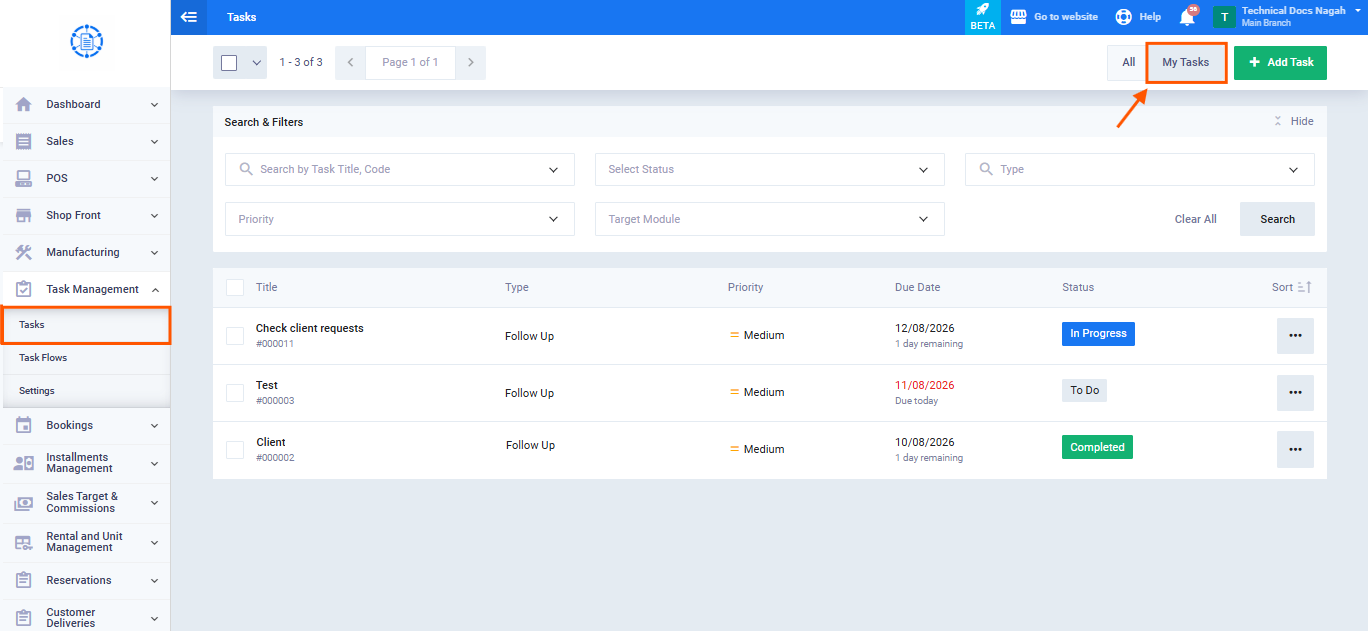
From the main menu, click “Tasks,” then click the “My Tasks” tab to view all tasks assigned to you. Click the required task to open its details.
Step 2: Receiving and Starting the Task
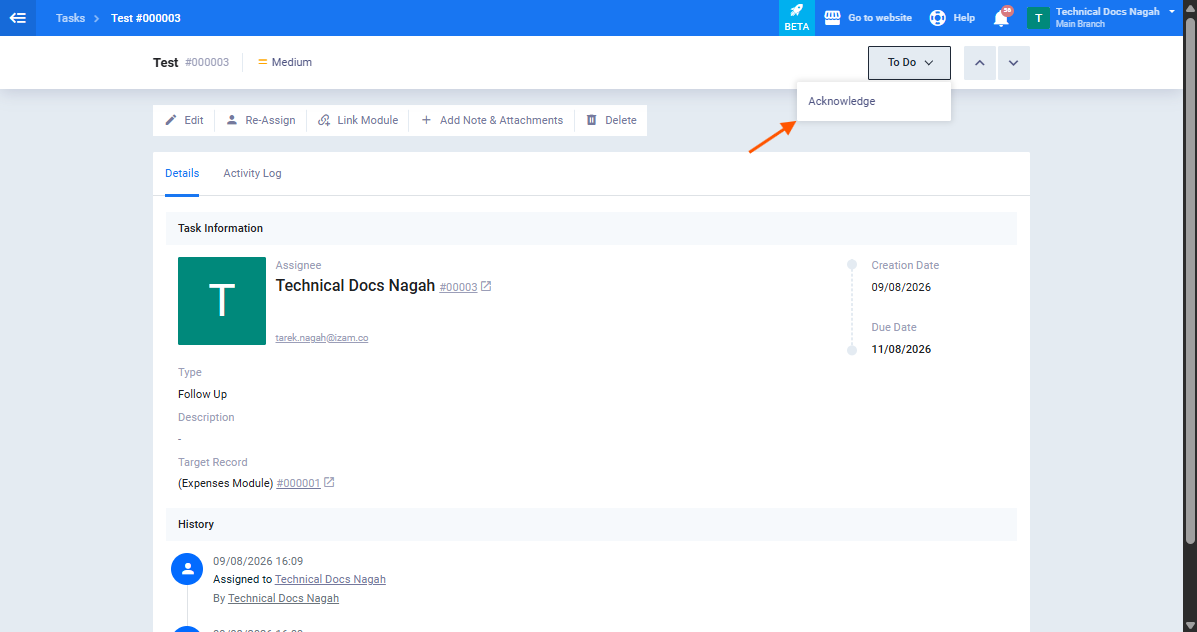
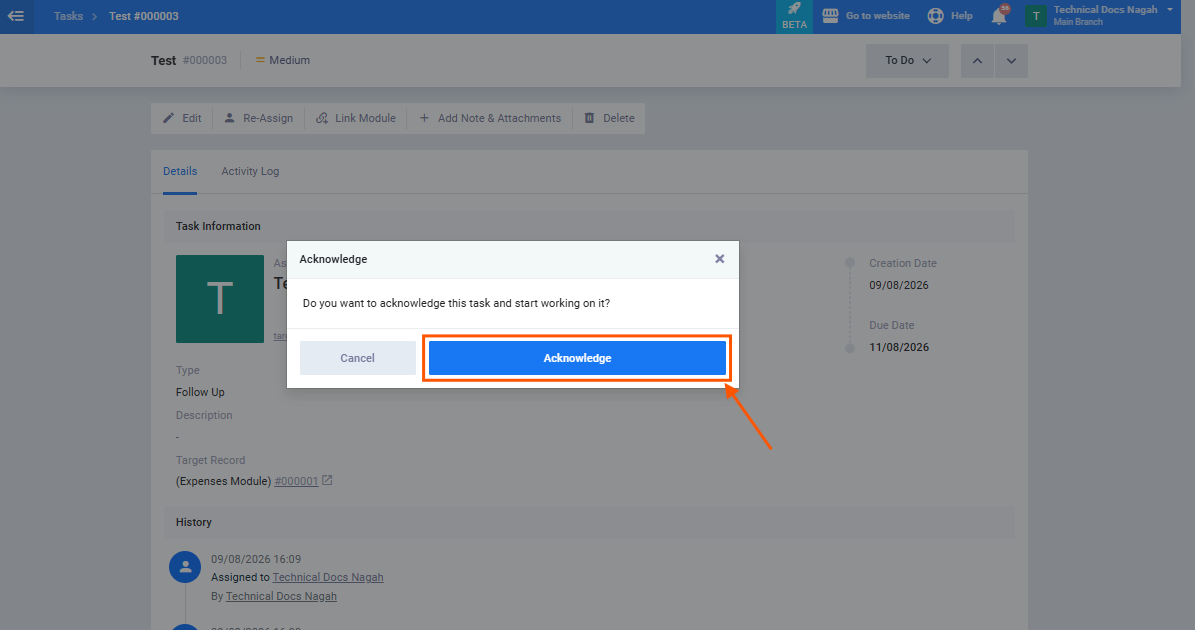
When you first open the task, its status is “Pending.” Click the “Start” button to confirm you’ve received the task and begin working on it, its status automatically changes to “In Progress.“
Step 3: Task In Progress and Updating Details
While working on the task, its status remains “In Progress.” You can review its details or add additional notes or attachments at any time from the task details screen.
Step 4: Completing the Task
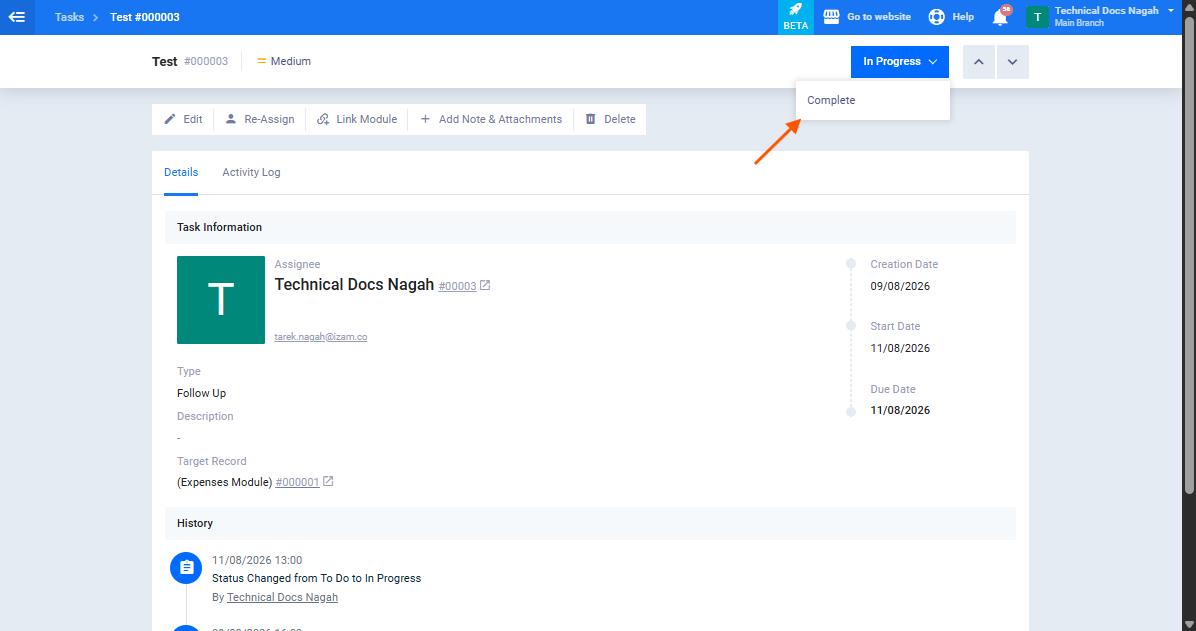
Once the required work is finished, click the “Complete” button to update the task’s status to “Completed.”
Step 5: Reverting Completion (If Needed)
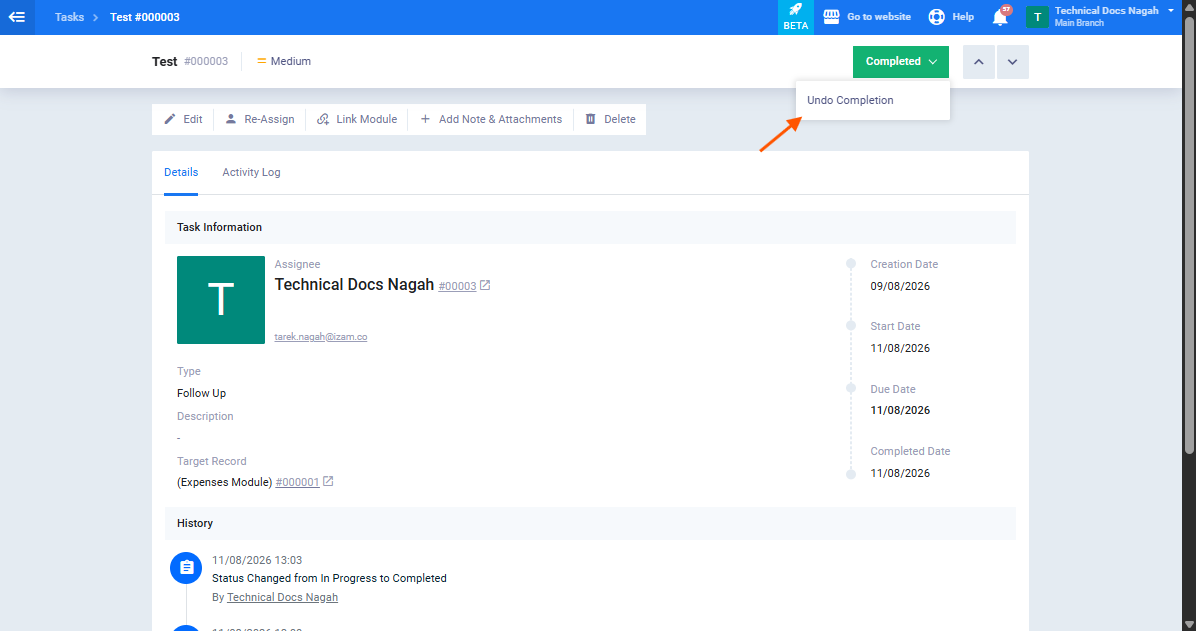
If the task was completed by mistake, or it turns out additional work is needed, click the “Revert” button to return its status to “In Progress” and continue working on it.
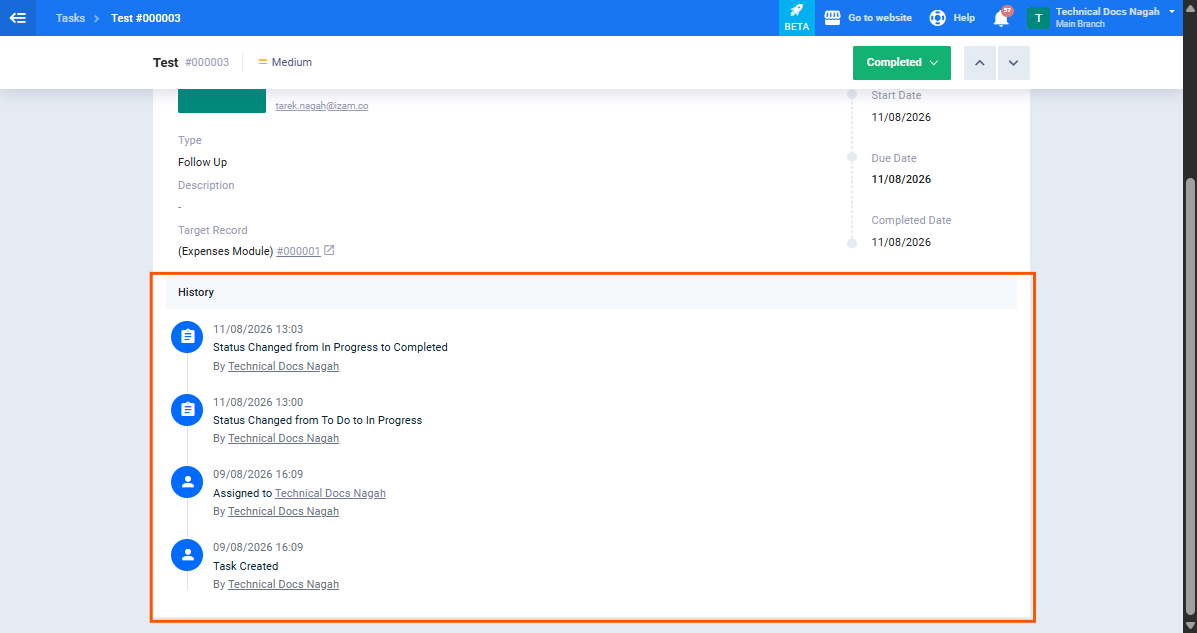
Step 6: Reviewing the Tracking Log
From the “Log” tab within the task details screen, you can review every status change in detail, along with who made the change and its date and time.