
إعداد شرائح خصم على الكميات
تتيح لك دفترة إعداد شرائح تسعير متدرجة حسب الكمية ضمن قوائم الأسعار، بحيث يحصل العميل تلقائياً على سعر مختلف للوحدة كلما تجاوزت الكمية المطلوبة حداً معيناً — وهي الآلية المستخدمة لتطبيق خصومات الكميات في دفترة. يشرح هذا الدليل كيفية إعداد هذه الشرائح، وكيفية استيرادها وتصديرها.
أولاً: تفعيل تسعير الكميات
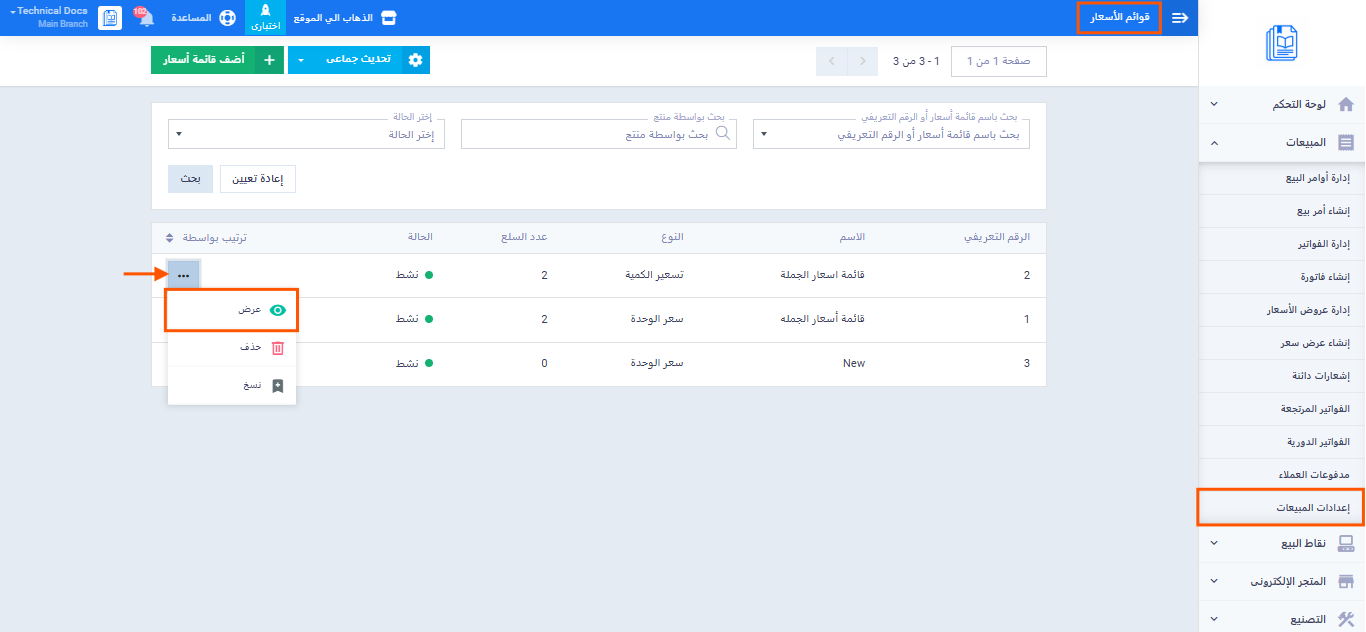
- من القائمة الرئيسية اضغط على “المبيعات” ثم “إعدادات المبيعات“.
- افتح بطاقة “قوائم الأسعار“.
- اضغط على “عرض” بجانب قائمة الأسعار المطلوب إعداد شرائح الكمية فيها.
من أيقونة الإعدادات في رأس الصفحة — بجانب أزرار التنقل في الجهة اليمنى — فعّل خاصية “تفعيل تسعير الكميات”.
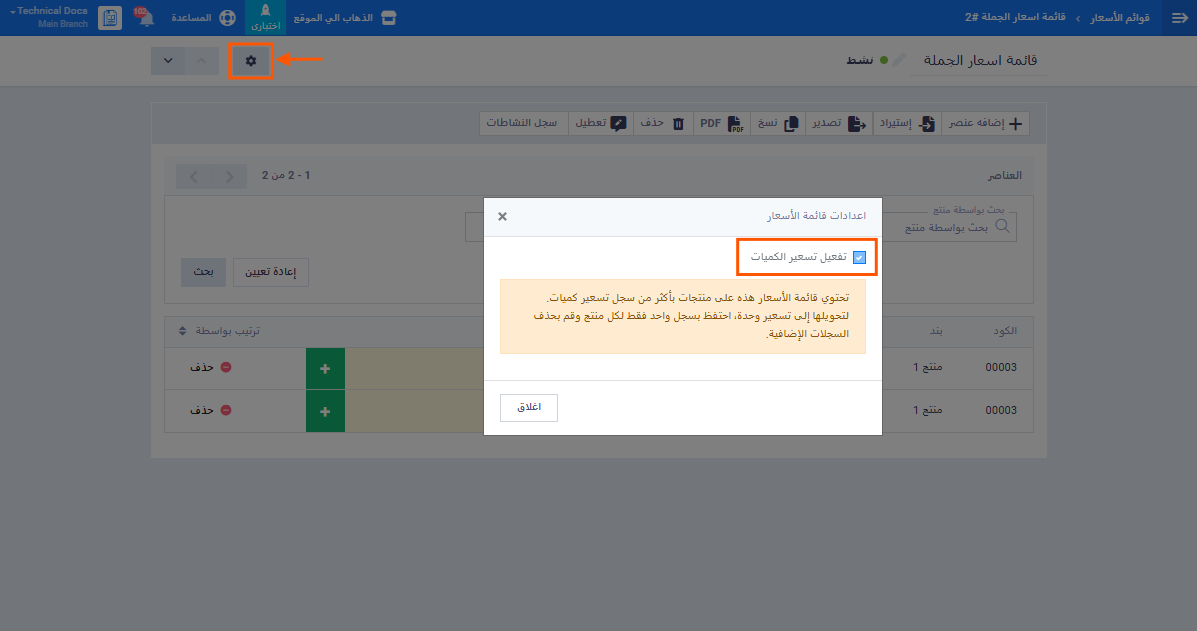
إذا كانت القائمة تحتوي بالفعل على عناصر مسعَّرة بالكمية، يظهر خيار التفعيل معطّلاً تلقائياً، لأن قائمة الأسعار الواحدة لا يمكن أن تجمع بين تسعير الوحدة وتسعير الكمية في آن واحد.
ثانياً: إضافة شرائح الكمية لمنتج
- اضغط على “إضافة عنصر”.
- أدخل كمية البدء (إلزامي، حقل رقمي): الحد الأدنى للكمية التي يبدأ عندها سريان هذا السعر. لا يمكن أن تكون القيمة أقل من 0، وإلا تظهر رسالة: “لا يمكن أن تكون الكمية أقل من 0.”
- أدخل السعر المخصص — وهو سعر بيع الوحدة المطبَّق عندما تساوي الكمية المطلوبة هذا الحد أو تتجاوزه.
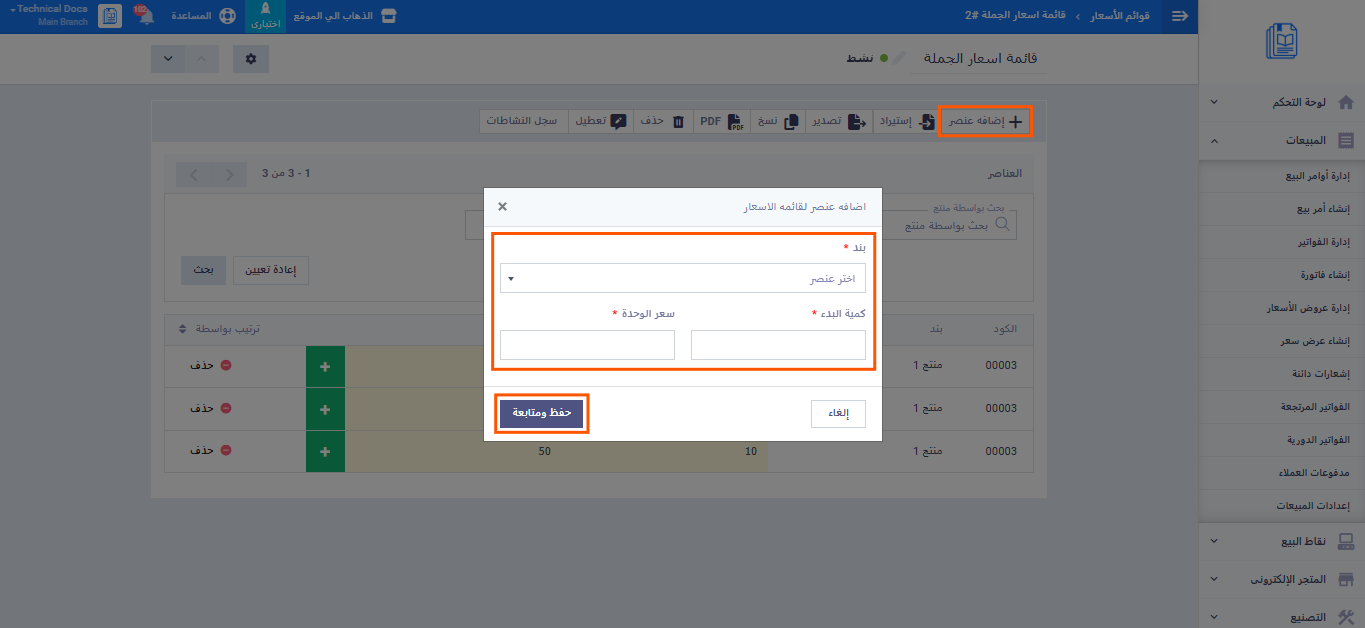
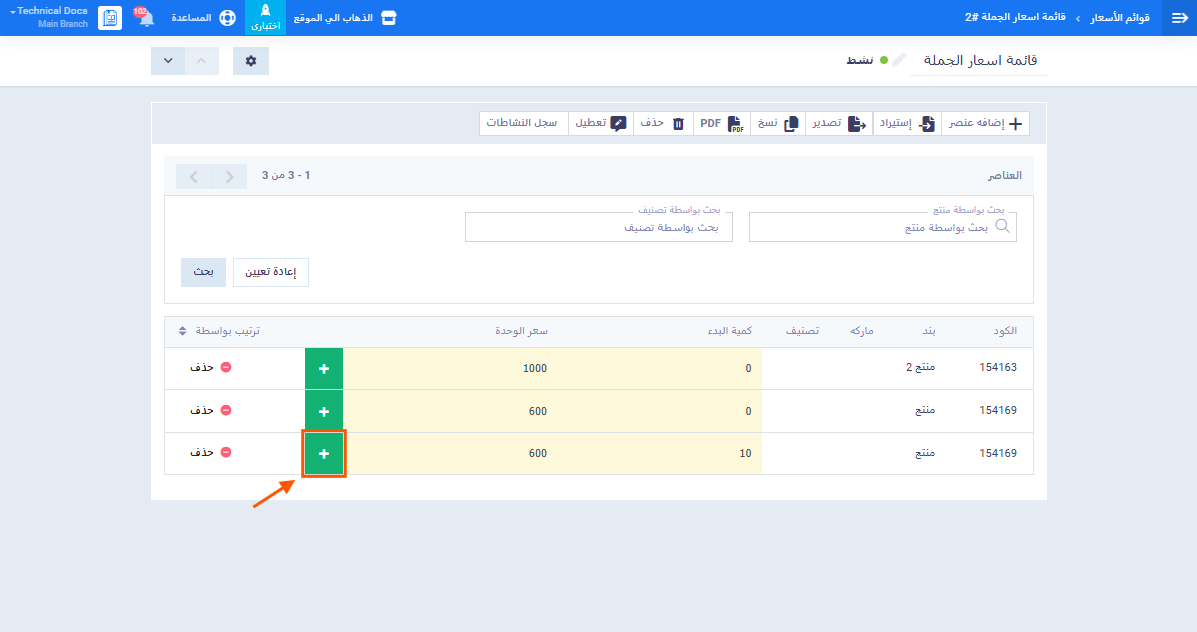
- اضغط على زر “نسخ” لإنشاء سطر شريحة جديدة لنفس المنتج بنطاق كمية مختلف.
- كرر الخطوة لإضافة أكبر عدد تريده من الشرائح (مثال: 10 وحدات بسعر 100، 50 وحدة بسعر 90، 150 وحدة بسعر 80… إلخ).
ثالثاً: عرض وتعديل الشرائح في القائمة
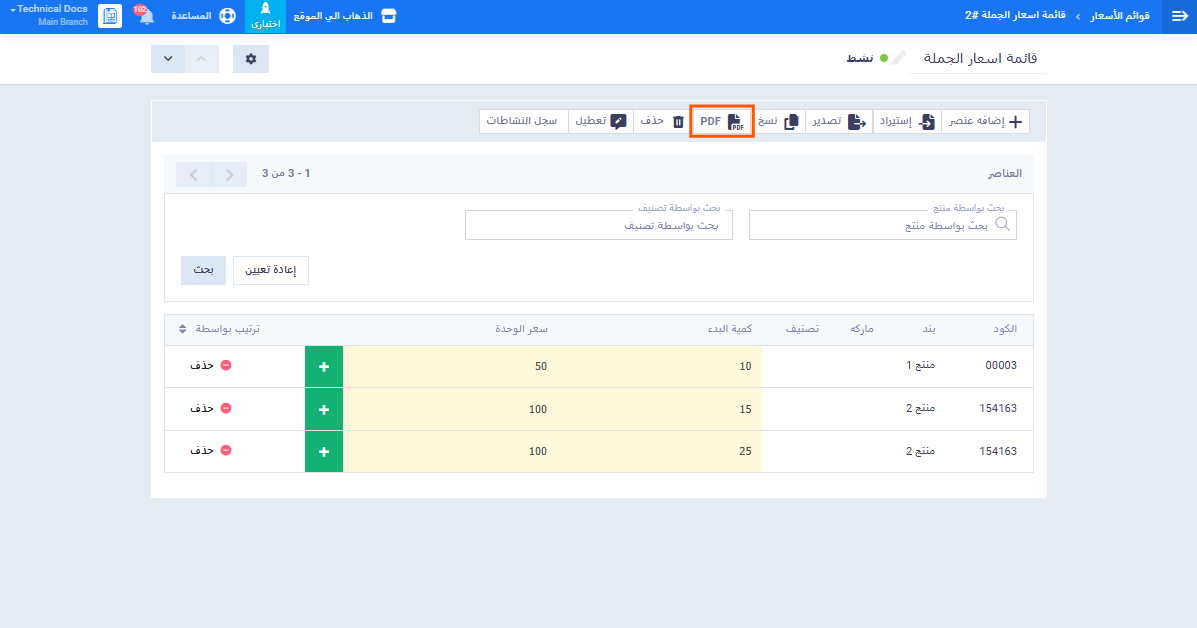
عند تفعيل تسعير الكميات تنطبق القواعد التالية على عرض العناصر:
- يظهر عمود “كمية البدء” قبل عمود “سعر الوحدة” مباشرةً.
- بجانب حقل كمية البدء زر نسخ لإنشاء سطر جديد لنفس المنتج بنفس السعر الحالي وكمية فارغة، تستطيع تعديلها لإنشاء شريحة جديدة.
- إذا أدخلت كمية مطابقة لسطر موجود مسبقاً، يُحدَّث السطر الأصلي بالسعر الجديد بدلاً من إنشاء سطر منفصل.
- إذا كان للمنتج أكثر من شريحة، يظهر مكرراً في عدة أسطر — كل سطر يمثل شريحة كمية وسعر مختلفَين.
- يمكنك تعديل السعر أو الكمية مباشرةً من القائمة في أي وقت.
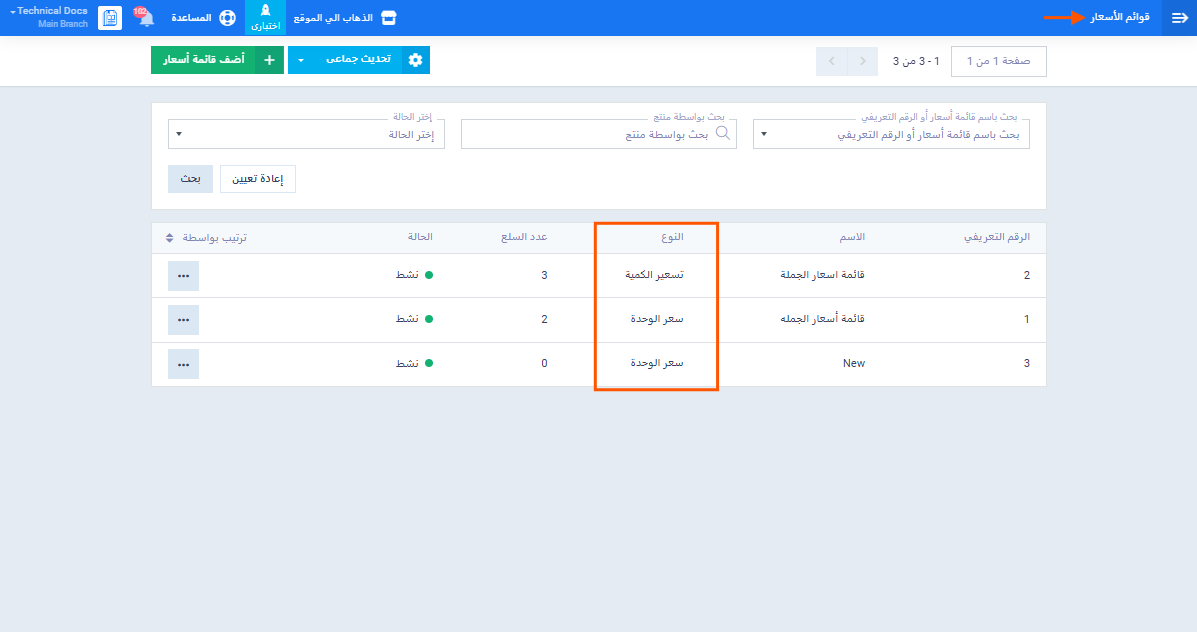
في قائمة قوائم الأسعار نفسها (الصفحة الرئيسية لقوائم الأسعار) يظهر عمود “النوع” يوضح ما إذا كانت القائمة من نوع “سعر الوحدة” أو “تسعير الكمية”.
رابعاً: انعكاس الشرائح على الفواتير ونقطة البيع
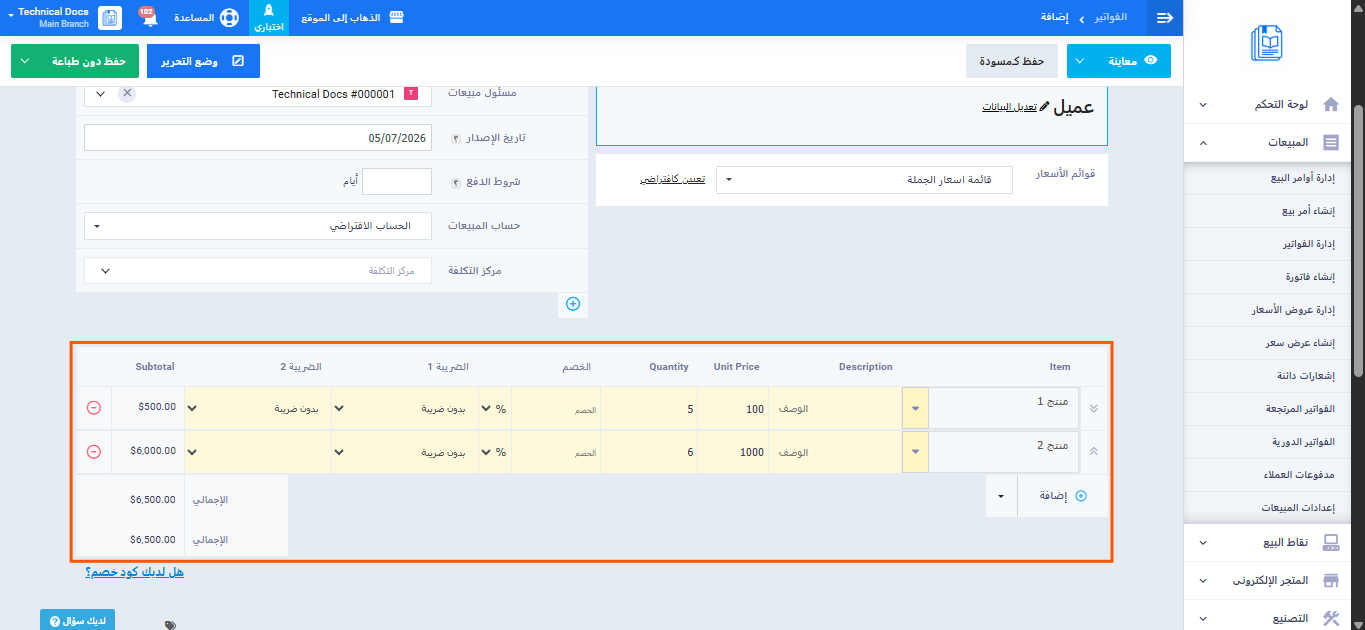
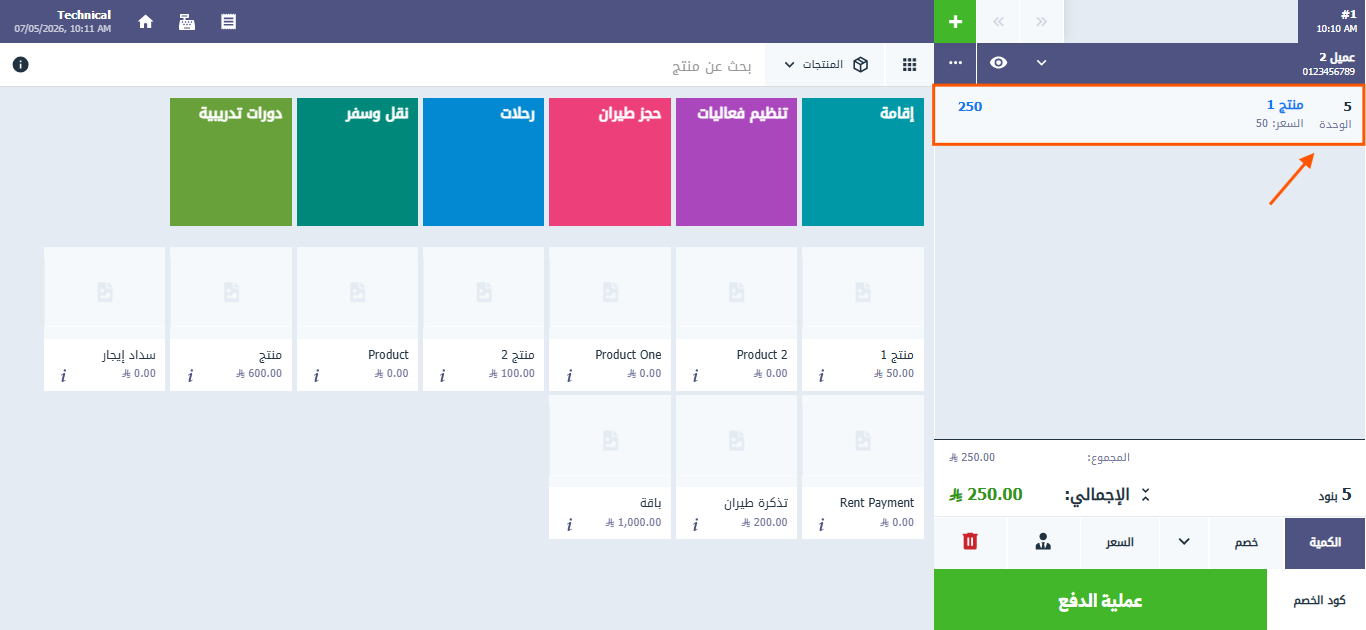
عند إنشاء فاتورة يتضمن سطرها منتجاً من قائمة أسعار مفعَّل فيها تسعير الكميات، يتحقق النظام تلقائياً من الكمية المُدخَلة في السطر، ويطبق السعر المطابق للشريحة التي تقع فيها هذه الكمية على سعر الوحدة. ينطبق السلوك نفسه على نقطة البيع وتطبيق نقطة البيع على الجوال.
خامساً: تصدير شرائح الكمية
- من قائمة قوائم الأسعار حدد القائمة أو القوائم المطلوب تصديرها واضغط على “تصدير”.
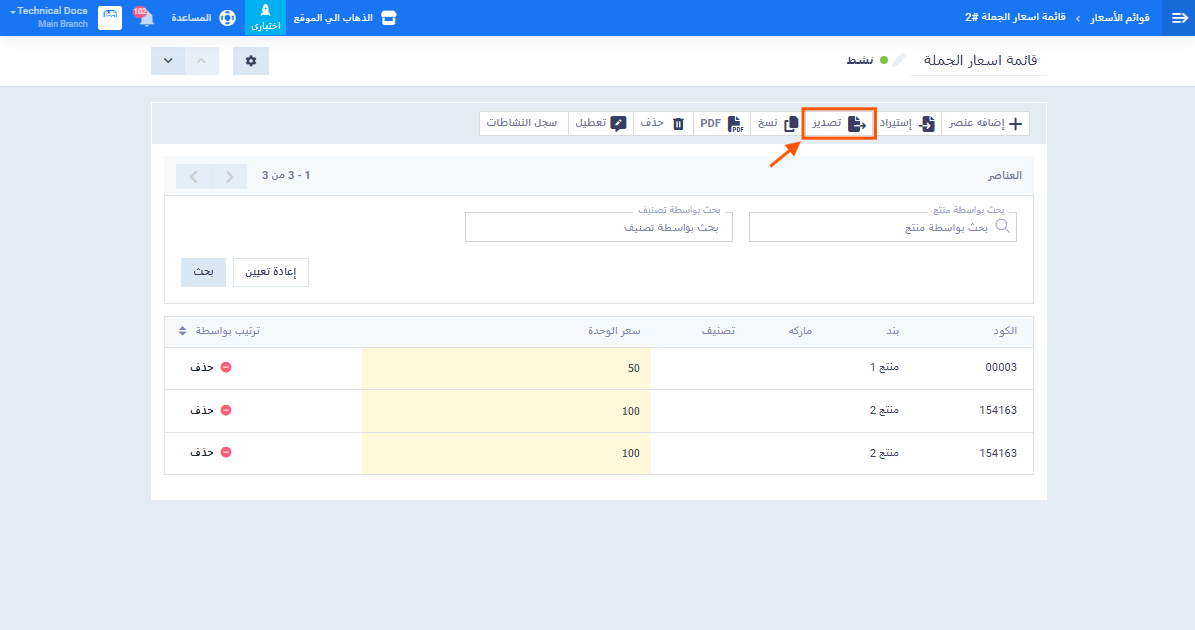
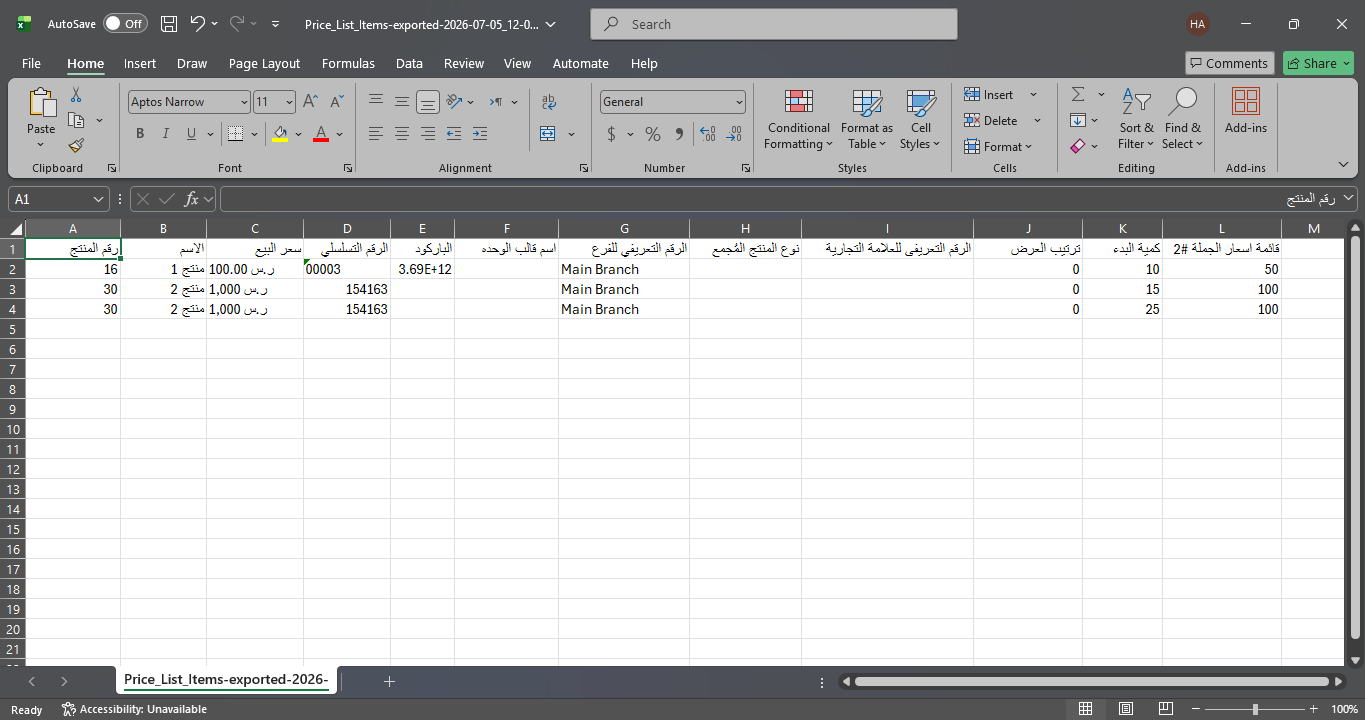
- إذا كانت إحدى القوائم المختارة من نوع تسعير الكمية، يُضاف عمود “كمية البدء” تلقائياً في ملف التصدير قبل أعمدة قوائم الأسعار.
- إذا كان للمنتج أكثر من سعر بحسب الكمية في نفس القائمة، يظهر مكرراً في عدة صفوف — كل صف يمثل كمية وسعراً مختلفَين.
سادساً: استيراد شرائح الكمية
- من قائمة قوائم الأسعار اضغط على “استيراد”.
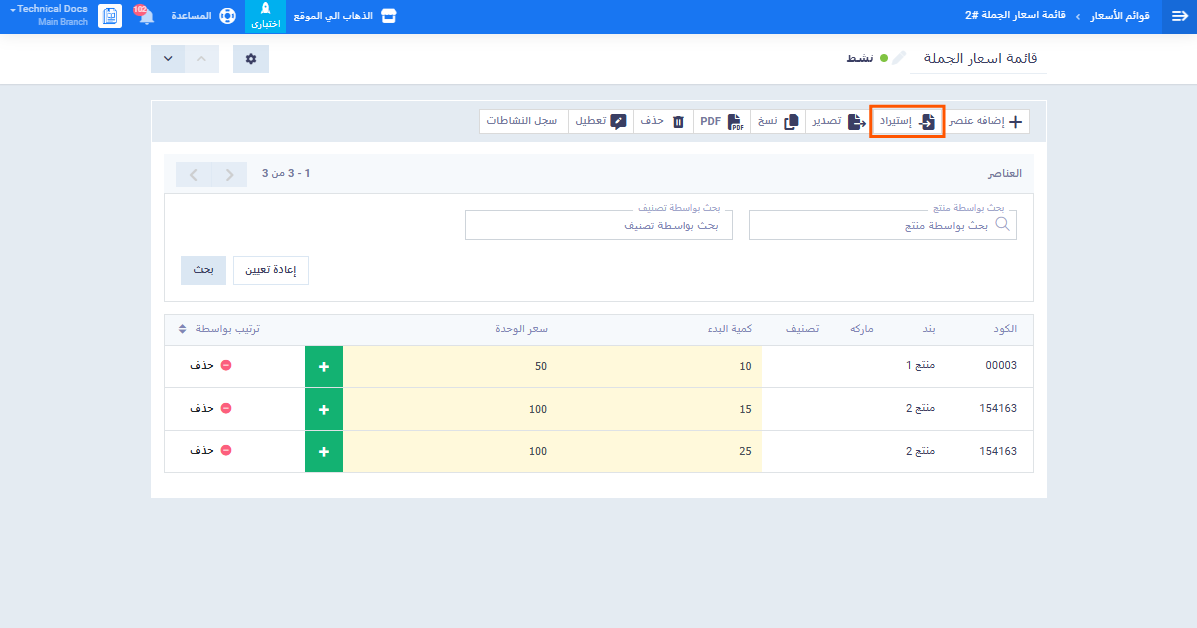
- حمِّل ملف العينة، الذي يتضمن عمود “كمية البدء” قبل أعمدة قوائم الأسعار في حال وجود قوائم تسعير كمية في الحساب.
- عبِّئ الملف ببيانات المنتجات والشرائح المطلوبة.
- في شاشة ربط الحقول، إذا كانت إحدى القوائم المستوردة من نوع تسعير الكمية، يظهر حقل “كمية البدء” أسفل حقل المنتج مباشرةً لربطه بالعمود المناسب.
- أكمل عملية الاستيراد.
قواعد الاستيراد:
- يتم الربط والتحديث بناءً على كود المنتج وكمية البدء معاً، وذلك في قوائم تسعير الكمية فقط.
- إذا أُدخل نفس المنتج بكمية بدء مختلفة، يُضاف كسجل منفصل بكمية جديدة.
- إذا أُدخل نفس المنتج بنفس كمية البدء الموجودة مسبقاً، يُحدَّث السعر في السجل الحالي.
- إذا أُدخلت قيمة كمية بدء لقائمة من نوع تسعير الوحدة، تُتجاهَل هذه القيمة تماماً؛ وفي حال تكرر السطر بسعر مختلف، يُؤخَذ آخر سعر تم إدخاله.
- إذا لم تُدخَل قيمة كمية بدء لقائمة من نوع تسعير الكمية، تُضاف الكمية تلقائياً بقيمة 0؛ وفي حال تكرر السطر بكمية 0، يُؤخَذ آخر سعر تم إدخاله.
- إذا كان المنتج موجوداً في قائمة تسعير كمية وقائمة تسعير وحدة معاً، يظهر مكرراً في صف منفصل لكل قائمة.
سابعاً: ملف PDF
عند تصدير قائمة الأسعار بصيغة PDF يظهر عمود “كمية البدء” قبل عمود “سعر البيع” مباشرةً، بنفس ترتيب ملف Excel.