How to Collect a Payment Split Across Multiple Methods
The payment window allows you to collect the order’s total value using a single payment method or split it across more than one method in the same transaction, such as collecting part in cash and part by card. In this article, we explain the steps to collect a payment split across multiple methods.
Steps to Collect a Payment Split Across Multiple Methods
Step 1: Open the Payment Window
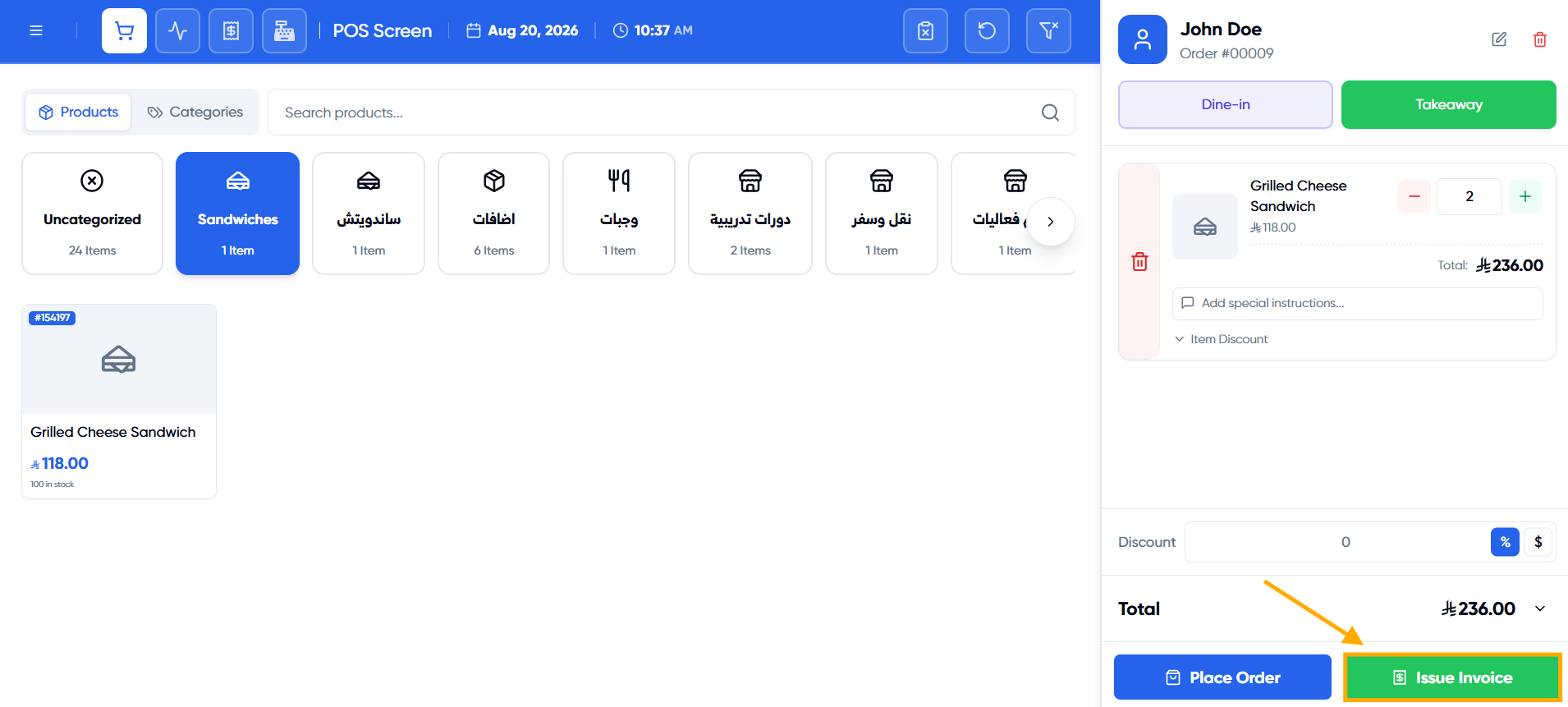
After building the order, click “Issue Invoice” to open the “Payment” window.
Step 2: Select the First Payment Method
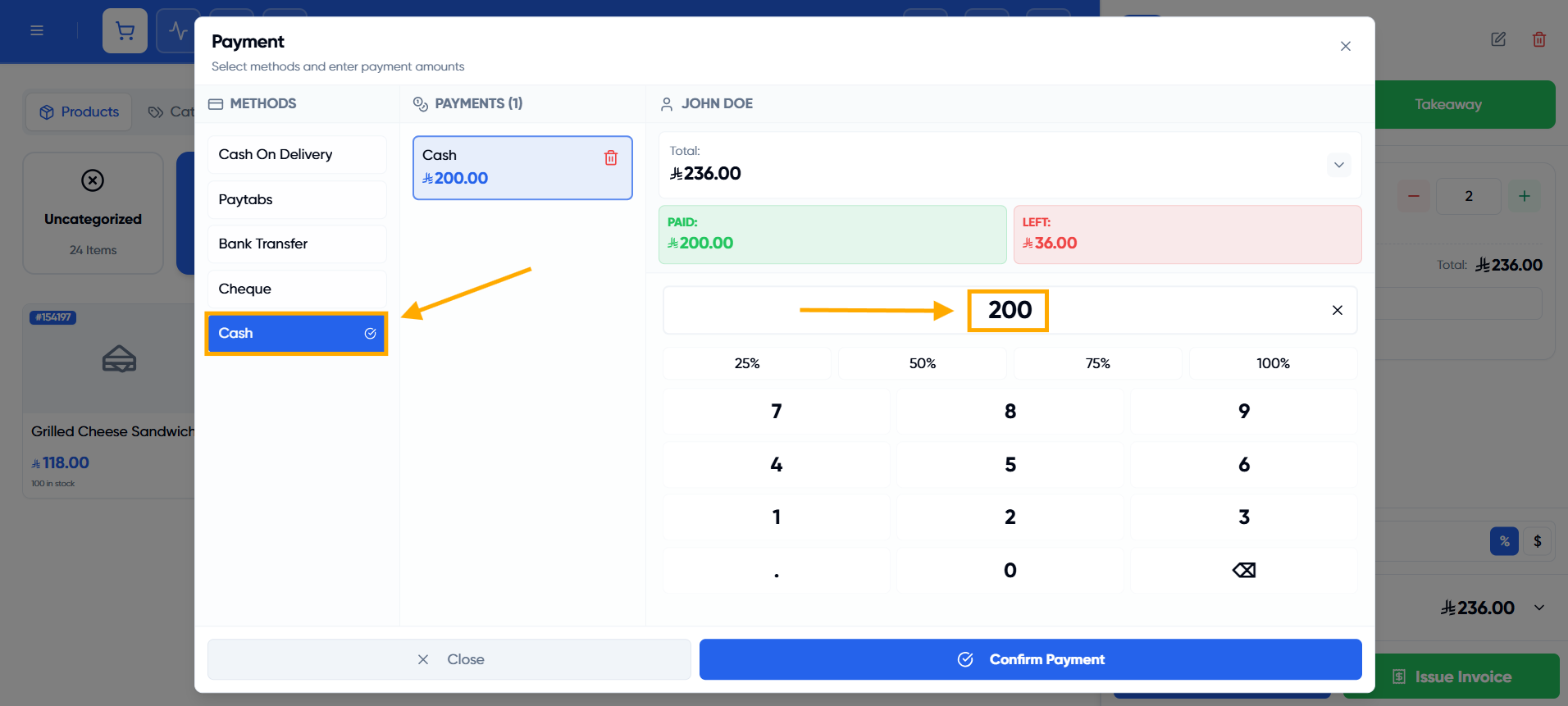
From the “Methods” list on the right side of the window, click the first payment method (such as Cash).
Step 3: Enter Part of the Amount
Enter only part of the total amount using the built-in number pad — less than the “Left” value shown above the field — this payment is then added to the “Payments” list in the middle column.
Step 4: Select the Second Payment Method
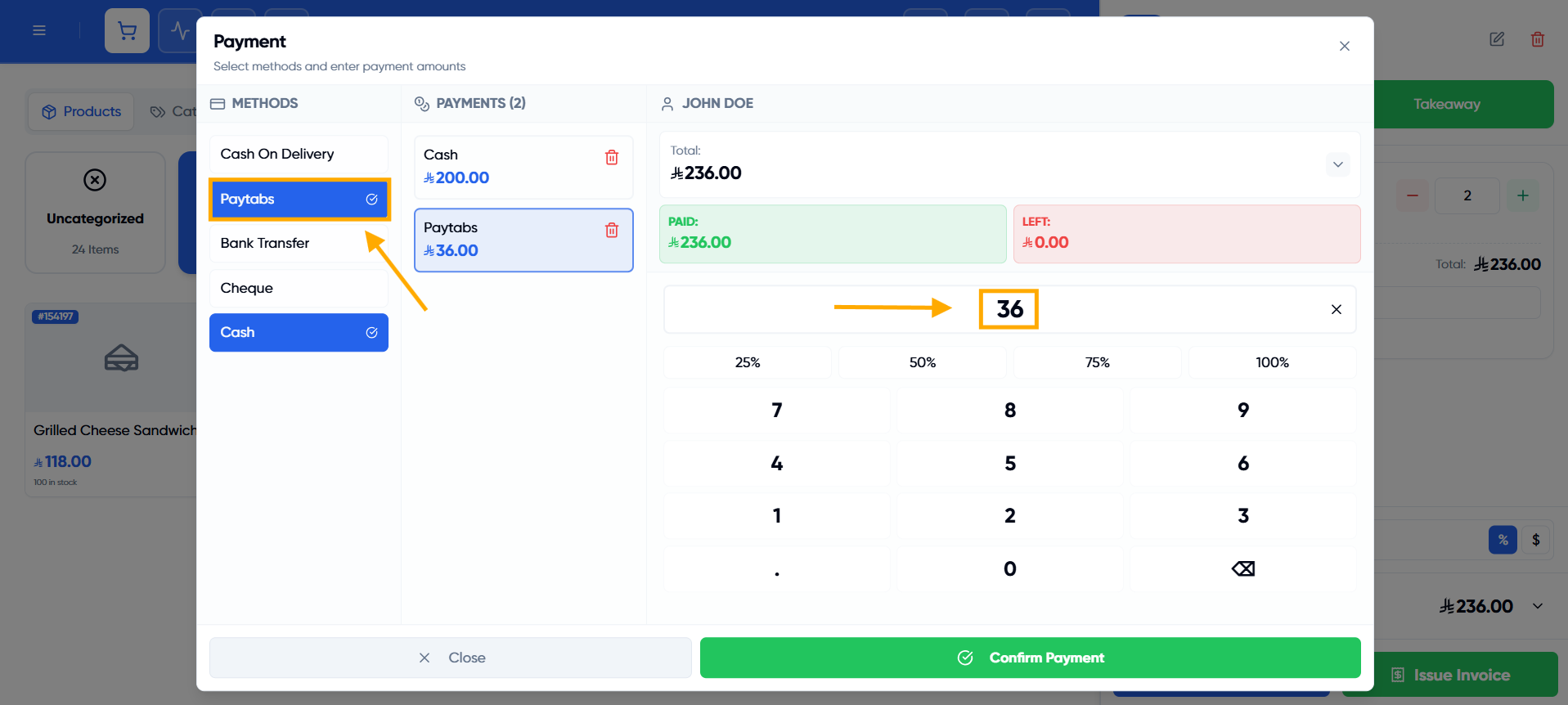
From the same “Methods” list, click another payment method (such as Paytabs or Bank Transfer) to collect the rest of the amount.
Step 5: Enter the Remaining Amount
Enter the remaining amount (or another portion of it if you want to split it across a third method). Watch the “Paid” and “Left” values at the top of the window until the “Left” value reaches zero.
Step 6: Review the Added Payments
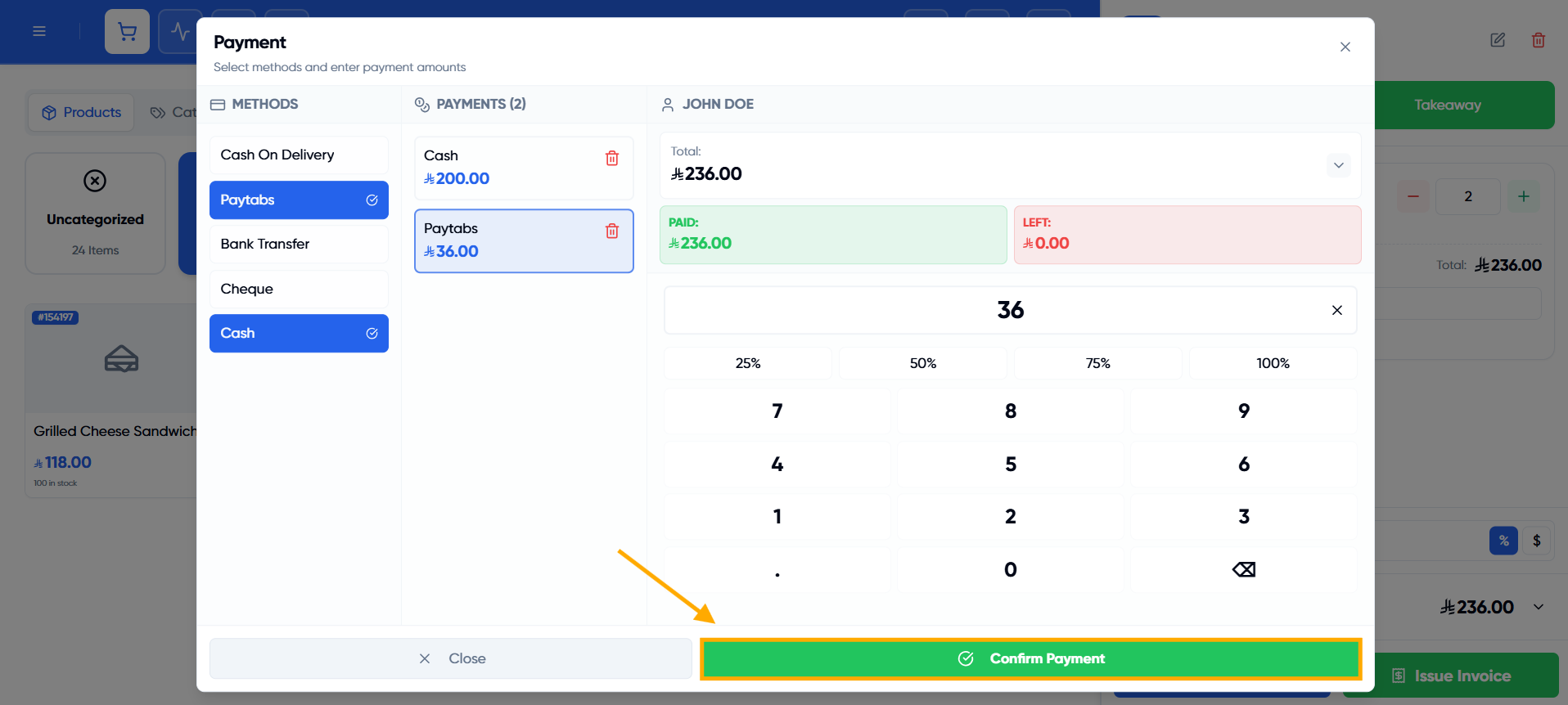
Review the “Payments” list in the middle column to confirm each payment and its amount is correct before confirming.
Step 7: Confirm the Payment
Once all payments are complete, click “Confirm Payment” to complete the transaction and issue the invoice.