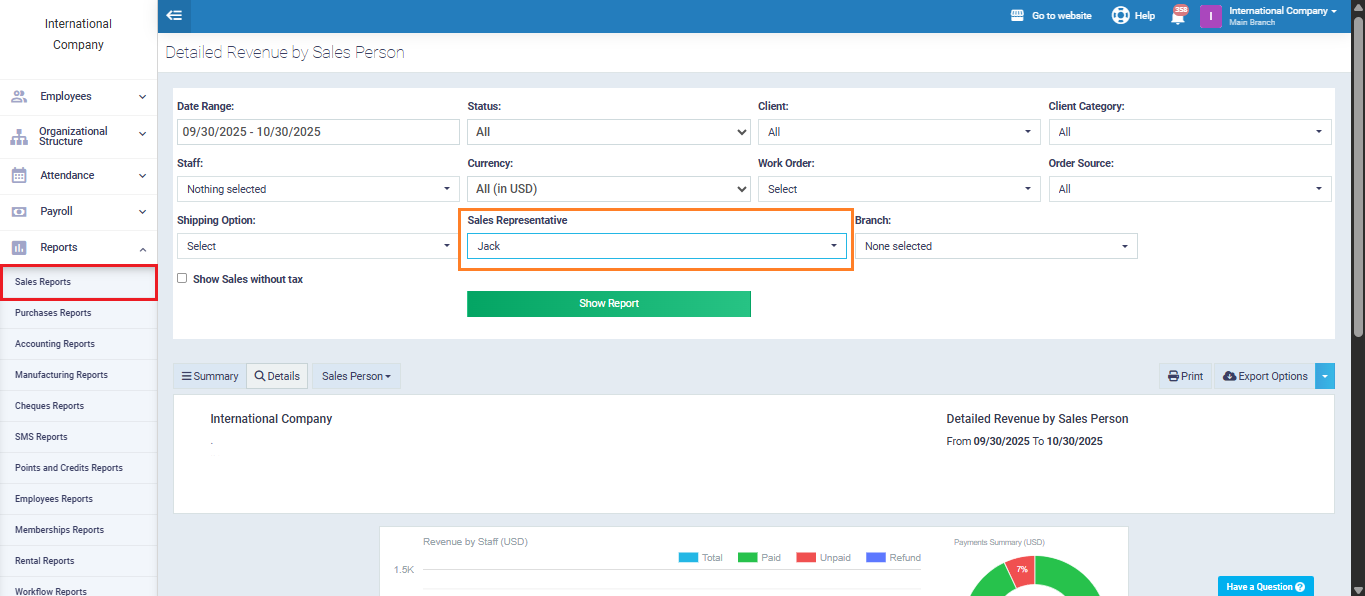
Adding Sales Representatives’ Names Using Custom Fields
Managing sales representatives within the invoicing system enables you to track your sales team’s performance and associate each sale with the representative responsible for it. Through the custom fields feature in invoices, you can neatly add the names of your sales reps and use them later for searching and reporting, making follow-ups and reviews much easier.
In this guide, we’ll explain how to create a dedicated field for sales representatives and link it to your invoice template.
Creating a Custom Field for Sales Representatives
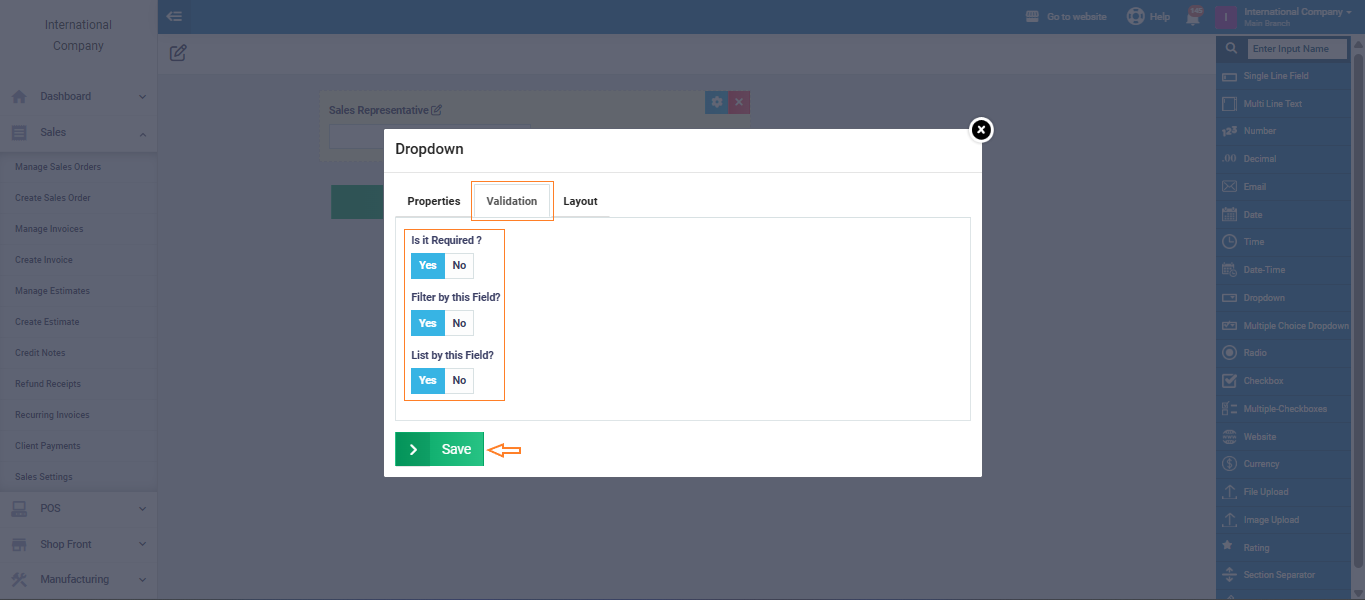
From the main menu, go to Sales, then select “Sales Settings“, and navigate to the “Custom Fields” section.
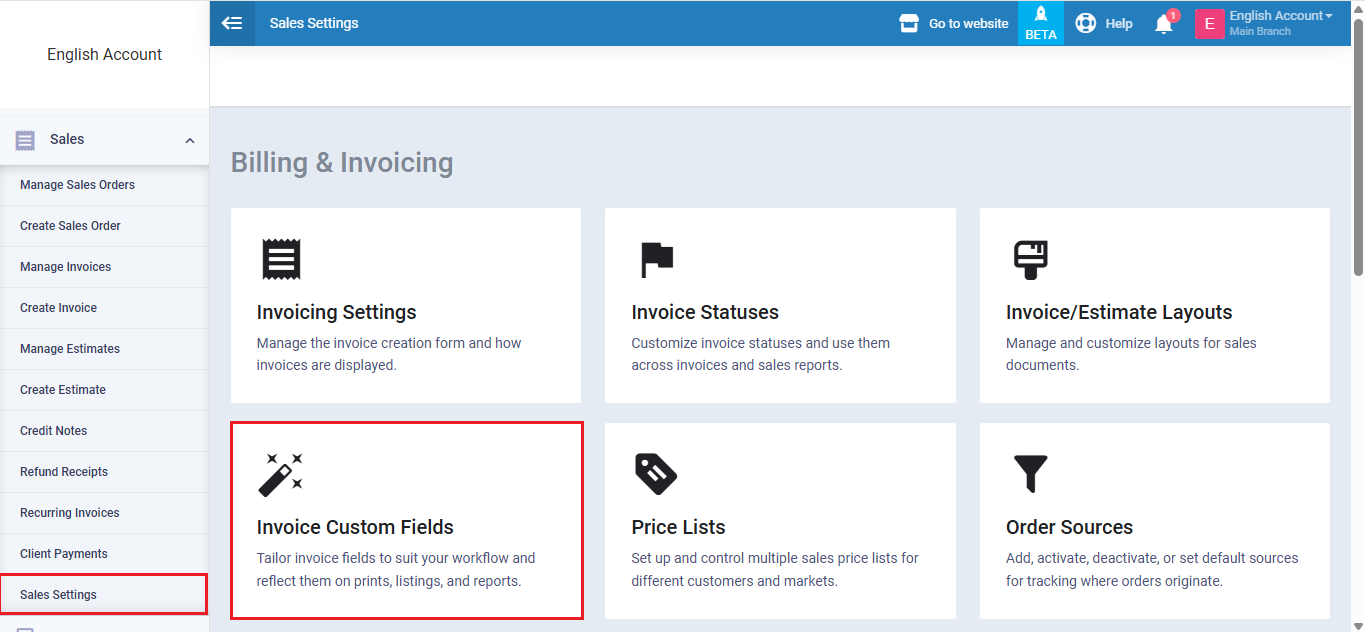
Choose the field type as a “Dropdown list“, then in the “Field Label” box, enter “Sales Representative.” In the “Choices” box, write the names of the sales reps, one name per line.
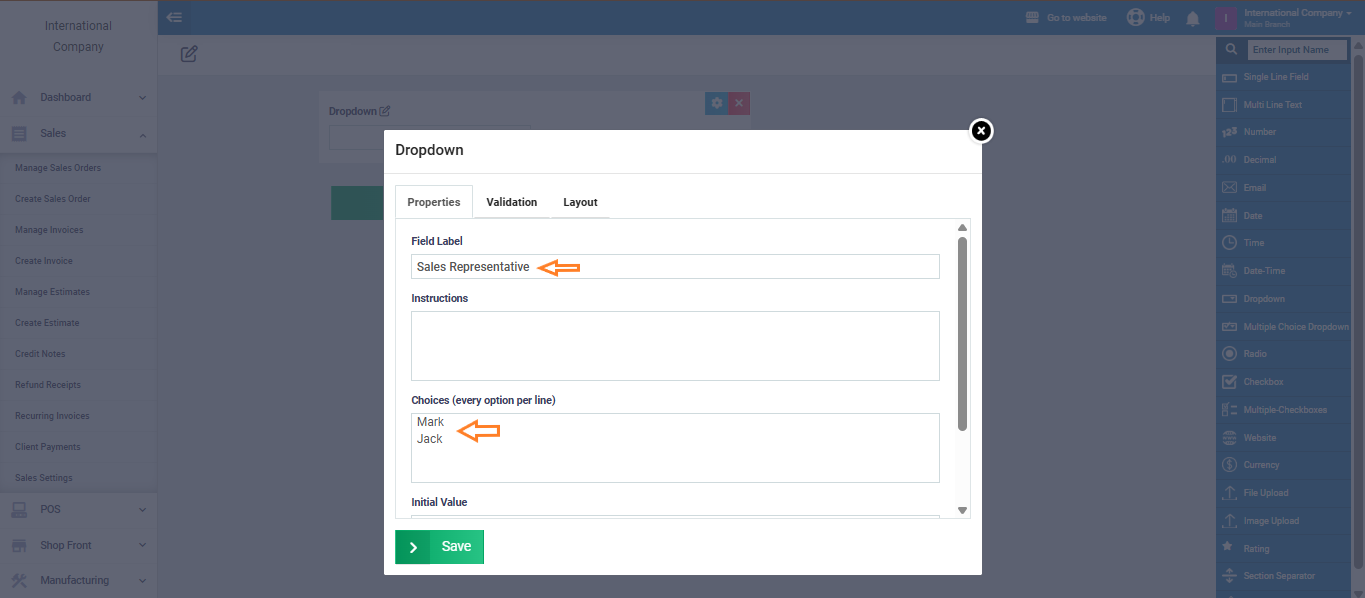
Next, in the “Validation” screen, make sure all options are set to “Yes,” then click “Save“.
Linking the Custom Field to the Invoice Template
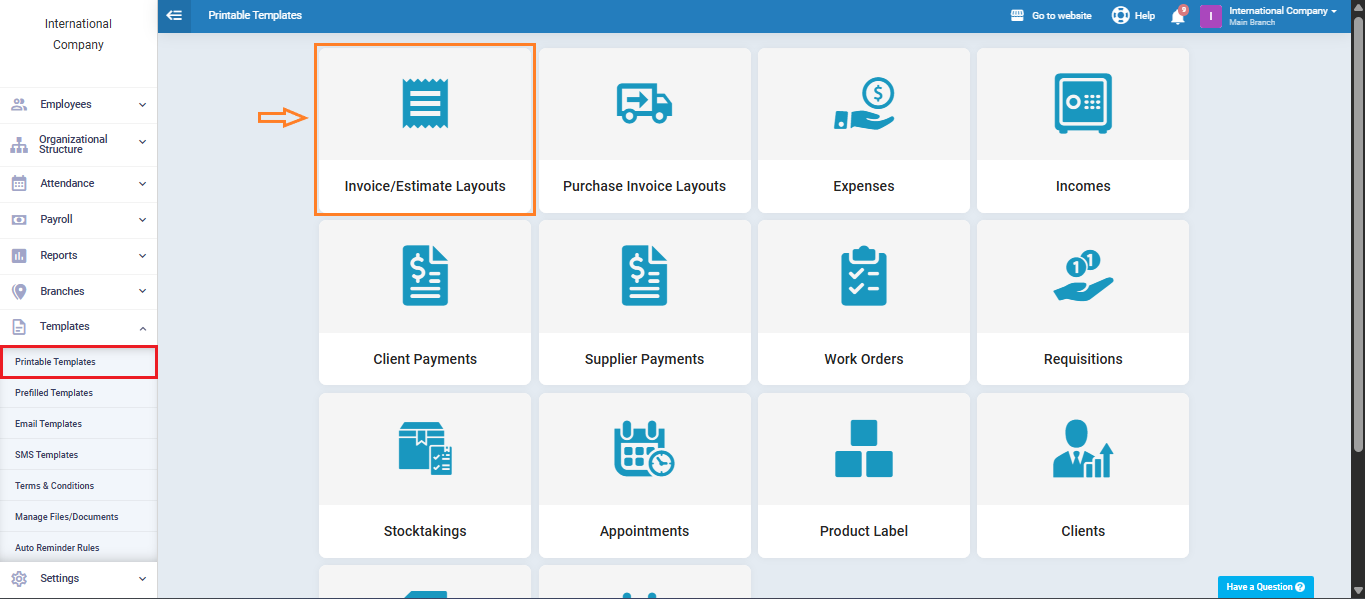
حتى يظهر حقل مندوب المبيعات داخل قالب الفاتورة، انتقل من القائمة الرئيسية إلى القوالب، ثم اختر قوالب للطباعة، اختر تصاميم الفواتير/عروض الأسعار، ثم حدد قالب الفاتورة الذي تريد تعديله.
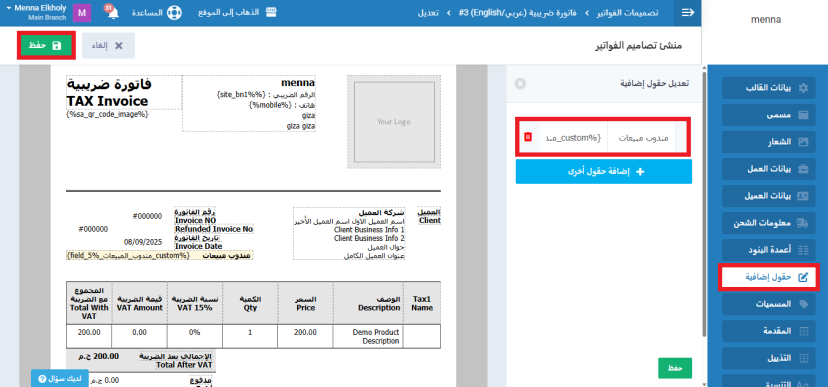
من إعدادات القالب أضف حقول إضافية، وأدخل اسم الحقل: مندوب مبيعات، ثم أضف المتغير الخاص بمندوب المبيعات داخل القالب. اضغط على زر حفظ.
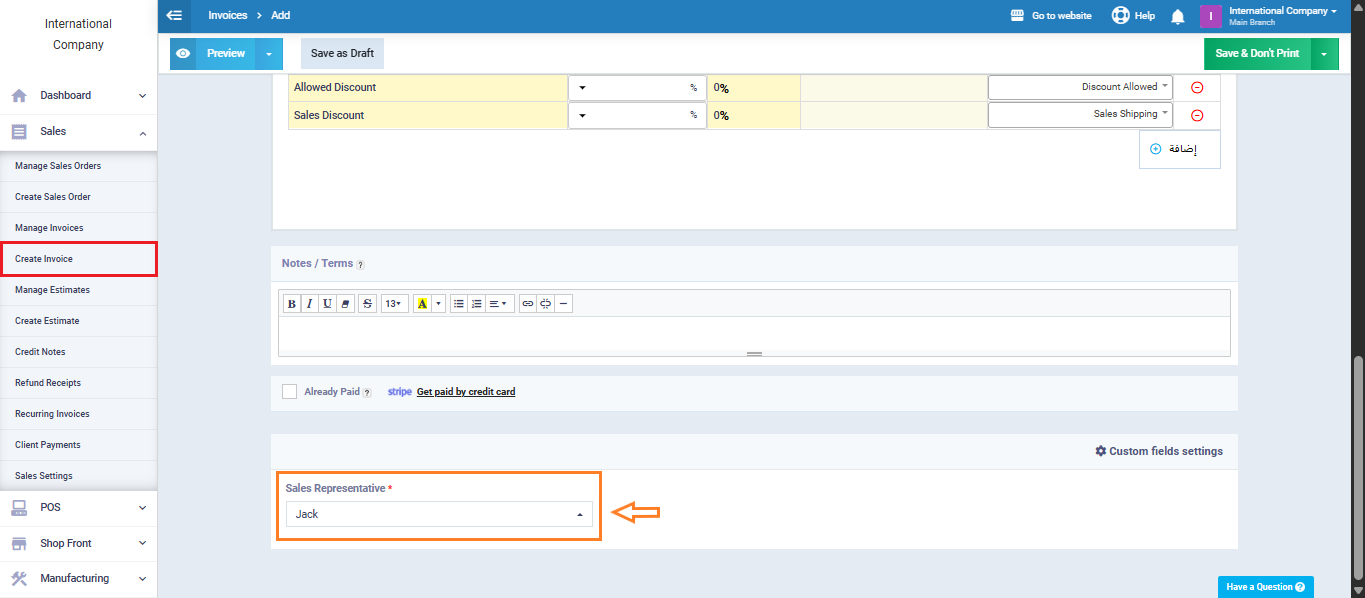
إدخال اسم مندوب المبيعات عند إنشاء الفاتورة
When issuing a new invoice, go to “Sales” from the main menu and click “Create Invoice“, then under the “Custom Fields“, select the Sales Representative’s name from the dropdown list.
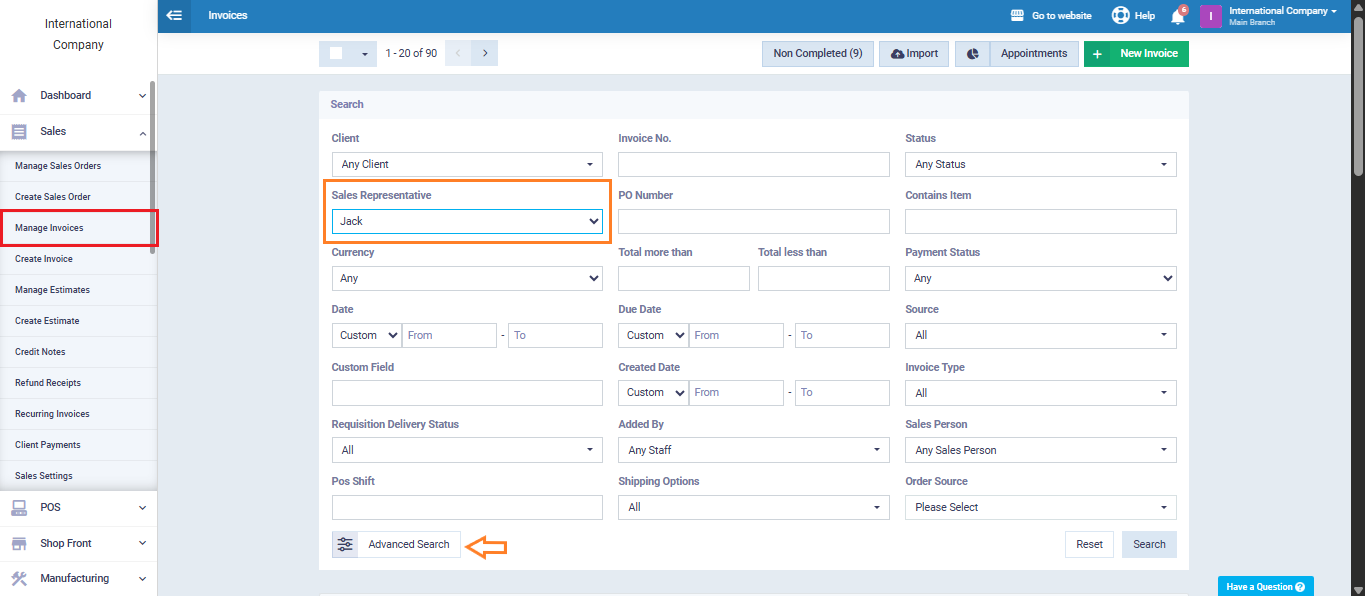
Searching for Invoices by Sales Representative
You can search or filter invoices by sales representative from the “Invoices” screen using the available filter options, and select the desired sales representative to display only their invoices.
Similarly, you can apply the same filter by sales representative name in “Sales Reports” to view only the data related to that specific representative.