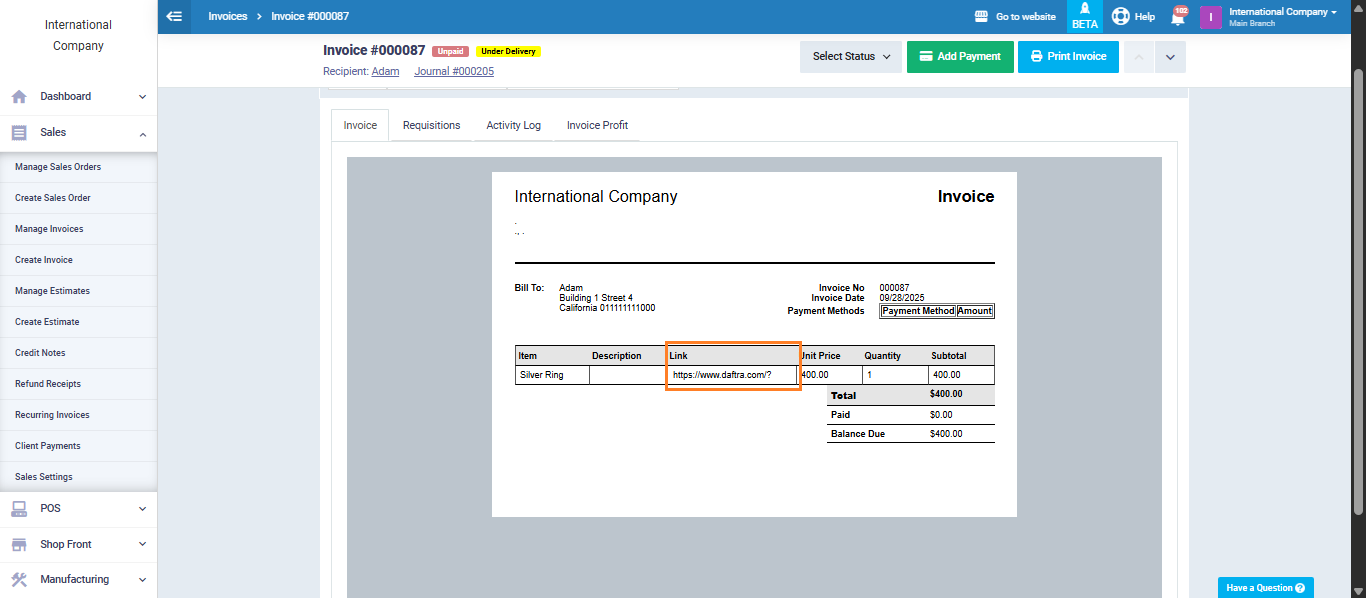
How to Add a Hyperlink Inside an Invoice
In some cases, you may need to link certain products to external resources such as a website page, a catalog, or an explanatory file, so that the link appears directly inside the invoice when creating or printing it. The system allows you to add a hyperlink to products and display it automatically in invoices by creating an additional field, linking it to the product, and then displaying it in the template design. Follow the steps below in detail.
Create the Additional Field
From the main menu, go to “Inventory“, then “Inventory & Products Settings“. Click on the “Custom Fields” tab.
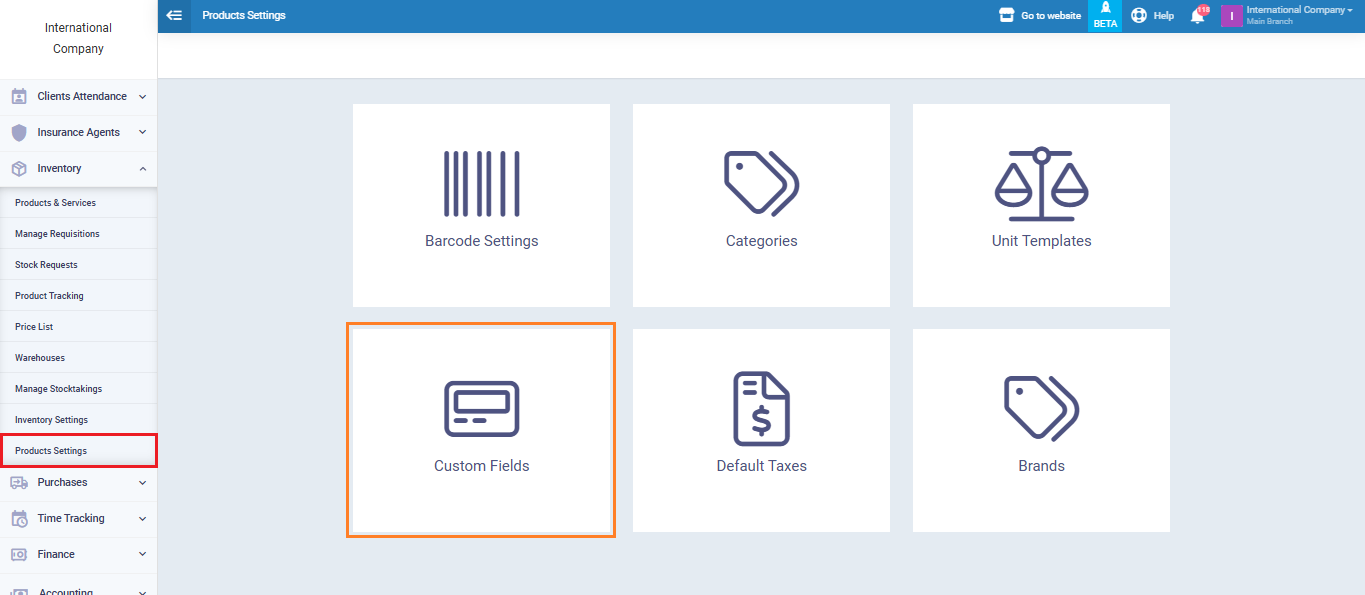
Add a new field named Website (or any name you prefer, e.g., Link).
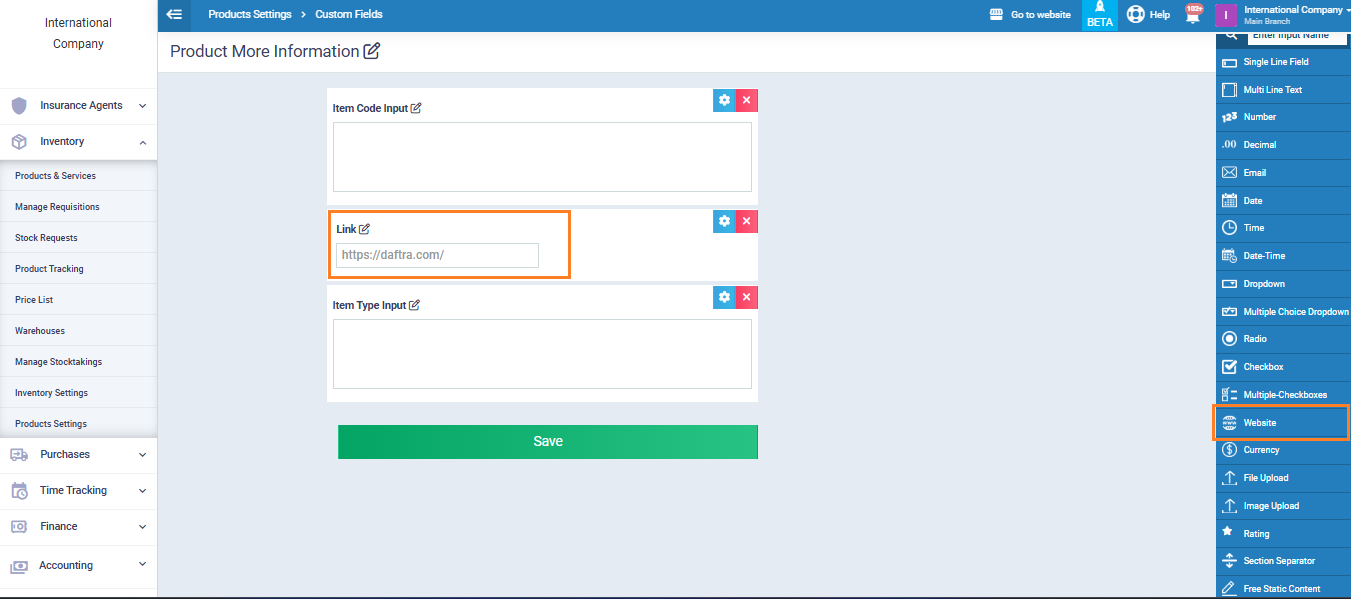
Link the Hyperlink to the Product
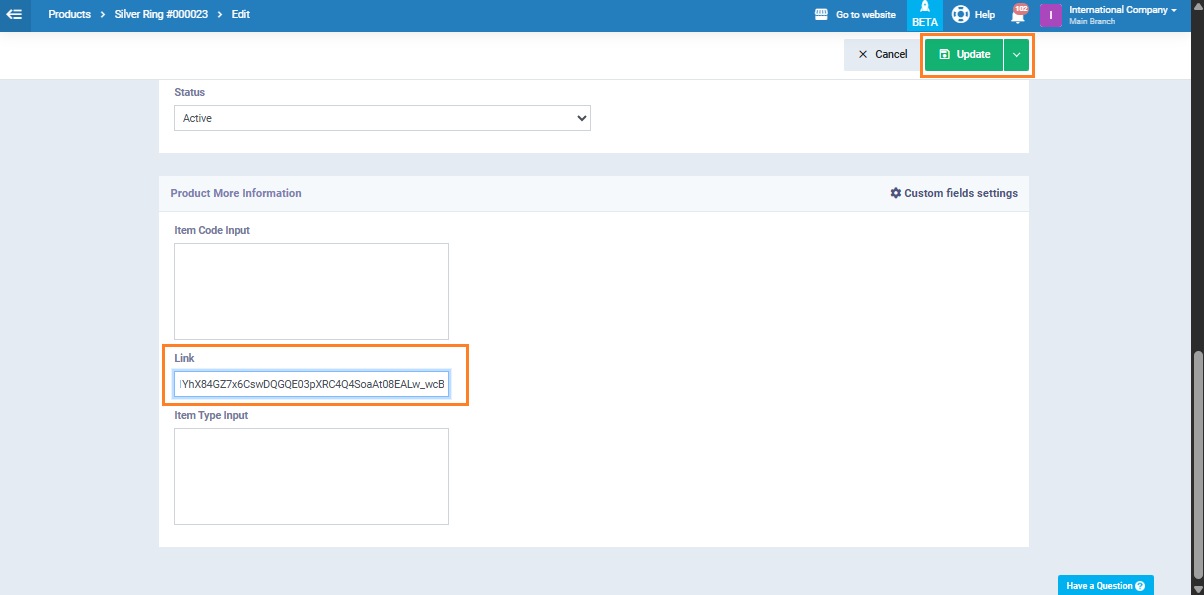
Go to “Products & Services” from the main menu. Choose the product you want to add the link to, then click “Edit“.
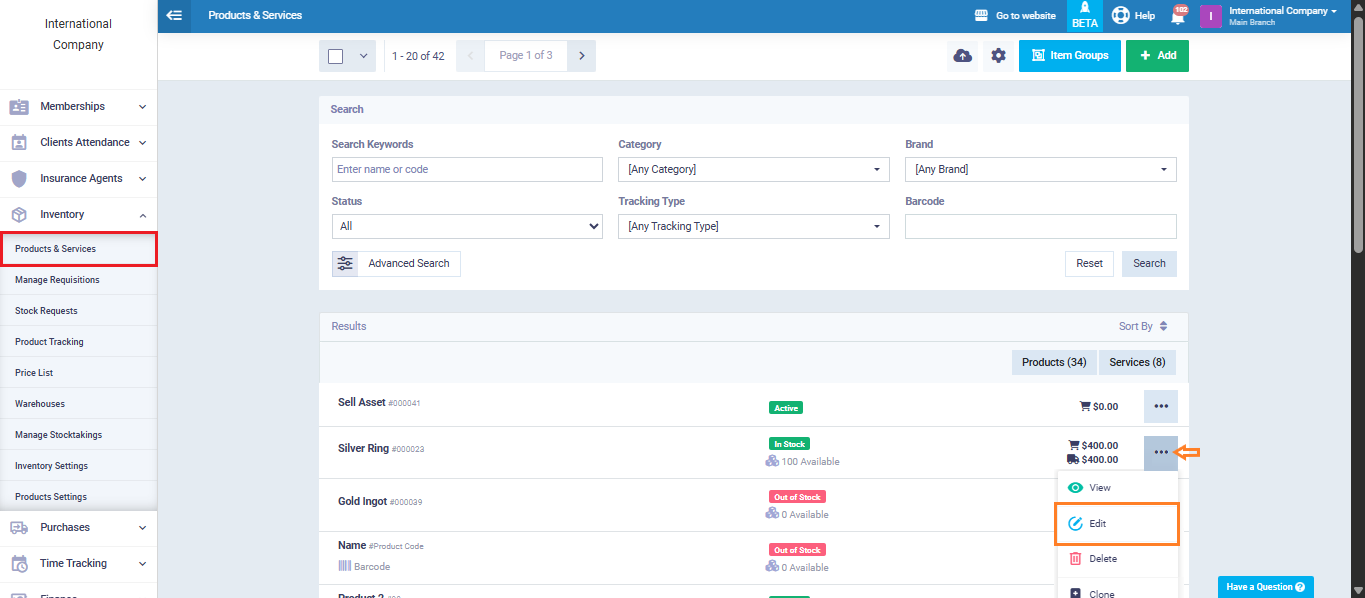
In the additional fields section, you’ll find the field you created earlier (Link). Enter the required URL, then click “Update“.
Display the Hyperlink in the Invoice
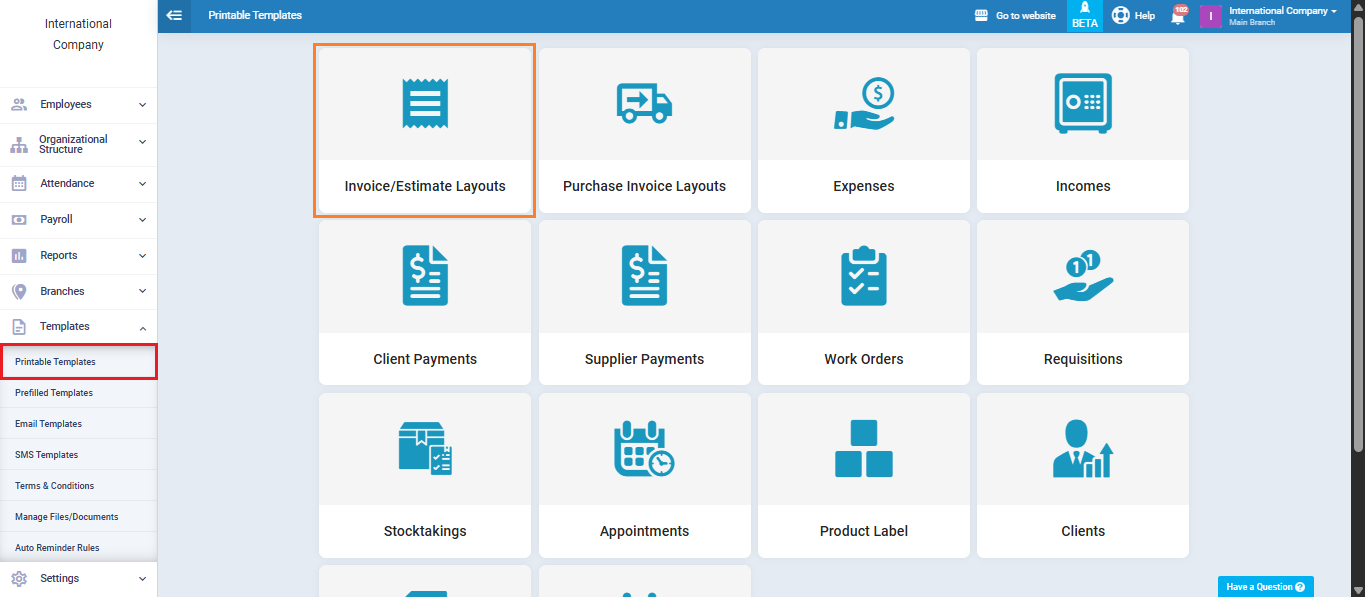
From the main menu, go to “Templates,” select “Printable Templates,” then choose “Invoice and Estimate Layouts.”
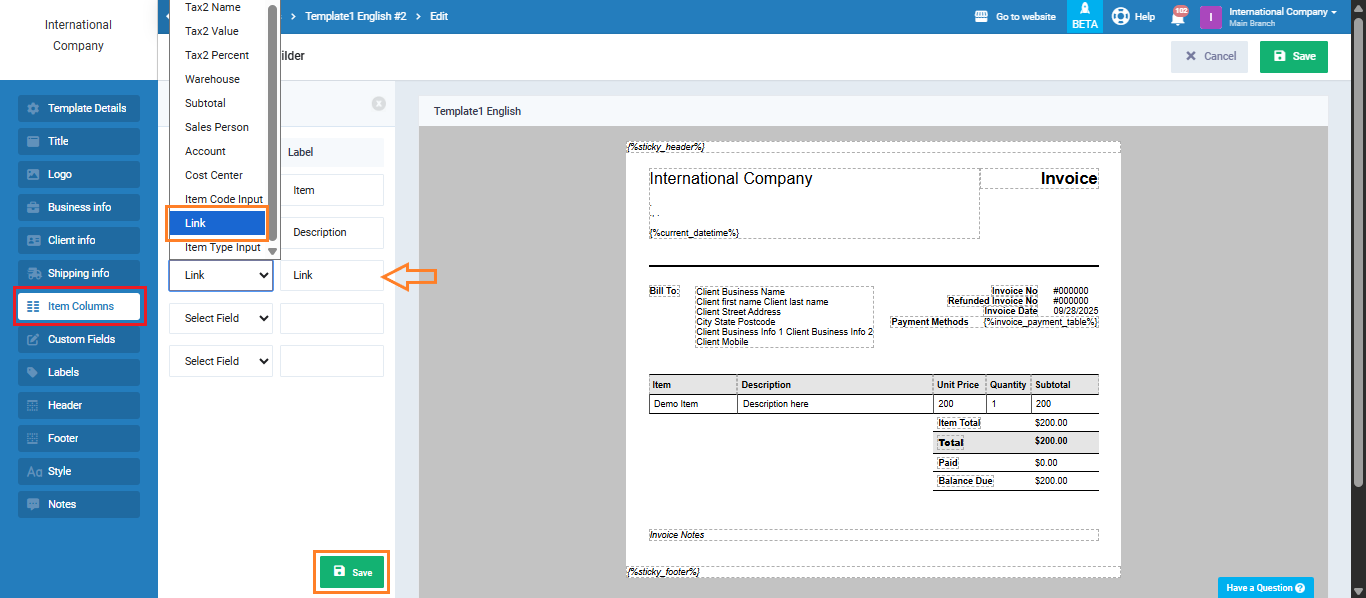
Select the desired invoice template and go to the “Item Columns” section.
Replace a field you don’t need (e.g., Product Image) with the new field “Link” from the dropdown menu, then save your changes.
When creating a new invoice, select the template where you added the “Link” field. Choose the product with the hyperlink, then click “Save“.
Finally, the hyperlink will appear automatically inside the invoice.