
Prevent Specific Item Categories from Being Sold or Invoiced
Sometimes you need to control what can be purchased through the system — certain product or service categories may be designated for sale only, or should not be included in purchasing transactions due to business policies or inventory controls. In this guide, you will learn how to configure the “Prevent Specific Item Categories from Being Sold or Invoiced” setting in the system and how it applies across all purchasing transactions.
How to Prevent Specific Item Categories from Being Sold or Invoiced
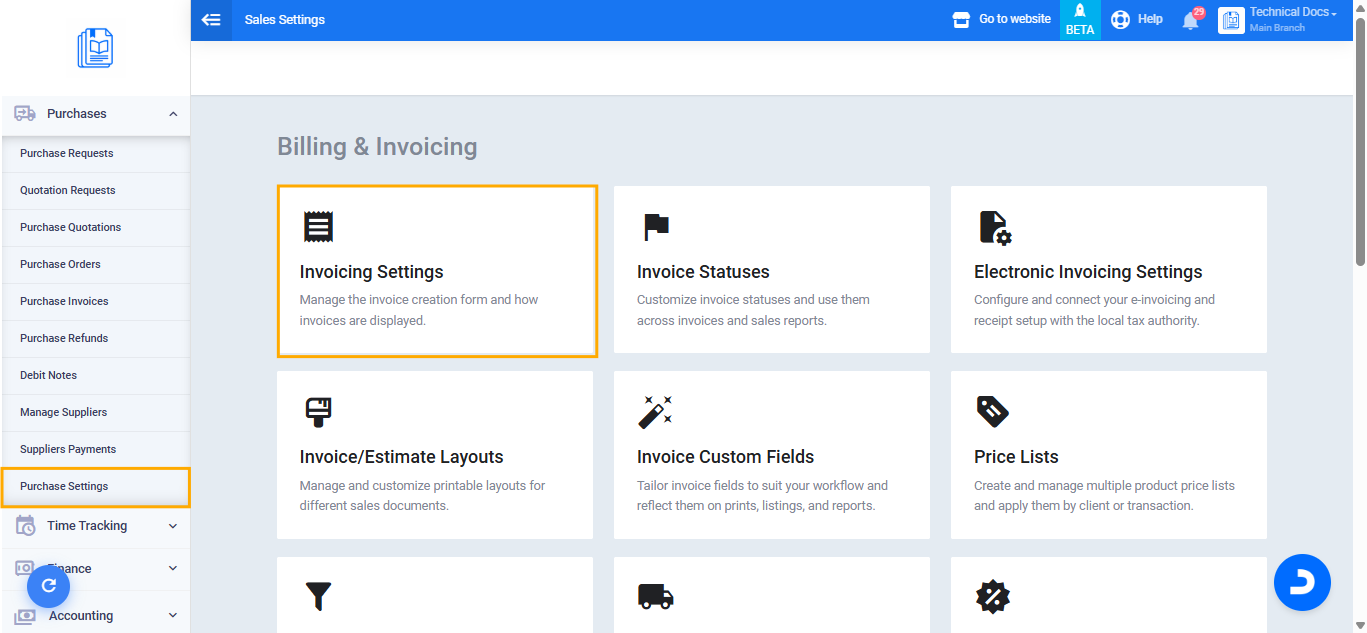
- From the main menu, click Purchases then select Purchase Settings.
- Open the Invoice Settings card.
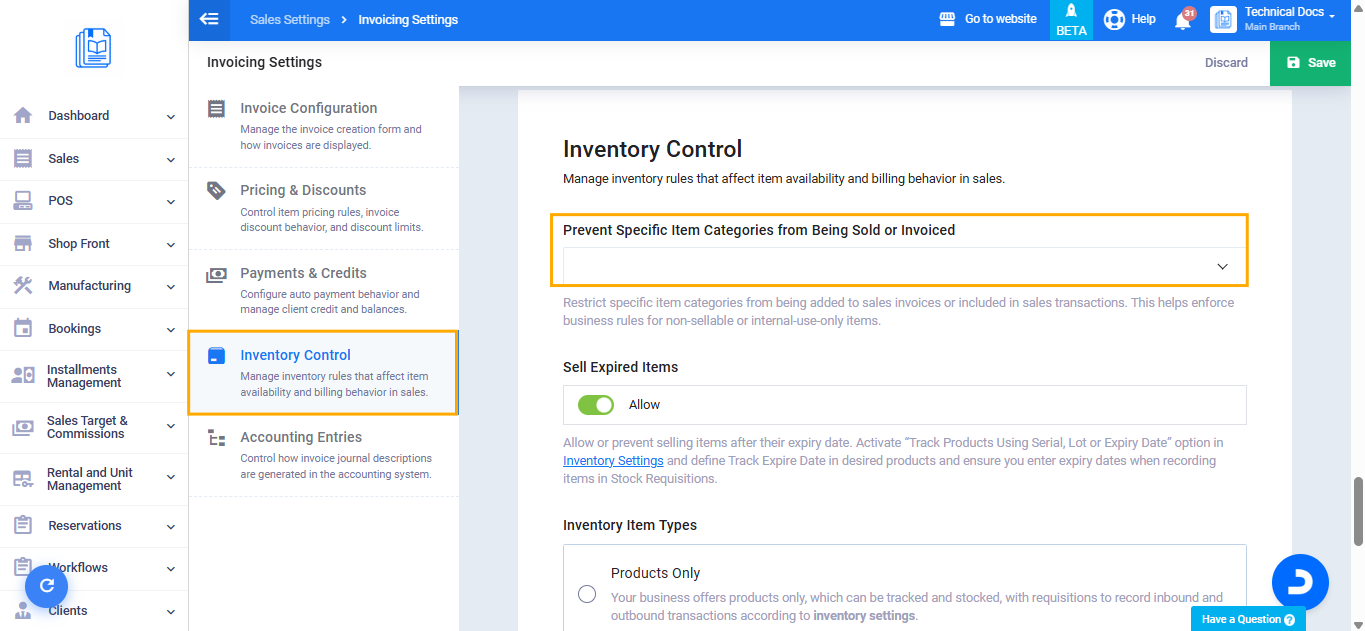
- Navigate to the Inventory Control section.
- Locate the “Prevent Specific Item Categories from Being Sold or Invoiced” field and click on it.
- Select the categories you want to exclude from purchasing operations — you can select more than one category at a time.
- Click Save to apply the setting.
Scope of the Setting
Once the restricted categories are selected, products or services belonging to those categories will no longer appear when searching in any of the following purchasing transactions:
- Purchase Invoices
- Purchase Orders
- Purchase Price Quotes
- Request for Quotations
- Purchase Requests
- Purchase Returns
- Purchase Debit Notes
Verifying the Setting
To confirm the setting is working correctly after saving:
- Navigate to any purchasing transaction (for example, create a new purchase invoice).
- In the product field, search for any product belonging to the restricted categories.
- You will notice that no products from those categories appear in the results.