Converting a Purchase Order into Multiple Purchase Invoices
If you receive products from the supplier in multiple shipments, you can convert the purchase order into multiple purchase invoices instead of creating a single invoice.
This guide explains how to split a purchase order and create partial purchase invoices based on each received shipment.
First: Creating a Purchase Order
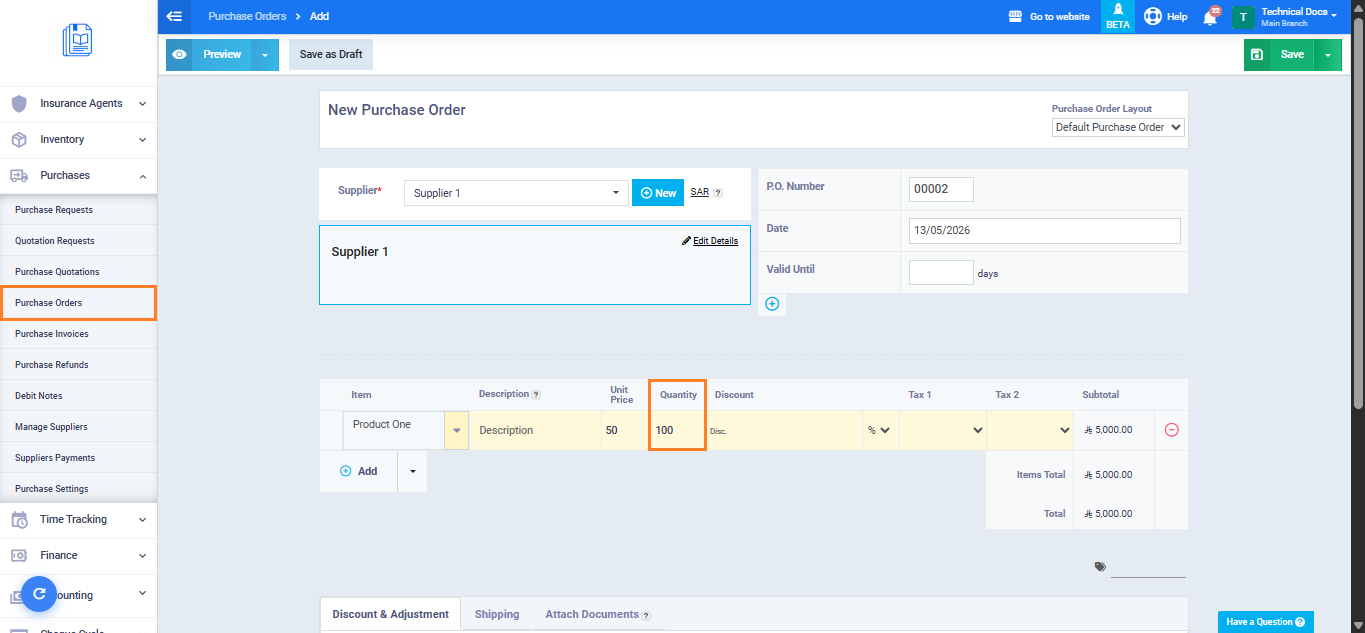
- From the main menu, go to “Purchases” then select “Purchase Orders“.
- Click “Create New Purchase Order“.
- Enter the purchase order details and add all required products with their full quantities.
- Click “Save“.
Second: Creating the First Partial Purchase Invoice
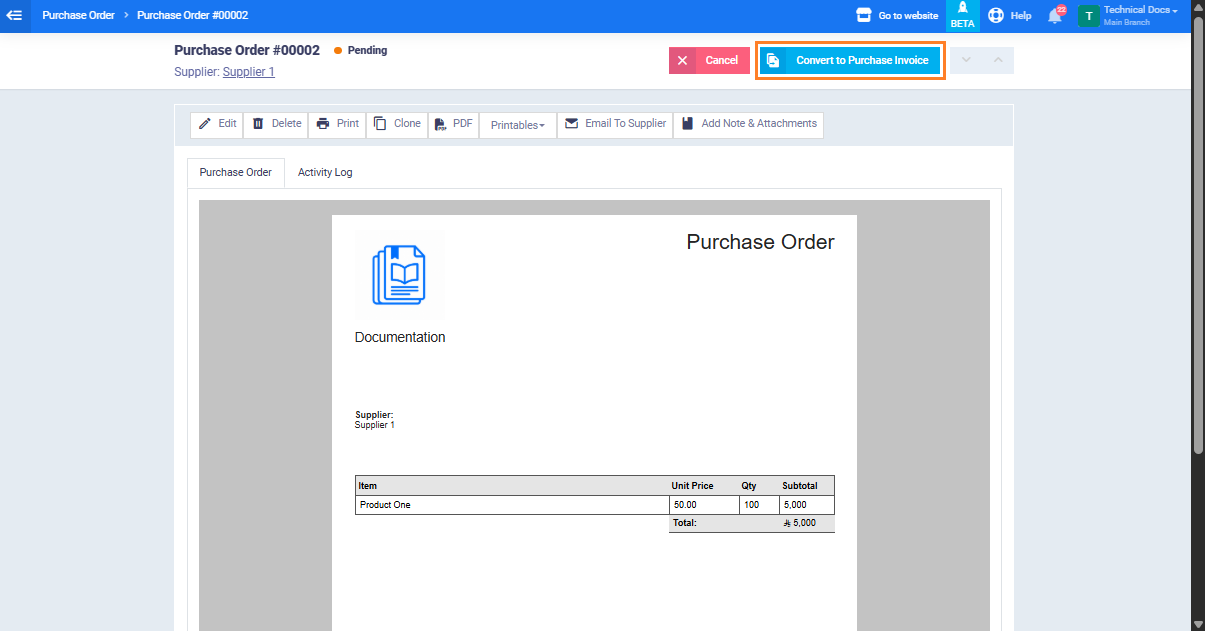
- From the purchase order view page, click “Convert to Purchase Invoice“.
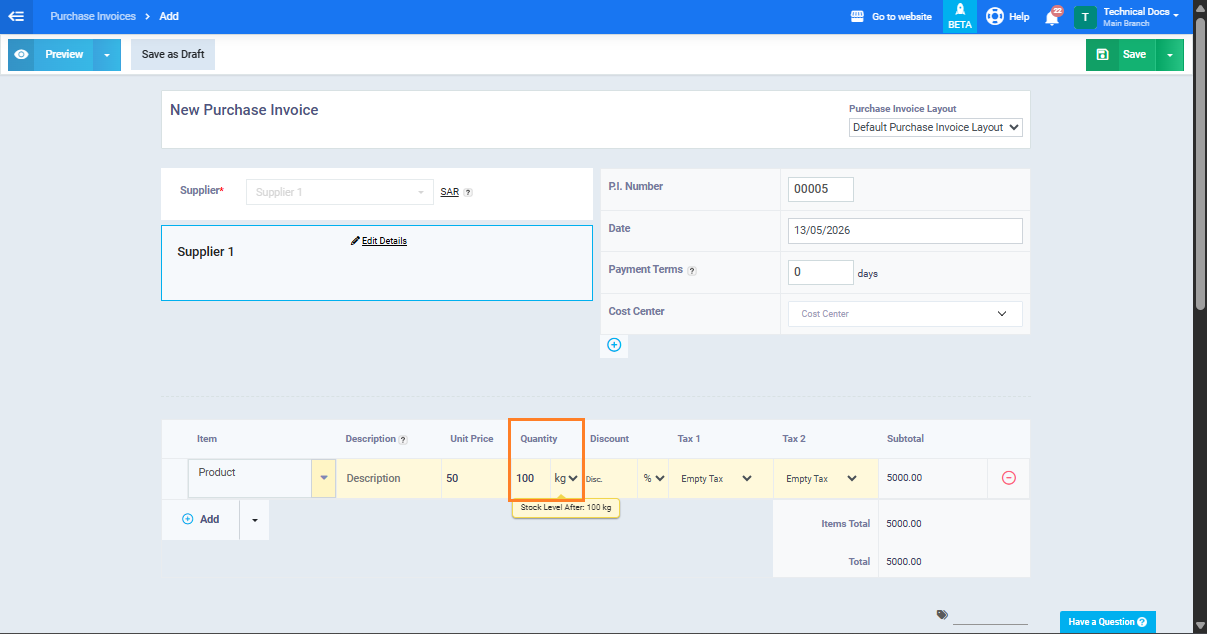
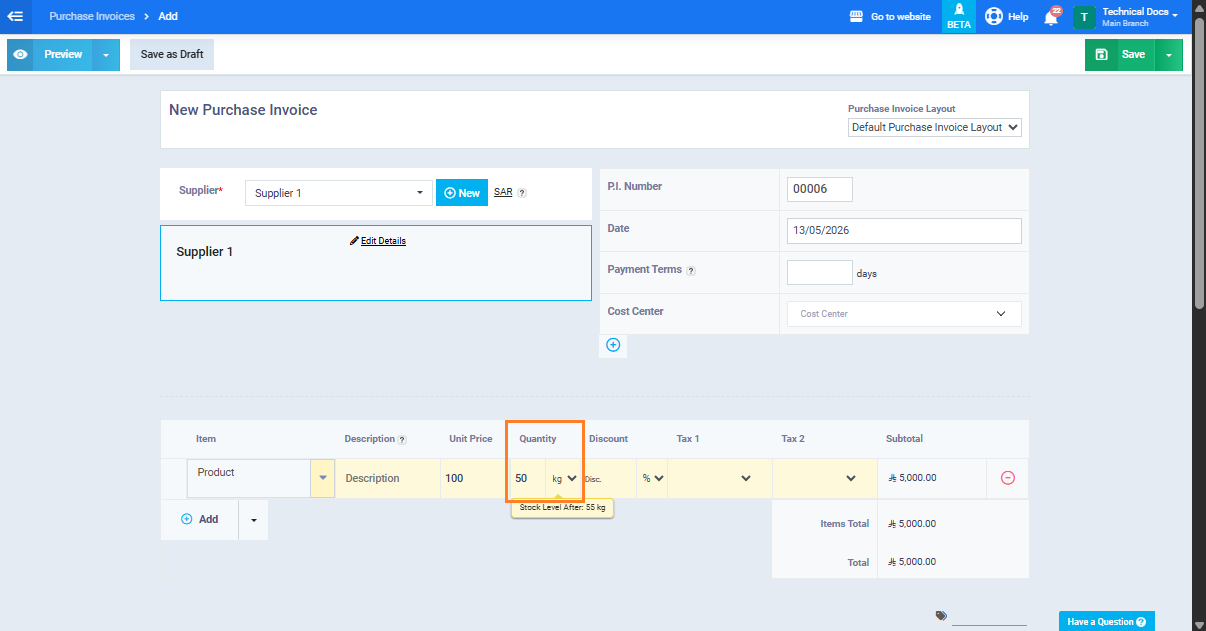
- In the purchase invoice form, do one of the following depending on the received shipment:
- Remove the products that have not been received yet from the item list.
- Edit the quantities to include only the quantities actually received.
- Click “Save“.
Third: Creating the Second Partial Purchase Invoice
When receiving the next shipment, you can create another invoice for the remaining quantities:
- Return to the purchase order view page.
- Click “Convert to Purchase Invoice” again.
- The purchase invoice form will automatically display only the remaining uninvoiced products and quantities.
- Review the data, then click “Save“.
Fourth: Tracking Purchase Order Status and Invoices
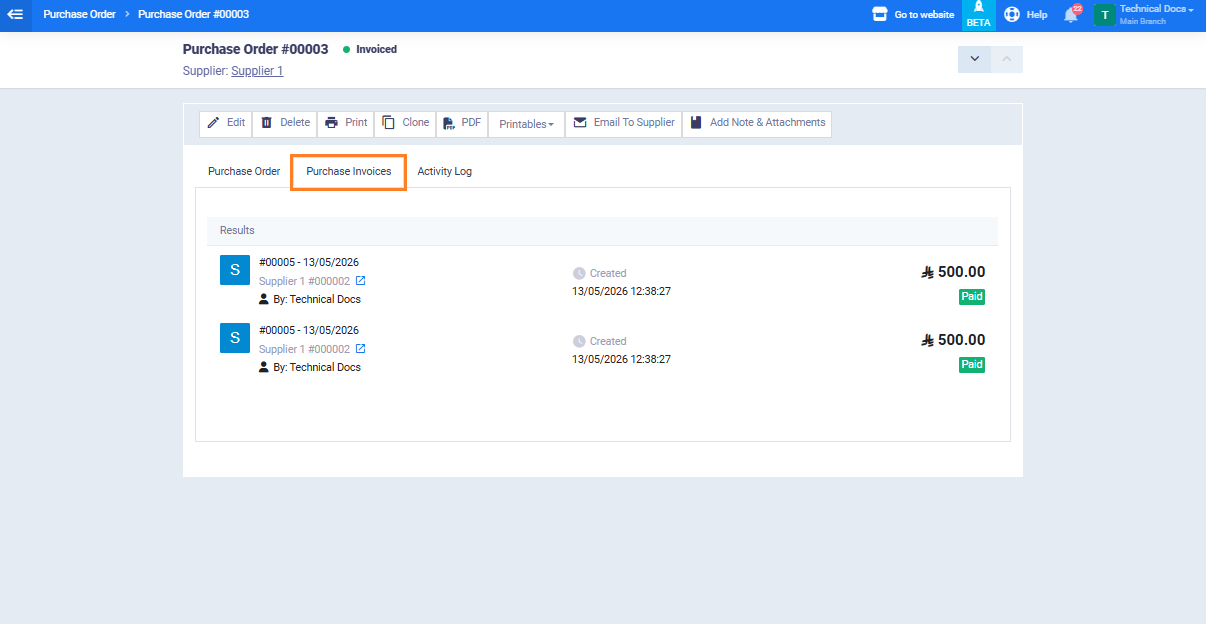
You can track all purchase invoices created from the purchase order directly from the view page:
- Open the purchase order view page.
- Click the Purchase Invoices tab.
- A list of all purchase invoices linked to this purchase order will appear.
The purchase order status updates automatically based on the invoiced quantities:
- Partially Invoiced: Some products or quantities have been invoiced.
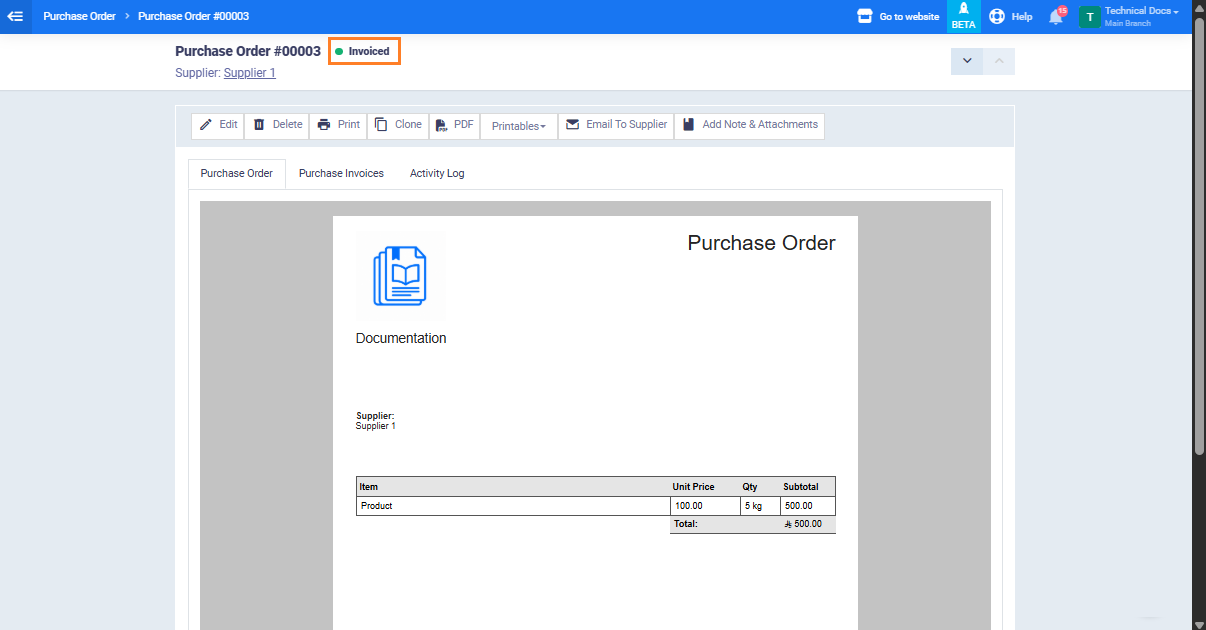
- Fully Invoiced: All products and quantities in the purchase order have been fully invoiced.