Adding a Custom Field to the Client Profile and Displaying It in Printable Templates
The system allows you to add custom fields to the client profile to store additional data you need, then insert those fields into invoices, estimates, and other printable document templates. This way, you can tailor the documents sent to your clients to display extra information directly, without needing to look it up elsewhere. This guide walks you through creating a custom field to record a client’s balance, then how to insert it into the desired printable template.
Part 1: Adding a "Client Balance" Field
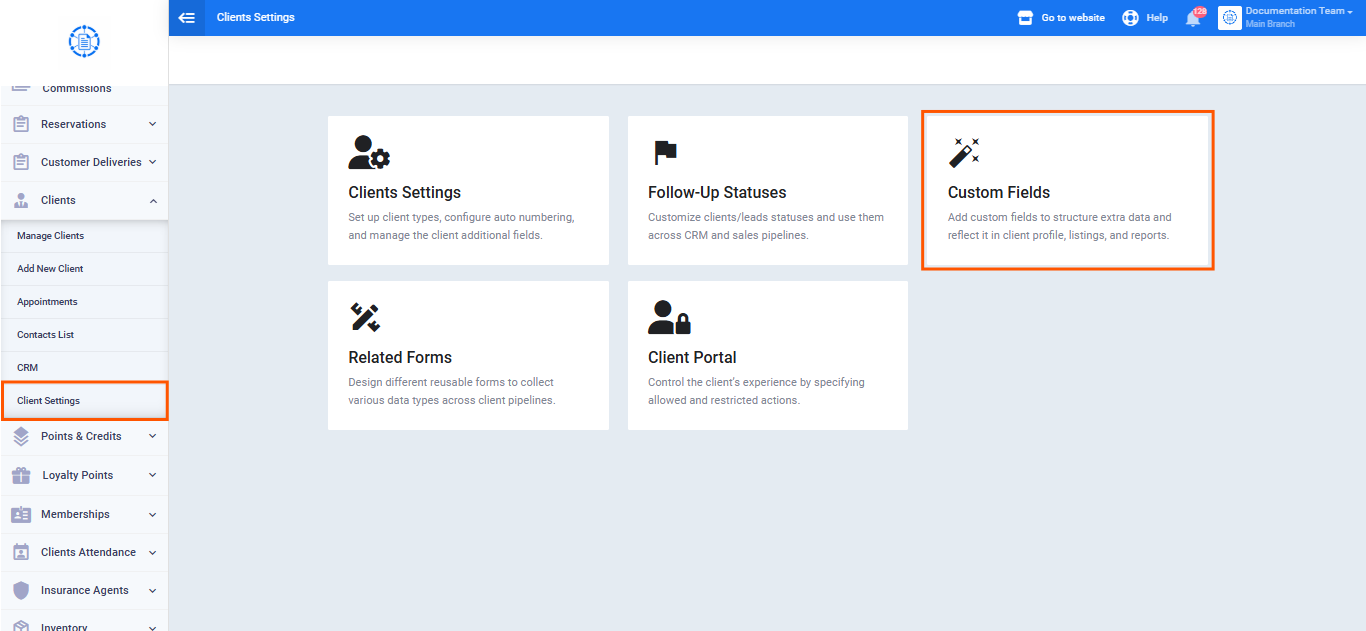
- From the main menu, go to the “Clients” dropdown menu, then click “Client Settings.”
- Click “Custom Fields.”
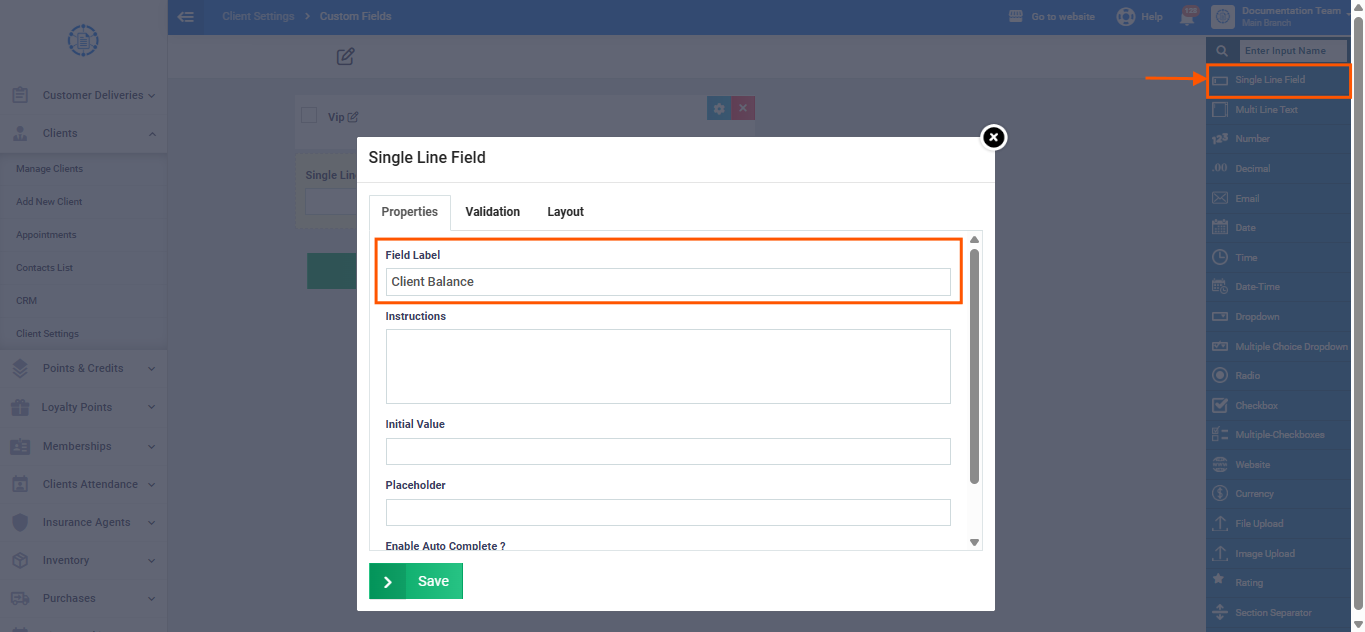
- From the sidebar field list, drag the “Single Line” field onto the screen.
- Enter a suitable name for the field (e.g., “Client Balance“).
- Click “Save.”
Once saved, this field automatically appears at the bottom of every client’s profile in the account, and its value becomes manually editable for each client individually.
Part 2: Adding the Field to a Print Template
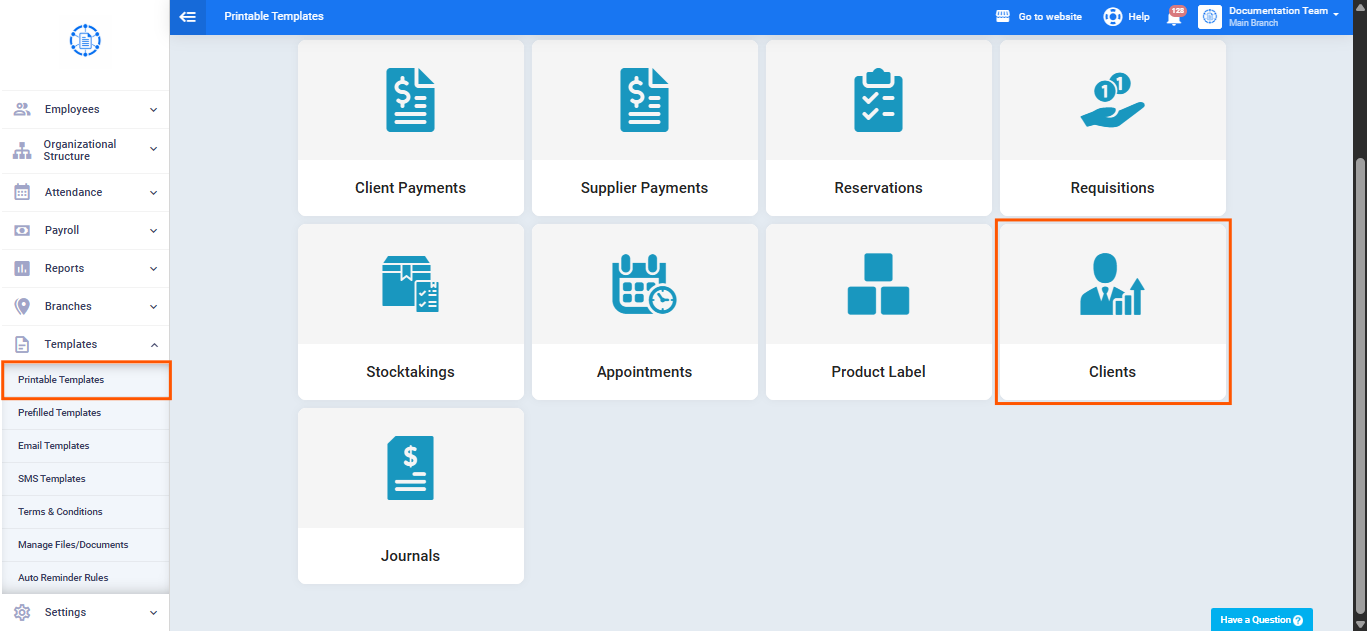
- From the sidebar, click “Templates.”
- Click “Print Templates.”
- From the list of categories shown, click the “Clients” card.
- Select the template you want to edit (e.g., the “Statement of Account” template), or create a new one.
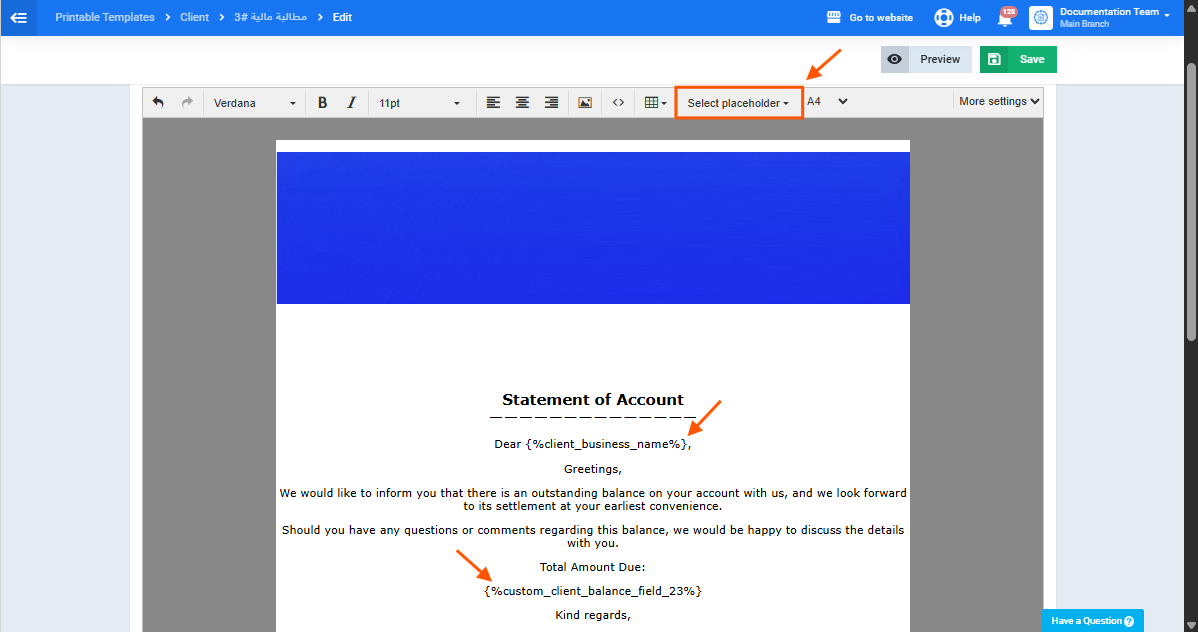
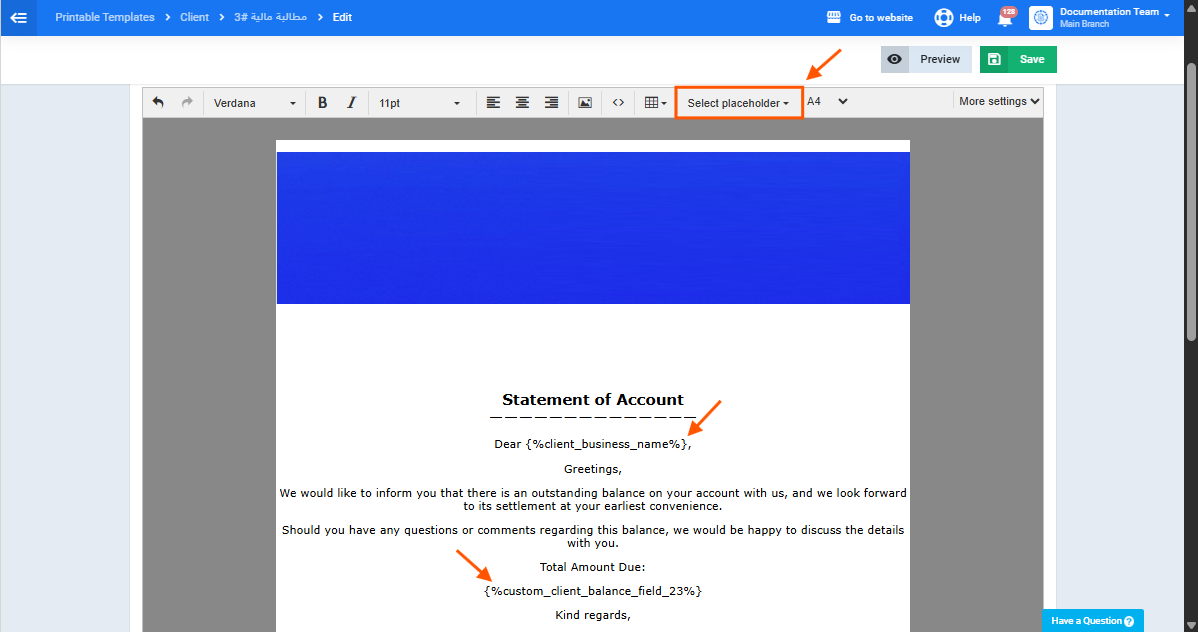
Enter the appropriate wording within the template, and use the “Placeholders” dropdown to select: -
- The additional field you created in Part 1 (Client Balance).
- The client’s Company Name, or any other data you want to display alongside the balance.
- Click “Save.”
Part 3: Recording the Client's Balance and Printing the Template
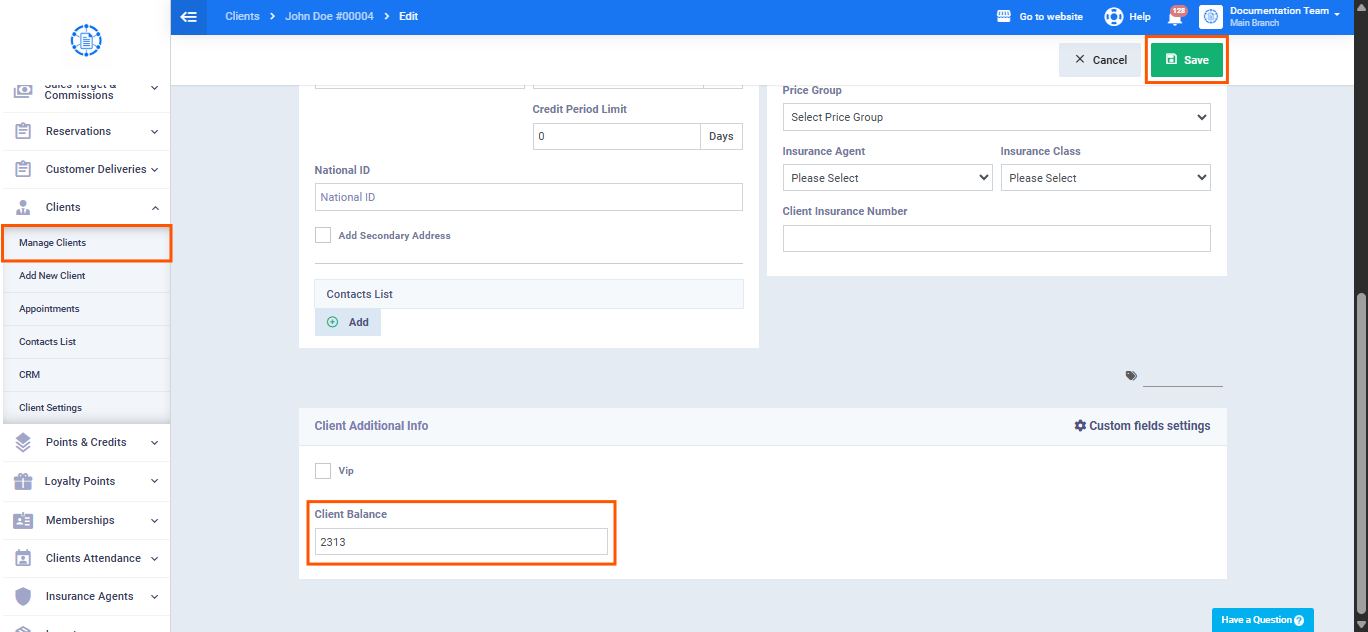
- From the sidebar, click “Manage Clients.”
- Select the client whose balance you want to record.
- At the bottom of the client’s profile, you’ll find the additional field you created earlier (“Client Balance“).
- Enter the client’s current balance value in this field.
- Click “Save.”
Printing or Exporting the Document
- From the client’s profile, click “Printouts.”
- Select the template you added the balance field to (e.g., “Statement of Account“).
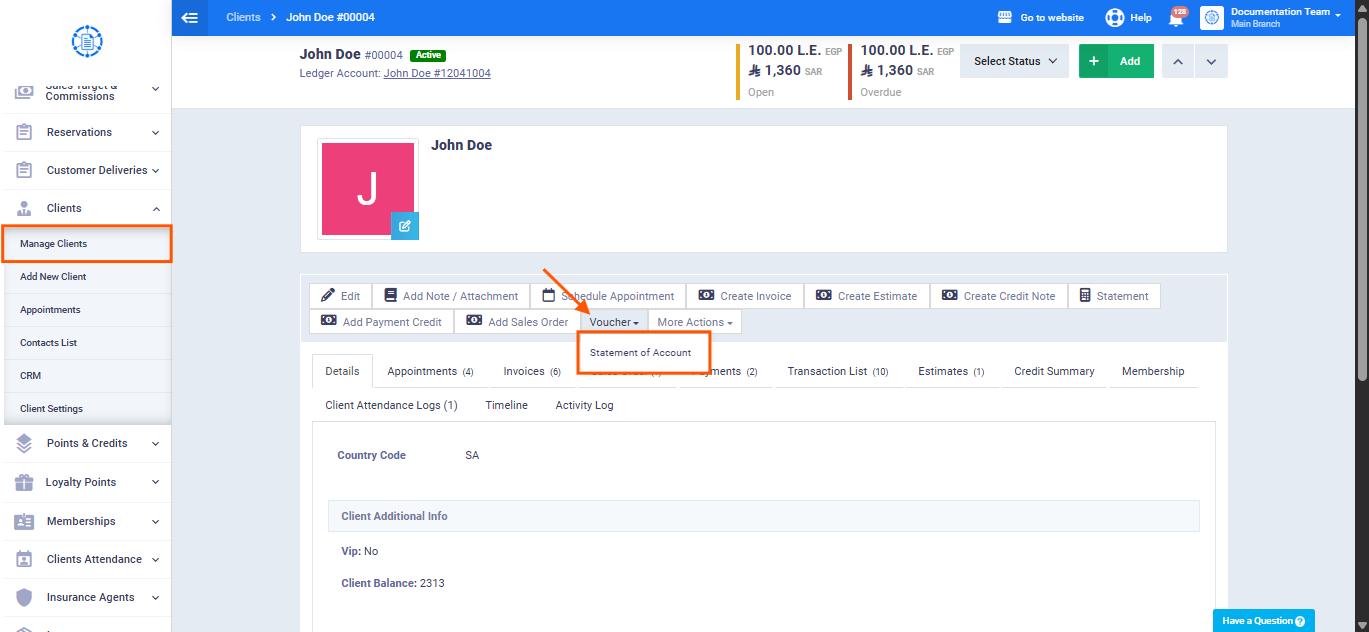
- The previously entered client balance will appear printed directly within the document, with no further input needed.