







Quick Access Guide to Any Page Using Quick Actions
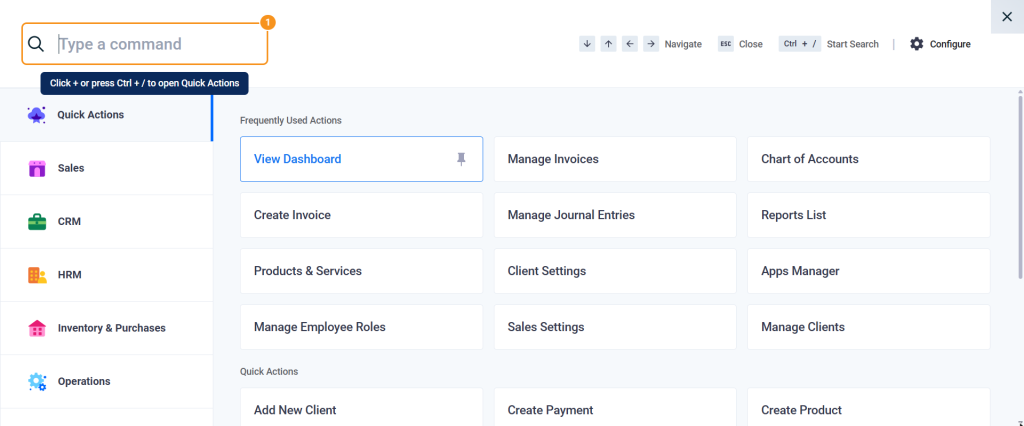
From Quick Actions, you can reach any page, action, report, or setting in the system from anywhere, without navigating through menus. This tutorial explains how to open Quick Actions, reach the page you need by searching or browsing, then pin it and open it directly with a keyboard shortcut.
Before you begin
- The actions available to you depend on your permissions and the apps active in your account.
- Your pins and shortcuts are personal and don’t affect other users.
Open Quick Actions
- From any page, click the + button in the top bar, or press Ctrl + / (⌘ + / on Mac).
Reach the page by searching or browsing
- Type at least two characters of the page name in the Type a command box, such as “invoices”.
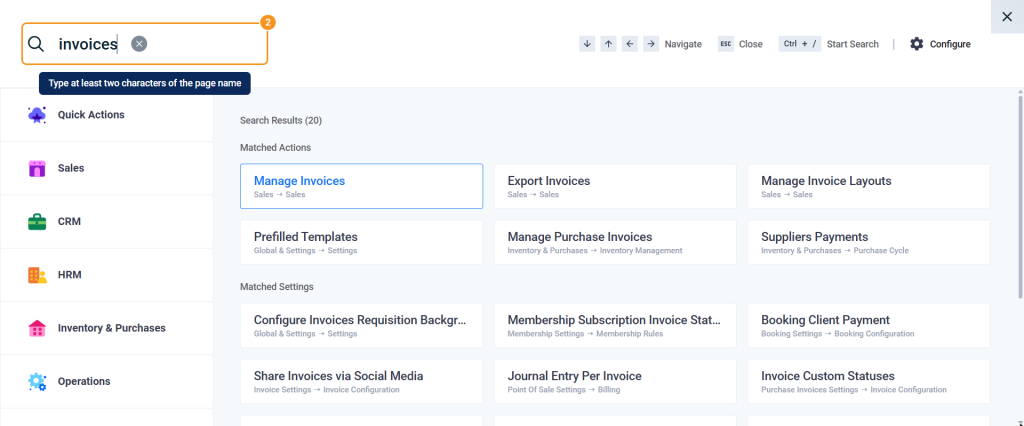
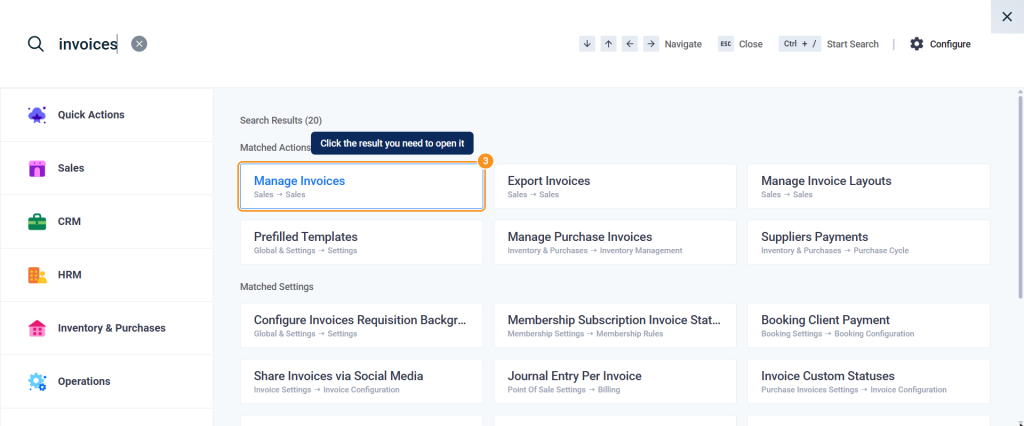
- The Search Results appear, divided into Matched Actions, Matched Settings, and Matched Reports. Click the result you need to open it.
| To browse instead of searching | Steps |
|---|---|
| From the system categories | Choose the category from the categories list, such as Sales, then the group, then the action. |
| From the frequently used actions | In the Quick Actions section, the Frequently Used Actions appear based on your usage. |
Pin the page
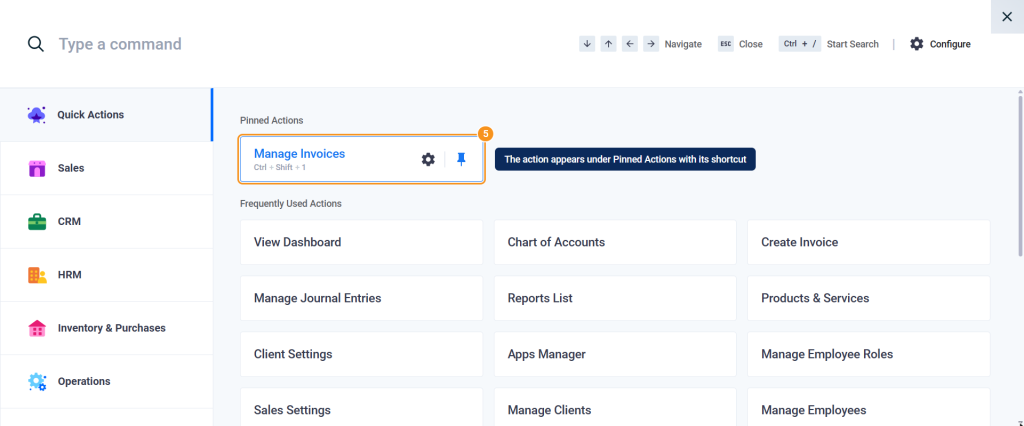
- Hover over the action card in Quick Actions, then click the pin icon (Pin). Or, if the page is open in front of you, click Pin Current Page at the end of the Quick Actions section.
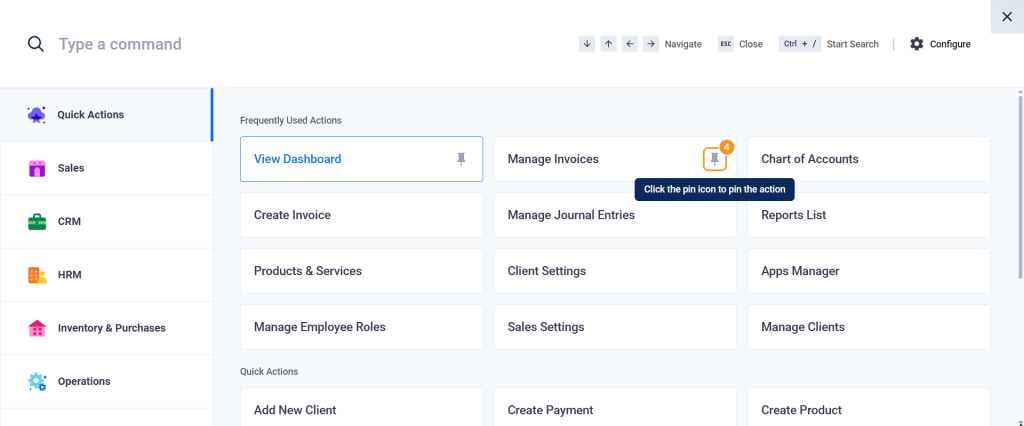
- The action appears under Pinned Actions at the top of the screen, with its keyboard shortcut below it.
Open the page with a keyboard shortcut
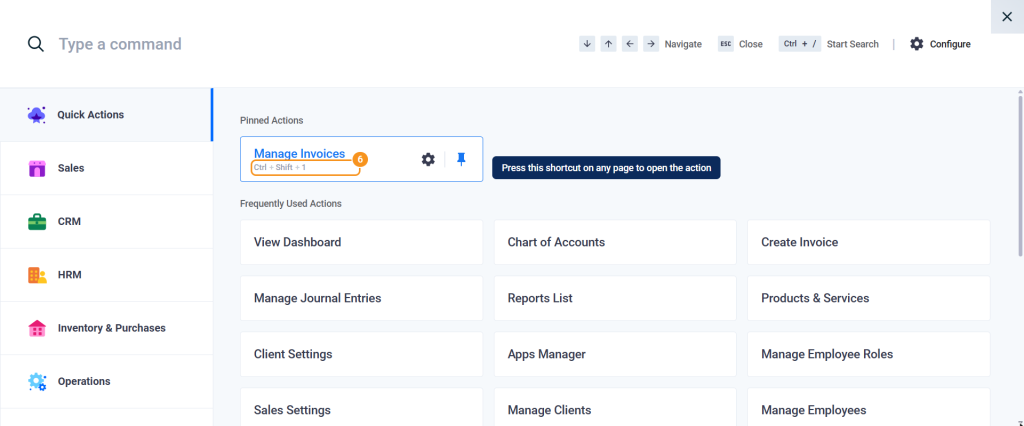
- Close Quick Actions with the Esc key. From any page, press the action’s shortcut, such as Ctrl + Shift + 1, and its page opens directly.
Customize the shortcut and order
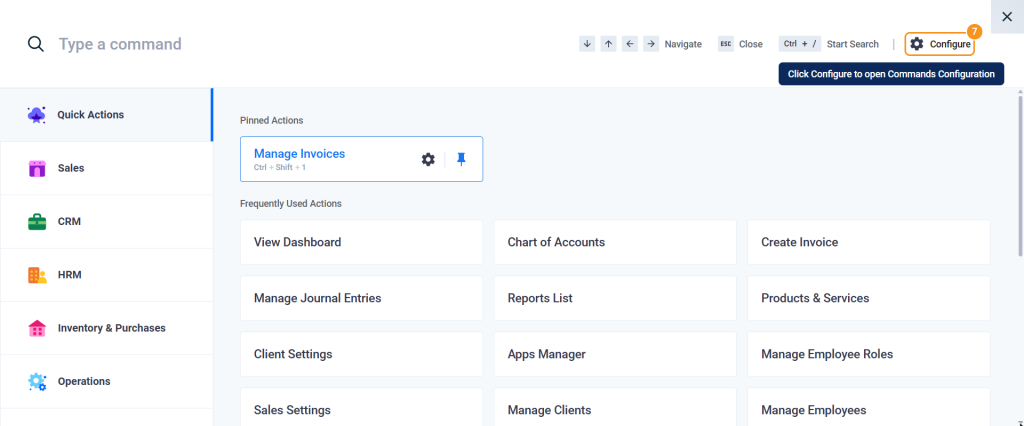
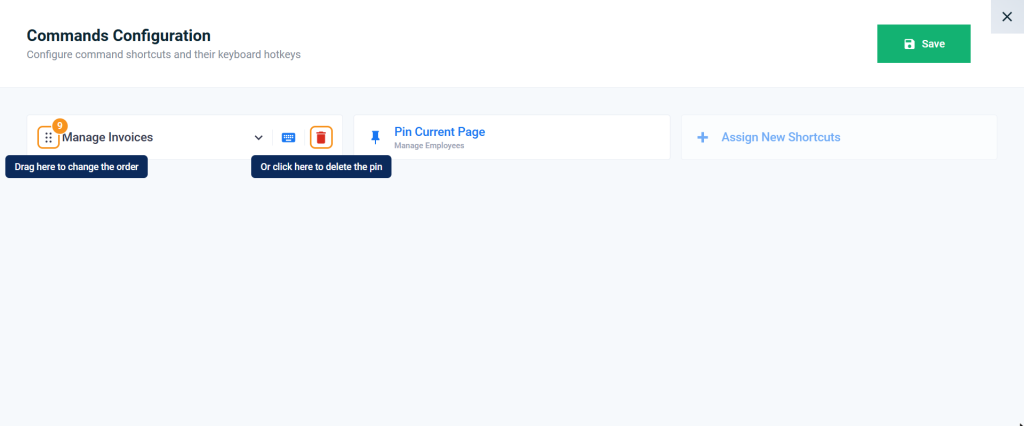
- Click Configure at the top of the Quick Actions screen to open Commands Configuration.
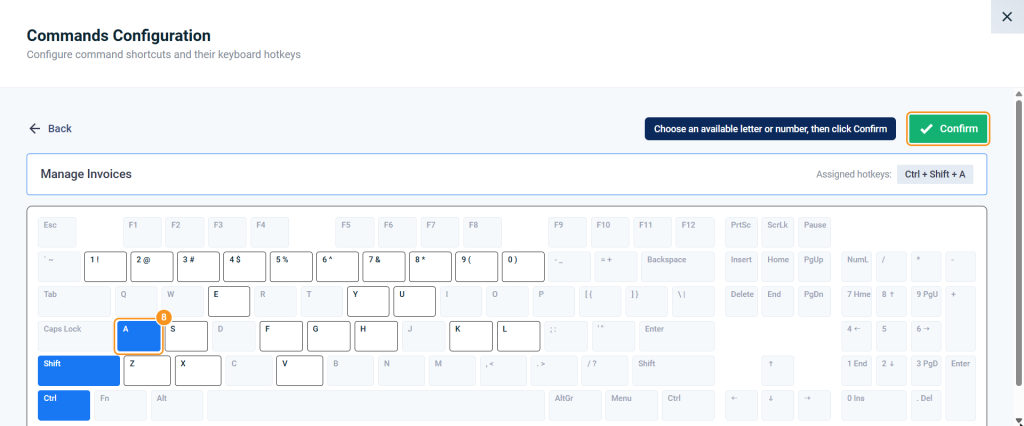
- On the action card, click the keyboard icon, choose a letter or number from the available keys, then click Confirm.
- To change the order, drag the card by its handle (⠿). To delete the pin, click the delete icon.
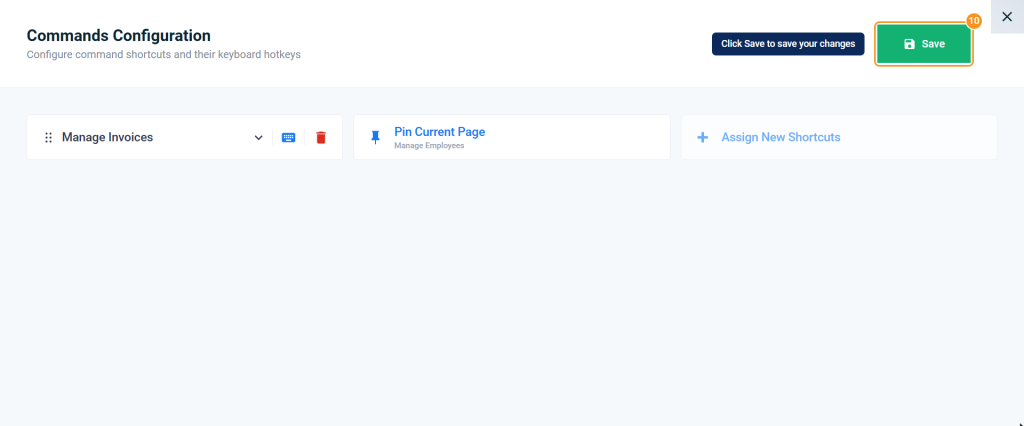
- Click Save. The message Configuration saved successfully appears.
FAQs
Why can't I find a specific action in the search results?
You may not have permission to access it, it may belong to an inactive app, or you typed fewer than two characters. Try another word or a shorter name.
Can my colleagues see the actions I pinned?
No; pins, shortcuts, and their order are personal to each user.
Why don't some pinned actions have a shortcut?
Because automatic shortcuts are given to the first 9 pinned actions only. Assign a shortcut to the rest from Commands Configuration.