Guide to Exempting Specific Clients or Products from VAT
The “Tax Exemption Rules” app allows you to set your own conditions to prevent VAT or other taxes from being applied to specific items or clients across the sales cycle’s outputs (sales orders, estimates, invoices, and others), so that the item remains untaxed or is only taxed at a zero rate (0%). In this article, we explain the steps to configure exemption rules in detail.
Before You Begin
The “Tax Exemption Rules” app must already be enabled on the account. For more on how to enable it, see the “Activating the Tax Exemption Rules App” article.
Steps to Exempting Specific Clients or Products from VAT
First: Accessing the Rule Settings
Step 1: Access Invoicing Settings
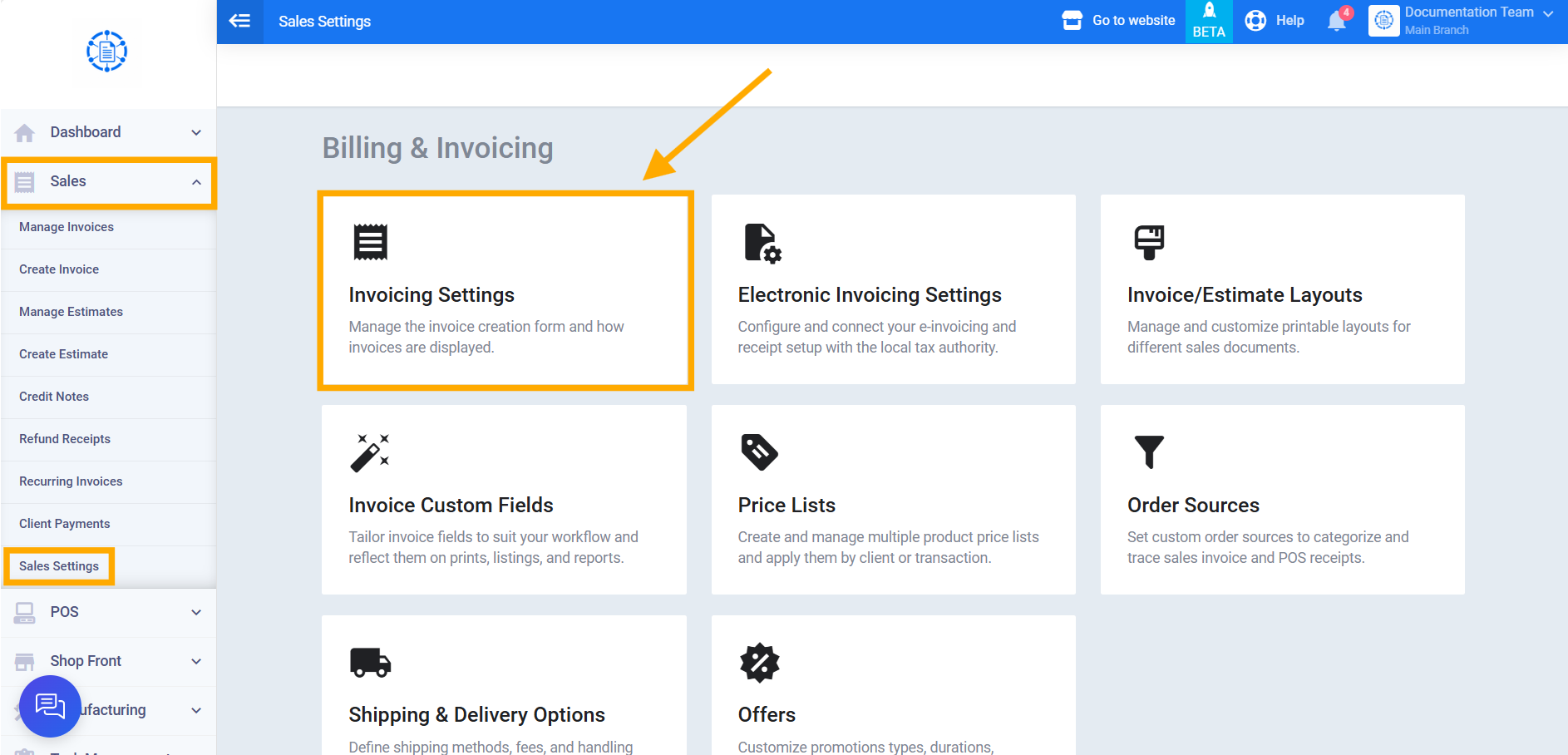
From the main menu, click on “Sales,” then from the dropdown menu click on “Sales Settings,” then click on the “Invoicing Settings” card.
Step 2: Open the Manage Rules Screen
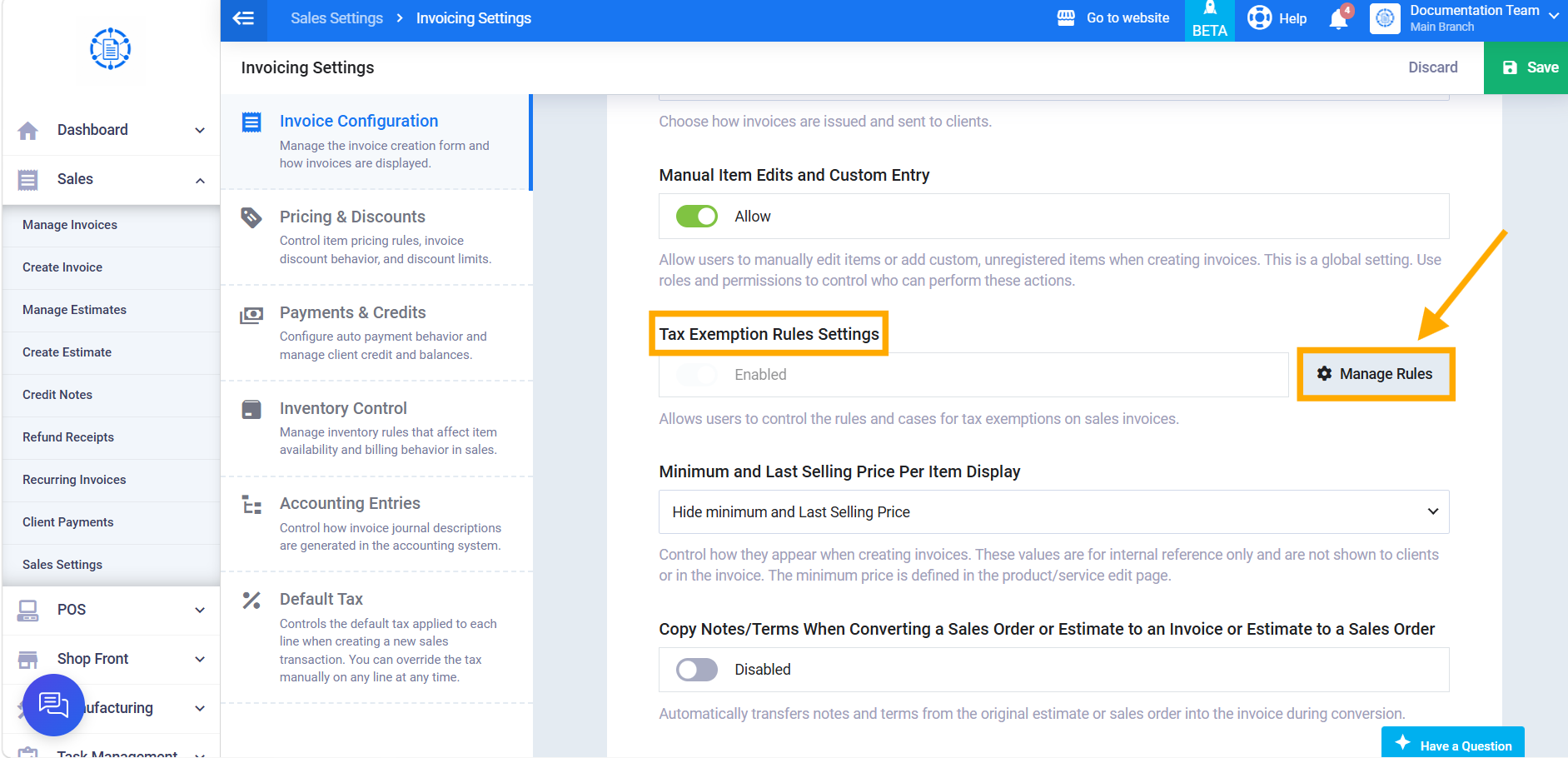
Under “Invoice Configuration” settings, the “Tax Exemption Rules Settings” setting will appear. Click the “Manage Rules” button to go to the exemption rules and conditions screen.
Second: Setting Up Exemption Rules and Conditions
Step 3: Determine the Rule’s Basis
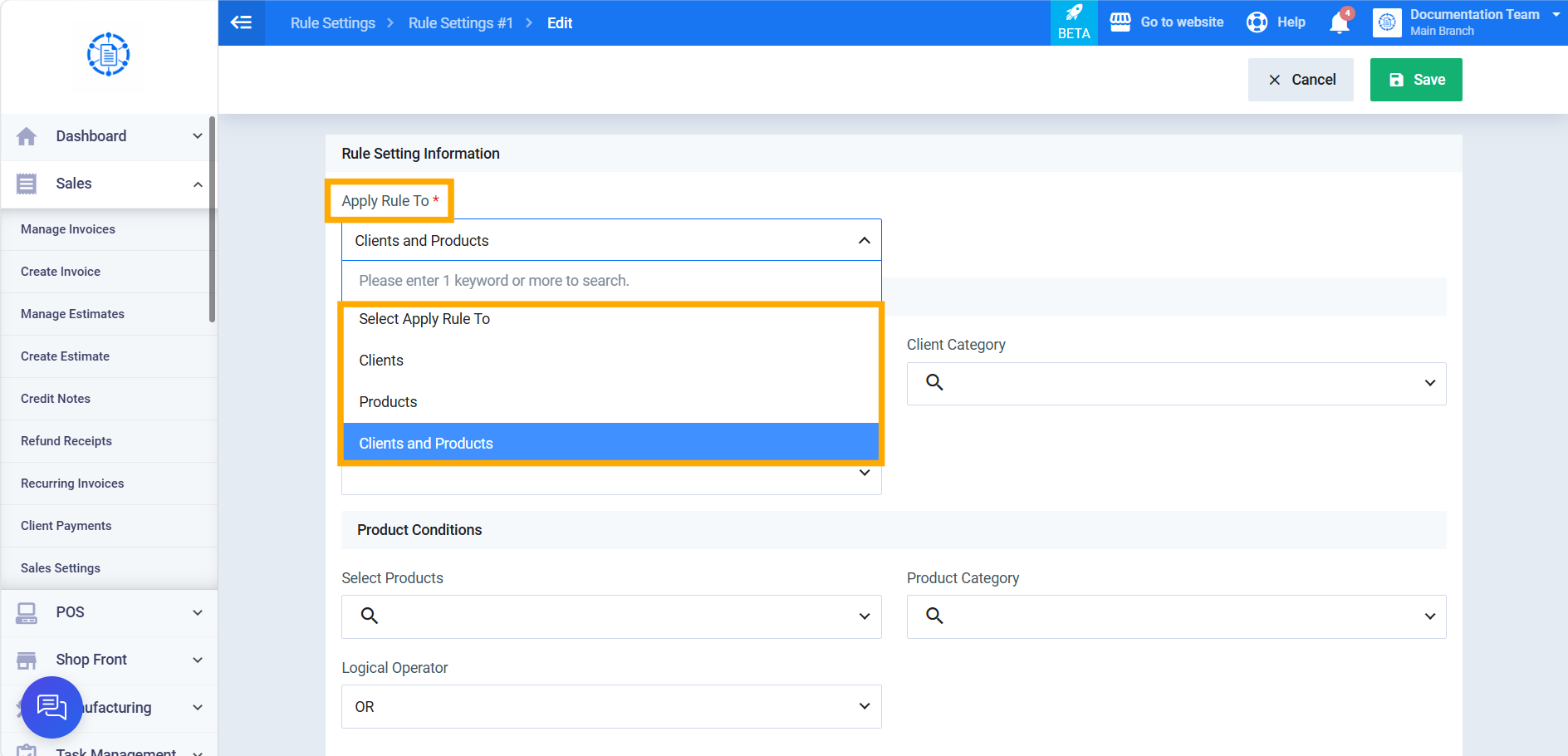
From the “Apply Rule To” field (dropdown list), select one of the following options:
- Clients: the exemption rule involves conditions specific to clients only.
- Products: the exemption rule involves conditions specific to products only.
- Clients and Products: the exemption rule includes conditions for both clients and products together.
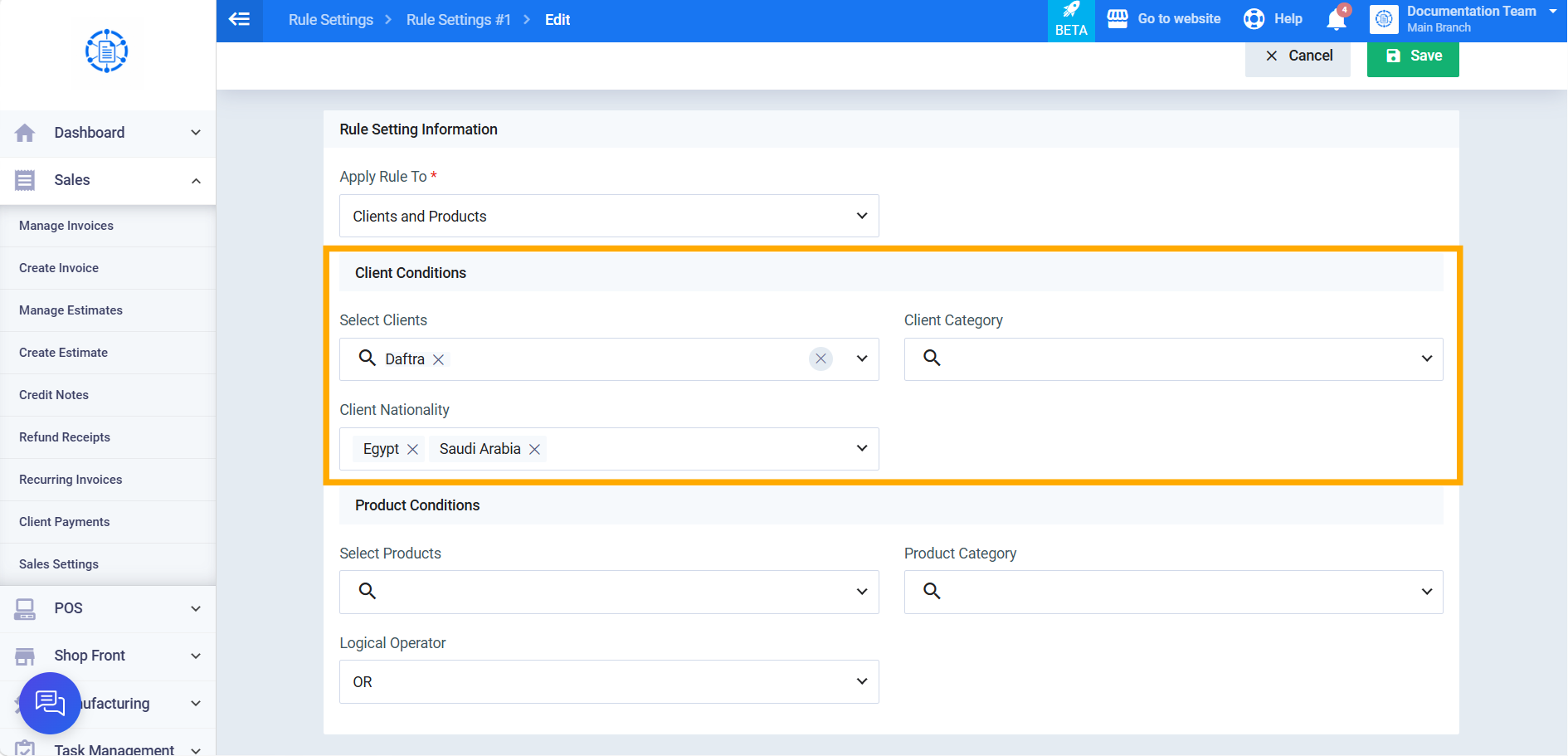
Step 4: Configure Client Conditions (When Selected)
This section appears when “Clients” or “Clients and Products” is selected, and includes:
- Select Clients: specifying one or more individual clients to exempt them from tax specifically.
- Client Category: specifying one or more categories to exempt all clients within them, without needing to select them individually.
- Client Nationality: applying the exemption based on the client’s nationality (for example, exempting local clients but not foreign ones, or vice versa).
Step 5: Configure Product Conditions (When Selected)
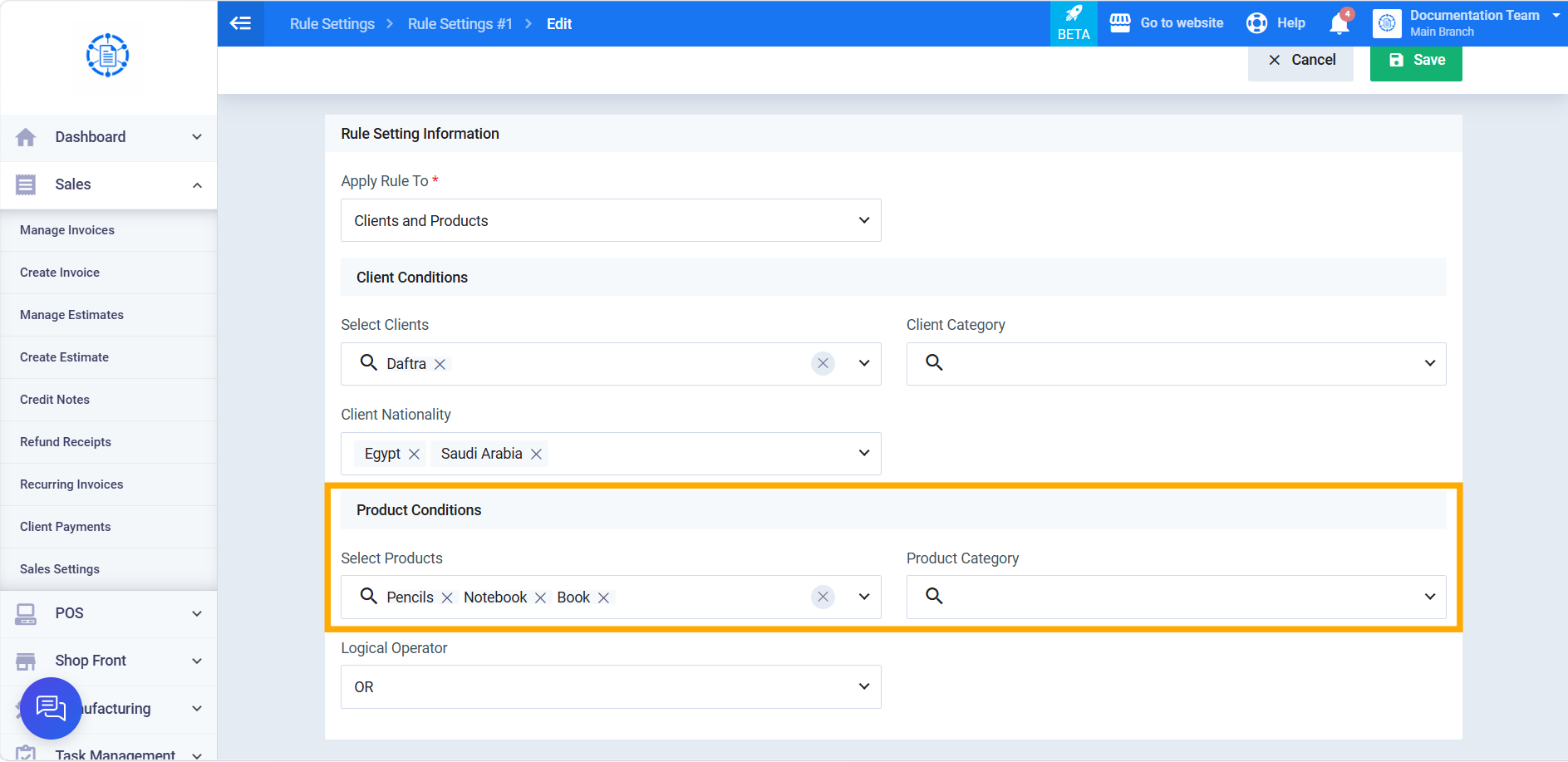
This section appears when “Products” or “Clients and Products” is selected, and includes:
- Select Products: specifying particular products or services to exempt them from tax when selected on invoices or sales forms.
- Product Category: specifying one or more categories to exempt all products or services within them, without individual selection.
Step 6: Set the Logical Operator (When “Clients and Products” Is Selected)
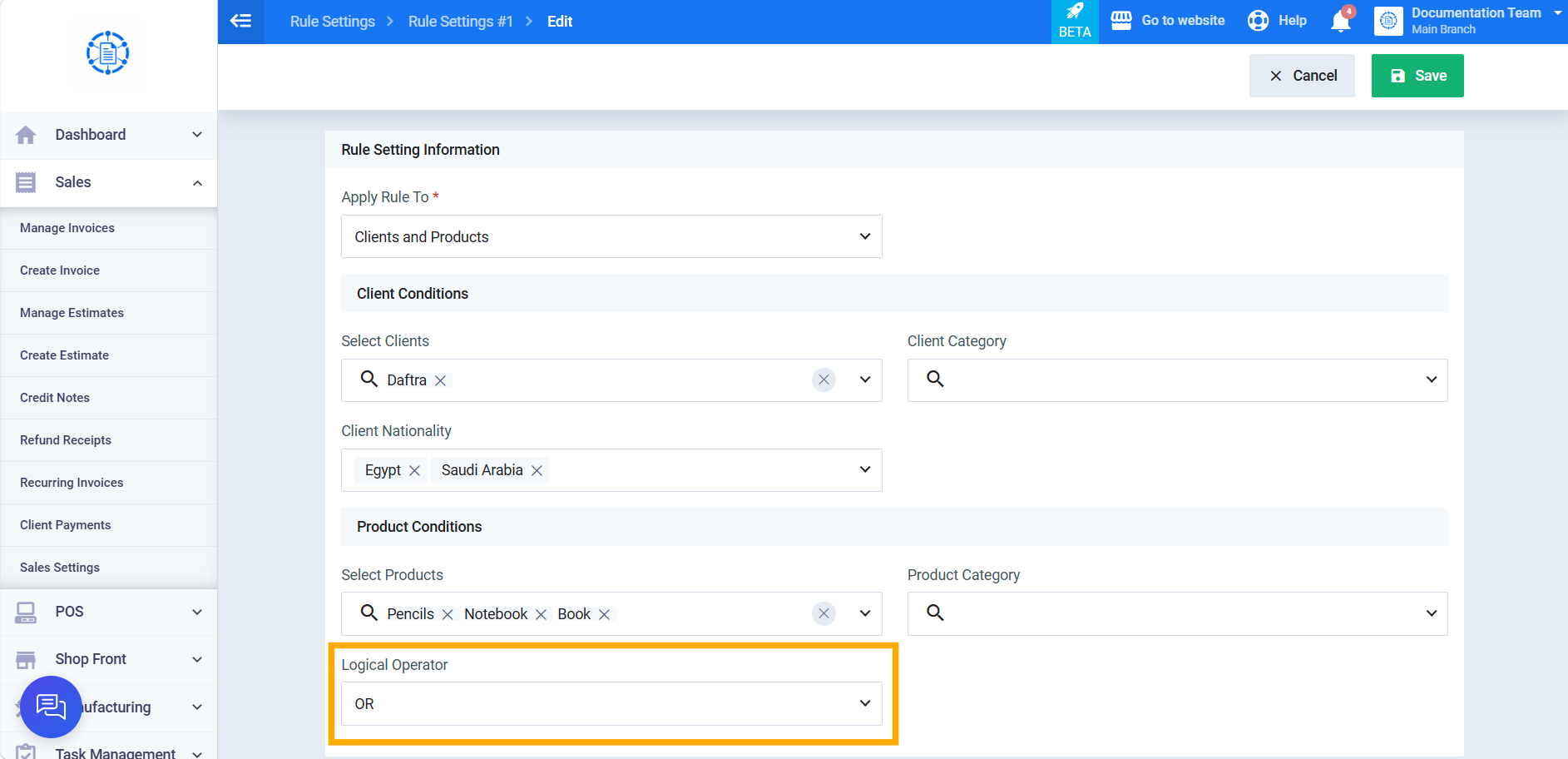
The “Logical Operator” field only appears when “Clients and Products” is selected in the “Apply Rule To” field, and offers two options:
- AND: the exemption rule is applied only when both the client condition and the product condition are met simultaneously; if only one condition is met, the rule is cancelled and tax is applied normally.
- OR: the exemption rule is applied when just one condition from either section is met, regardless of the other condition.
Step 7: Save the Rules
After configuring the exemption rules as desired, click “Save.”
Third: Verifying the Exemption Applies
Step 8: Test the Exemption Rules on Invoices
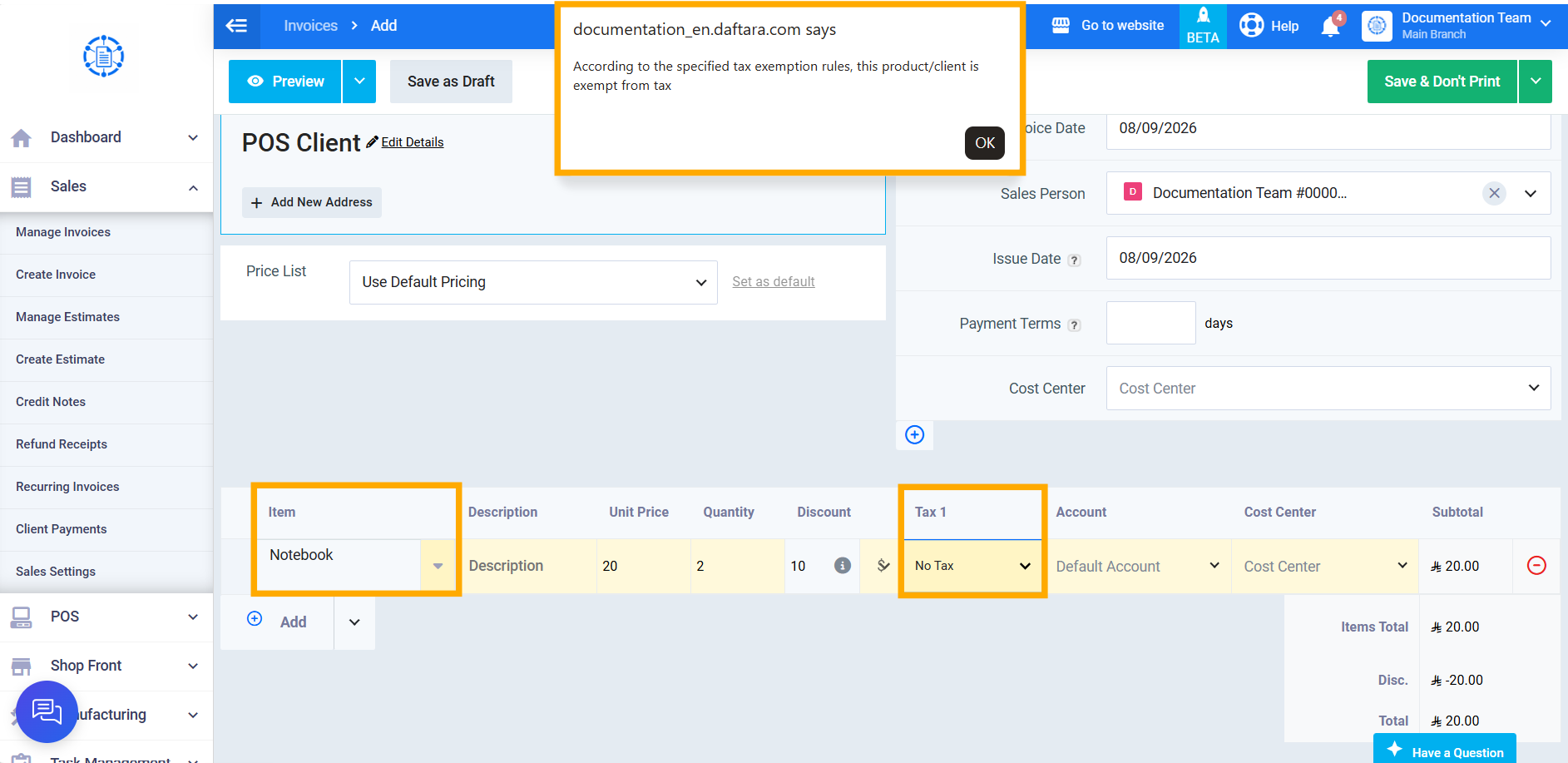
Go to the sales invoice or estimate screens, and select one of the exempted clients or items. The system will automatically prevent applying any tax rate above 0% to the specified items.