Comprehensive Guide to the Shipping App
The Shipping App provides a seamless system to manage your daily shipping operations. Through one unified platform, you can create packages, register sender and receiver details, automatically calculate costs and taxes, and track each shipment until final delivery.
Below is an overview of the key features and a complete step-by-step operational guide.
Key Features of the Shipping App
- Manage the full shipping cycle within one system
- Fully integrated operational and financial linkage
- Real-time order status tracking
- Automatic calculation of costs and taxes
- Flexible expense management
- Cash flow control through sender balance management and settlement
Installing the Shipping App
To install the Shipping App:
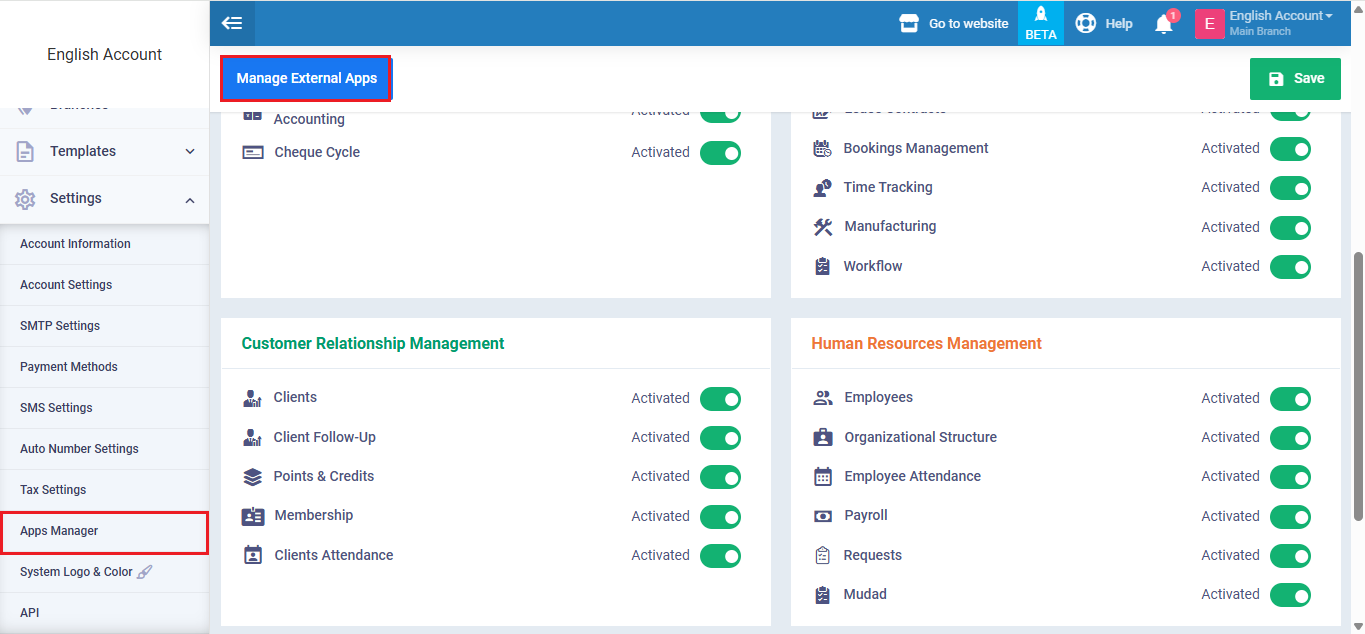
From the Main Menu, go to Settings, then select App Manager, then click Manage External App.
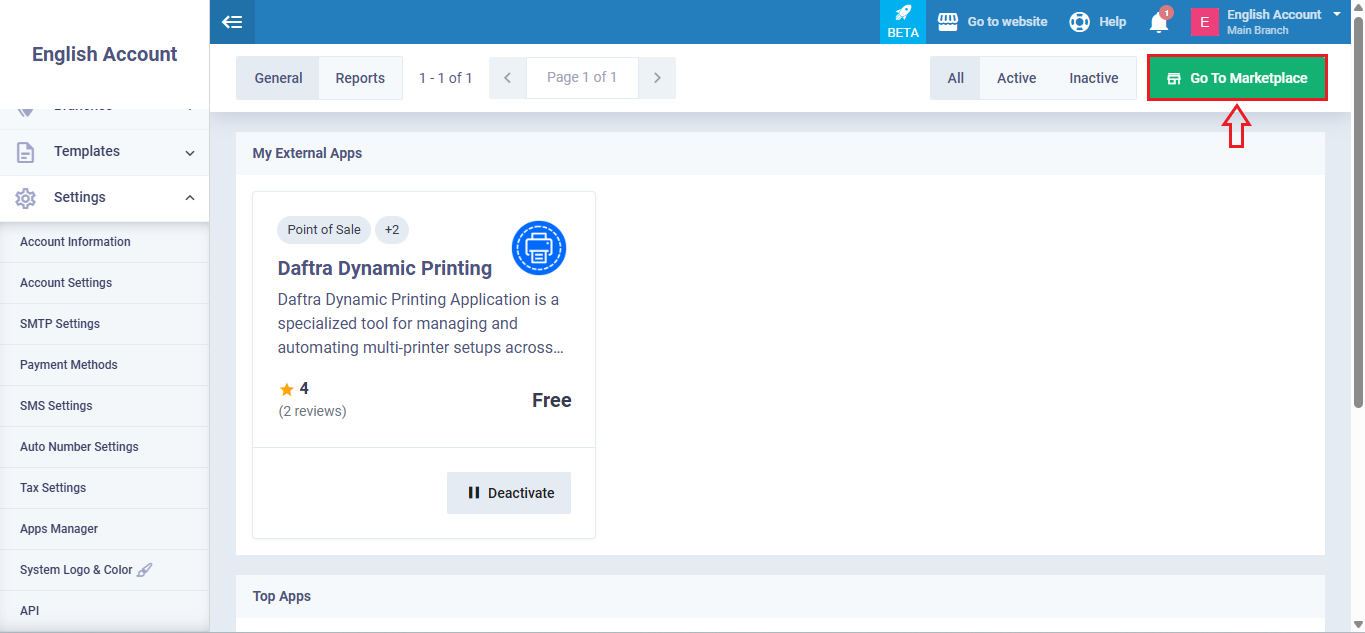
 Click Go to Marketplace.
 In the search box, type Shipping Module.
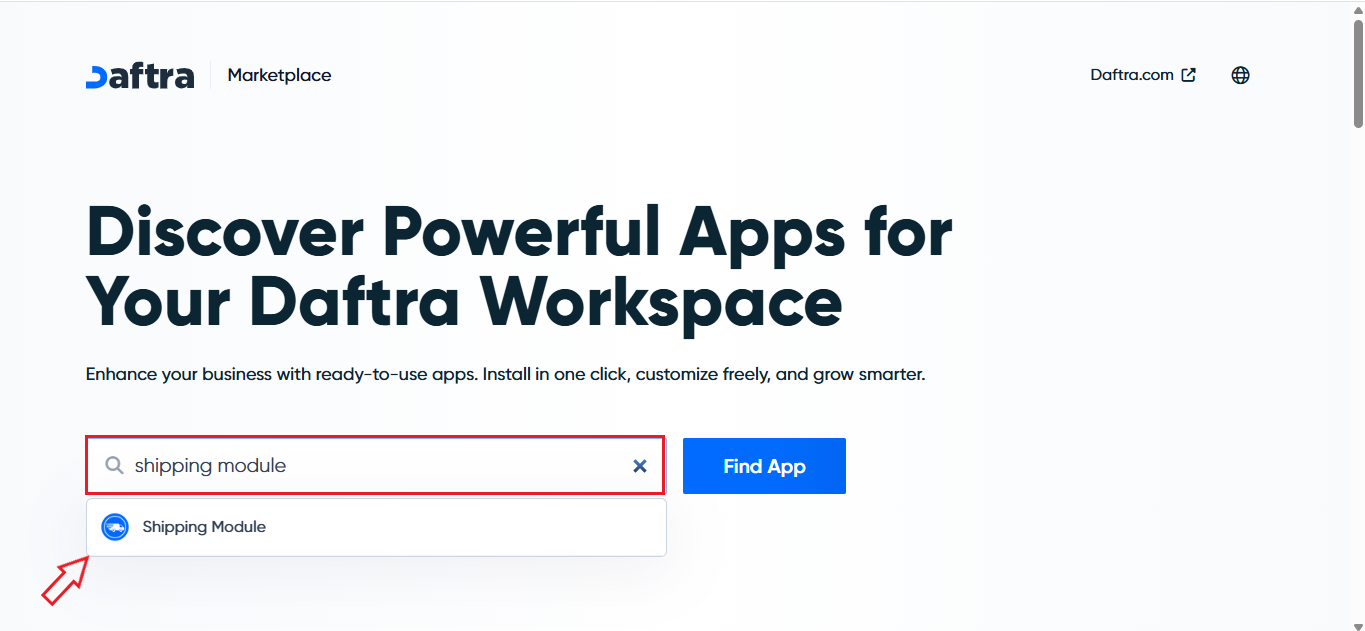 Once the app appears in the search results, click Install App.
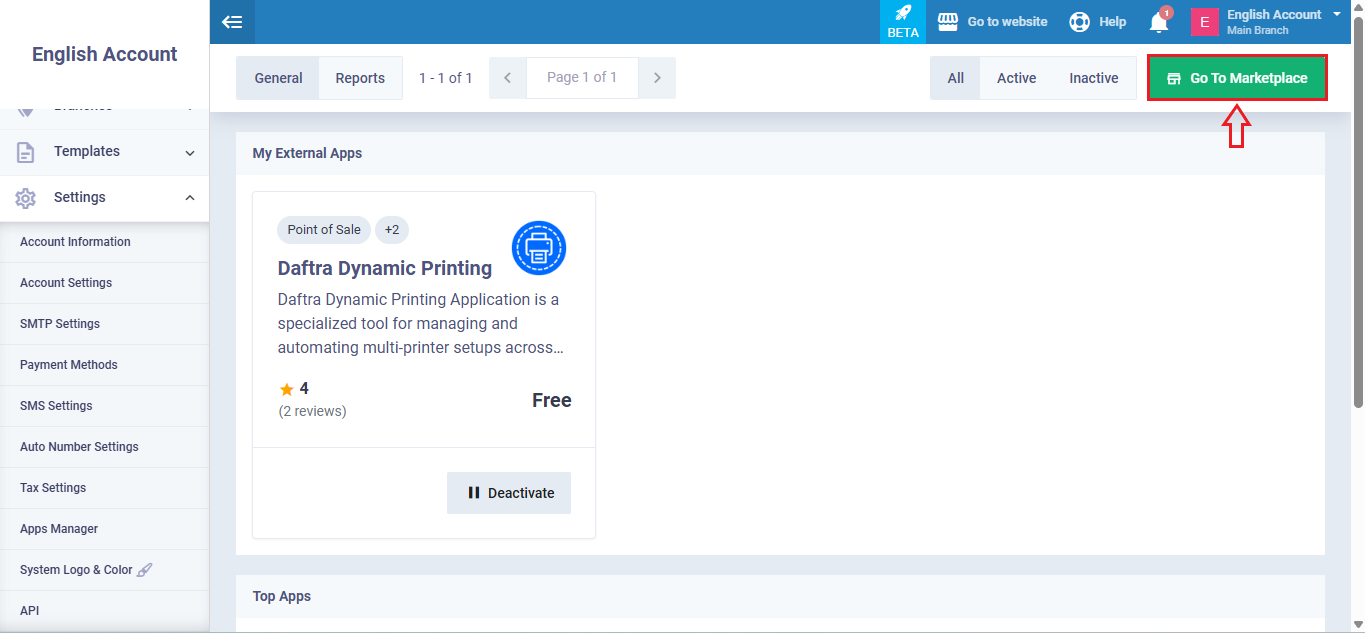
After installation is complete, the Shipping App will be activated and added to your system, ready for use.
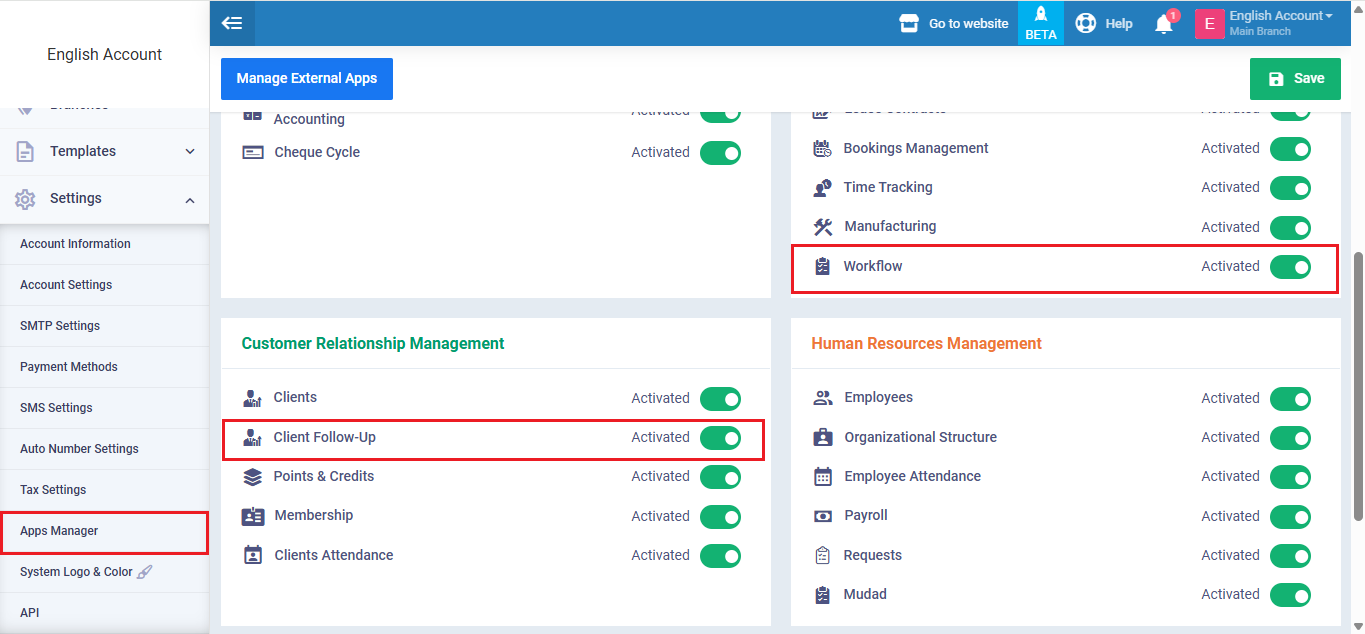
Add Package
To create a new package:
- From the Main Menu, go to Delivery Orders.
- Select Manage Packages.
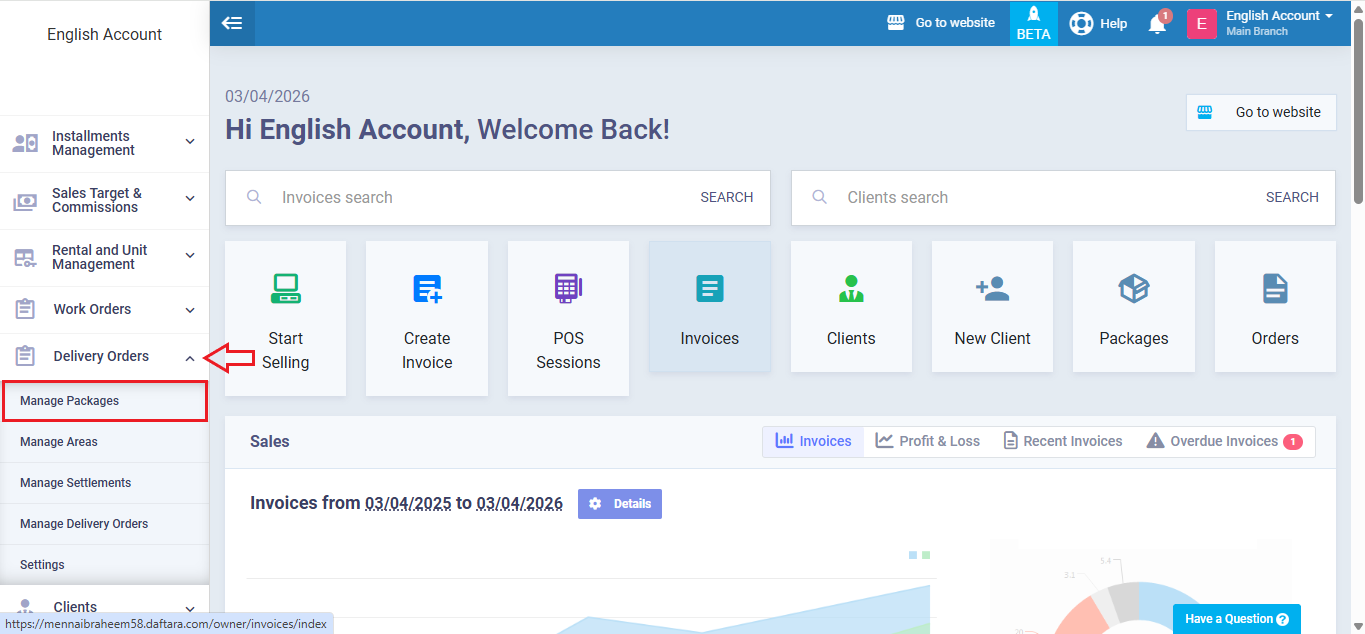
- Click Add Package.
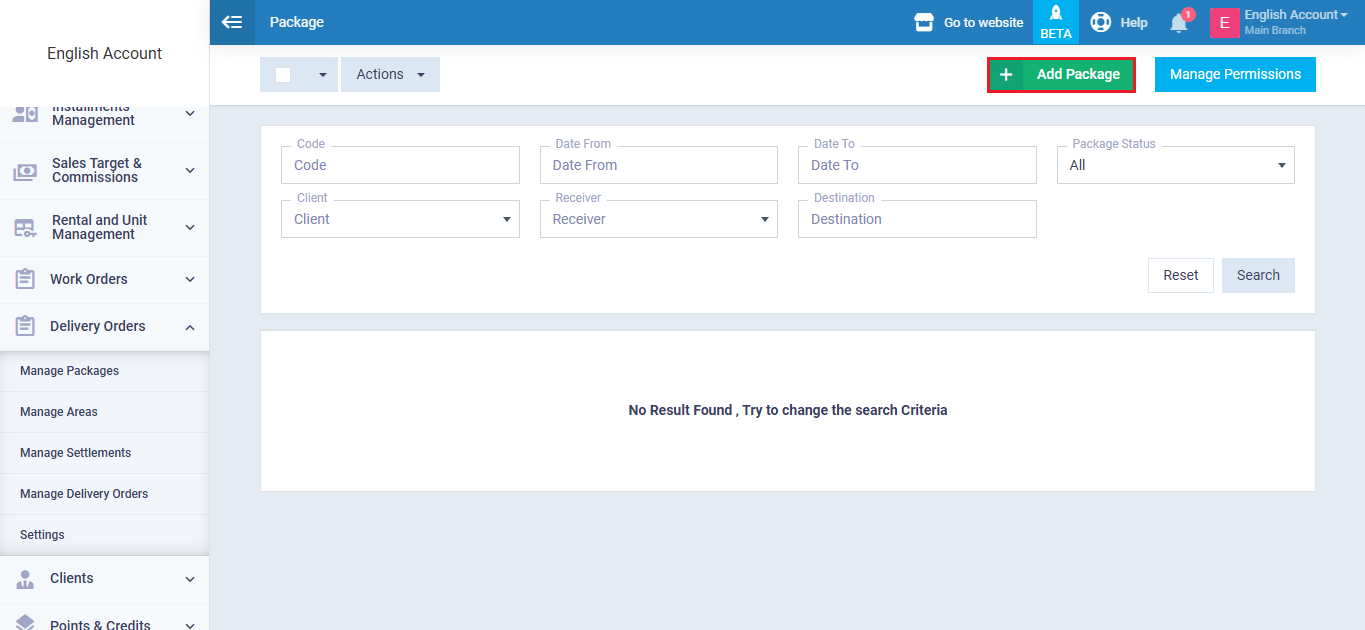
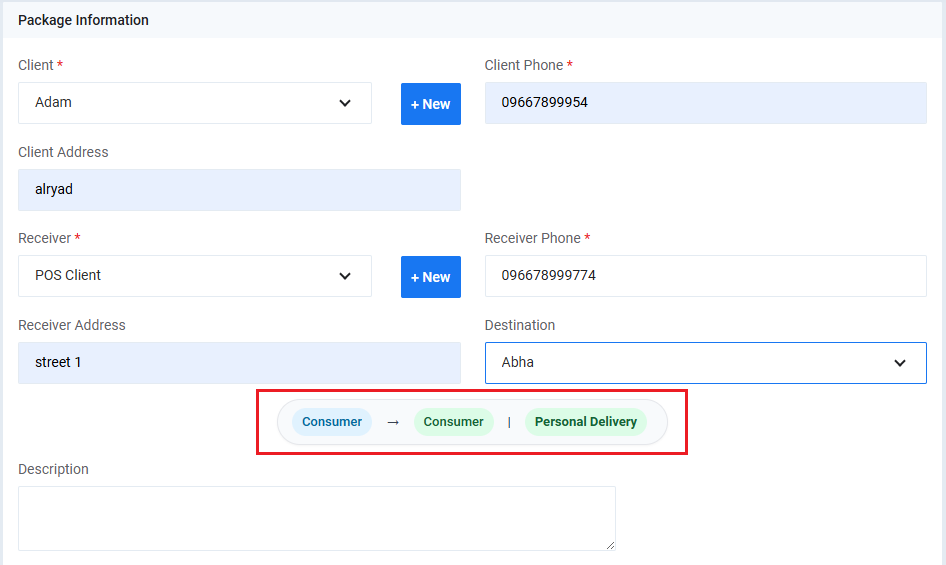
The Add Package screen will appear, containing all shipment-related fields.
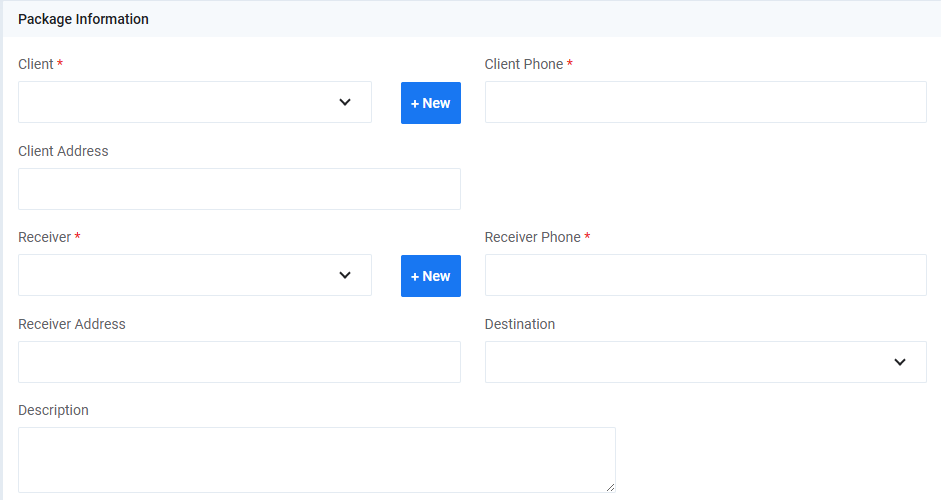
- Client: Select the sender from the dropdown list.
- Client Phone: Sender’s phone number.
- Client Address: Sender’s address.
- You can add a new client directly by clicking + New.
- Receiver: Select from dropdown list.
- Receiver Phone: Receiver’s phone number.
- Receiver Address: Delivery address.
- Destination: Select the delivery area.
The destination depends on the predefined regions configured within the Shipping App.
- Description: Add any extra details about the package (item type, special delivery notes, etc.).
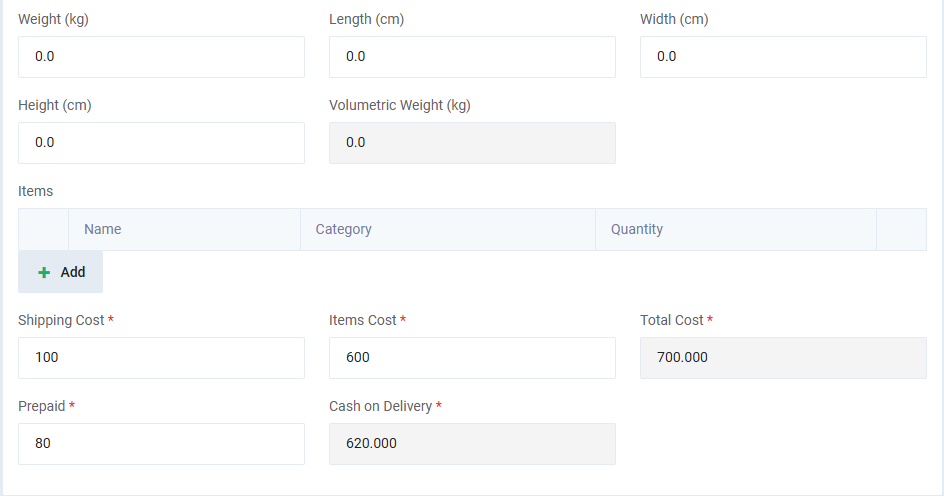
- Weight (kg)
- Length (cm)
- Width (cm)
- Height (cm)
The Volumetric Weight (kg) is calculated automatically based on entered dimensions.
You can add package content details through the Items section:
- Name
- Category
- Quantity
To add a new item, click + Add.
- Shipping Cost: Amount charged by the shipping company.
- Goods Cost: Value of goods to be collected from the receiver.
- Total Cost: Calculated automatically.
- Prepaid Amount: Amount paid in advance by the sender.
- Cash on Delivery: Amount to be collected upon delivery.
If a prepaid amount is entered, the system automatically creates an invoice in Draft status to record the amount.
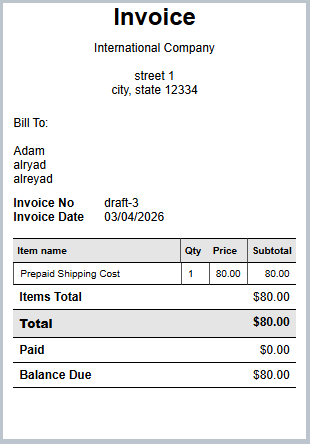
You can access this invoice from the Package Details Page.
Creating a Delivery Order
When opening the Add Delivery Order screen, you will find the General Information section at the top:
- Order Number: Auto-generated (e.g., 000001) – not editable.
- Title: Enter a clear name for the shipping order.
- Start Date: Required field.
- End Date: Optional if the order spans multiple days.
- Attachments: Upload supporting files if needed.
- Description: Add operational notes or special instructions.
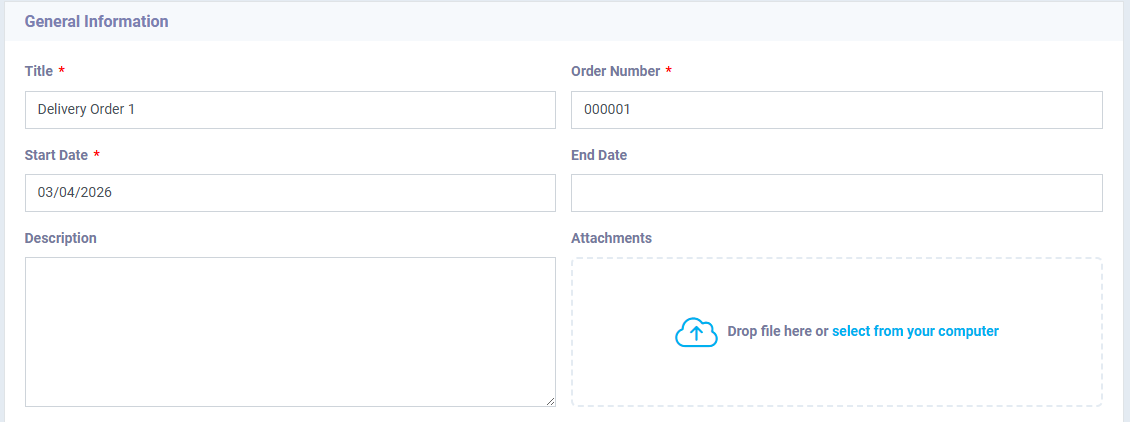 Delivery Order
In the Delivery Order section:
- Packages: Select one or multiple packages from the dropdown list.
- Agent: Select departure region (pre-configured in app settings).
- From Area: Choose the assigned courier.
- To Area: Select target delivery region.
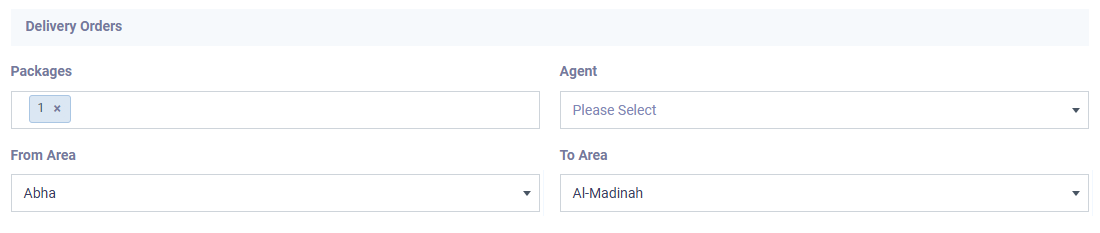
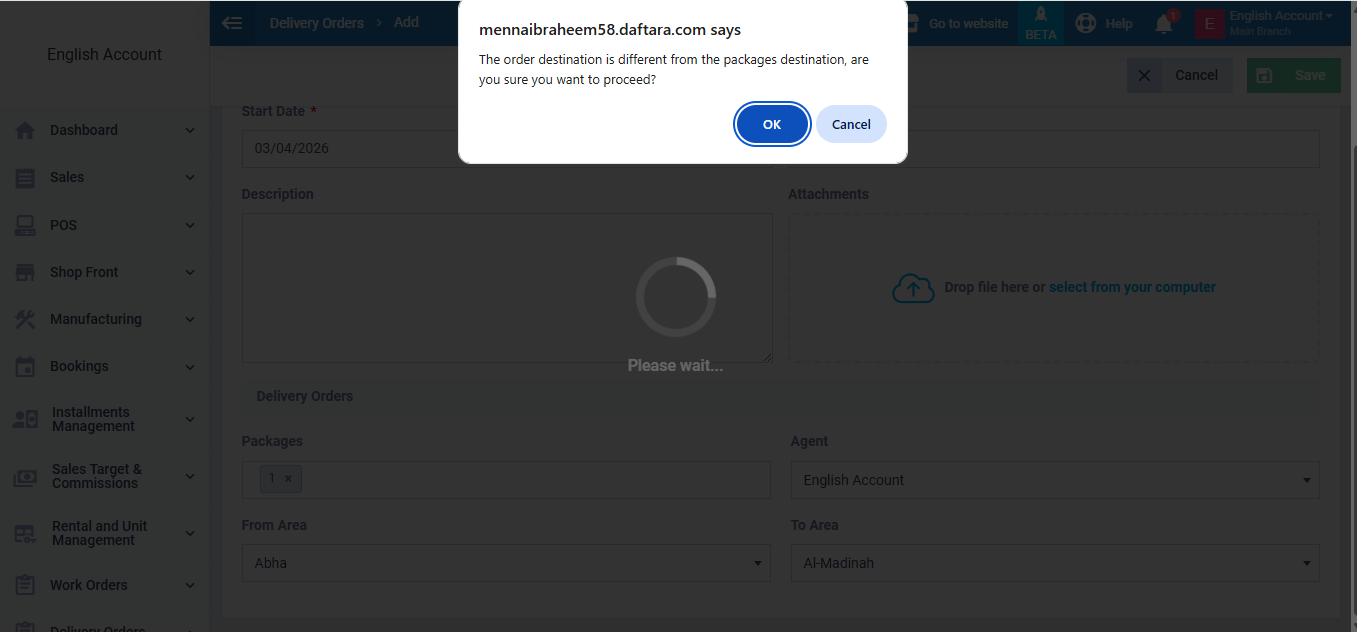
Shipping & Delivery Cycle
Important Before Shipping
If any package has a related invoice in Draft status, the system will not allow shipment until the invoice is issued.
To issue the invoice:
- Open the package’s invoice.
- Click Issue Invoice.
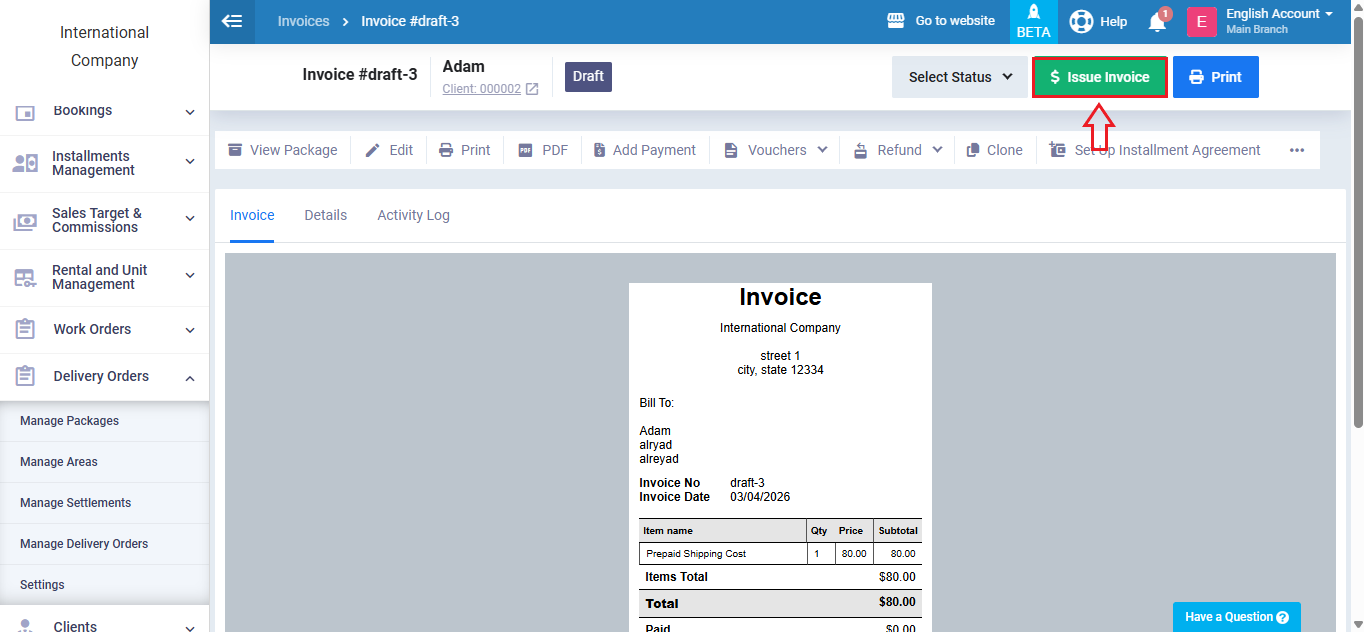
Payment registration is not required, but the status must change from Draft to Unpaid or Paid.
Shipping the Order
- Go to Manage Delivery Orders.
- Select the order.
- Click Ship Order.
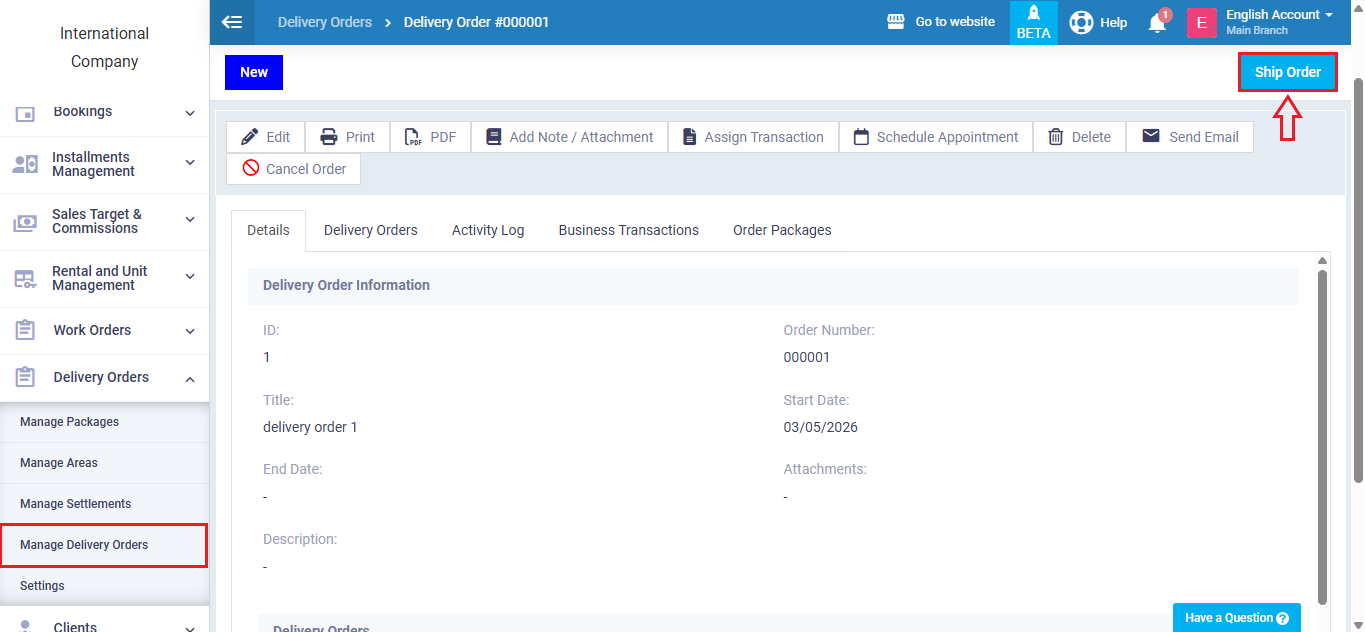
The shipping order status changes to Shipped, and all associated Packages automatically change to Shipped.
Preparing for Delivery
After shipping:
- Click Deliver Order.
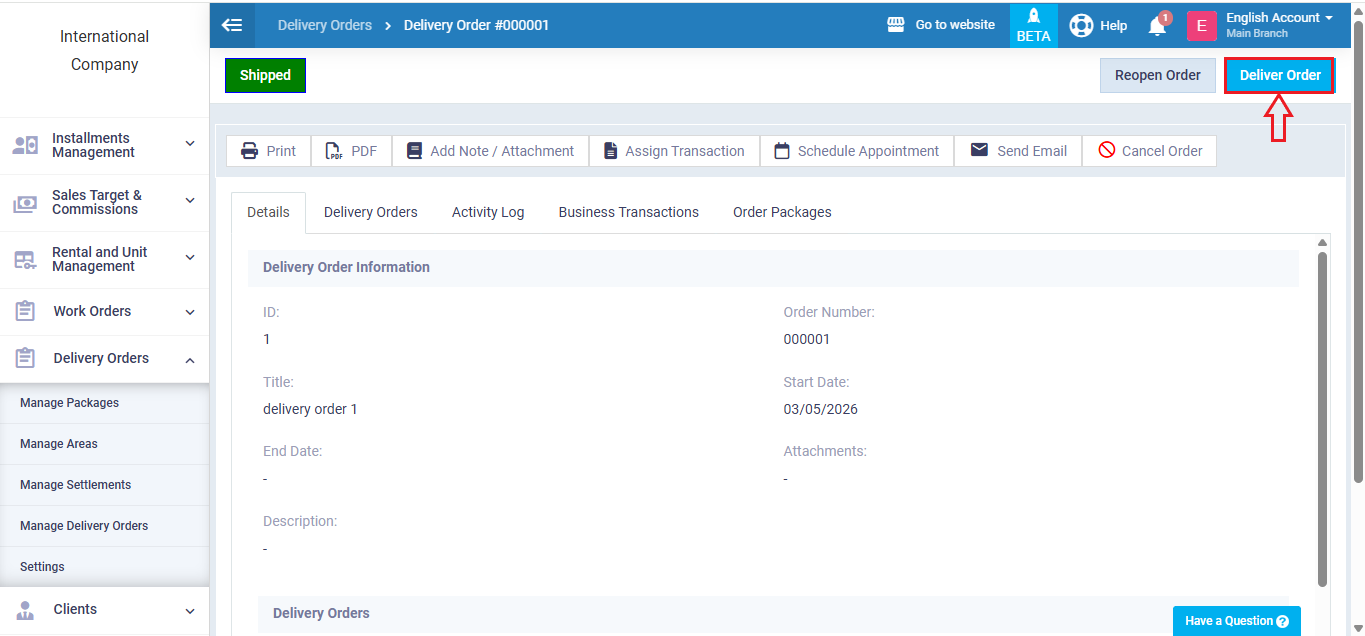
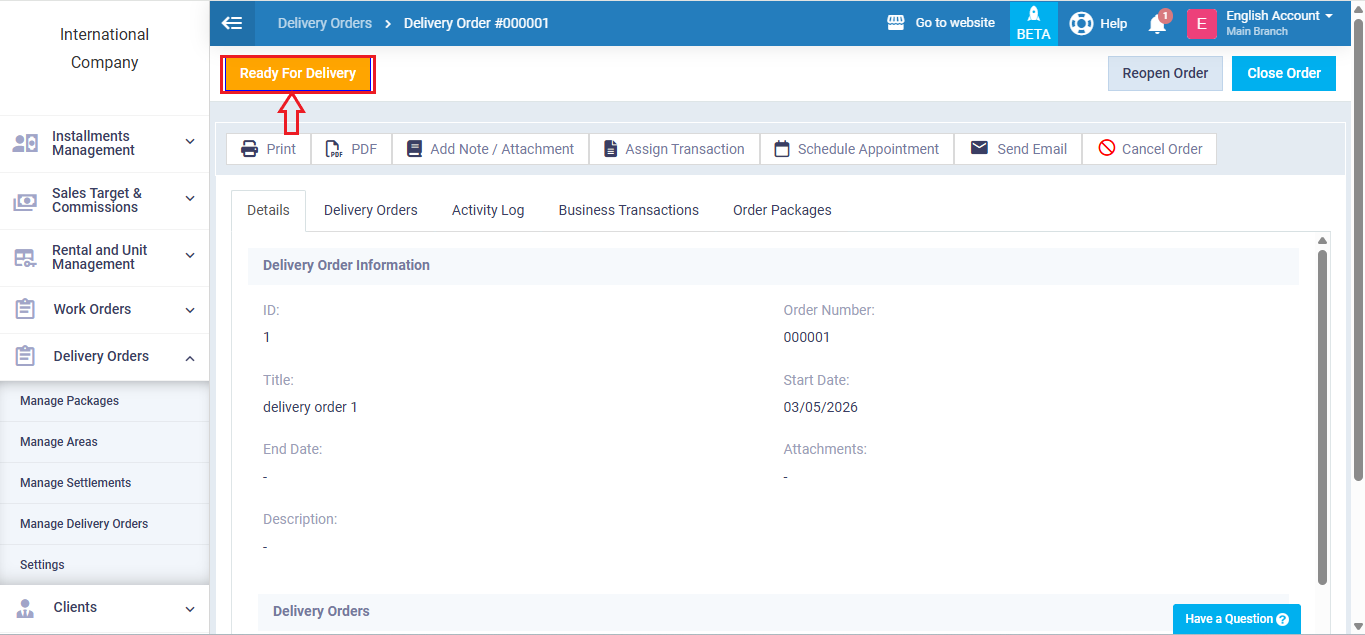
- The order status changes to Ready for Delivery.
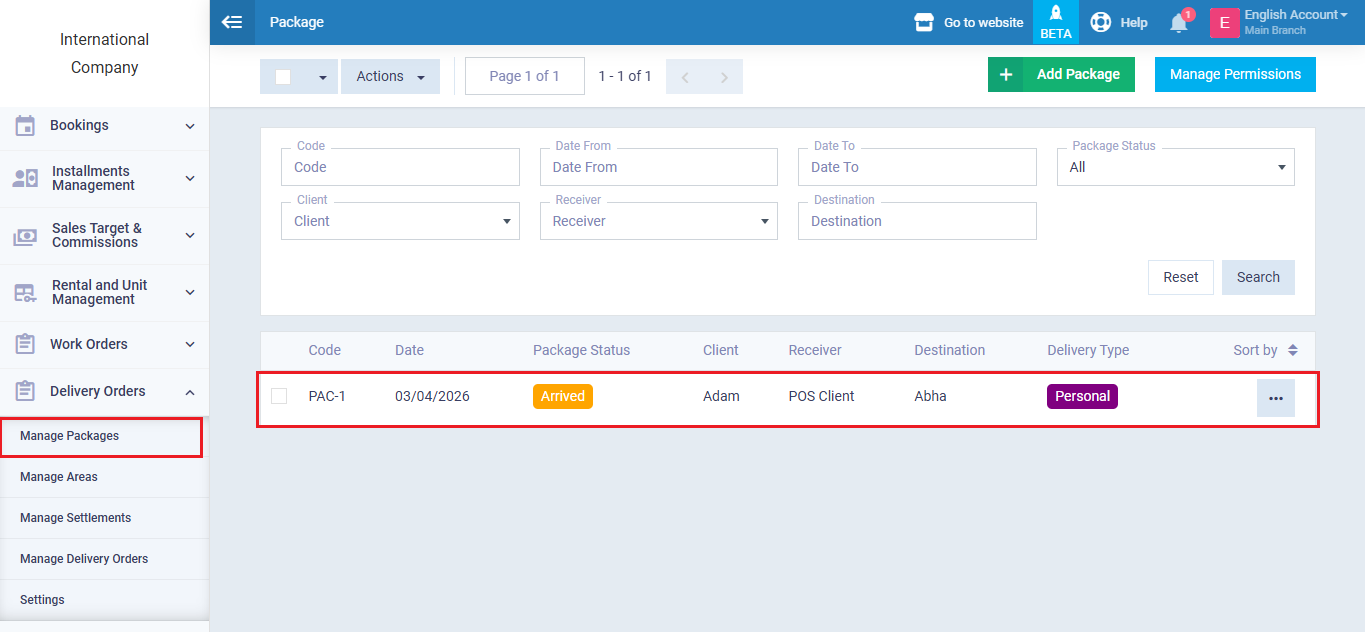
Package status becomes Arrived, meaning it is ready for actual delivery to the receiver.
Adding an Expense to a Package
You can add additional expenses before delivery (e.g., address change fees).
To add an expense:
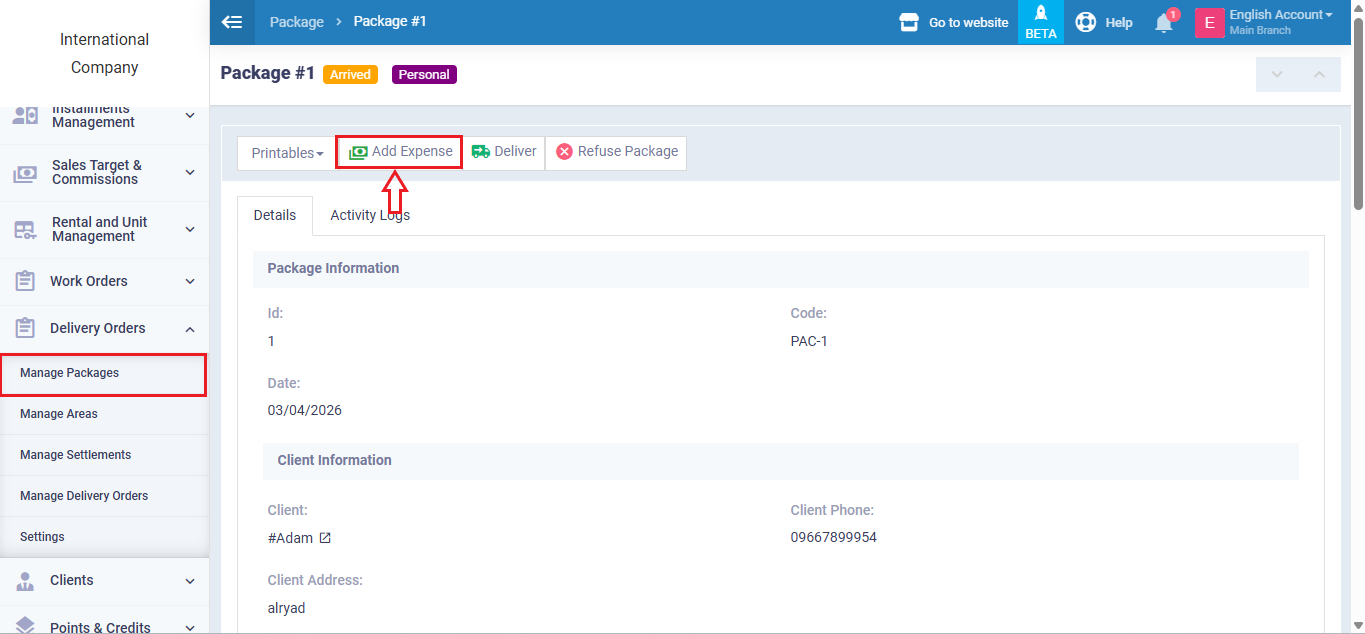
- Open the package page.
- Click Add Expense.
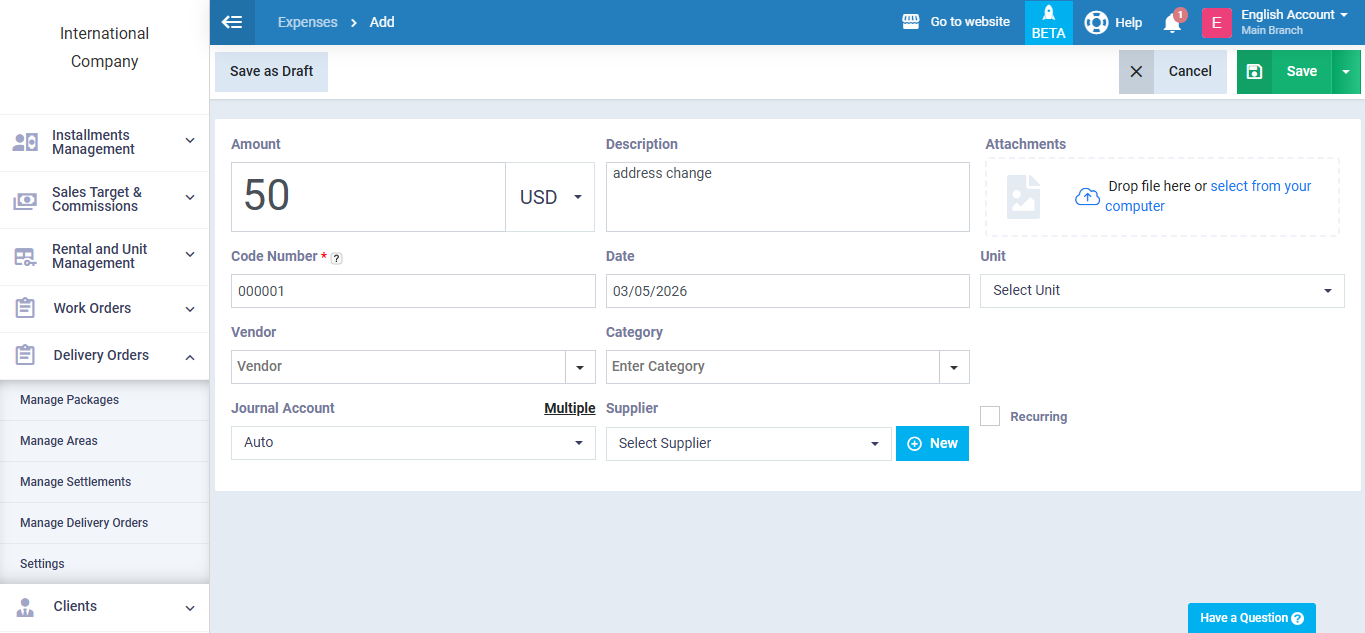
- Enter the expense value (e.g., 50).
- Add a clear description (e.g., Address Change).
- Complete required fields.
- Click Save.
What Happens After Saving?
- The package’s total cost is automatically updated.
- The expense appears in package financial details.
- The expense is included in the final invoice upon delivery.
Delivering the Package & Executing COD
Go to Manage Packages, click the package’s Actions, then choose Deliver.
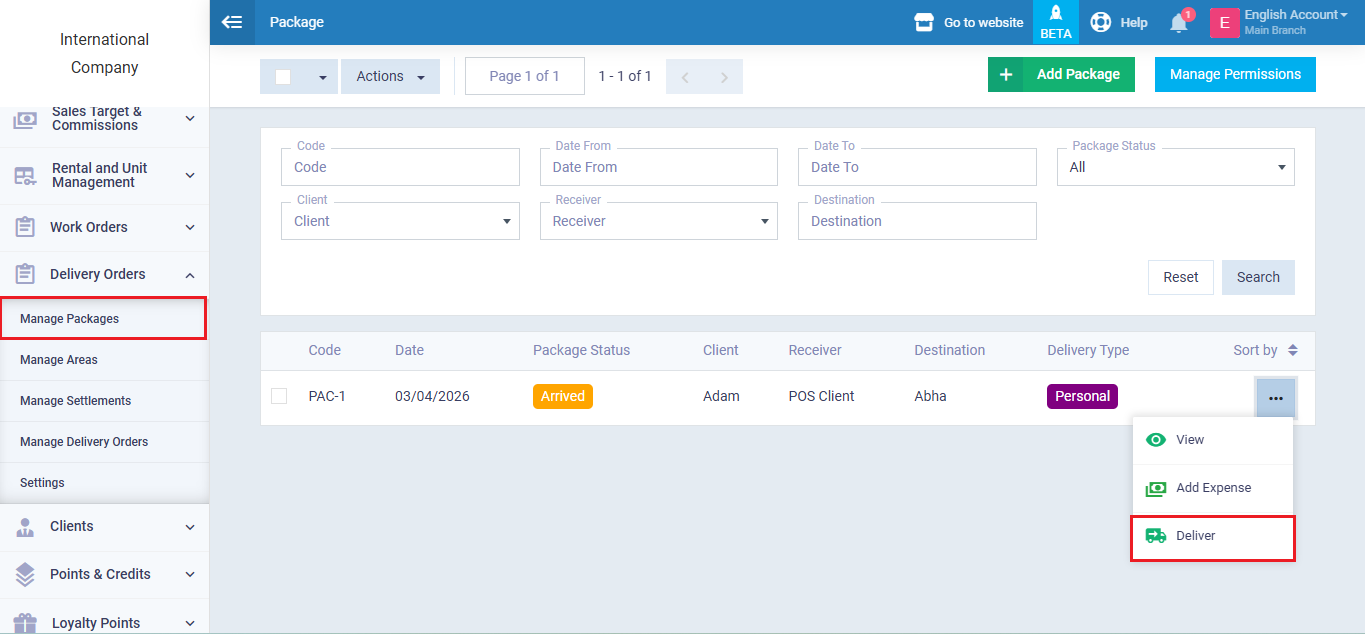
The system automatically executes all related financial transactions.
Example
- Goods value: 200
- Prepaid amount: 60
- Remaining at delivery: 240
- 40 Shipping fees
- 200 Goods value to be remitted to sender
Upon delivery:
- The system collects the remaining amount.
- A final invoice is generated for remaining shipping fees (40).
- A Delivery Payment transaction is created for goods cost (200).
- The 200 is added as a balance in the sender’s account.
If the sender has an unpaid previous invoice (e.g., 60), the system automatically uses the newly added balance to settle it.
After settlement:
- The invoice status changes automatically to Paid.
- The remaining sender balance becomes 140.
This remaining amount can later be settled via a Disbursement Voucher.
Settling the Sender’s Account
To settle the sender’s outstanding balance:
- Go to Finance.
- Select Expenses.
- Click Add New Expense.
- Enter the payable balance amount (e.g., 140).
- Choose the sender’s sub-account.
- Add a description (e.g., Balance Settlement).
- Click Save.
After completing these steps, the sender’s balance becomes zero..
Post-Delivery Invoice Behavior
After delivery, the system automatically generates an invoice for remaining shipping fees (e.g., 40).
The predefined shipping tax configured in system settings is applied automatically, and the invoice includes a line item named Shipping Costs.
Canceling Delivery
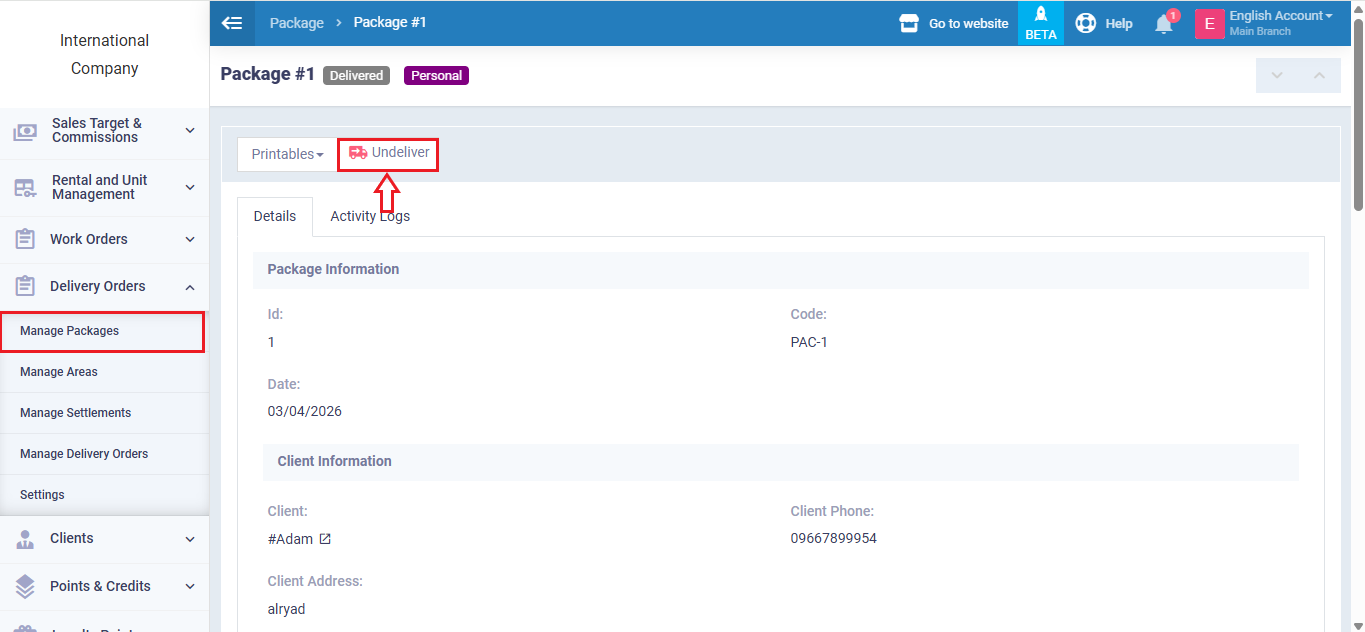
If delivery needs to be canceled, click Undeliver from the Package screen.
The system will automatically reverse:
- Delivered status
- Final invoice
- Delivery payment transaction