
Purchase Invoicing Settings
To access purchasing settings, follow these steps:
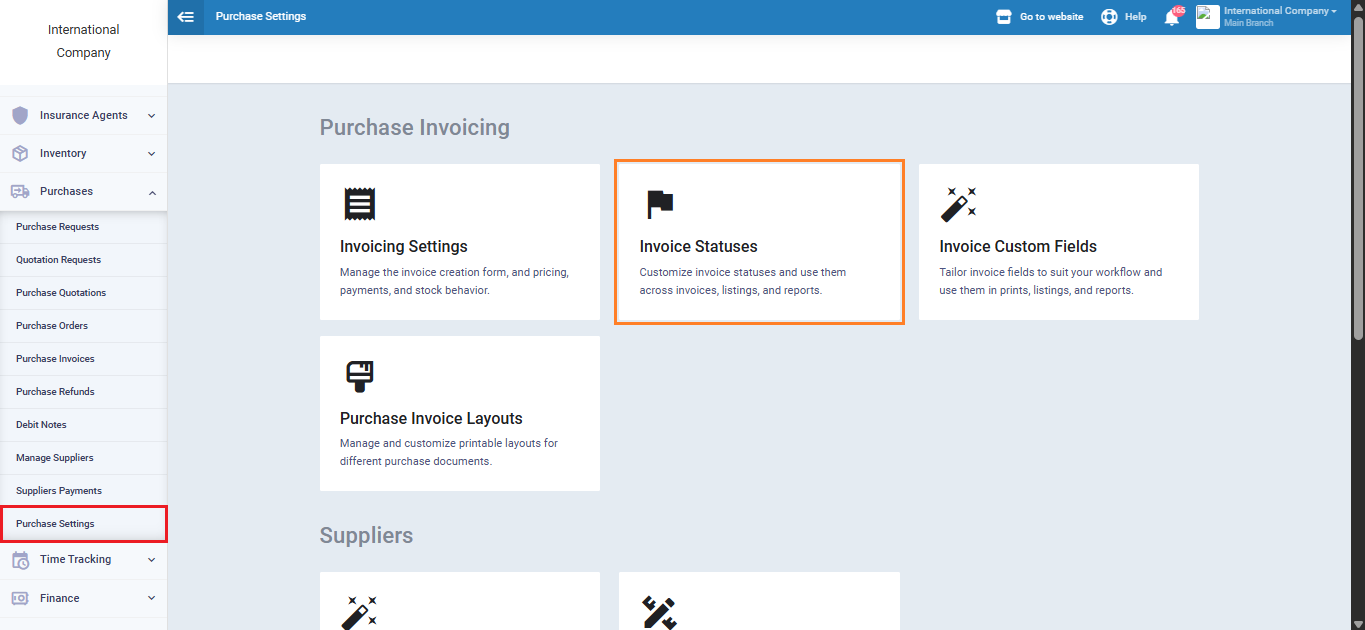
From the main menu, click “Purchases”, then select “Purchase Settings”.
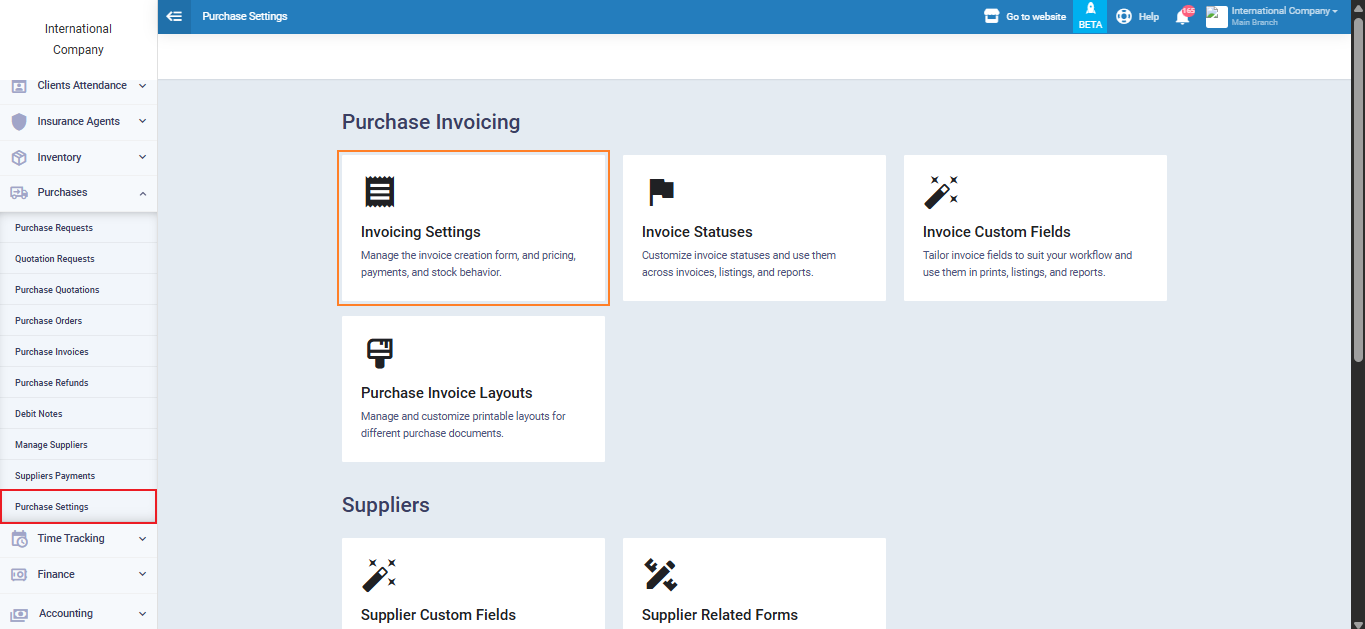
The purchase invoice settings section includes all configurations related to invoices and purchase returns. It contains the following sub-sections:
Invoice Settings – Invoice Statuses – Invoice Custom Fields – Purchase Invoice Layouts
Invoicing Settings
Invoice settings are divided into several options that allow you to customize how purchase invoices are issued and managed in the system:
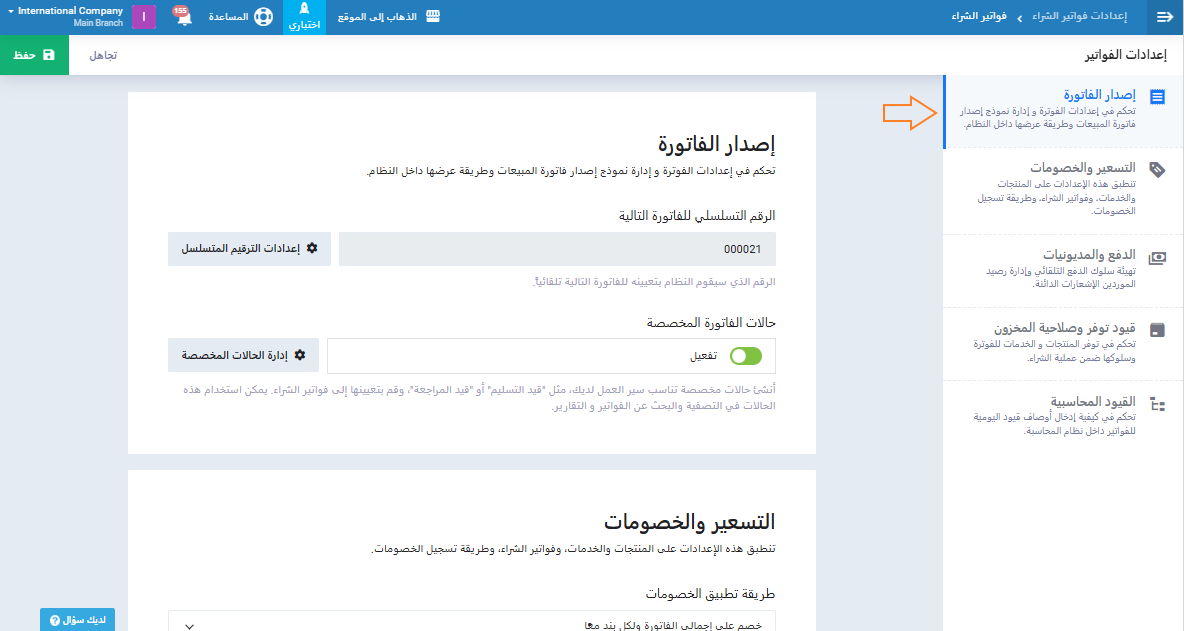
Invoice Configuration
- Next Auto-Generated purchase invoice Number: Set the starting number for new purchase invoices.
-
Auto Number Settings: Control the format of invoice numbers (numbering style, prefix, etc.).
- Invoice Custom Statuses: Create custom statuses for purchase invoices, with the option to set a default status when issuing a new invoice.
- Manage Custom Statuses: Add or edit purchase invoice statuses according to your workflow.
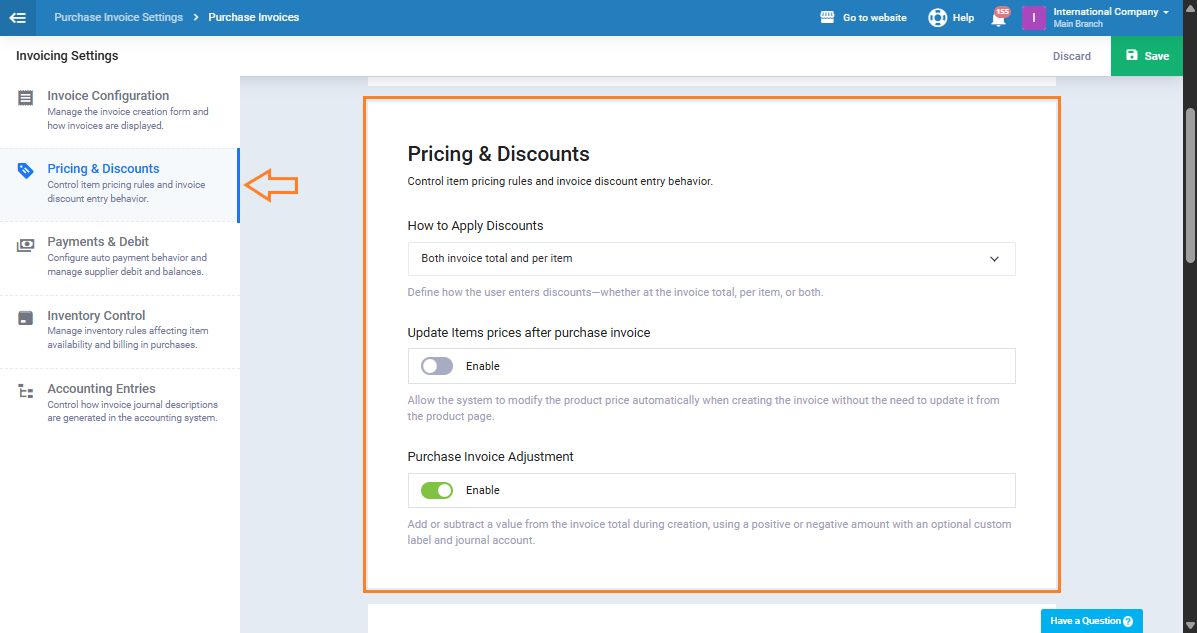
Pricing & Discounts
- How to Apply Discounts: Choose whether discounts apply at the item level or on the total invoice.
- Automatically Update Product Prices: Updates product costs automatically when registering a purchase invoice.
- Purchase Invoice Adjustment: Add or deduct an amount from the invoice total to handle price or cost differences, with an optional custom label and journal account.
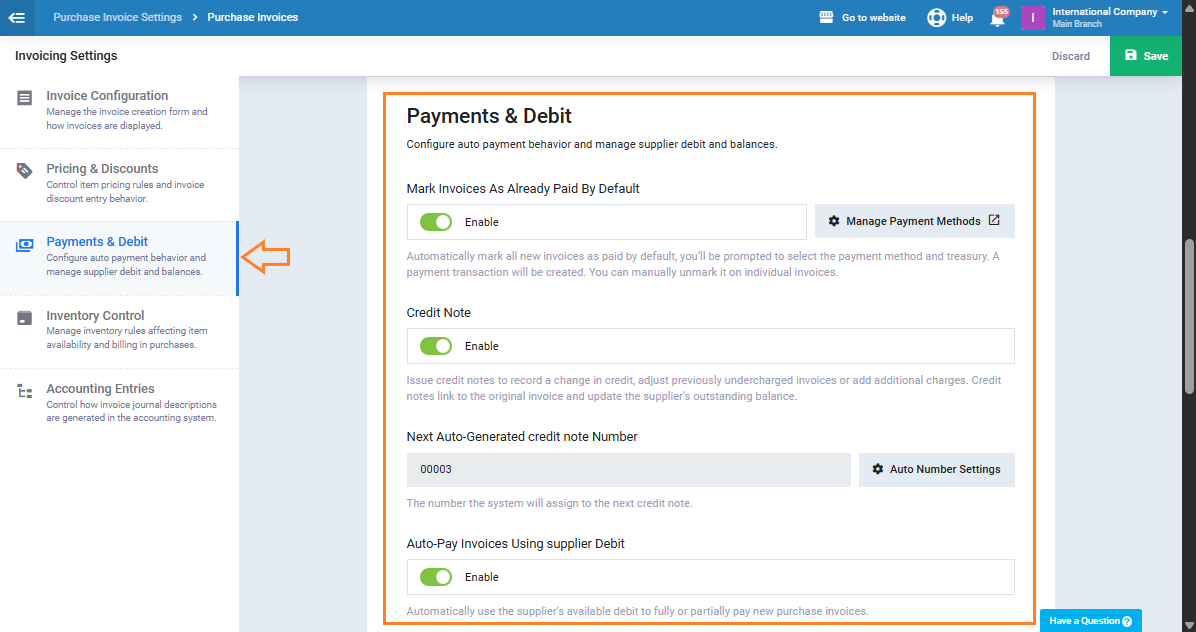
Payments & Debit
- Mark Invoices as Already Paid by Default: Automatically register purchase invoices as paid upon creation.
- Manage Payment Methods: Define and manage payment methods used for purchase invoices.
- Credit Note: Enable supplier credit notes, allowing you to adjust previous invoices or reduce supplier payables, with automatic updates to the outstanding balance.
- Next Auto-Generated Credit Note Number: Set the number that will be automatically assigned to the next credit note, with control over numbering format.
- Auto-Pay Invoices Using Supplier Debit: Use the supplier’s balance to pay new invoices fully or partially automatically.
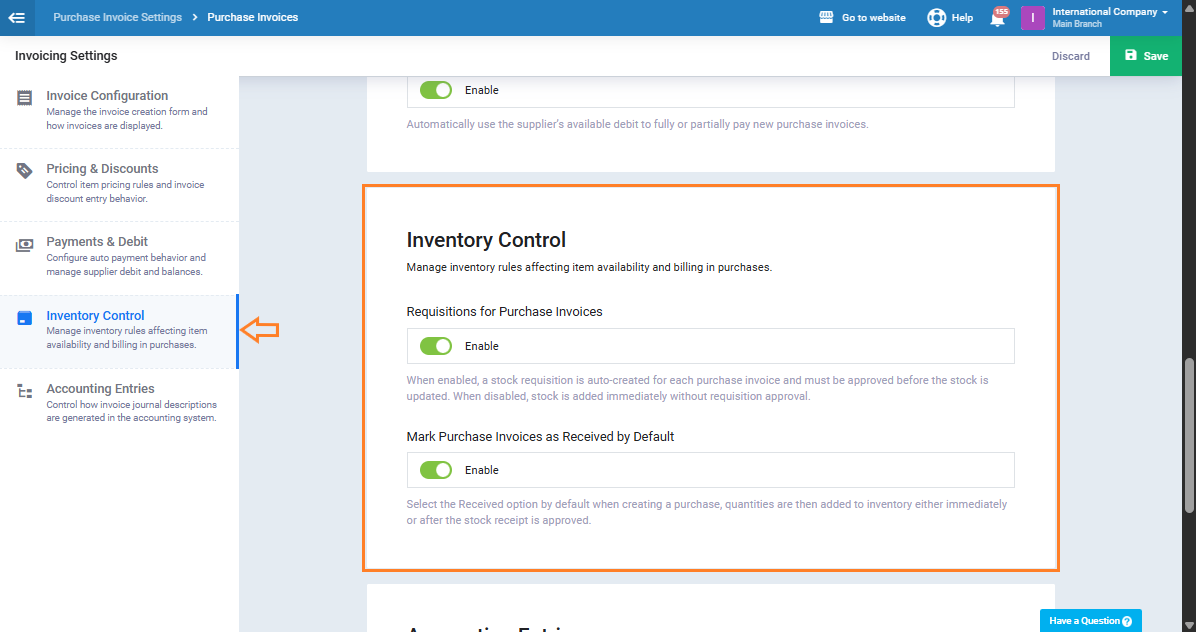
Inventory Control
- Requisitions for Purchase Invoices: Determine whether a requisition is automatically created with the invoice, and whether approval is required to update inventory or add it immediately when disabled.
- Mark Purchase Invoices as Received by Default: Automatically mark purchase invoices as received upon creation, ensuring quantities are recorded in inventory either immediately or after the stock receipt is approved.
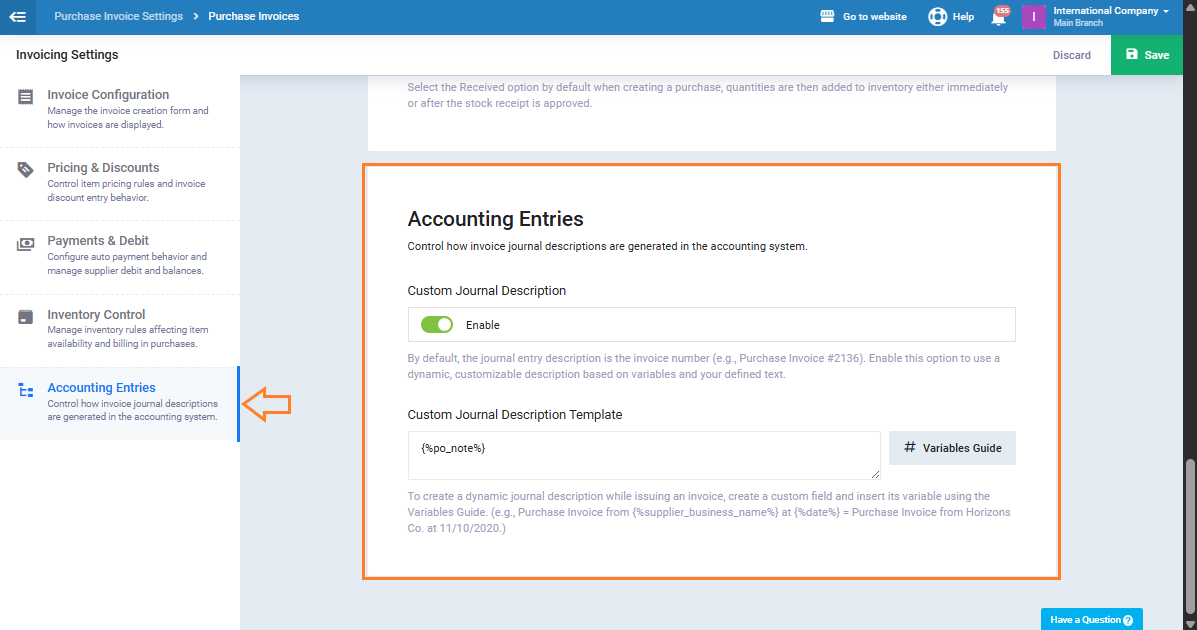
Accounting Entries
- Custom Journal Description: Customize the description of journal entries generated from purchase invoices.
- Journal Entry Description Template: Use variables from the Variables Guide to standardize descriptions.
Invoice Statuses
To manage purchase invoice statuses, go to “Purchase Settings” and click “Invoice Statuses”.
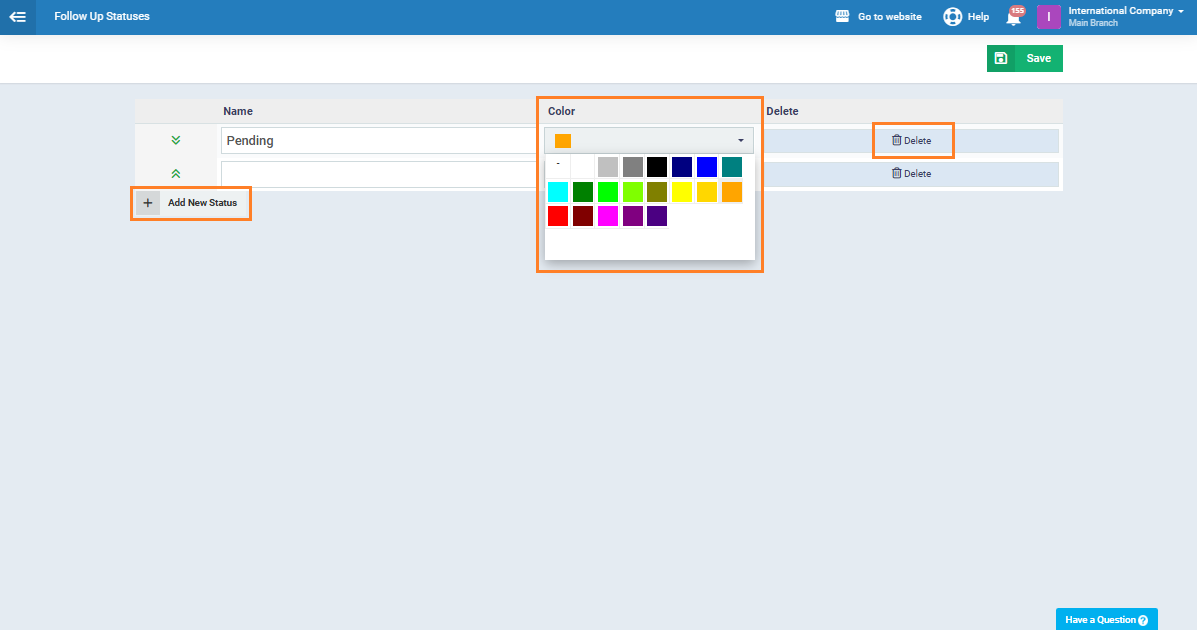
In this page there is a list of all existing statuses, including their name and colors. Unused statuses can be deleted easily.
To add a new status, click “Add New Status” and enter the following:
- Name: Specify a name that reflects the invoice stage, such as Pending Delivery or Under Review.
- Color: Select a color to distinguish the status in lists and reports visually.
After adding these statuses can be used to filter invoices, simplify searches, and improve reporting accuracy.
Invoice Custom Fields
To customize additional information on purchase invoices, go to “Purchase Settings” and click “Invoice Custom Fields”.
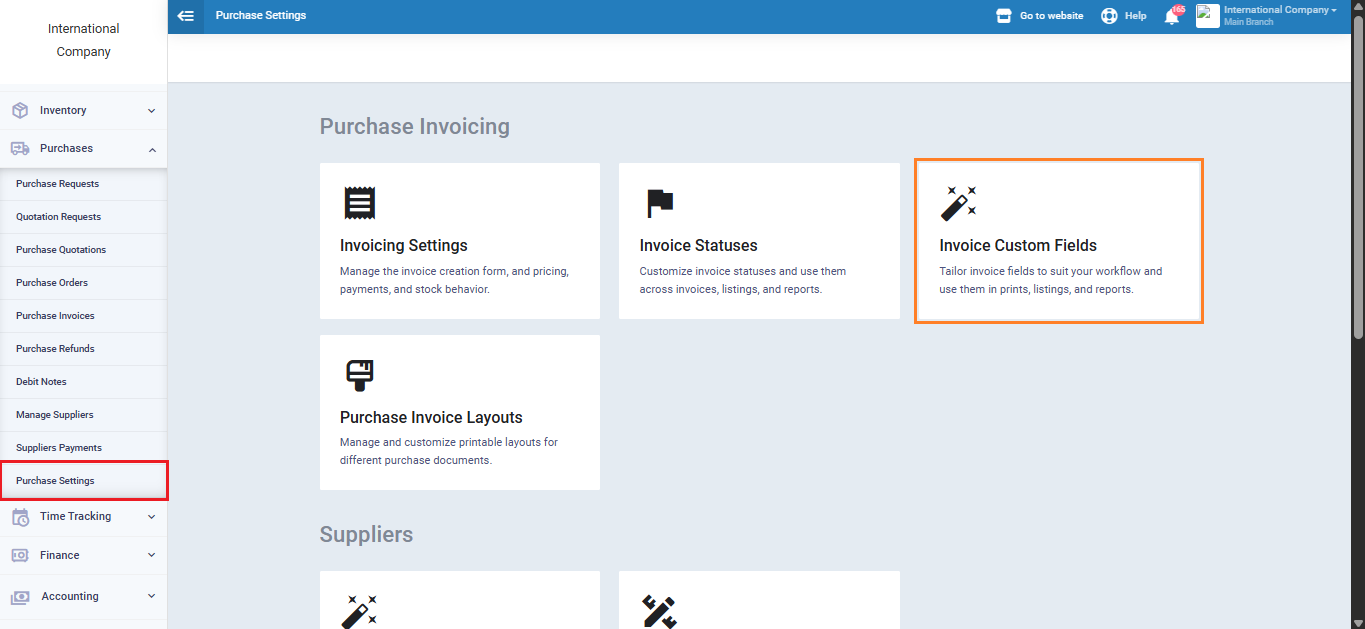
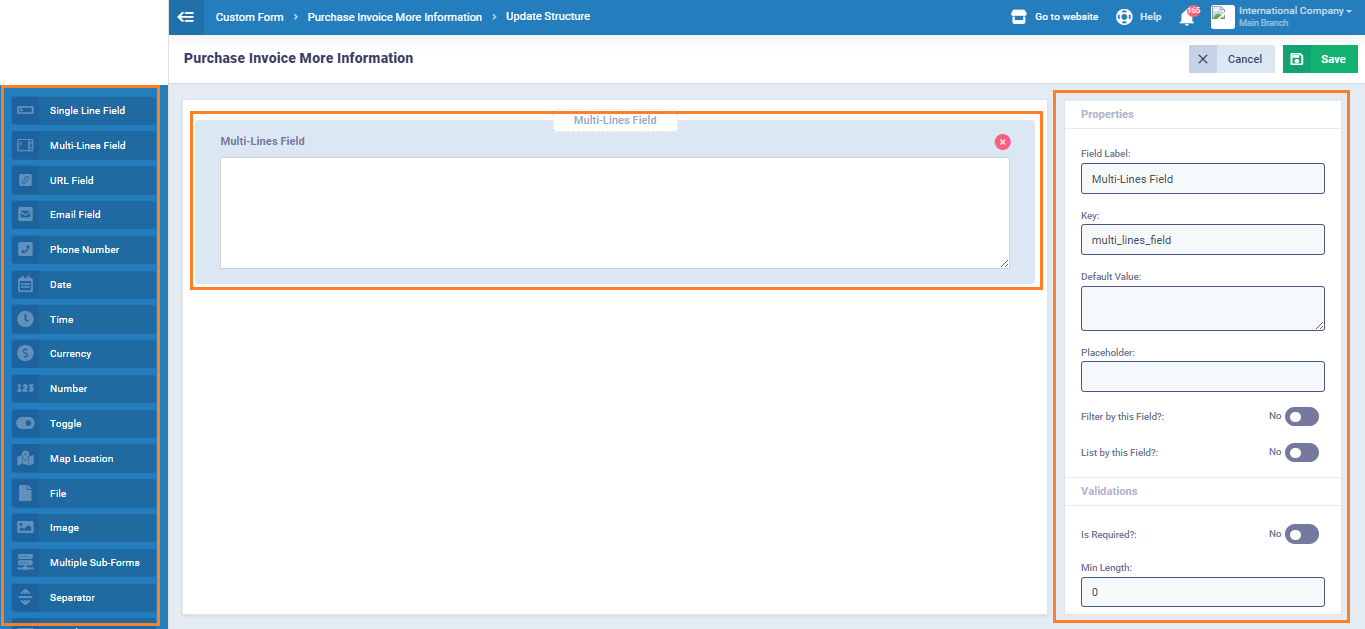
From here, you can add, edit, or delete custom fields based on your business needs, such as internal notes or special instructions, ensuring all essential information is captured accurately for every invoice.
Purchase Invoice Layouts
From “Purchase Settings”, click “Purchase Layouts”.
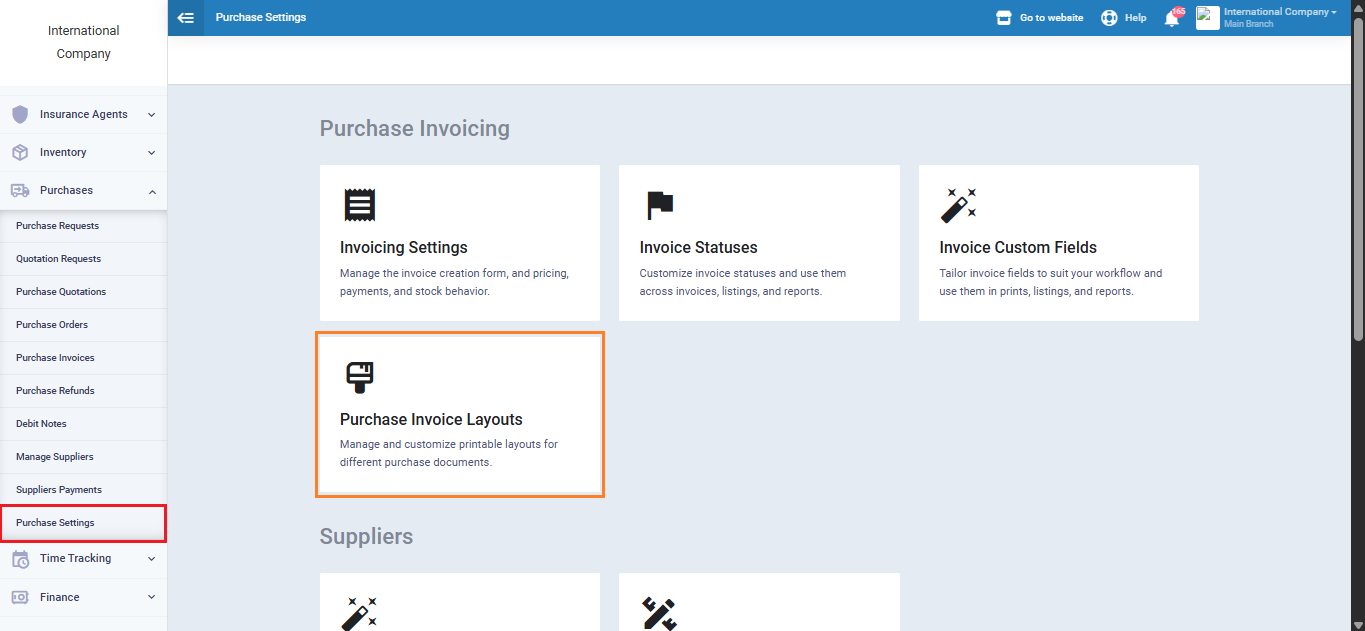
This section allows you to manage the layout of invoices and return orders to match your business identity and requirements.
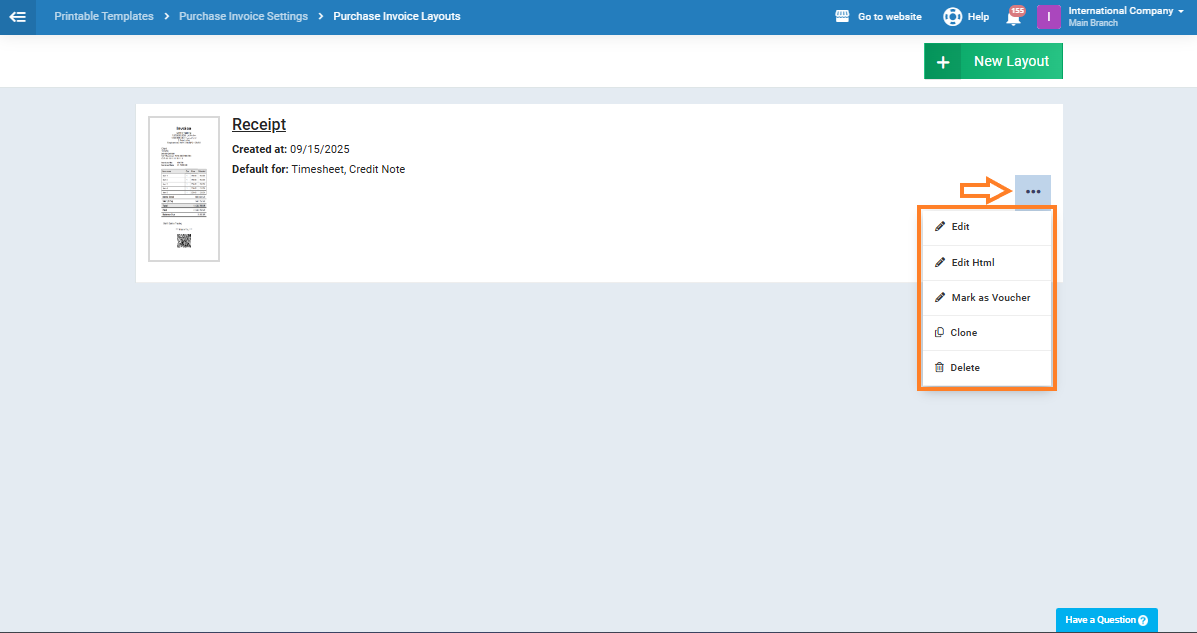
- Review and edit existing invoices and purchase return layouts.
- Add a new custom layout, including your logo and field arrangement according to your needs.
This feature gives full control over the final appearance of invoices and returns, whether for printing or electronic delivery, helping you standardize your documents.