Adding Payroll Items Guide
The system allows you to create flexible payroll items based on employee data and attendance records, with the ability to test calculations before saving.
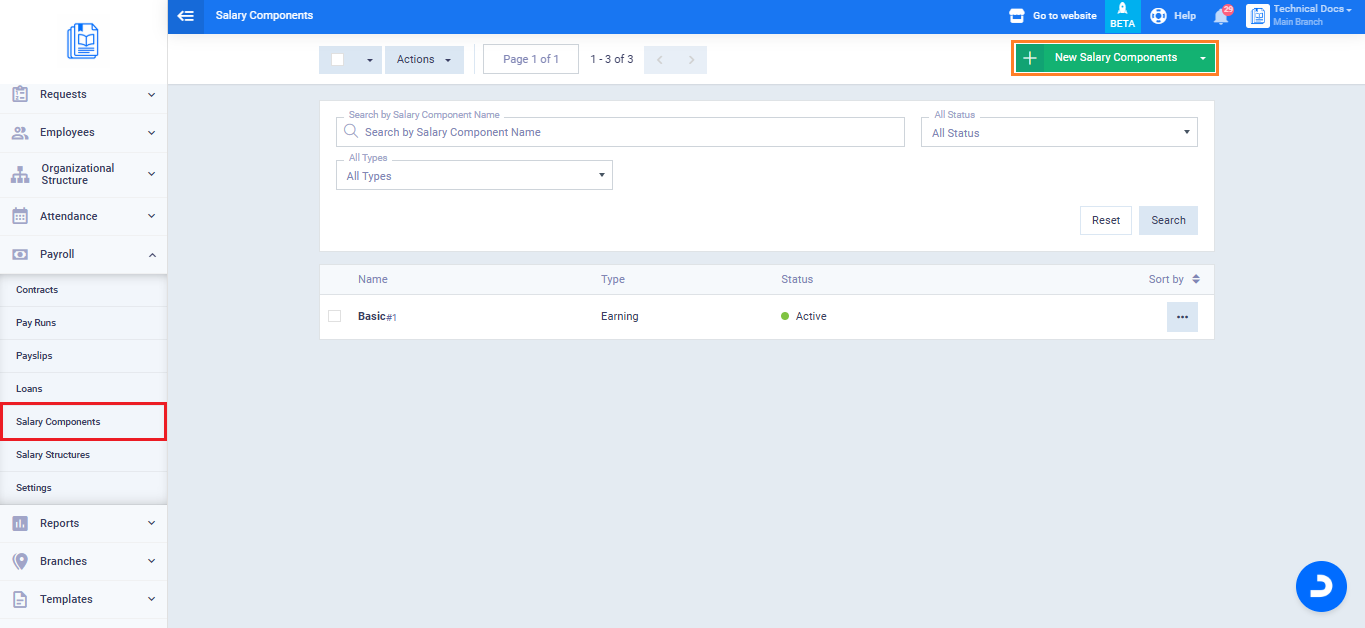
Accessing Payroll Items
From the main menu, go to “Payroll”, select “Payroll Components”, then click “Add Payroll Item.”
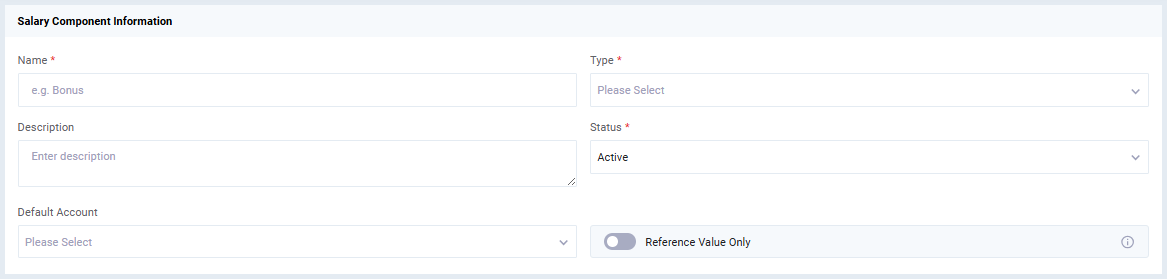
When the “Salary Component Information” page opens, enter the basic item details, including:
- Name: Such as Bonus, Allowance, or Deduction.
- Type: Whether it is an Earning or Deduction.
You can also:
- Add a description for the payroll item.
- Set the item status as Active or Inactive.
- Select the related accounting account.
- Enable “Reference Value Only” if you want to use the item for reference purposes without affecting the payroll calculation.
Selecting the Calculation Method
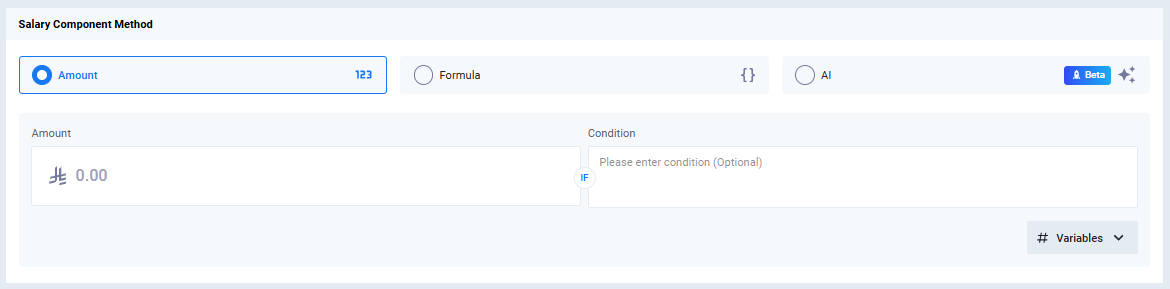
The system provides multiple calculation methods for payroll items. Choose the method that matches your payroll structure:
- Amount: Use this option to assign a fixed value, such as a monthly allowance or a predefined deduction.
- Formula: Use formulas to calculate values dynamically based on employee data such as the basic salary or attendance days.
- Condition (IF): Use conditions to apply the payroll item only when specific criteria are met, such as applying a deduction or granting an additional bonus under certain cases.
Using Formulas and Testing Results
The Formula option helps you create dynamic payroll items that automatically change based on employee data.
For example, you can:
Calculate a bonus as a percentage of the employee’s basic salary.
Multiply a value when a specific condition is met.
The system automatically validates the entered data and applies the formula according to the defined conditions.
Testing the Formula Before Saving
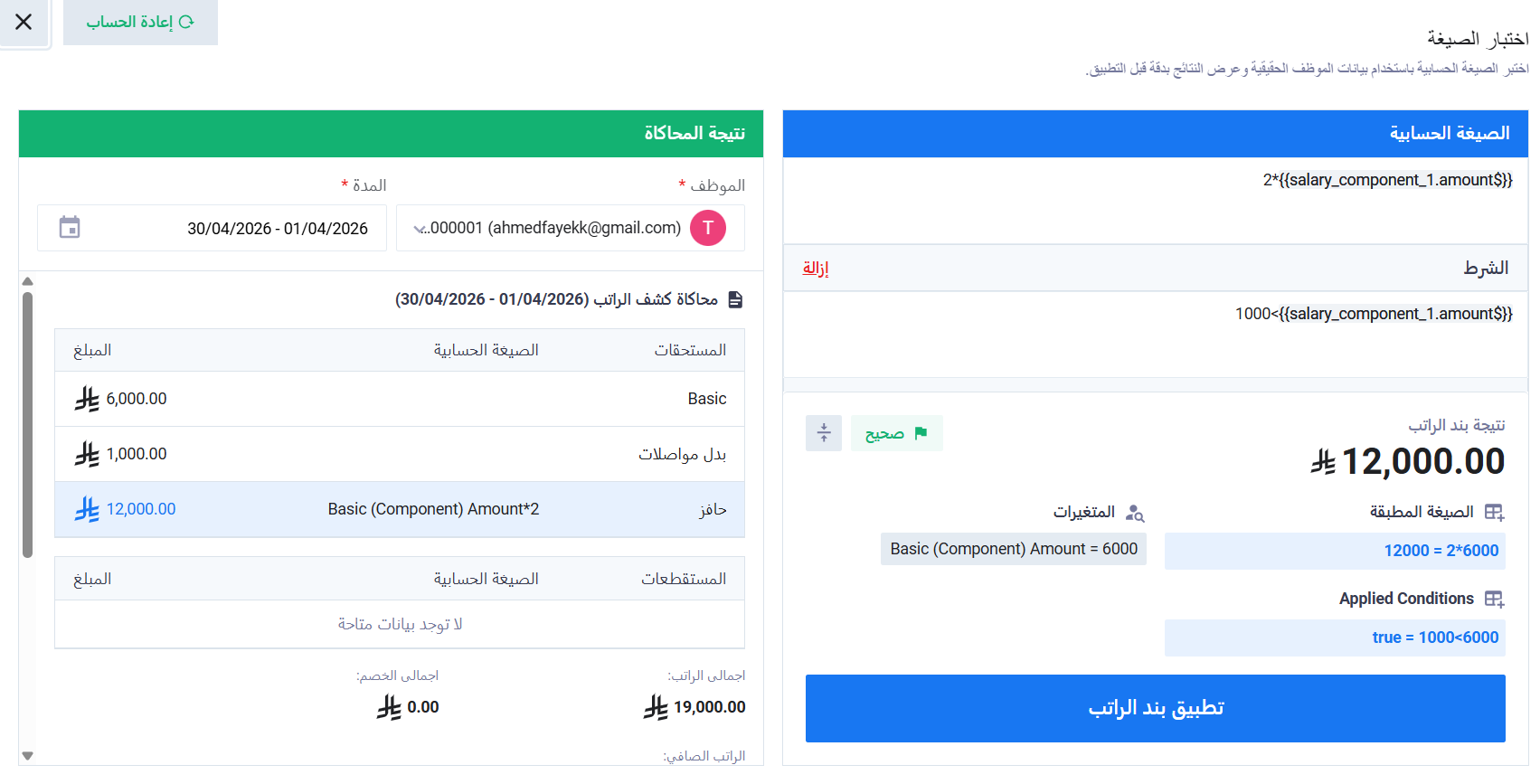
Before saving the payroll item, click “Test Formula” to verify the calculation results.
Select the employee and define the required period, and the system will display:
- The formula calculation result.
- The condition status, if applicable.
- The final payroll item value.
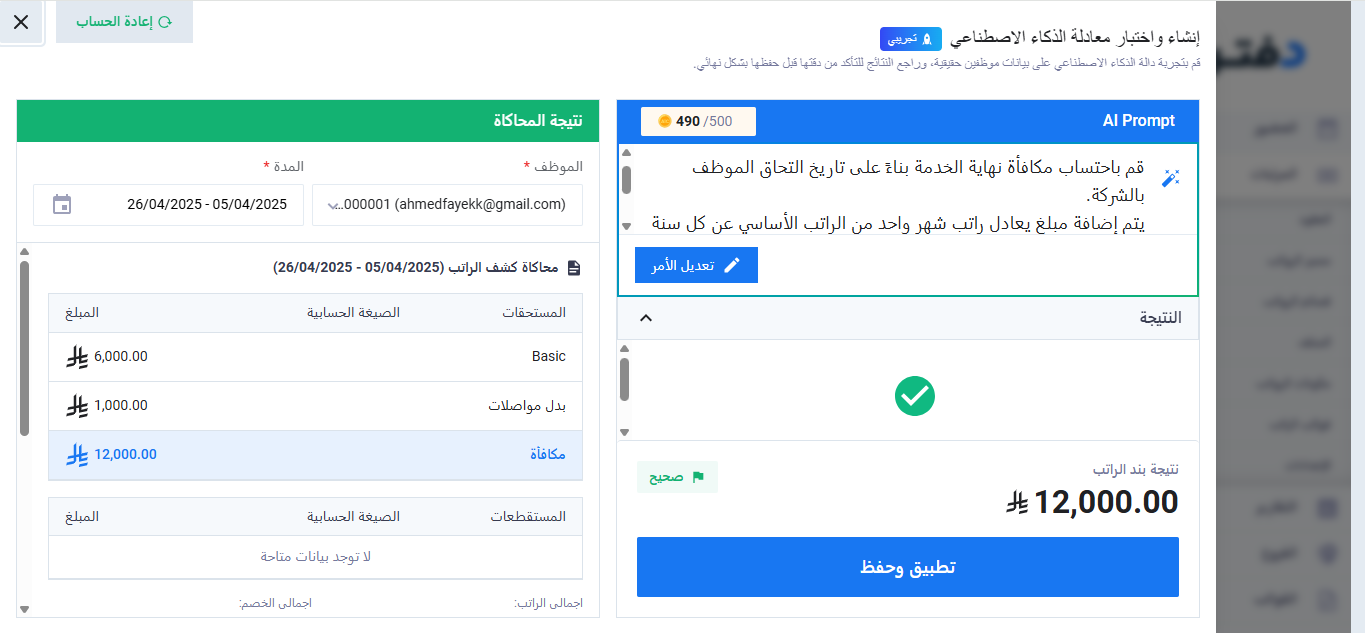
Creating Payroll Items Using AI
If you prefer not to write formulas manually, you can use the “AI (Beta)” option.
Enter a description of the payroll item you want to create, or click “Ready Examples” to use a predefined example, then click “Generate & Test.”
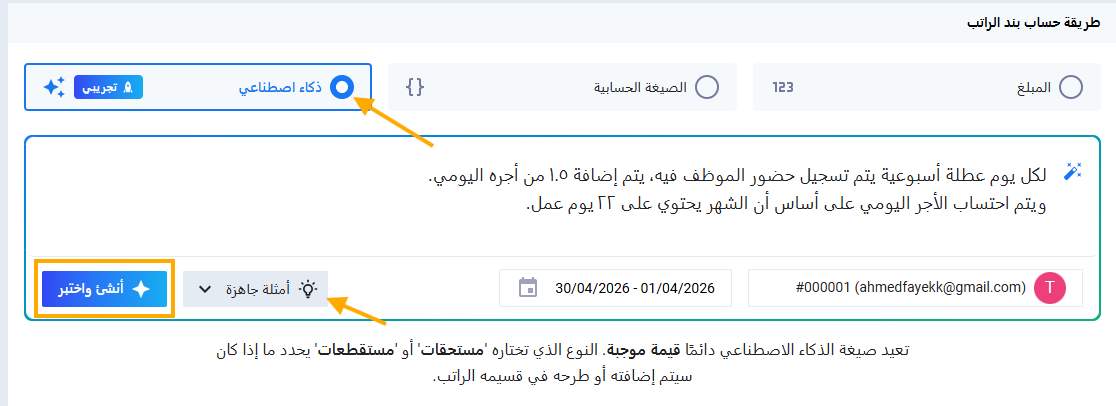
After reviewing the generated results and confirming the calculations are correct, click “Apply & Save.”