




Viewing the Activity Log for Sales and Inventory Settings
The system automatically records every change made to system settings, allowing you to see when the change occurred, who made it, the values before and after the change, and which branch was affected. You can also navigate directly to the setting that was modified.
Accessing the System Activity Log
You can access the system activity log through two main paths in the system:
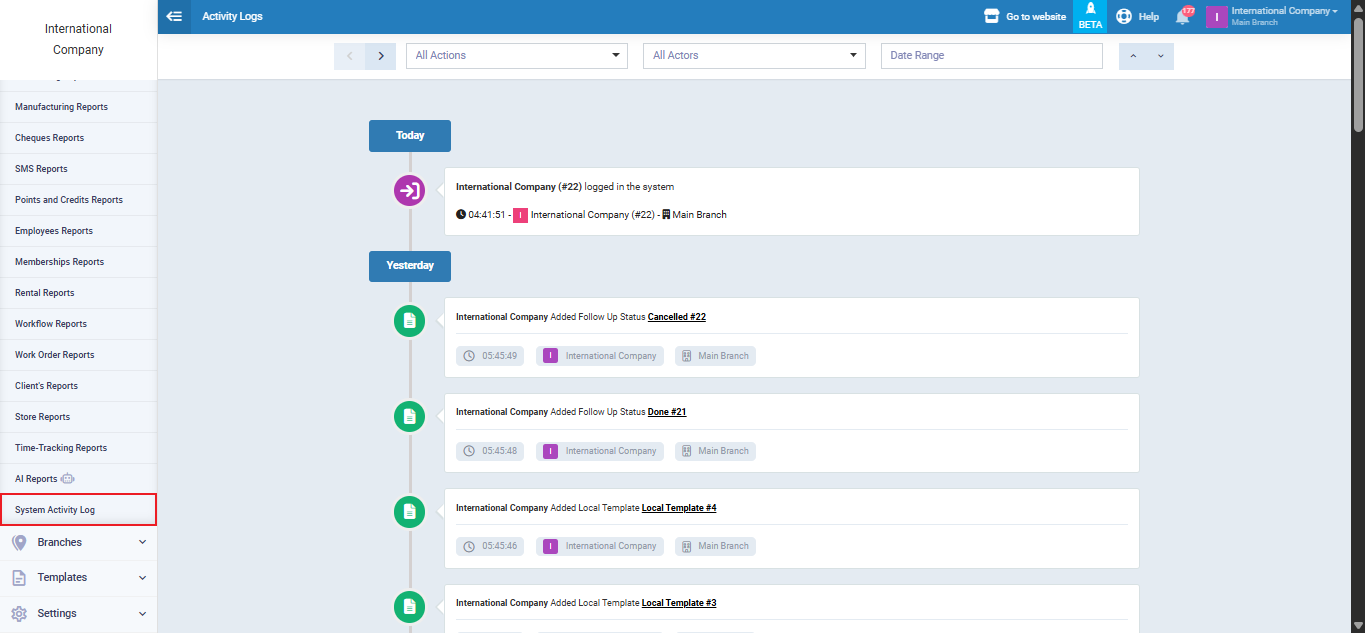
- From the main menu go to “Reports“, then click “Activity Log” to view the complete history of all settings changes.
Settings Covered by the Log
The activity log automatically records any modification made to the following settings:
- Sales Settings: Changes to pricing, discounts, payment and credit terms, or invoice issuance options.
- Inventory & Products Settings / Products and Services: Changes to units of measurement, pricing policies, or inventory settings.
Every change is saved in the log immediately, with no manual action required.
Contents of Each Log Entry
Each row in the activity log includes the following details:
- Timestamp: The exact date and time the change was made.
- Performed By: The user who made the change, or “The System” if the change was automatic.
- Action Type: Always displayed as “System Settings Update.”
- Associated Module: The module where the change occurred, e.g., Sales Settings or Inventory Settings.
- Change Details: Clearly shows the old value versus the new value.
- Branch: Shows the affected branch if “Add Branches” is enabled in the account.
- Icon⚙️: Visually distinguishes system setting entries from other activity types.
- Direct Link: Allows navigation directly to the modified field, provided the user has permission to access it.

Multiple Changes in the Log
When multiple changes occur simultaneously, the log supports two display formats:
- Consolidated Entry: Groups all simultaneous changes into a single organized entry, making it easier to read changes made at the same time.

Viewing Permissions and Direct Links
The activity log operates under a precise permission system:
- Users with permission to view the activity log can see all entries with full details.
- The direct link to a modified field is clickable only for users with access to that specific setting.
- Users without sufficient permissions can see the entry but cannot click the link.
Difference Between the Activity Log and the Dashboard
The system provides two ways to view settings changes, each serving a different purpose:
- System Activity Log (from Reports): The primary reference for auditing and review, showing the full history of changes with search and filter options by date, user, or module.
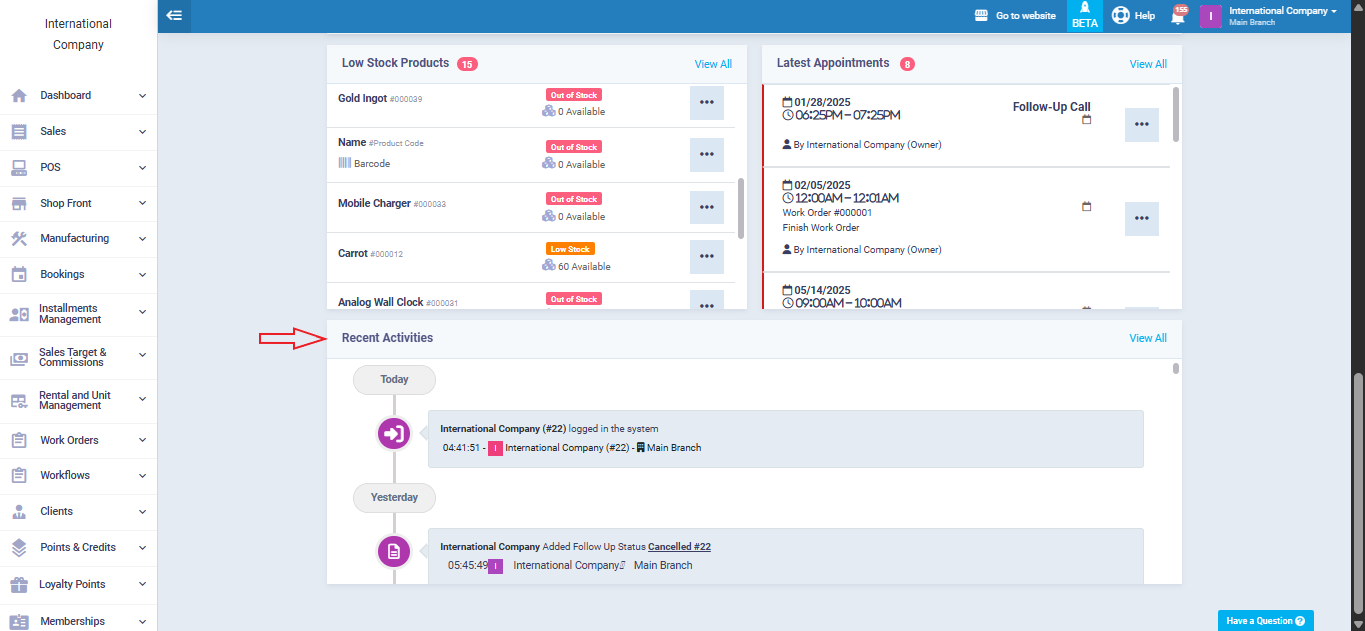
- Recent Activity (from Dashboard): Provides a quick view of the most recent changes directly on the main interface, suitable for daily monitoring rather than detailed auditing.