Issuing a Mudad-Compliant Payroll Sheet Guide
Activating Mudad App
Before generating the payroll file, you must first activate the Mudad app in your account by following these steps:
- From the main menu, go to “Settings“.
- Click “App Manager“.
- From the “Human Resources Management” section, enable “Mudad” app.
- Click “Save“.
Configuring Mudad Settings in the System
Go to “Payroll”, then from the dropdown choose “Settings“, and click on “Mudad Settings”
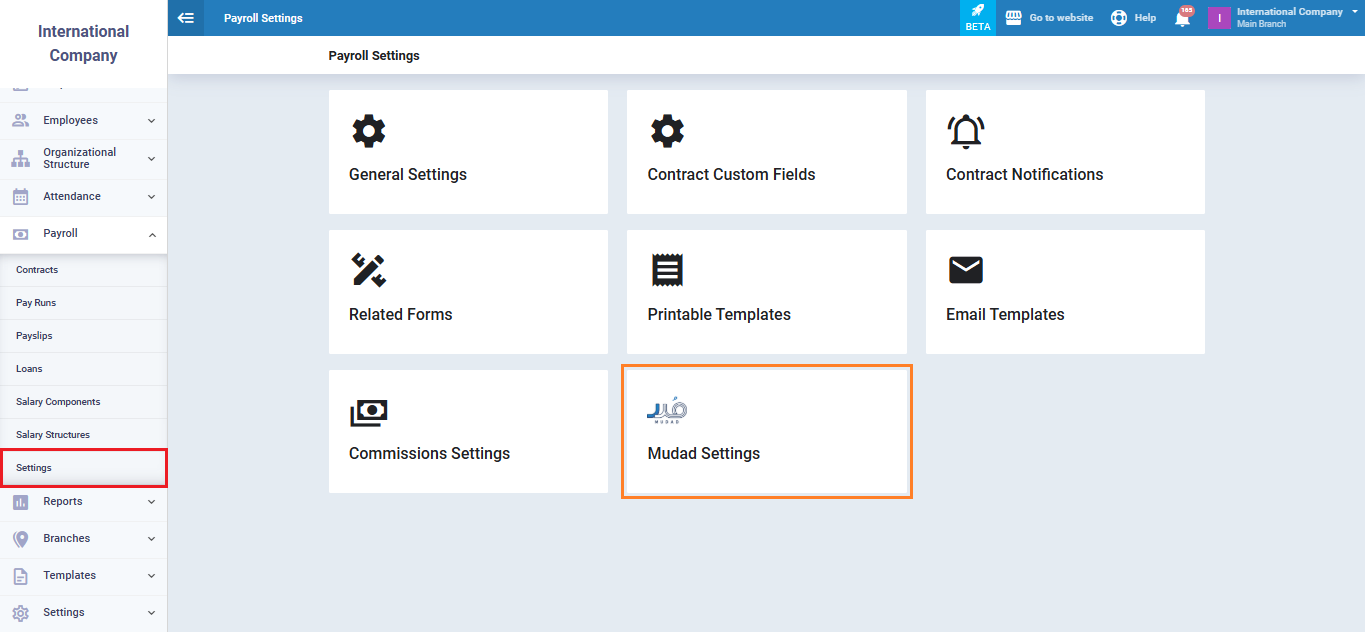
-
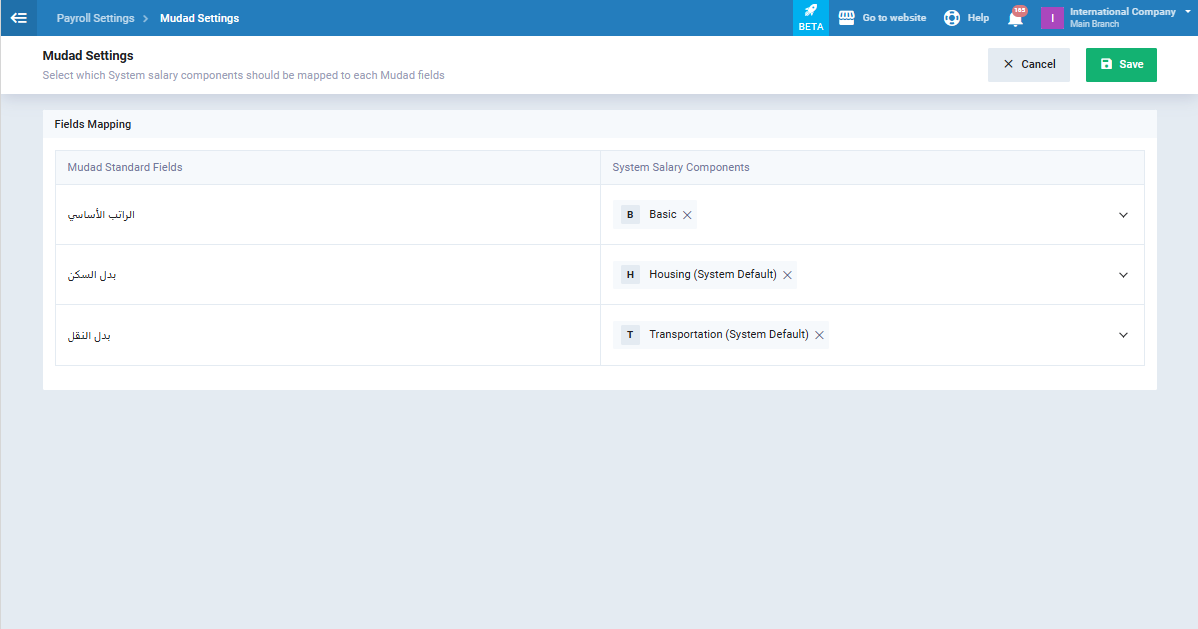
From “Mudad Settings” screen, map the salary components in the system to the mandatory fields required by the Mudad platform as follows:
-
Basic Salary: Select the payroll item representing the basic salary in the system and map it to the “Basic Salary” field in Mudad.
-
Housing: Select the salary component for housing allowance and map it to the Housing Allowance field in Mudad.
-
Transportation: Select the salary component for transportation allowance and map it to the “Transportation Allowance” field in Mudad.
-
- After completing the mapping, click “Save“.
Exporting the Payroll Sheet from the Mudad Platform
- Log in to the Mudad system using your credentials.
- Navigate to “Payroll Management System“.
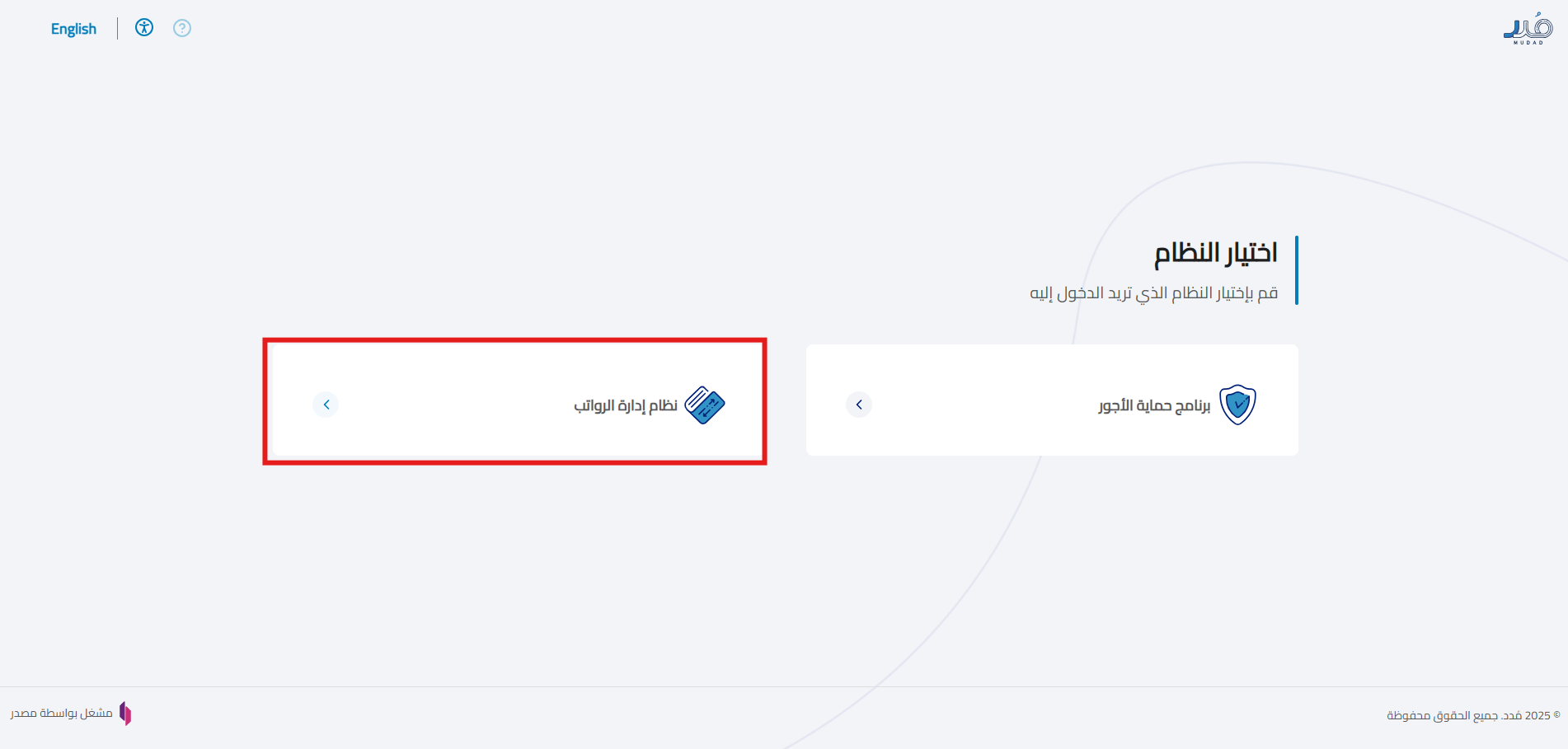
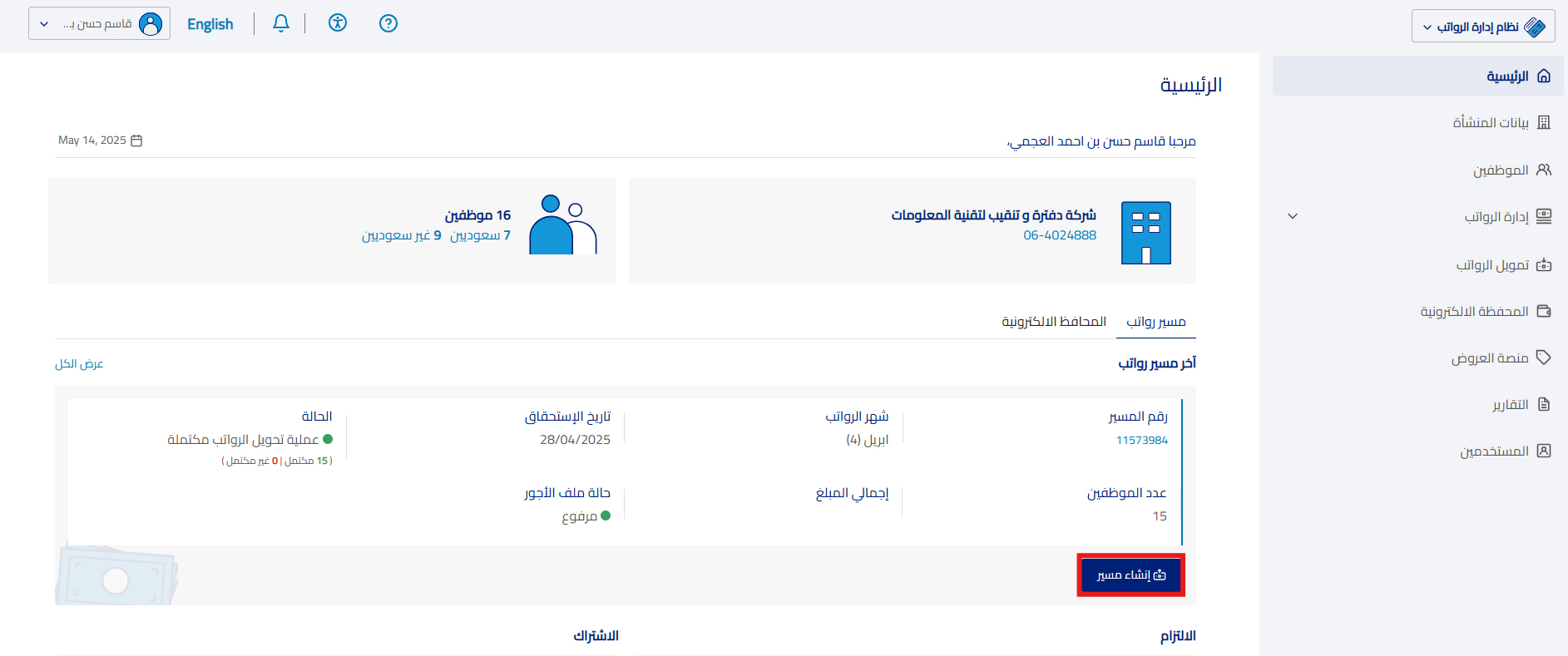
- Click “Create Payroll“.
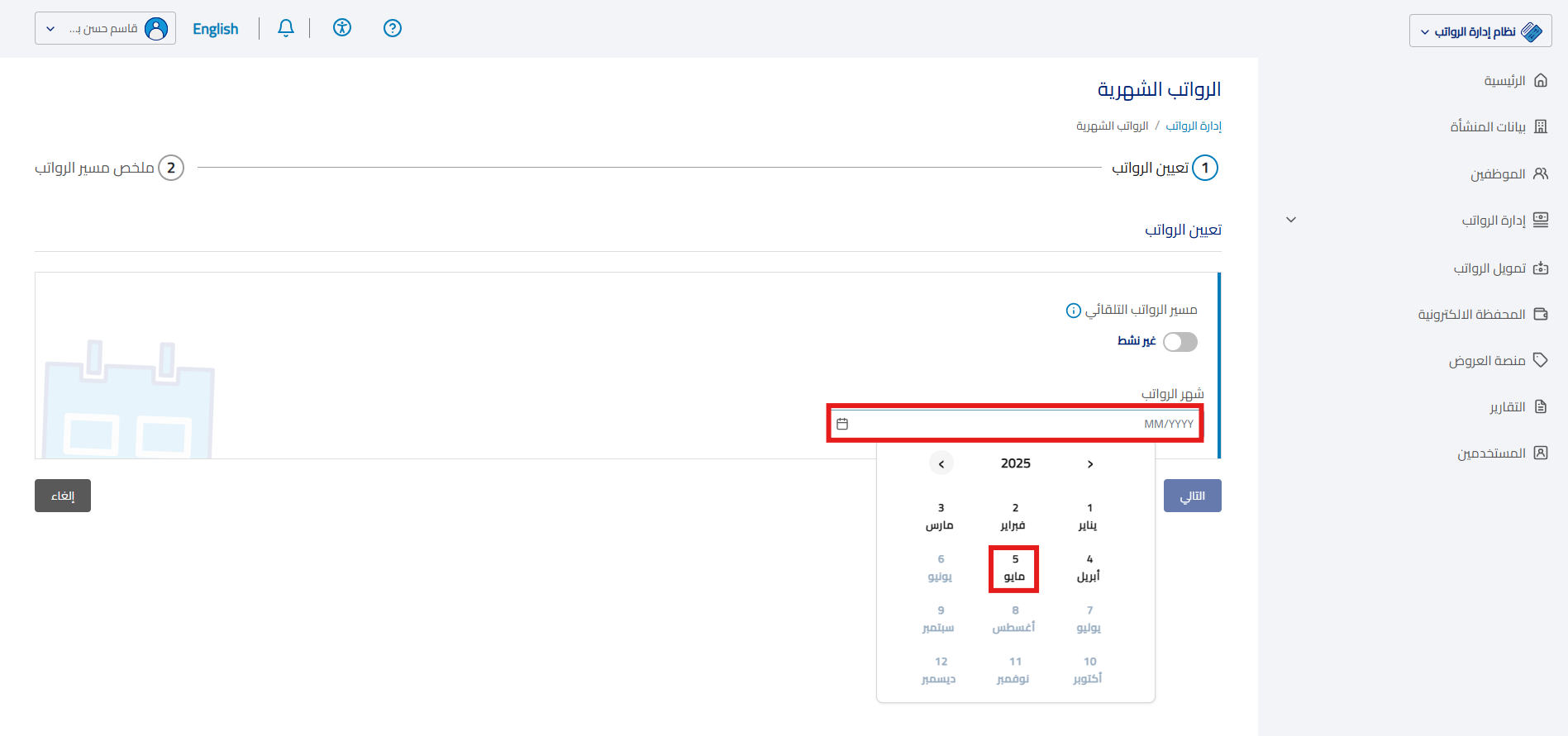
- Select the required payroll month.
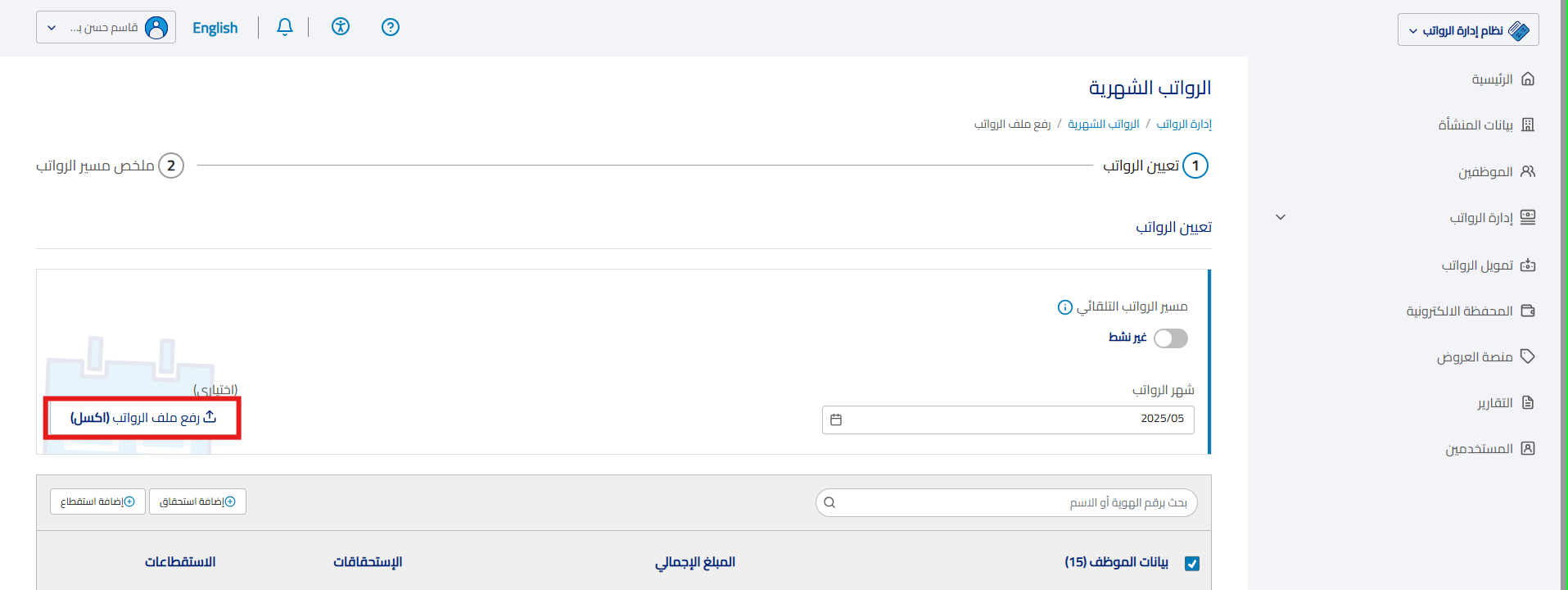
- Click “Upload Payroll File“.
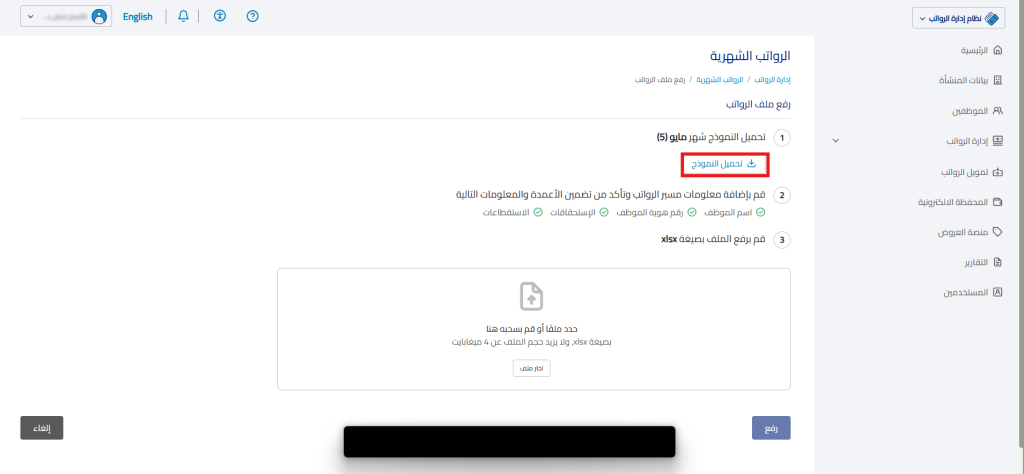
- Click “Download Template“.
Generating Mudad Payroll File from the System
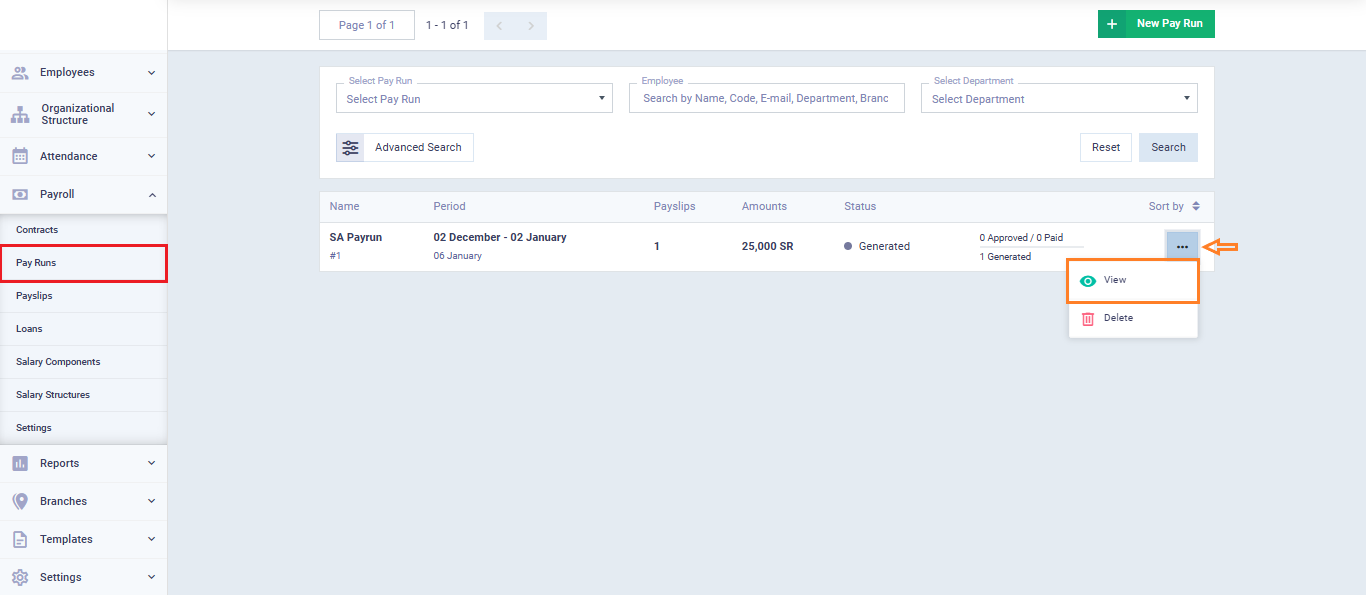
- From the “Pay Runs” screen in the system, open the pay run for which you want to generate the Mudad payroll file.
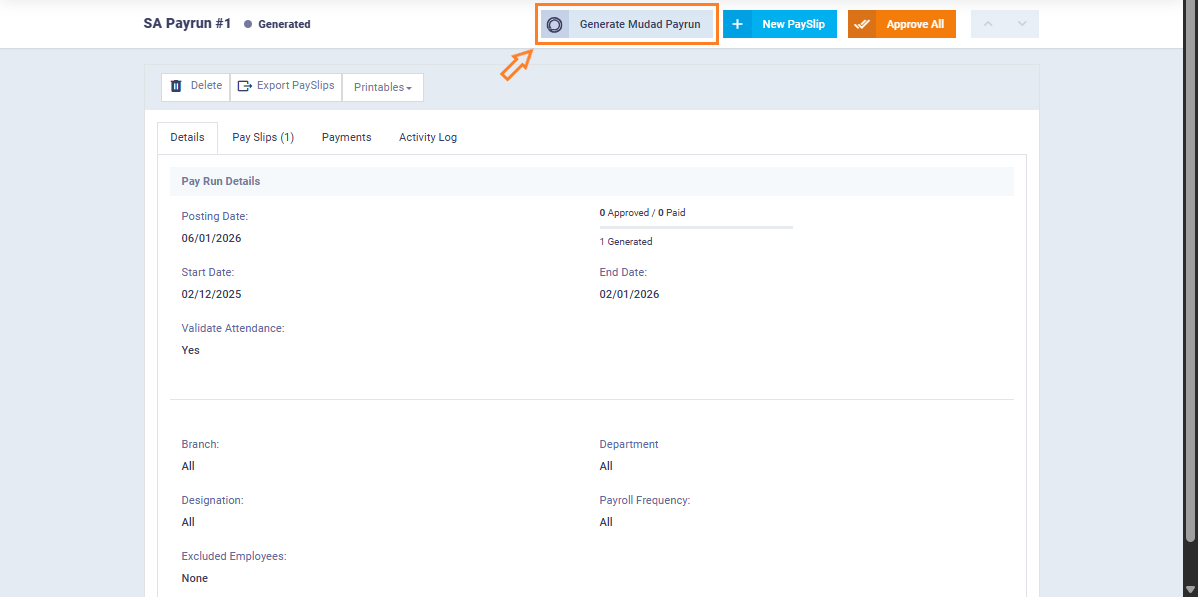
- Click “Generate Mudad Payrun“.
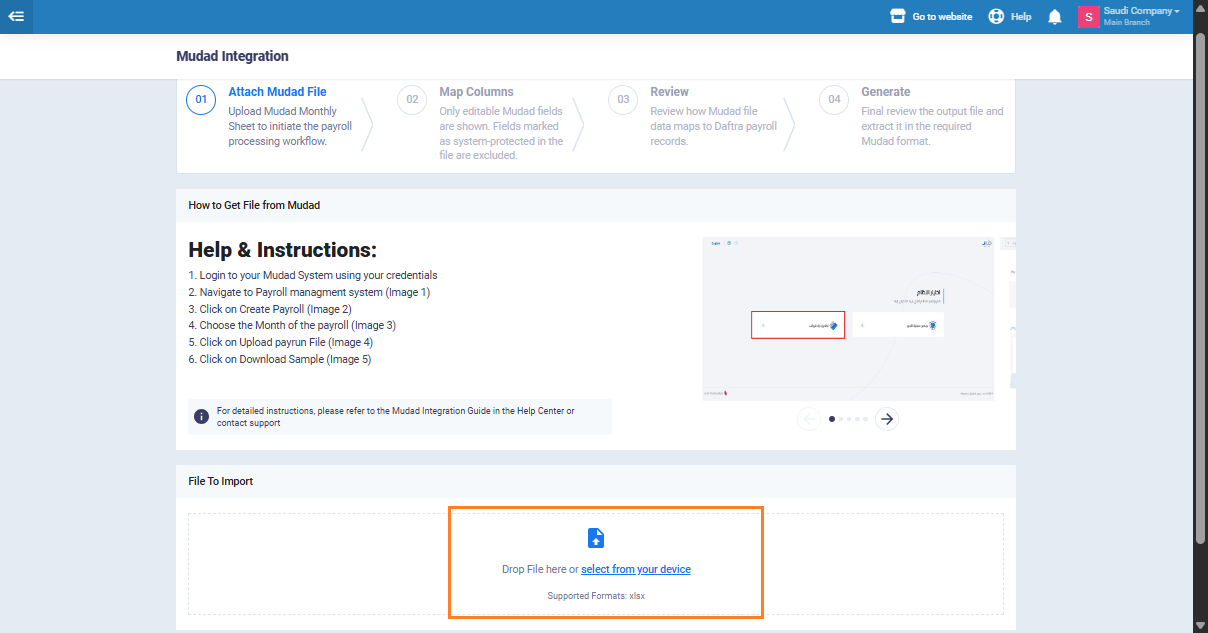
- From Mudad Integration screen, upload Mudad source file.
- This file is exported from the Mudad platform, as explained in the previous section.
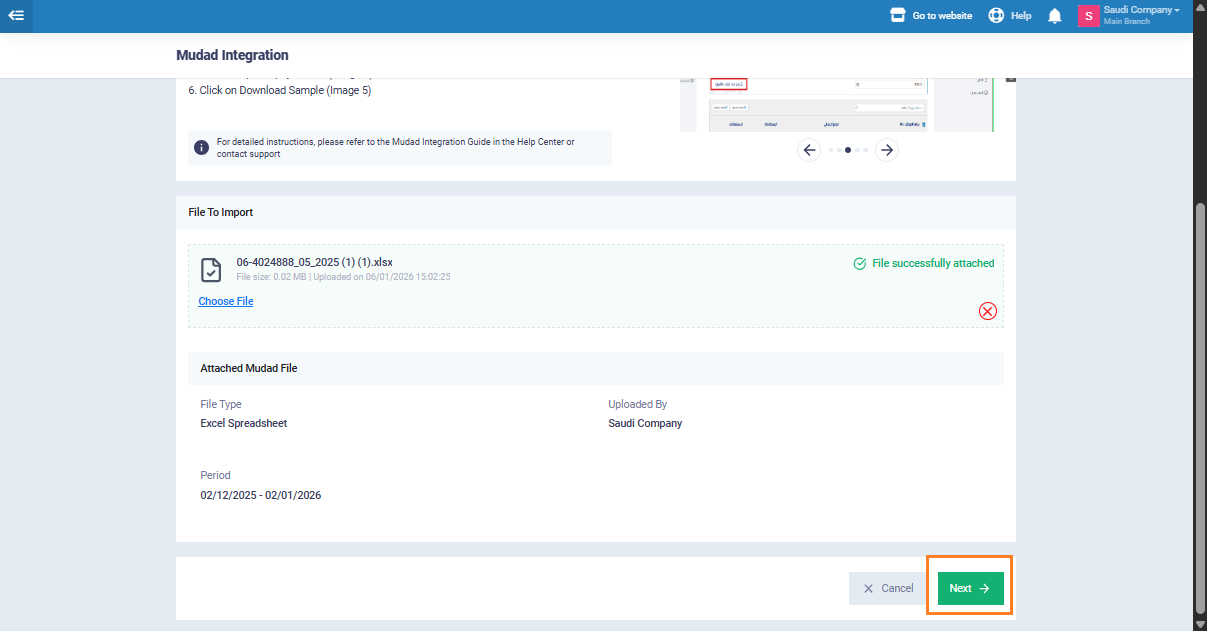
- After selecting and uploading the file, click “Next“.
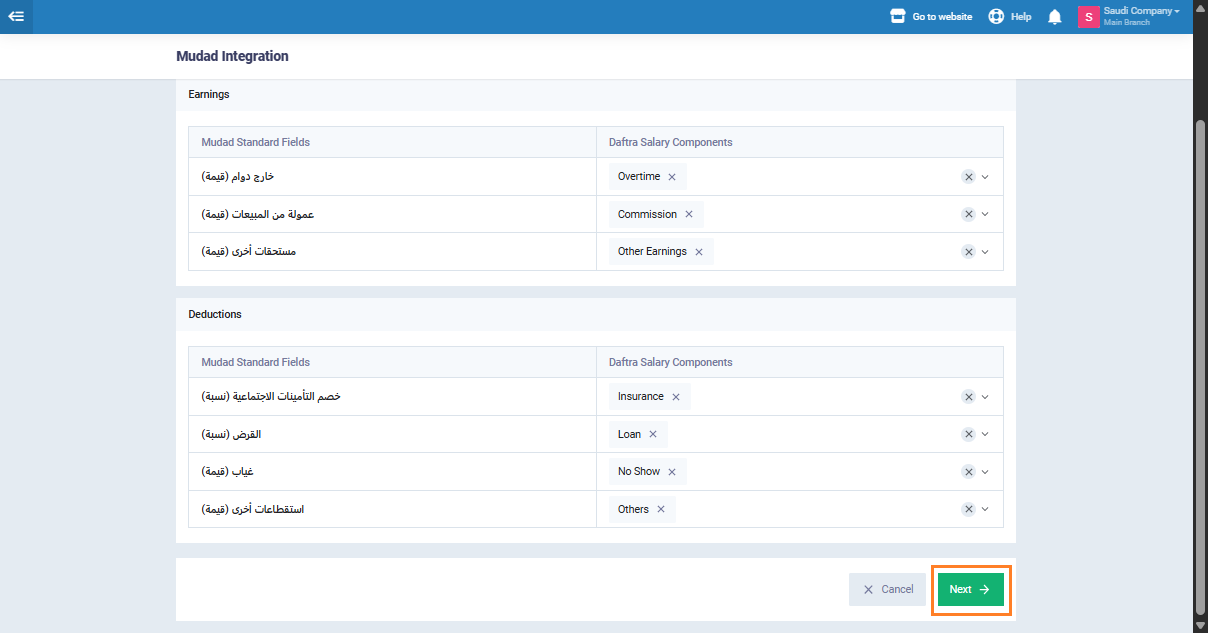
- In the second step, map the salary component columns to the corresponding standard Mudad fields.
- Click “Next“.
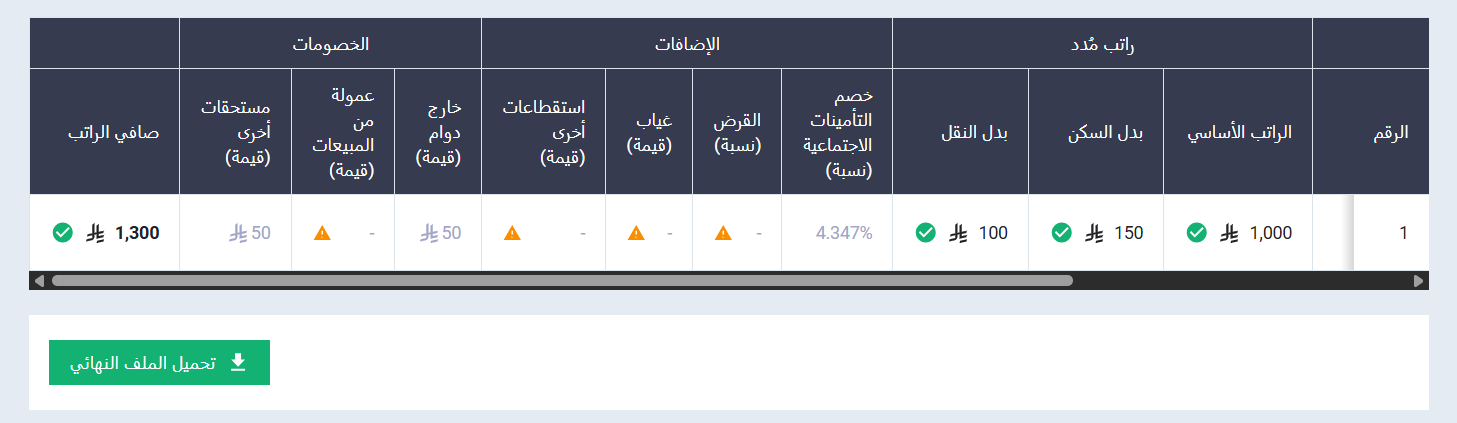
- In the third step “Review“, the system displays a list of employees included in the file, along with a detailed breakdown of salary items, after matching the Excel file data with each employee’s pay slip.
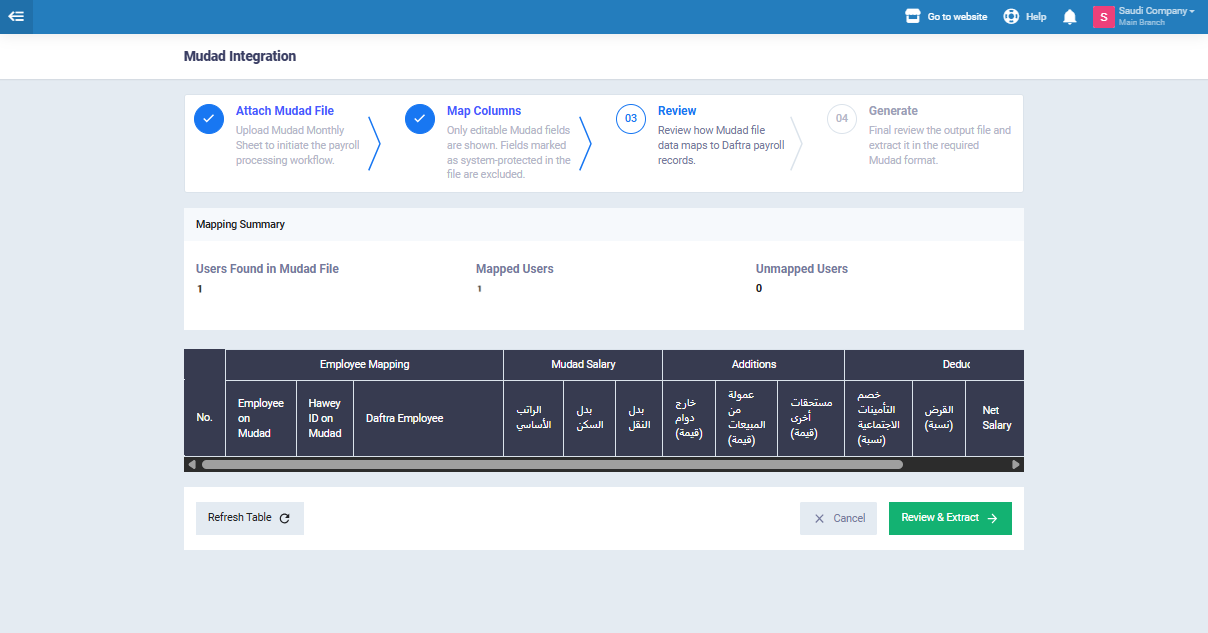
- Click “Review & Extract” to generate the file.
- Click “Download Final File“.The file will be downloaded in Excel format, fully prepared and compliant for direct upload to the Mudad platform.