


Unified Login Guide
Unified login lets you sign in to your account with your email address only, without having to remember the account link or its subdomain, and shows you all the accounts linked to your email so you can choose one. This tutorial explains the full sign-in flow, from entering your email to signing in to the account and switching between accounts.
Before you begin
- Your email is the account owner’s email, or your email as an employee in the account.
- If you’re an employee: your status is active and you’re allowed to sign in to the system.
- You know the password of the account you want to sign in to.
Steps to sign in
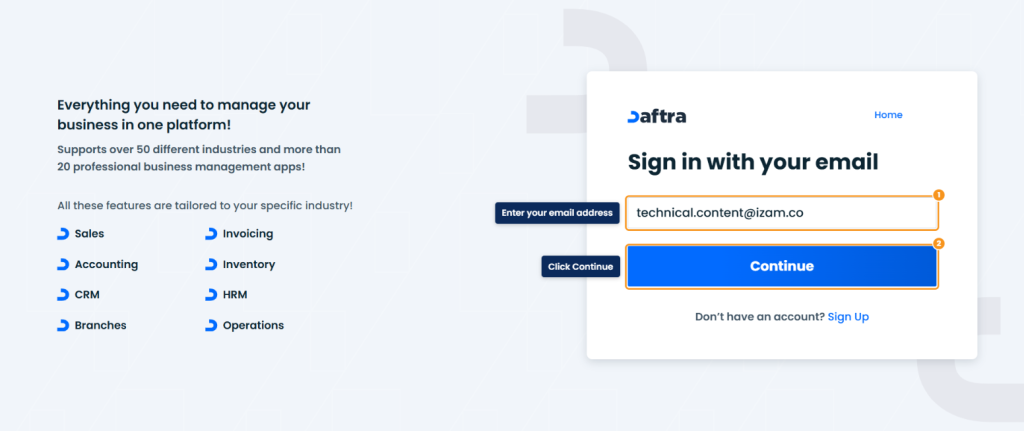
- Open the sign-in page.
- In Sign in with your email, enter your Email Address, then click Continue.
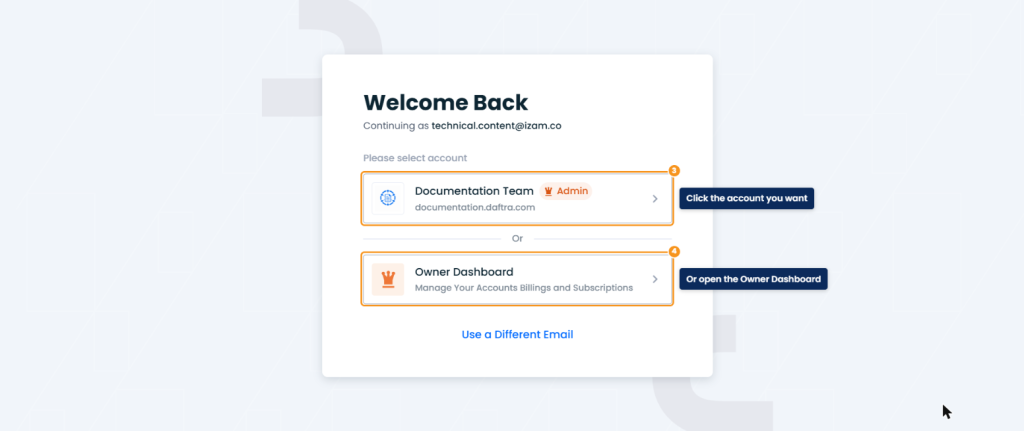
- The Welcome Back page appears with your email, and under Please select account you see the accounts linked to your email, each with its business name and link. Click the account you want.
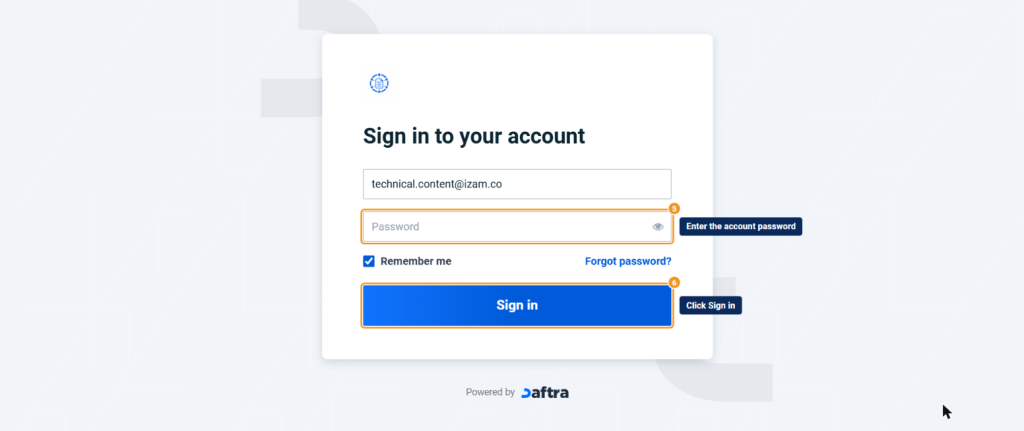
- The account’s Sign in to your account page opens with your email already filled in. Enter the account password, then click Sign in.
Accounts that appear to you
| Case | Does the account appear? |
|---|---|
| Your email is the account owner’s email | Yes |
| An employee whose status is active and who is allowed to sign in to the system | Yes |
| An employee whose status is inactive | No |
| An employee who is no longer allowed to sign in to the system | No |
| An archived or deleted account | No |
| An account registered with a different email | No |
After signing in
- To move to another account you signed in to from the same browser, click your name at the top of the page and choose the account from the switch accounts list.
FAQs
Why doesn't one of my accounts appear after I enter my email?
Because the account is registered with a different email, your status in it is inactive, you’re no longer allowed to sign in to the system, or the account is archived or deleted.
Can clients use unified login?
No. It’s for the owner and employees. Clients sign in from the account link of the business they deal with.
I forgot my password. What should I do?
Choose the account, then click Forgot password? on its sign-in page.