Package Types and Accounting Processing in the Shipping App
Understanding package types and how transactions are recorded during shipping and delivery is essential to ensure accurate accounting entries, maintain correct customer balances, and avoid unexpected discrepancies later.
In this guide, we will explain in a simple and practical way the types of packages supported by the system and what accounting transactions occur when each type is delivered.
package Types in the Shipping App
The Shipping App supports three main package types. The package type directly affects how transactions and accounting records are handled within the system:
- Personal (Individual to Individual)
- Commercial (Business to Individual)
- Return (Individual to Business)
Business package with Additional Fees
A business package may sometimes include additional fees besides the shipping cost and the goods cost.
When this package is delivered, the system does not combine all values into a single transaction. Instead, it creates separate transactions and entries for each component.
The following example illustrates what the system generates when this type of package is delivered.
package Data
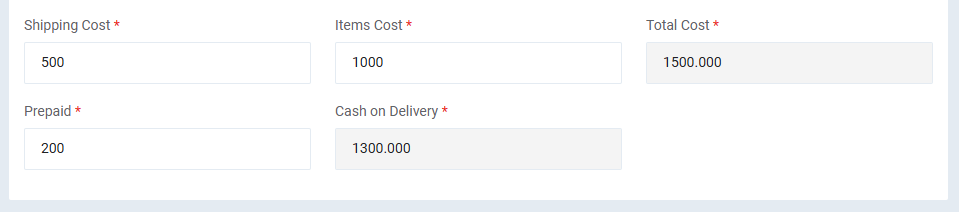
- Shipping Cost: 500
- Items Cost: 1000
- Prepaid Amount: 200
- Additional Fees: 200
What the System Creates?
- Invoice for the additional fees only (200).
- If no additional fees exist, no invoice is created.
- Delivery Payment for the amount collected upon delivery.
- Commercial Transaction that includes:
- Full shipping cost (500)
- Goods cost settlement
- (1000 − 200 = 800)

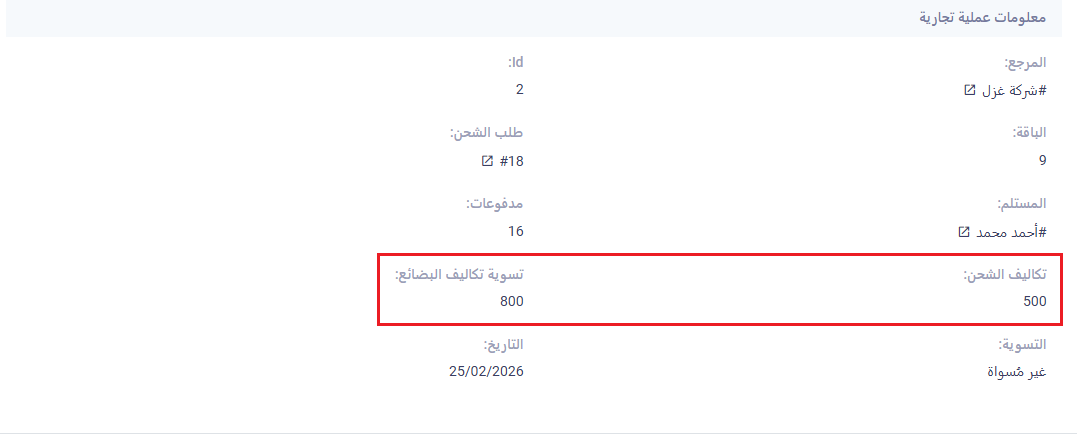 معنى ذلك:
الشركة مدينة للتاجر بـ 800 (فرق تكلفة البضاعة بعد خصم المدفوع مسبقًا).
Commercial package Where the Prepaid Amount Exceeds the Goods Cost
When a commercial package includes a shipping cost, goods cost, and a prepaid amount greater than the goods value, the accounting treatment at delivery differs from typical cases.
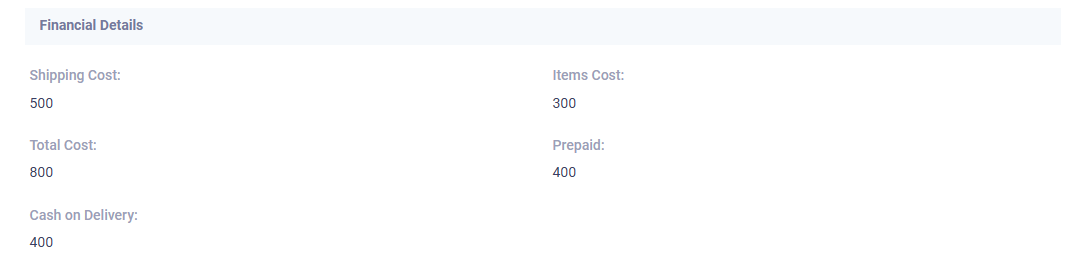
package Data
- Shipping Cost: 500
- Goods Cost: 300
- Prepaid Amount: 400
What Happens at Delivery
- No negative settlement is recorded.
- No value is created in Goods Cost Settlement.
Why?
Because in this case the merchant owes the company the difference, which will later be collected through an invoice during the settlement process.
Return package
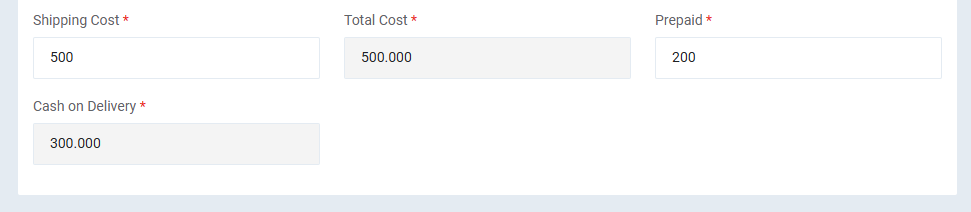
For Return packages (Individual to Business):
- There is no goods cost.
- Only the shipping cost exists.
At Delivery
- The shipping cost is recorded in the business transaction.
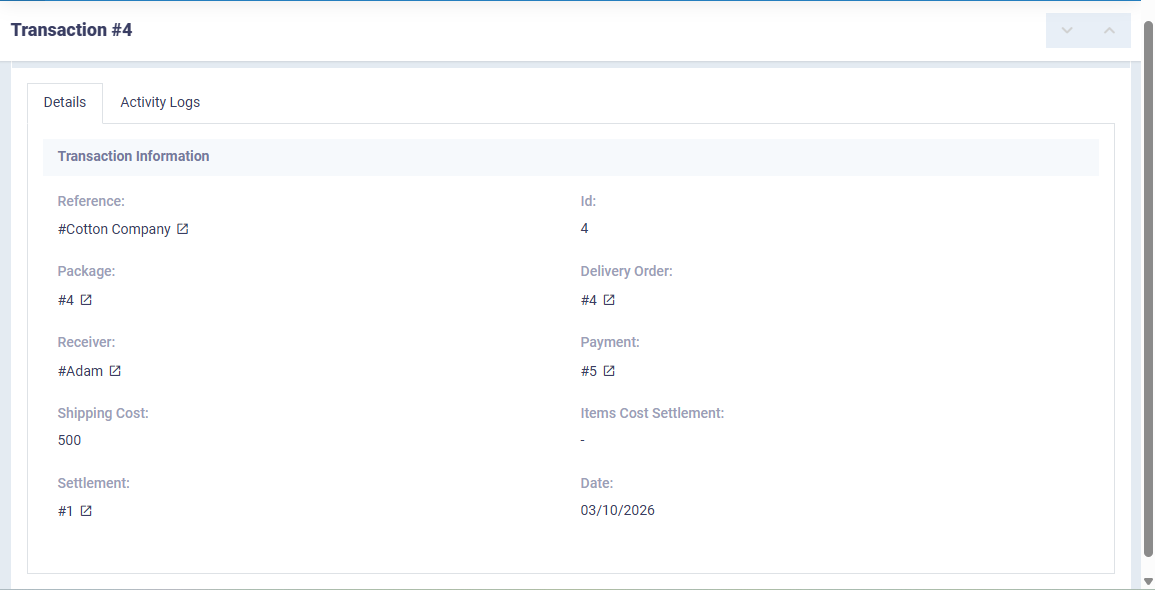
- No goods cost settlement is created.
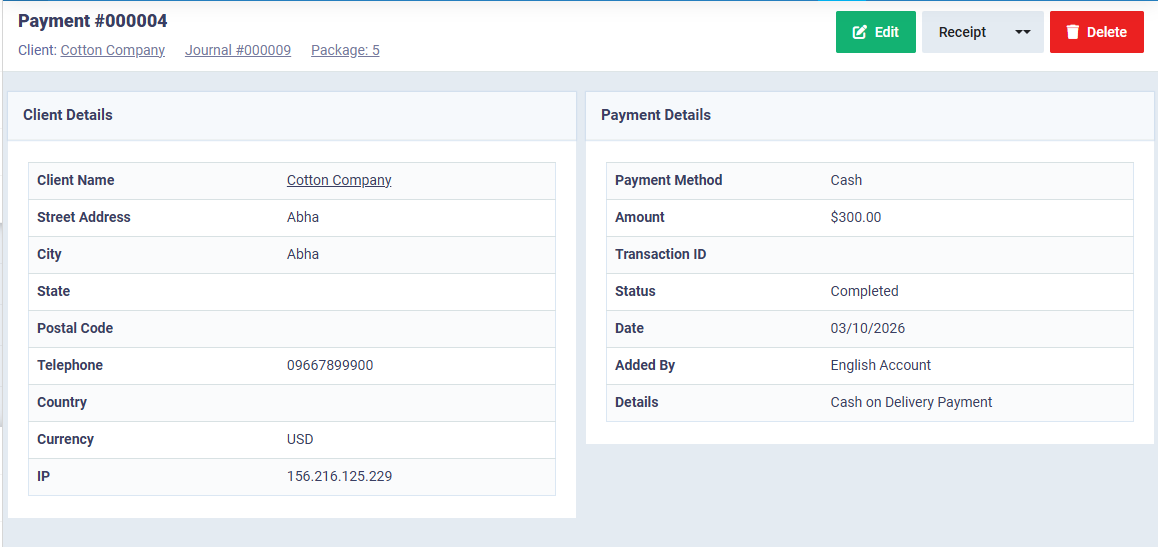
- If any amount is collected upon delivery, a Delivery Payment is also recorded.
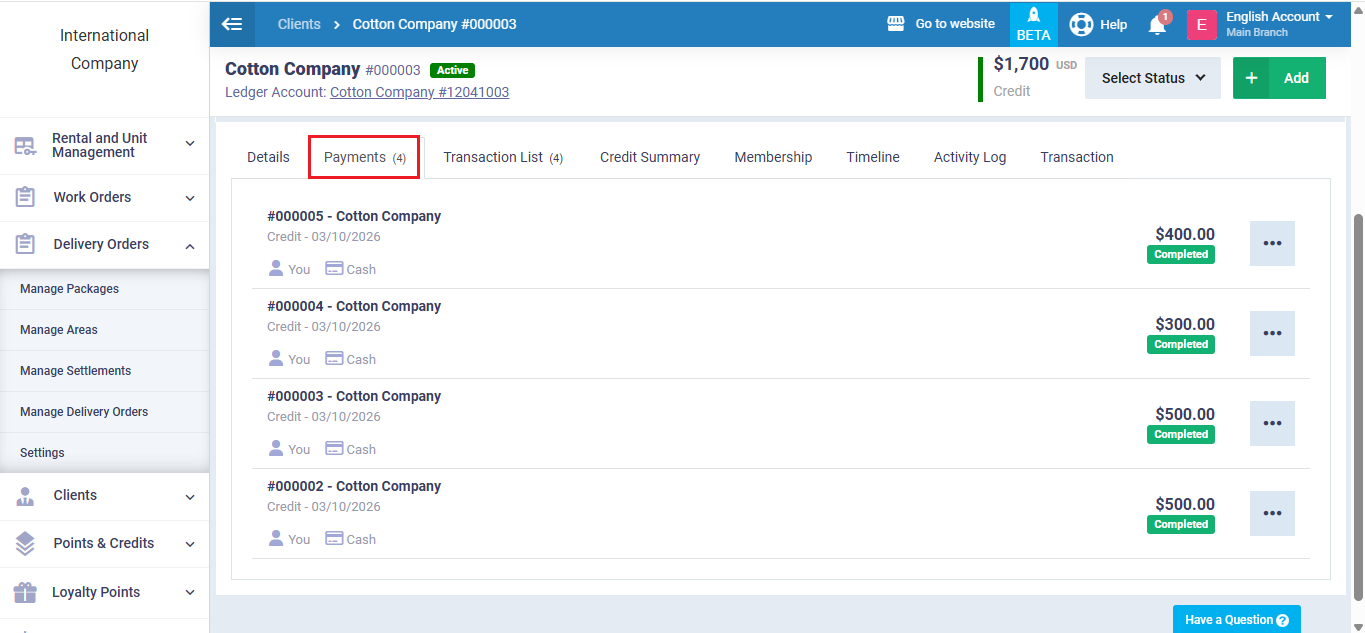
Delivery Payments and Their Impact on Balances
When packages are delivered:
- Funds do not enter the cash account through direct invoices.
- They are recorded under Customer Payments.
- The merchant’s balance may appear as credit or debit depending on the transactions.
Creating a Merchant Settlement
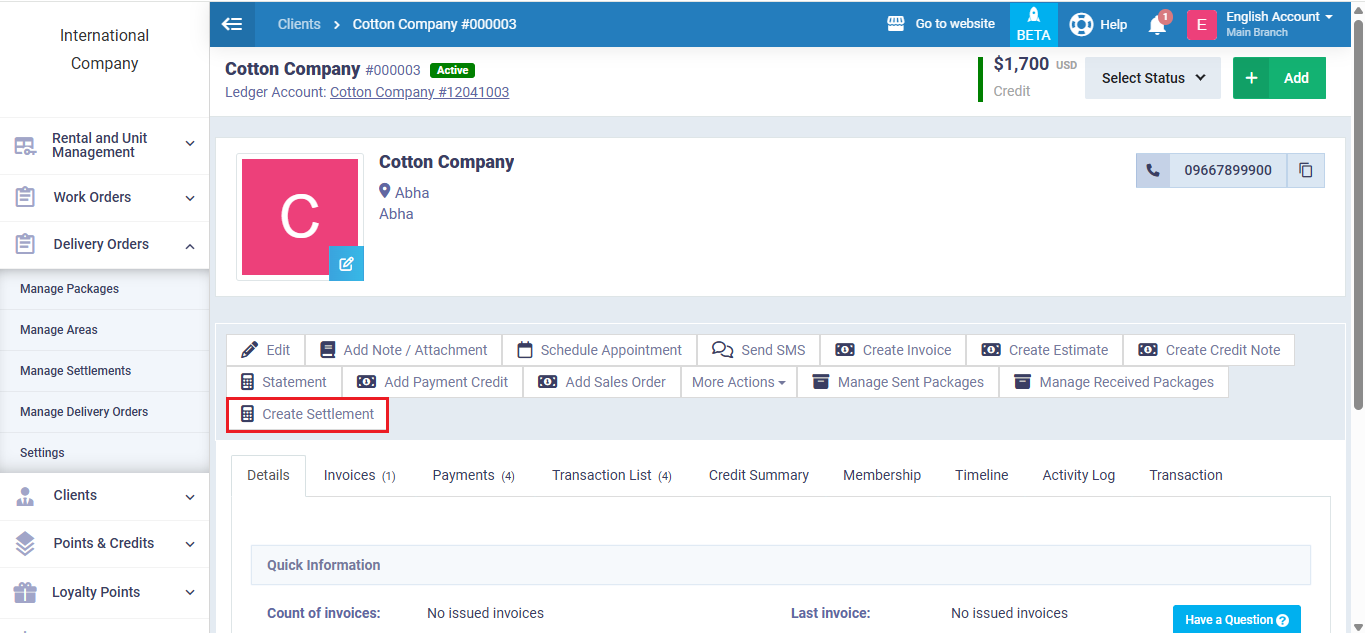
At the end of a period (for example, end of the month), a settlement is created to consolidate all transactions.
To Create a Settlement
- Go to the account of the busines customer .
- Click Create Settlement.
- Select the date range.
What Happens When a Settlement Is Created?
The system automatically:
- Aggregates total shipping costs (for example: 1300).
- Aggregates total goods cost settlements (for example: 800).
At this stage, the settlement status is Draft.
Approving the Settlement
When you click Approve Settlement:
- The invoice and expense are issued.
- The customer balance is updated.
Example
- Balance before settlement: 1900 credit
- 800 deducted as expense
- Remaining balance: 1100
- Invoice amount: 1300
If Auto Payment is enabled:
- 1100 is automatically paid from the existing balance.
- 200 remains outstanding.
This remaining amount can be collected by:
- Opening the invoice
- Adding a new payment transaction
After the payment is recorded:
Customer balance = 0
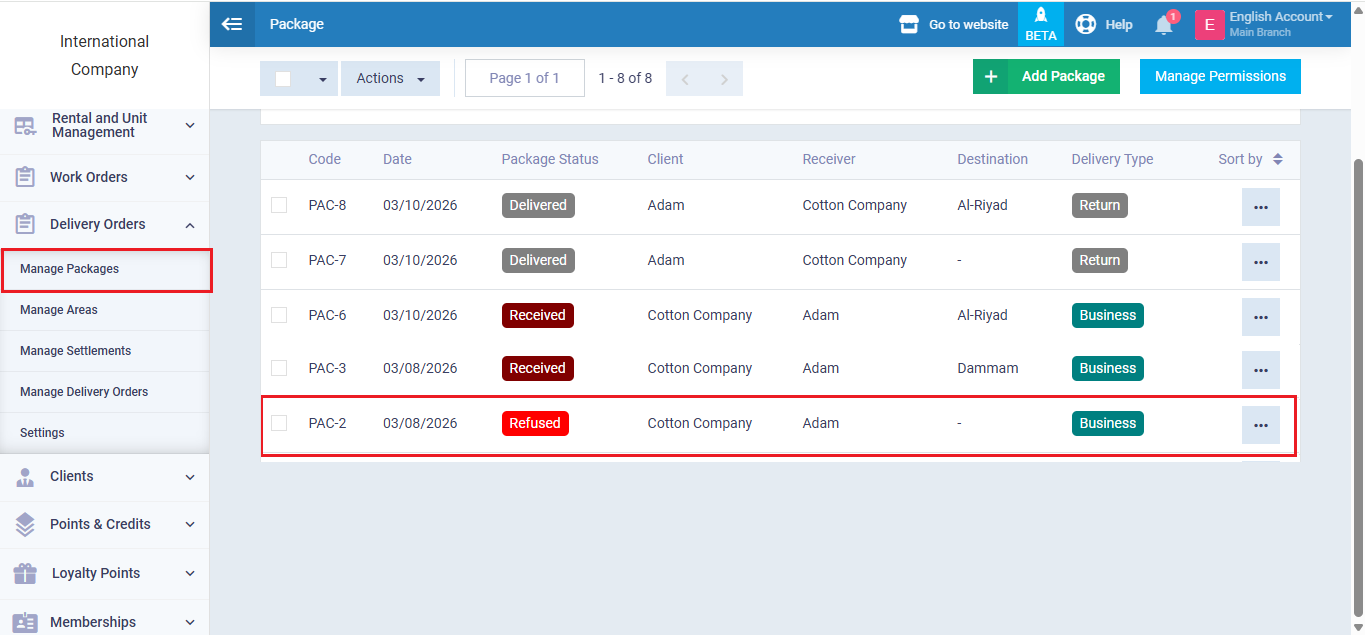
Refusing a package
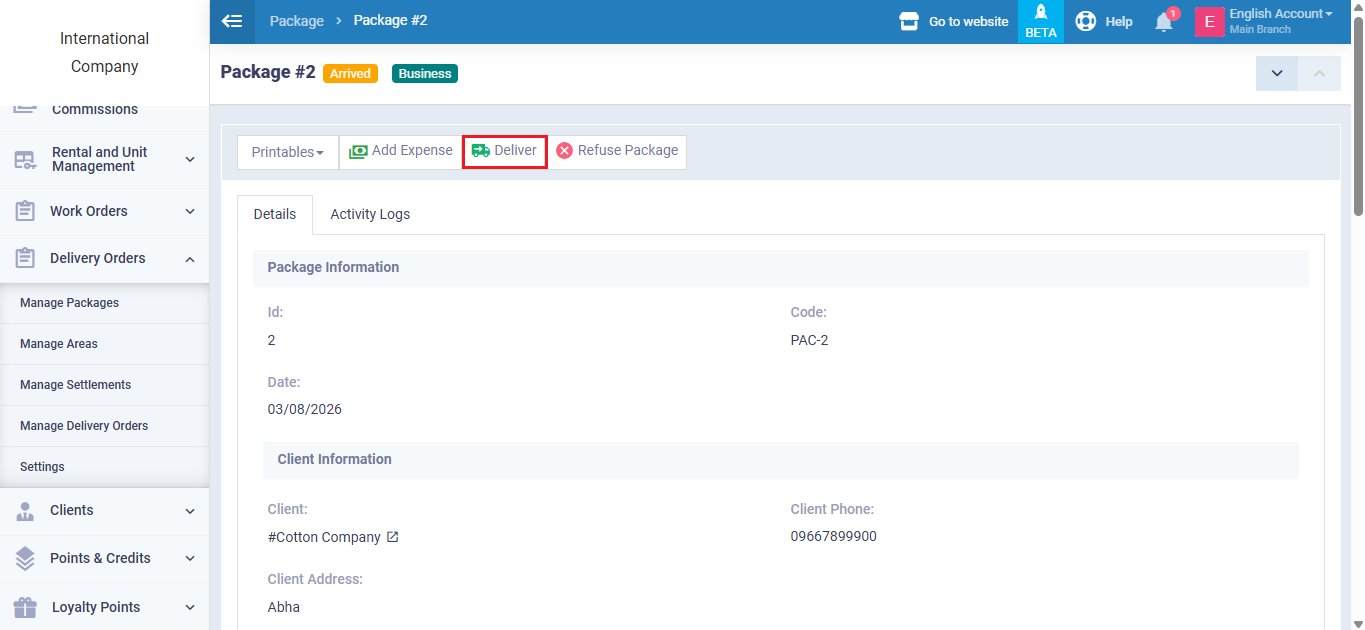
If the package has not yet been delivered, the Refuse package button will appear.
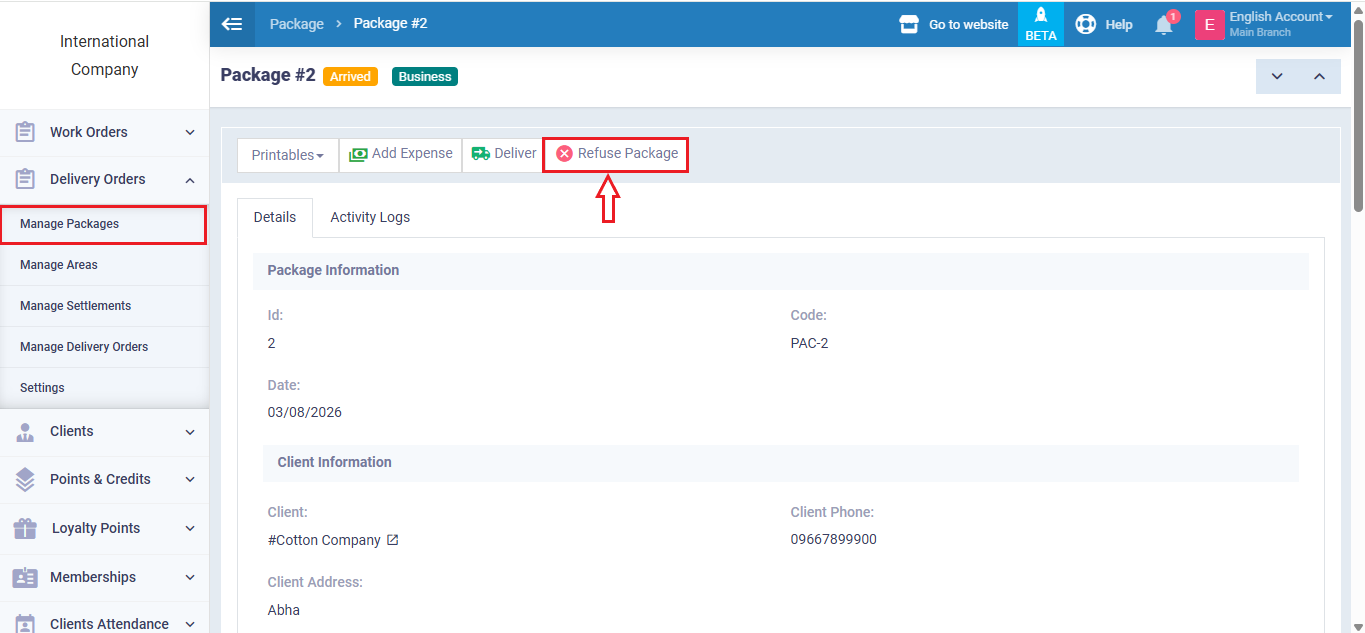
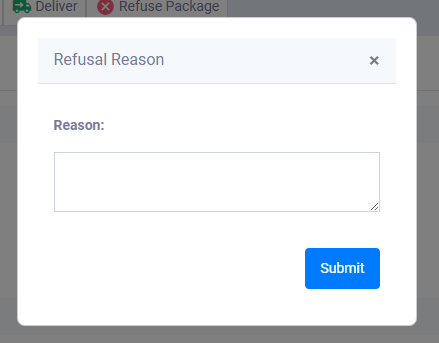
When clicked:
- The rejection reason is entered in the notes field.
- No transactions are created.
- The package status changes to Rejected.
Closing a Shipping Order
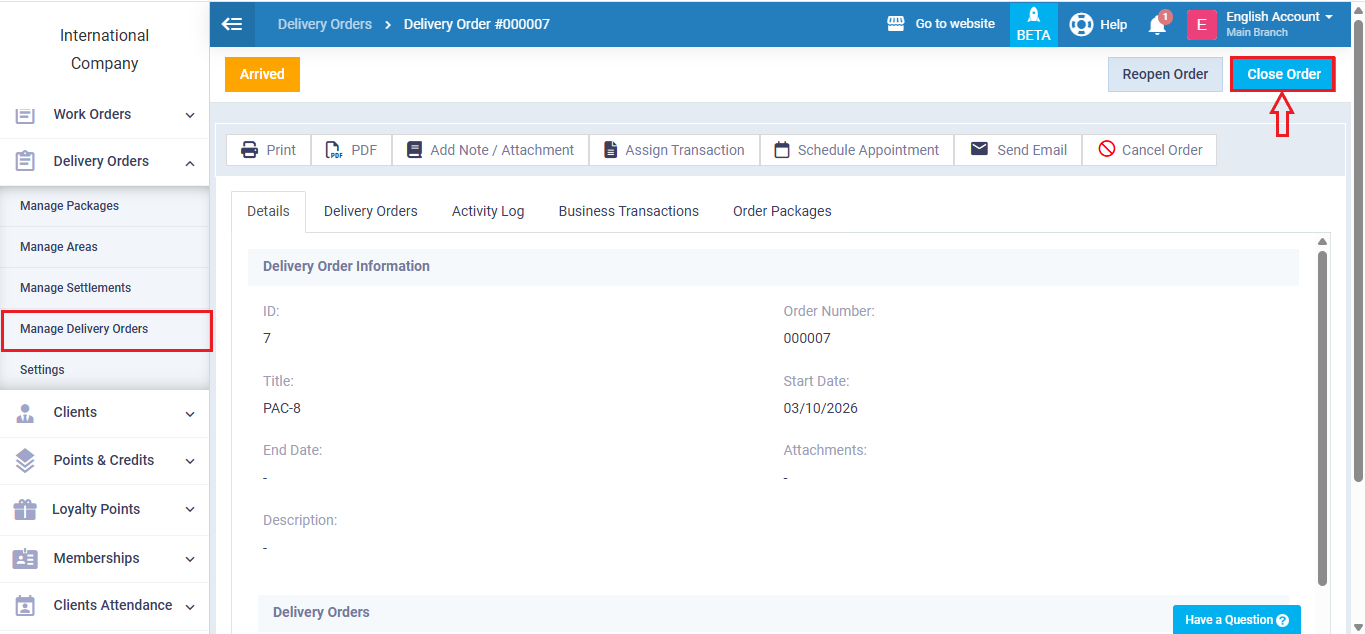
After all packages within a delivery order have been delivered:
To Close the Order
- Open the delivery Order.
- Click Close Order.
Important Notes
- The order cannot be closed if any package has not been delivered.
- The order cannot be reopened if packages were delivered and transactions were issued.
- To reopen it, you must first cancel the package deliveries and reverse their accounting effects.
After closing:
- The order will no longer appear in open orders.
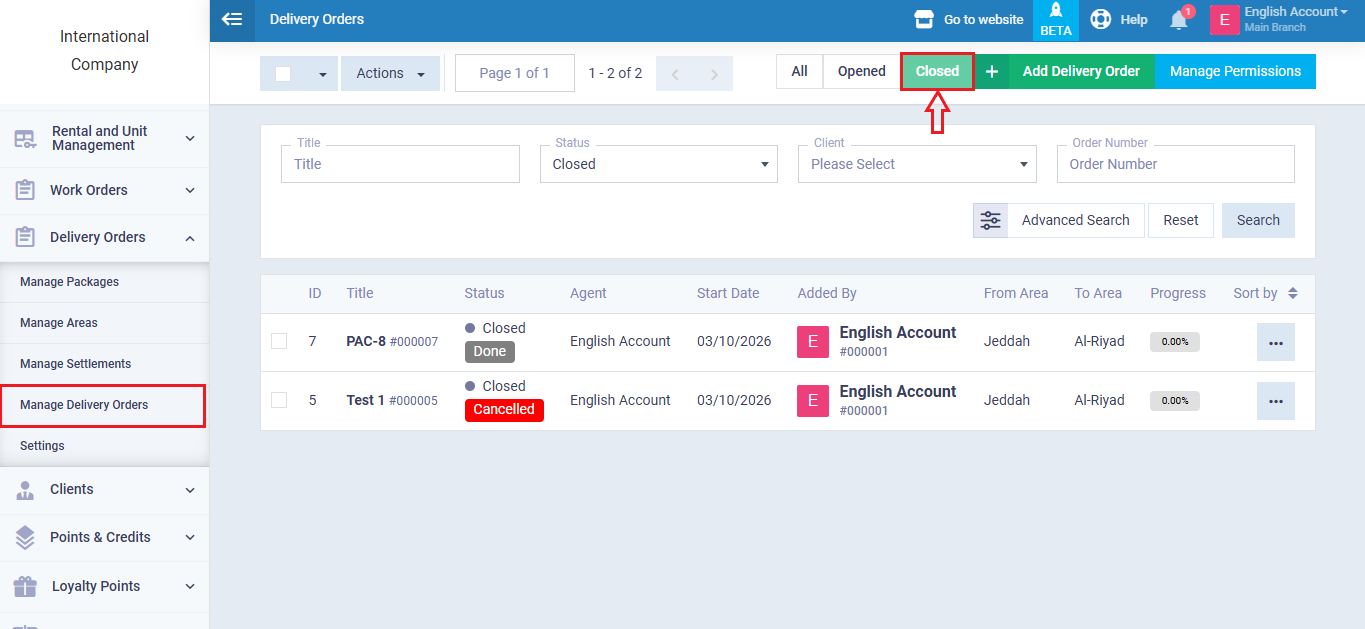
- It can be accessed from the Closed Orders list by clicking Closed in “Manage Delivery Orders”.