Adding an Asset via a Purchase Invoice
Managing assets inside the accounting system requires accuracy and clarity when recording each step. When you buy a new asset, such as equipment or machinery, it’s important to link the purchase invoice correctly to the accounts. This guide explains in detail how to add an asset using a purchase invoice.
Add an Account for Asset Purchases
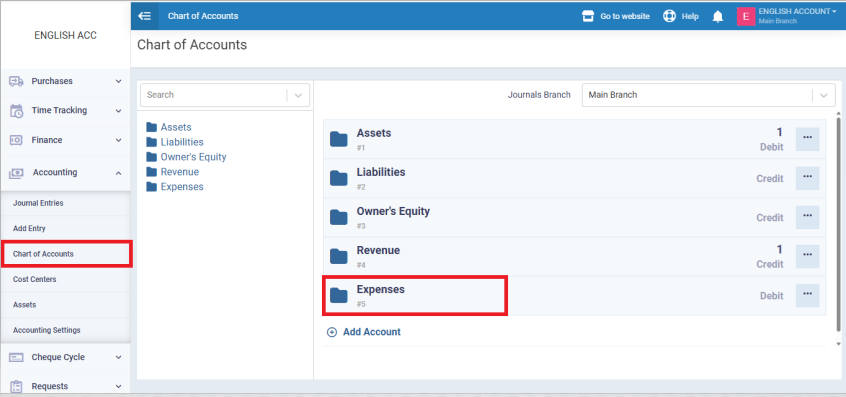
From the main menu, go to “Accounting”, then select “Chart of Accounts”, and go to the “Expenses” section.
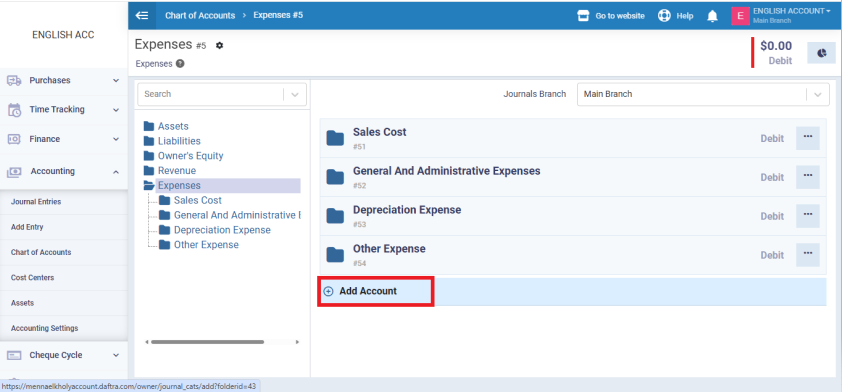
Click on “Add Account”.
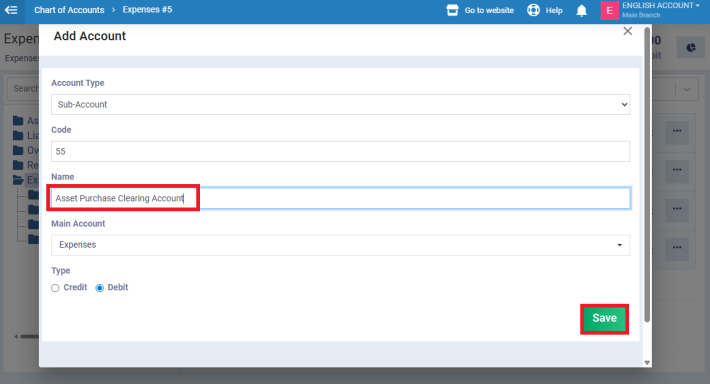
Create a new account named Asset Purchase Clearing Account, which will be used later for recording the invoice and linking it to the asset. Click “Save”.
Set up Account Routing
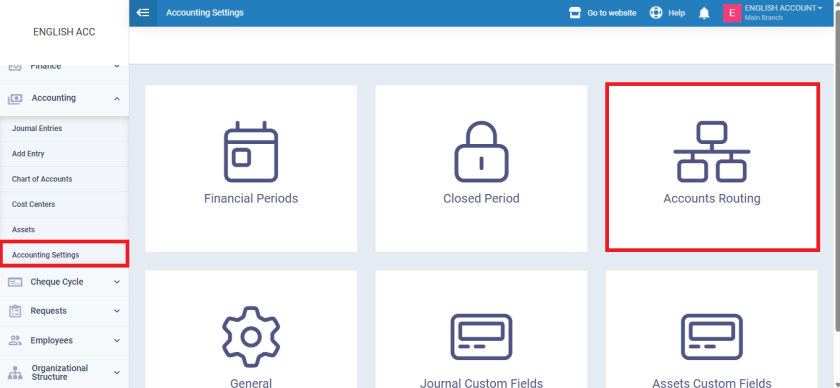
After creating the account, go to “Accounting Settings”, then open the “Accounts Routing” tab.
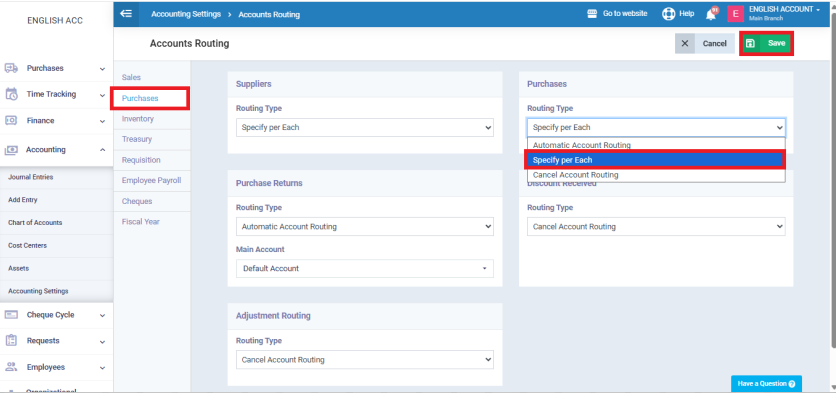
From the “Purchases” section, in the “Routing Type” field, click on “Specify per Each”, so you can route asset purchase transactions to the new account you created.
Record the Purchase Invoice
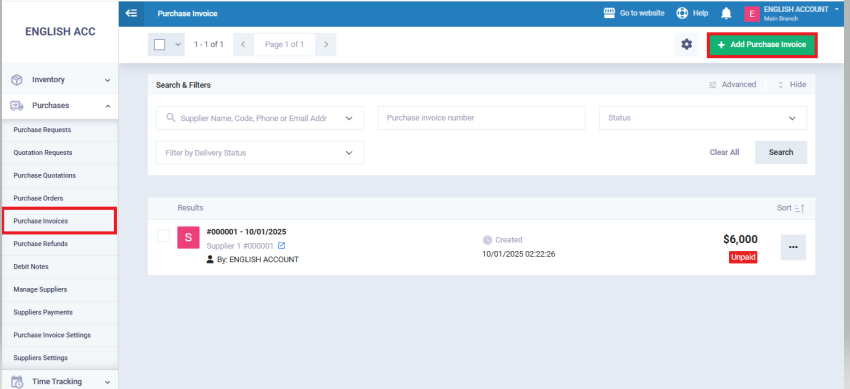
Go to the “Purchases” menu, then click on “Purchase Invoices”.
After that, click on “Add Purchase Invoice”.
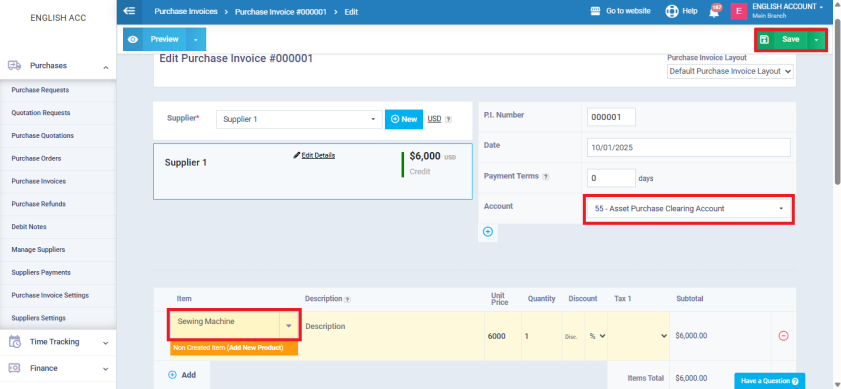
In the “Account” field, select the “Asset Purchase Clearing Account” that was created earlier.
Enter the product details manually in the invoice.
Add the Asset and Link the Account
Finally, from “Accounting” in the main menu, go to the “Assets” section and click on “Add Asset”.
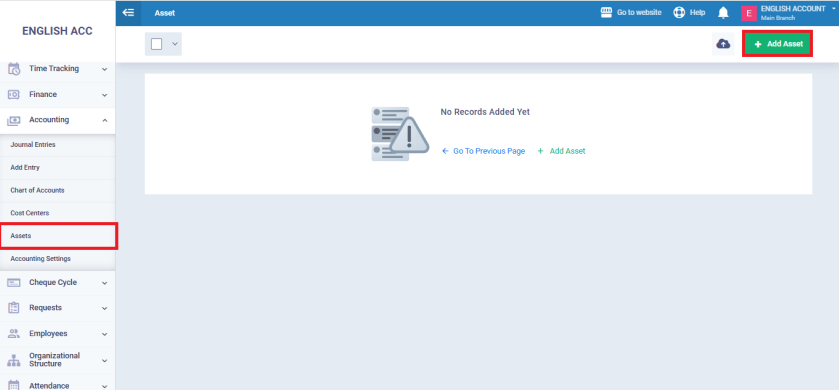
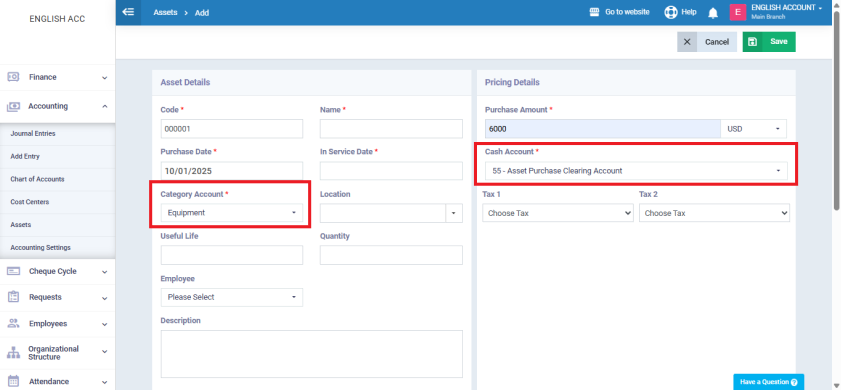
In the “Category Account” field, select the appropriate classification such as Equipment. In the “Cash Account” field, choose the Asset Purchase Clearing Account you created earlier. Click “Save”.